

Choose your products: Lift only or Vantage + Lift + Block
On this page
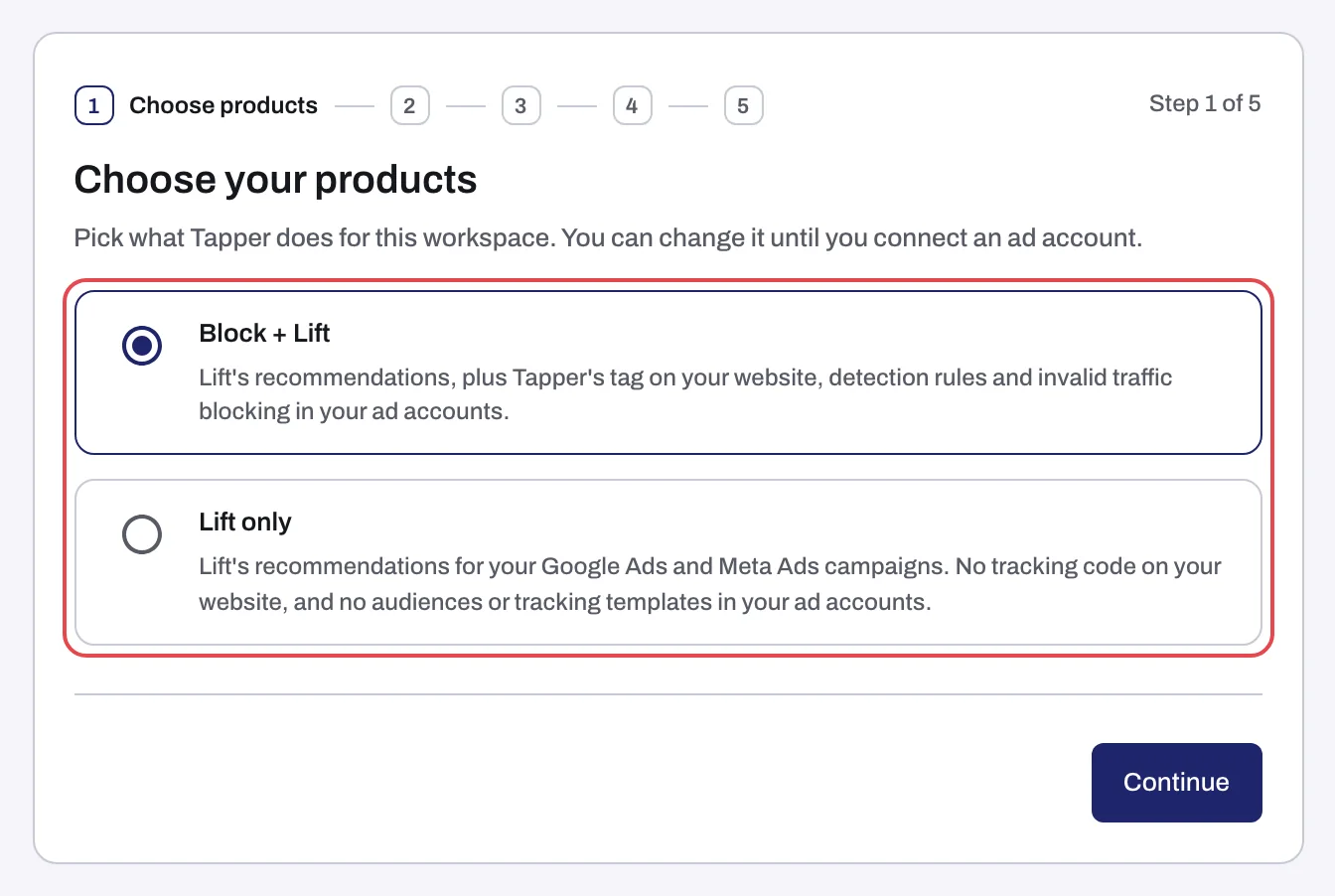
You choose what Tapper does for a workspace on the first wizard step, Choose your products. You can change it later in Settings.
The two choices
Both include Tapper Lift. Vantage + Lift + Block adds Tapper Block and Tapper Vantage.
| Choice | For the plans | What it means for you |
|---|---|---|
| Vantage + Lift + Block | Block, Vantage and Enterprise | Lift's recommendations, plus Tapper's tag on your website, detection rules and invalid traffic blocking in your ad accounts. That is the monitoring script on your website, detection rules on each entity, and exclusions written to your ad accounts. It includes Vantage. |
| Lift only | Lift | Lift's recommendations alone. No tracking code on your website, and no audiences or tracking templates in your ad accounts. Tapper connects to your ad accounts without installing anything: no tracking template, no audiences, no pixel requirement. |
Vantage + Lift + Block is preselected. Pressing Continue without touching it writes nothing, and the workspace keeps its products. Tapper can also enable Vantage for a Lift only workspace: see What Tapper Vantage does.
Tapper's plans
| Plan | What it gives you | Includes |
|---|---|---|
| Lift | Less waste: see where your ad budget leaks, and fix it in one click. | Lift |
| Block | Lower CPA: stop paying for invalid traffic. | Lift, Block and Relay |
| Vantage | Higher ROAS: bid for the customers worth the most. | Vantage, Lift, Block, Screen, Relay, Reach and Truth |
| Enterprise | Built for global brands running many markets. | Vantage, Lift, Block, Screen, Relay, Reach and Truth |
See every plan side by side on tapper.ai/pricing.
Choose in the wizard
- On step 1, Choose your products, select Vantage + Lift + Block or Lift only.
- Click Continue. If the step cannot save, press Continue again.
With Vantage + Lift + Block the wizard has five steps: Choose products, Name workspace, Connect ad account, Website monitoring and Detection rules. With Lift only it has three and lands on Lift after Connect ad account. Next for both: Name your workspace.
A Lift only workspace hides every Block screen instead of dimming it; the full list is in Lift only: what your workspace includes and leaves out.
Change your products in Settings
Owners and Admins can change products at any time, and the change applies at once: there is no Save.
- Open Settings > General, Workspace tab.
- Under Your products, find the product's card. It says whether the product is on, and Needs Block. where it depends on another product.
- Click Turn on or Turn off. Turn off asks you to confirm first; for Block, the confirmation lists what Tapper removes from each connected ad platform.
With several protected entities, each card says where the product stands, such as On for 2 of 7 entities, and the button changes every entity at once. Per entity opens the entity's own switches: see Products for each entity.
What you cannot switch yourself
- Block, once an ad account is connected. Tapper has already set Block up on the live account, so the card says it is fixed and offers Contact support.
- Vantage. It comes with Block and has no switch of its own.
- A product your Tapper team set. The card says so, with Contact support to change it.
To change one of these, write to support@tapper.ai with your workspace name and the choice you want. See How to get help from Tapper.
Related
Was this helpful?
Still need help?
Chat with our team and mention this article.