

Get started with Lift
On this page
Tapper Lift checks your ad accounts every day and lists the changes worth making, with the evidence and, where it can, the money per day. When a Google Ads card offers a fix, you press it and Tapper makes the change. Other changes you make in the ad platform, then mark as done. To sign up first, see Create your Tapper account.
Before you start
- The Owner or Admin role. Only Owners and Admins connect ad accounts. Managers can use Lift; Viewer members cannot. Whoever signs up is the Owner. Invitations start on Manager; invite read-only people as Viewer (Invite members and set their roles).
- A sign-in that opens your ad accounts, on Google, Facebook, TikTok for Business or Microsoft. For Google Ads fixes, its access must allow changes, such as Standard or Admin.
Blurred recommendations are ones Lift has found; each opens when your agreement with Tapper starts. Until then Unlock recommendations asks your Tapper contact for full access.
Step 1: choose your products
The wizard starts with Choose your products. Both choices include Lift:
- Vantage + Lift + Block (preselected) adds Block, which puts Tapper's tag on your website and blocks invalid traffic. The wizard adds Website monitoring and Detection rules.
- Lift only: no tag on your website, nothing written into an ad account on connect, and the wizard ends on Recommendations.
You can change the choice until you connect an ad account: see Choose your products. An existing workspace already includes Lift, so go to step 2.
Step 2: connect an ad account
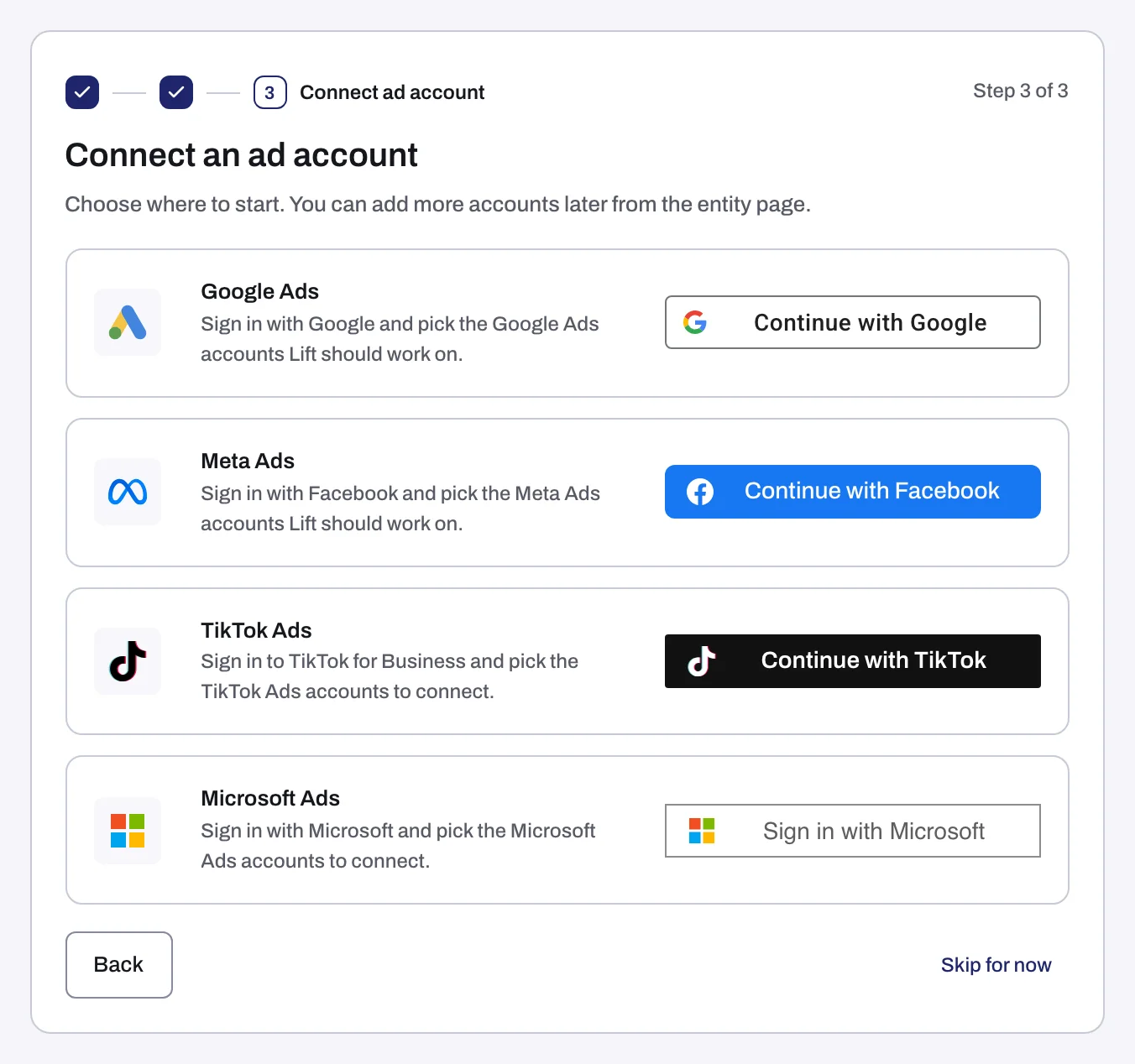
On Connect an ad account (Add an account outside the wizard), press Continue with Google, Continue with Facebook, Continue with TikTok or Sign in with Microsoft, sign in and tick the accounts. LinkedIn Ads, Snapchat Ads and Apple Ads have their own rows. See Google Ads, Meta Ads, TikTok Ads, Microsoft Ads, LinkedIn Ads, Snapchat Ads or Apple Ads.
When the first recommendations appear
Once Tapper has set your workspace up:
| Account | First recommendations |
|---|---|
| Google Ads, on Lift only | A first check about 45 minutes after you connect, otherwise the next daily check. |
| Google Ads, with Block | The next daily check. |
| Meta Ads | The first daily check after Lift has read up to 90 days of the account's history: usually the day after you connect. |
| TikTok Ads | The first daily check after Lift's first read of the account. Lift reads TikTok accounts once a day, after TikTok has settled the previous day's figures. |
Until then you see No open recommendations, or No TikTok recommendations when your only Lift account is on TikTok. Still empty? See No Lift recommendations yet.
Step 3: work the list
- Under Lift, click Recommendations.
- Read the headline: savings a day (for example "$1,450 a day in savings"), split into "ready to act on" and "to check first", then the spend checked and the count. Tabs narrow the list by platform and by state (Open, Done, Dismissed, Resolved).
- Start at the top, under Keywords and ads first, and press a row to show its card. How the list is ordered and what a card shows: Lift: what it does and where to find it and Read a Lift card.
- Act on the card:
- A Google Ads fix button is named for its change, such as Pause campaign. Press it, check the change and confirm. Tapper makes it and the card moves to Done.
- Otherwise make the change in the ad platform (Open in Meta Ads Manager or Open in TikTok Ads Manager takes you there), then press Mark as done and confirm.
- If the card does not apply, press Dismiss, with a reason.
Every button: Fix, mark as done, dismiss and revert. Lift changes nothing until a person confirms a fix, except within an automation band an Owner or Admin sets (Automatic fixes and the Activity tab).
Reasons and the fix plan
Reasons (or Open the fix plan on Recommendations) explains why wasted spend builds up in your Google Ads accounts, one card per step. Press Apply on a step, then Review and apply on each recommendation, and Tapper makes each fix you confirm. See Reasons and the fix plan.
What happens next
- Lift checks each account once a day; the top of Recommendations says when. Your own changes show after the next check, and a card whose issue is gone moves to Resolved.
- For email, press Turn on beside Alerts are off for these accounts at the dashboard's Lift heading, or switch each email on in Settings > Alerts > Emails: see Lift emails.
If something goes wrong
- "Only a workspace owner or admin can connect an account.": ask an Owner or Admin, or see Only a workspace owner or admin can connect an account.
- On Lift only, an account connected in another Tapper workspace is refused until an Owner or Admin disconnects it there.
- Connect an ad account to start Lift: the selected entity has no connected ad account. Press Connect an ad account.
- A grayed-out fix button gives its reason on hover. For "Write access has not been verified for this ad account yet, so fixes cannot be applied.", contact your Tapper contact and meanwhile make the change in Google Ads and press Mark as done. See A fix was refused or cannot be reverted.
Related
Was this helpful?
Still need help?
Chat with our team and mention this article.