

Connect Google Ads
On this page
Connecting Google Ads is a Google sign-in and a pick from a list. You never type an account number, and there is nothing to approve inside Google Ads.
Before you start
- You need to be a workspace Owner or Admin (why).
- Sign in with a Google login that can open the account, directly or through a manager account. Tapper lists only the accounts that login reaches.
- Your products, Vantage + Lift + Block or Lift only, decide what Tapper writes into the account. You can change them until you connect an ad account; after that, through Tapper (Choose your products).
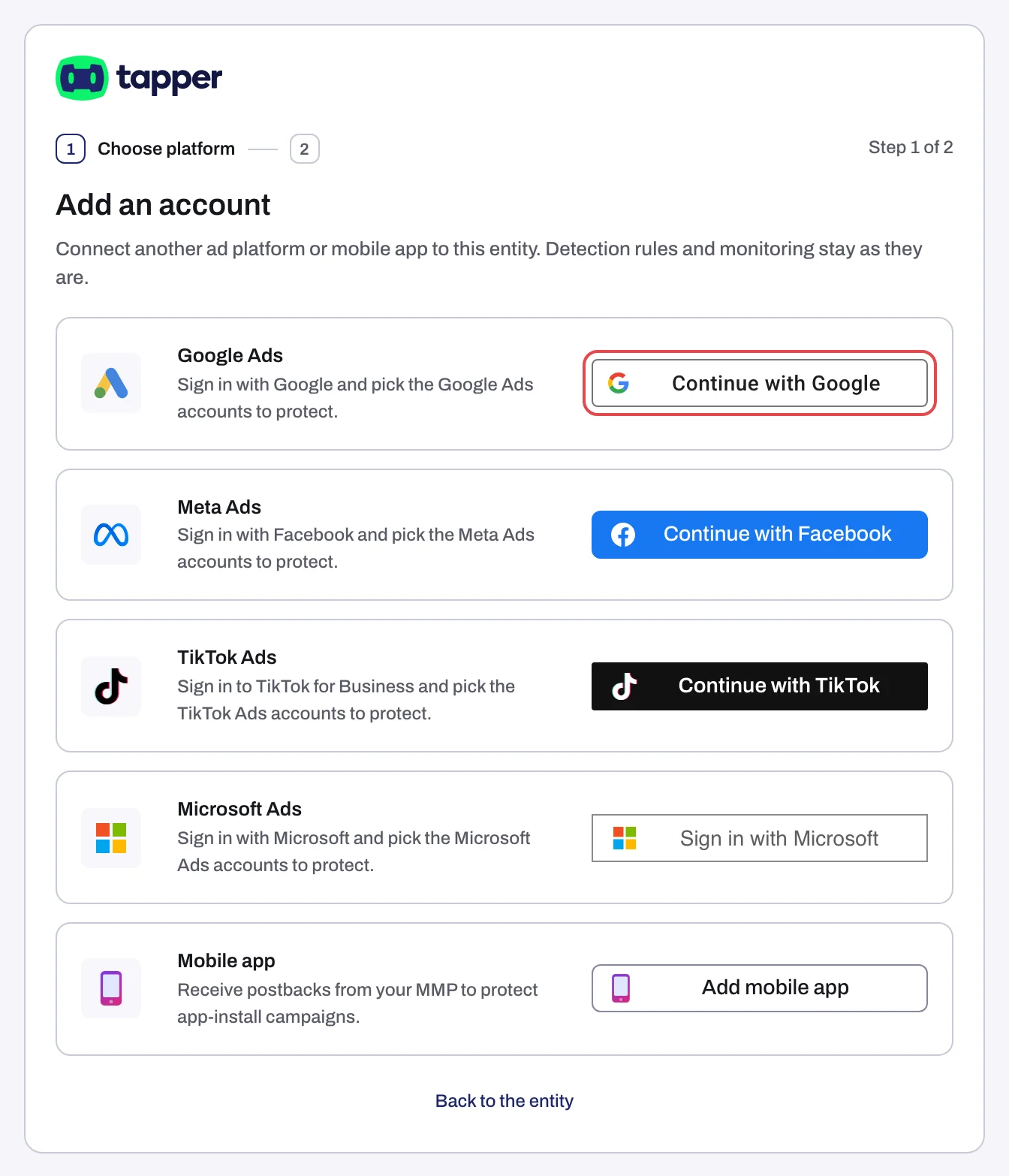
Start from the wizard's Connect an ad account step, or on an entity, the Google Ads page of Setup > Ad accounts: Add ad account (or Connect Google Ads while it has none). See Add another ad account to an entity.
Steps
1. Sign in with Google
- On the Google Ads row, click Continue with Google. A popup opens, or the same tab if your browser blocks popups.
- Pick the Google account and accept access to your email address and, ongoing, your Google Ads accounts. Tapper uses it to list accounts, read campaigns and metrics, apply the Lift fixes you choose and, with Block, write its tracking template and exclusions.
- The account list opens. Your sign-in is held for 30 minutes.
2. Choose the accounts
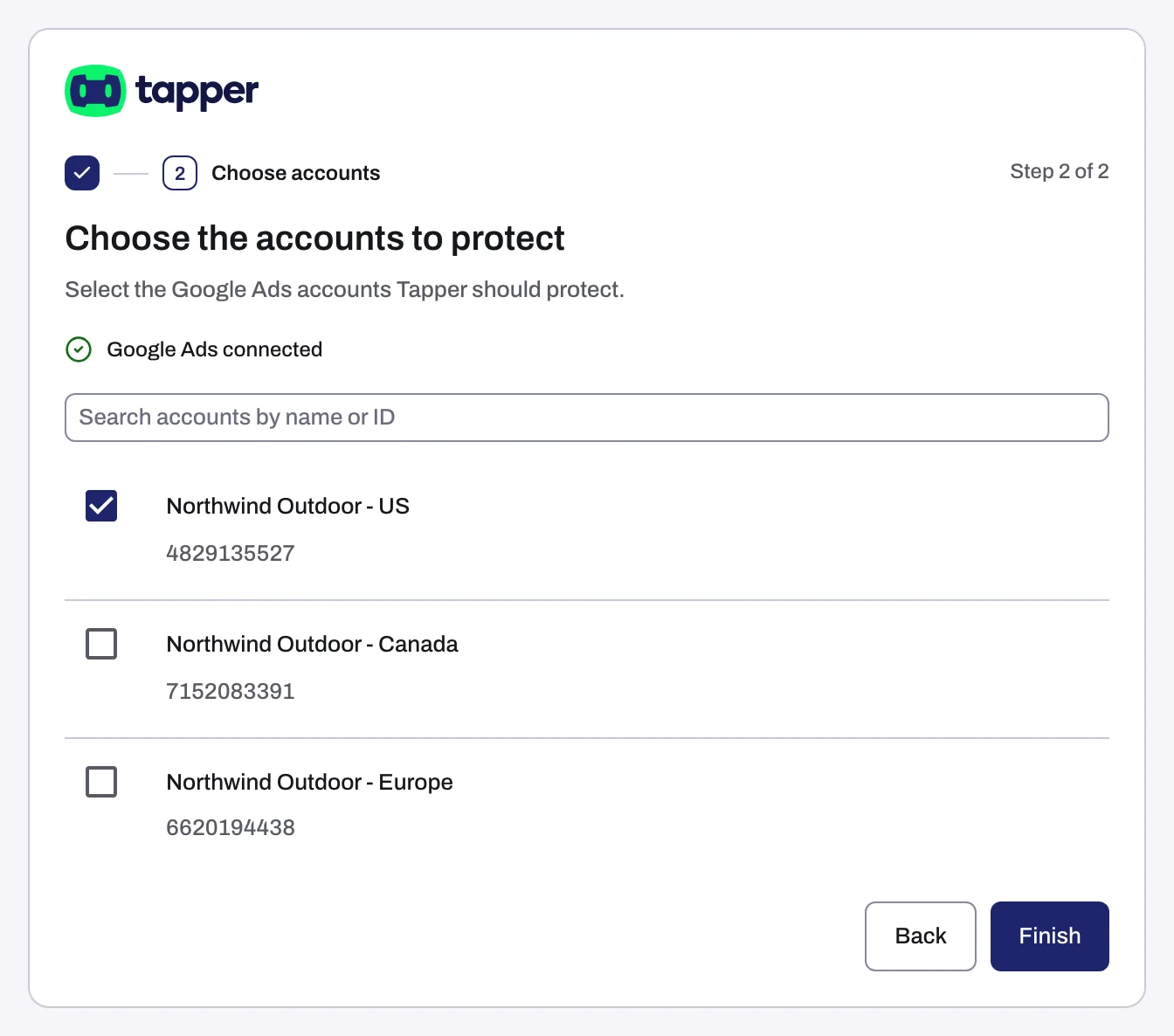
- Choose the accounts to protect (Lift only: Choose the accounts to connect) lists every account the sign-in reaches, by name and ID. A manager account (MCC) is expanded into its client accounts and never listed itself. In Search accounts by name or ID, type an ID as digits only.
- Tick each account. If one is missing, sign in again with a login that has access to it.
- Click Continue (wizard with Block) or Finish (adding to an entity, or a Lift-only wizard).
3. Wait for linking
Linking takes up to 90 seconds, then shows Google Ads connected. Click Continue or Done. For a partial result or This is taking longer than usual, see Connection failed, Sign-in cancelled or Connection status unknown.
What Tapper writes into the account
| Workspace products | What happens at link time |
|---|---|
| With Block | Tapper replaces your account-level tracking template with its own, creates its conversion actions, user lists and audiences (all named "Tapper - ..."), syncs your campaigns and checks your targeting matches your detection rules. Disconnecting restores or clears your own template. |
| Lift only | Nothing is written. Tapper backfills metrics and runs its first check later. |
The full list is in What Tapper creates in your Google Ads account. On a Lift-only workspace, an account live in another Tapper workspace is refused; disconnect it there first.
Your Google Ads customer ID
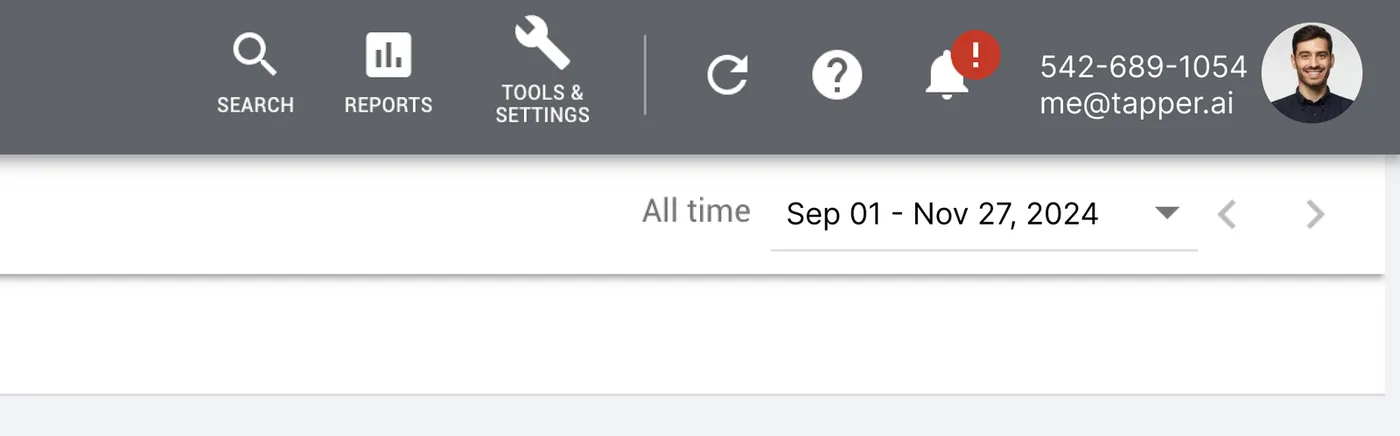
The 10-digit customer ID shows as xxx-xxx-xxxx at the top left of every Google Ads page, next to the account name. The number at the top right, above your email, is the account you signed in through, which can be a manager account. Tapper shows the 10 digits without dashes as the Account ID. You need it for a refund claim (Request a refund from Google Ads for invalid clicks).
What happens next
- The wizard goes on to Install website monitoring (with Block), or finishes and opens Lift (Lift only).
- The account is listed under Google Ads accounts with Connected, its Account ID and Manage campaigns.
- On Campaigns, each Search, Display, Shopping, Demand Gen and Performance Max campaign has a Protection switch, on by default (Choose which campaigns Tapper protects). Lift only shows no switch.
- Campaigns sync at connect, then every 6 hours, or on Refresh. With Block, new campaigns get Tapper's exclusions.
- In a free trial Tapper records invalid clicks without blocking them (Monitor-only).
- Lift only: the first check runs 45 minutes after connecting, and recommendations appear within a few hours. See When your data shows up after connecting.
If something goes wrong
- Sign-in popup messages: Connection failed, Sign-in cancelled or Connection status unknown.
- An empty list, a list that did not load, an account already connected, or Google Ads limiting requests: No Google Ads accounts found, or the list did not load.
- No access, signed out, or an account that isn't active: Google Ads says your sign-in has no access to the account.
- "Tapper couldn't finish connecting this account. Try again; if it fails twice, contact support.": retry once, then write to support@tapper.ai.
Related
Was this helpful?
Still need help?
Chat with our team and mention this article.