

Aborted ad clicks: block IPs whose clicks never load your page
An aborted ad click is a click on your ad that Tapper registers, but your website never loads and no interaction is recorded. The Aborted ad clicks section of the Web detection rules tab lets you tell Tapper Block how many of these one IP address may produce in a time window before Tapper treats that IP as invalid.
How it works
The script for an ad click fires, but the website does not load and no events are recorded.
Aborted clicks come from two places:
- Bots and click scripts that trigger the ad click but never render the landing page. A real person who clicks an ad wants to see the page; a script often does not.
- Technical problems: a slow website, a script error on the page, or a poor network connection on the visitor's side.
The rule is a threshold, built like the invalid click threshold one section above. Each row reads Allow up to [N] aborted ad clicks within [M] Seconds, Minutes, Hours or Days. When one IP address goes past N aborted clicks inside that window, Tapper flags it with the block reason Aborted Ad Click.
The exception. If at least one session from the same user later shows valid interaction, the click is not blocked. A visitor whose first attempt stalled and who comes back and uses your page is not treated as invalid for the earlier aborted click. This is what separates a customer on a weak connection from a script that never loads anything.
What a flagged IP leads to. While the rule set has Monitoring-only mode switched on, Tapper records the flag and excludes nothing; every free trial runs this way. Once blocking is on, the IP is excluded from your protected campaigns like any other invalid IP. See Monitoring-only mode: why nothing is blocked yet and what changes when blocking starts and How Tapper Block works.
This rule is separate from the Suspicious Ad Clicks field under Detection features. That field is one number; the aborted rule is its own grid of rows, each with a time window, and it applies only when the website does not load. See Suspicious ad clicks and minimum seconds on site.
What you see in Tapper
The section sits on the Web detection rules tab between Detection features and Blocking.
| Control | What it does |
|---|---|
| Allow up to [N] aborted ad clicks within [M] [unit] | One rule: N aborted clicks allowed inside a window of M Seconds, Minutes, Hours or Days. |
| Trash icon (Remove rule) | Removes that row. The removal is saved when you click Update. |
| Add new rule | Adds an empty row. Disabled once you reach your plan's limit. |
| Update threshold rules (Update rules on a narrow screen) | Saves every row you added, changed or removed. Disabled until something changed. |
| No rules yet | The empty state. With no rows, no IP is flagged for aborted clicks on this rule set. |
How many rows you can add depends on your plan.
Where the first row comes from. When you set up a Block + Lift workspace through onboarding, Tapper creates one aborted-click rule on the entity's default rule set: 5 aborted ad clicks within 24 hours. An entity you add later with Protect new entity, and every custom rule set you create, start with No rules yet.
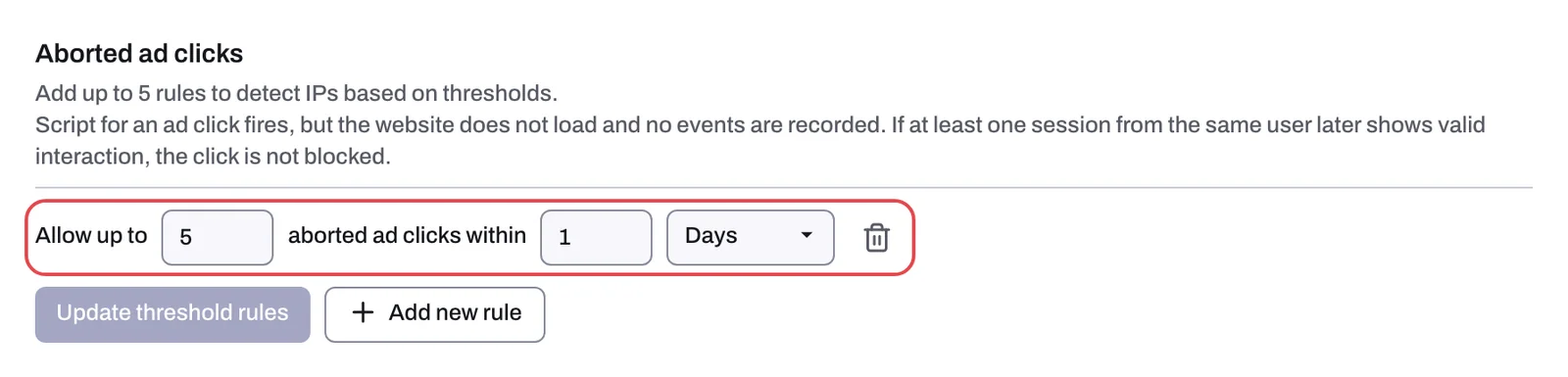
Set the rule
You need the Owner or Admin role. Editor members can see the rules but cannot change them.
- In the sidebar, open Protected Entities and click the entity.
- In the left rail, under Website, click Detection rules. The page title is Web detection rules.
- In Rule sets, select the set you want to edit. Everything below applies to the selected set. See Rule sets: apply different rules to platforms, ad accounts or campaigns.
- Scroll past Detection features to Aborted ad clicks.
- Click Add new rule, or edit the row that is already there.
- Type the number of aborted clicks, type the window, and pick Seconds, Minutes, Hours or Days.
- Click Update threshold rules.
Choose your numbers
- The onboarding preset, 5 within 24 hours, is a sensible starting point: a genuine visitor on a weak connection rarely fails to load your page more than a few times in a day, while a script that never renders pages piles up aborted clicks quickly.
- To check what the rule is catching, open the Clicks page and filter Block reason on Aborted Ad Click. Many rows from the same few IP addresses point to automated traffic: a lower count or a shorter window catches it sooner. Rows that look like real customers point the other way: raise the count. See The Clicks page and the visitor drawer.
- If aborted clicks suddenly appear from many different IP addresses at once, suspect your website before your traffic. On the dashboard Overview, the Clicks & Failed Script Load % card shows the "Failed load rate {x}% of Google Ads clicks"; a jump there usually means a slow page, a broken deployment or a tag that stopped loading. See Check that the monitoring script is working on your site.
- If only some campaigns need a different setting, create a custom rule set, give it its own aborted-click rows and link those campaigns under Applies to. The Default set keeps the rest.
Related
Was this helpful?
Related articles
Still need help?
Chat with our team and mention this article.