

Web detection rules: every setting on the tab
The Web detection rules tab is where you tell Tapper Block which domains it watches and what counts as an invalid click on them. Each section links to the article that covers it in depth.
Where to find it
- Open Protected Entities in the sidebar and pick the entity.
- In the left rail, under Website, click Detection rules. The page title is Web detection rules.
On a Block + Lift workspace the entity opens on this tab by default. On a Lift only workspace the tab does not exist: a link to it shows Not part of Lift. See Lift only: what your workspace includes and leaves out.
There is no Save button
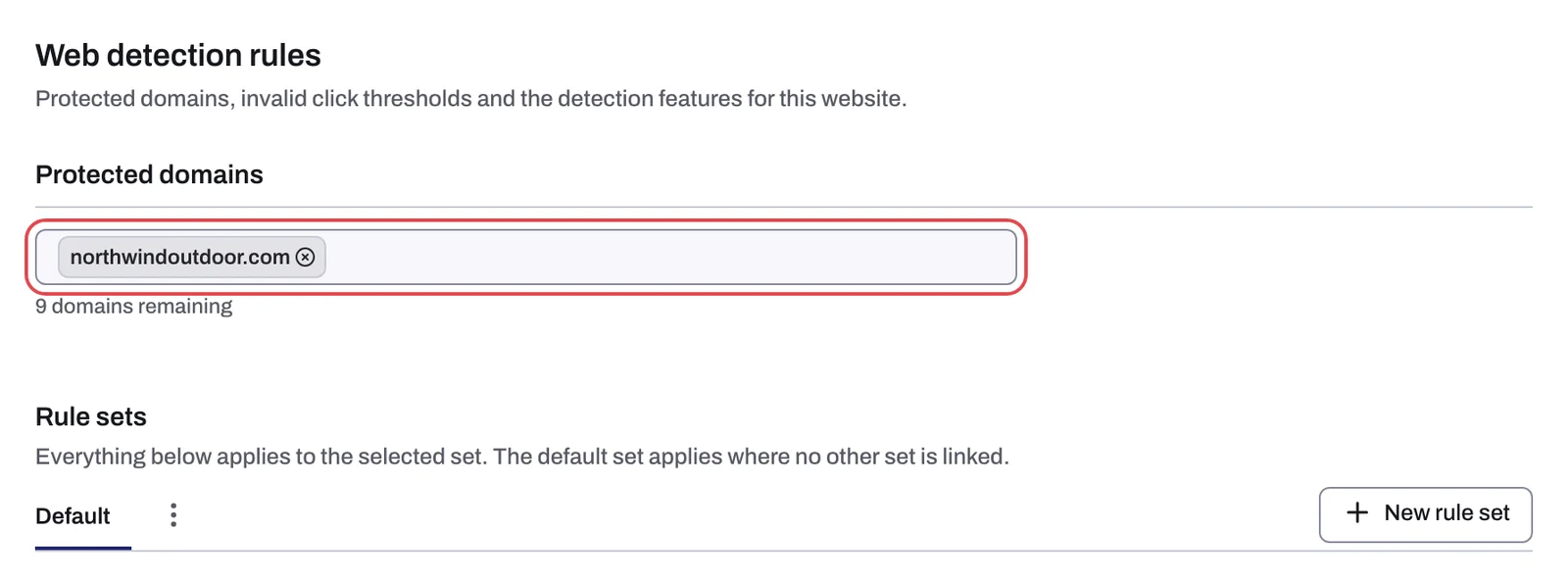
Protected domains
The first field on the tab. Type a domain and press Enter. These are the domains the monitoring script is allowed to run on, and the destinations your tracking links may point to.
- With no domain yet, the helper reads Add at least one domain to turn on protection. An entity needs at least one domain and one connected ad account before its status chip turns to Protected.
- With domains added, the helper counts what your plan still allows.
- You can enter
yourdomain.comorwww.yourdomain.com; Tapper strips the leadingwww.. An entry Tapper cannot read as a domain is refused with Enter a domain like example.com. - Going over your plan's allowance is refused.
Rule sets
The Rule sets strip sits under the domains. Everything below it applies to the selected set. The default set applies where no other set is linked. Every entity has one set that cannot be deleted, named Default. Everything further down the tab belongs to whichever set is selected here.
- New rule set creates a custom set (dialog Create Rule, field Name, button Create).
- The ⋮ menu beside the sets offers Rename for the selected set. It opens the Edit Rule dialog, where a custom set can also be deleted.
- A custom set that is linked to nothing shows a warning triangle on its tab; hover it to read Rule set is not assigned to any campaigns, ad accounts or marketing platforms.
- Applies to appears for custom sets only. Leave a field empty and the set applies everywhere. It has three lists, Link Marketing Platform, Link Ad Account and Link Campaign, each with its own Update button, which appears once you change that list.
Creating, scoping and deleting sets is covered in Rule sets: apply different rules to platforms, ad accounts or campaigns.
Invalid click threshold
The first rule section. You can add as many rows as your plan allows. For example: "Block an IP if they click on an ad more than 3 times within 10 minutes."
- Each row reads Allow up to [N] ad clicks within [M] [Seconds | Minutes | Hours | Days]. Both numbers must be at least 1. The trash icon (Remove rule) deletes a row.
- Add new rule adds a row; Update threshold rules saves the grid.
- Suggest rules opens Choose your industry; Use suggested rules adds that industry's preset rows to the grid and saves them.
Read Set invalid click thresholds for how to pick the numbers and Suggested thresholds by industry for the full preset table.
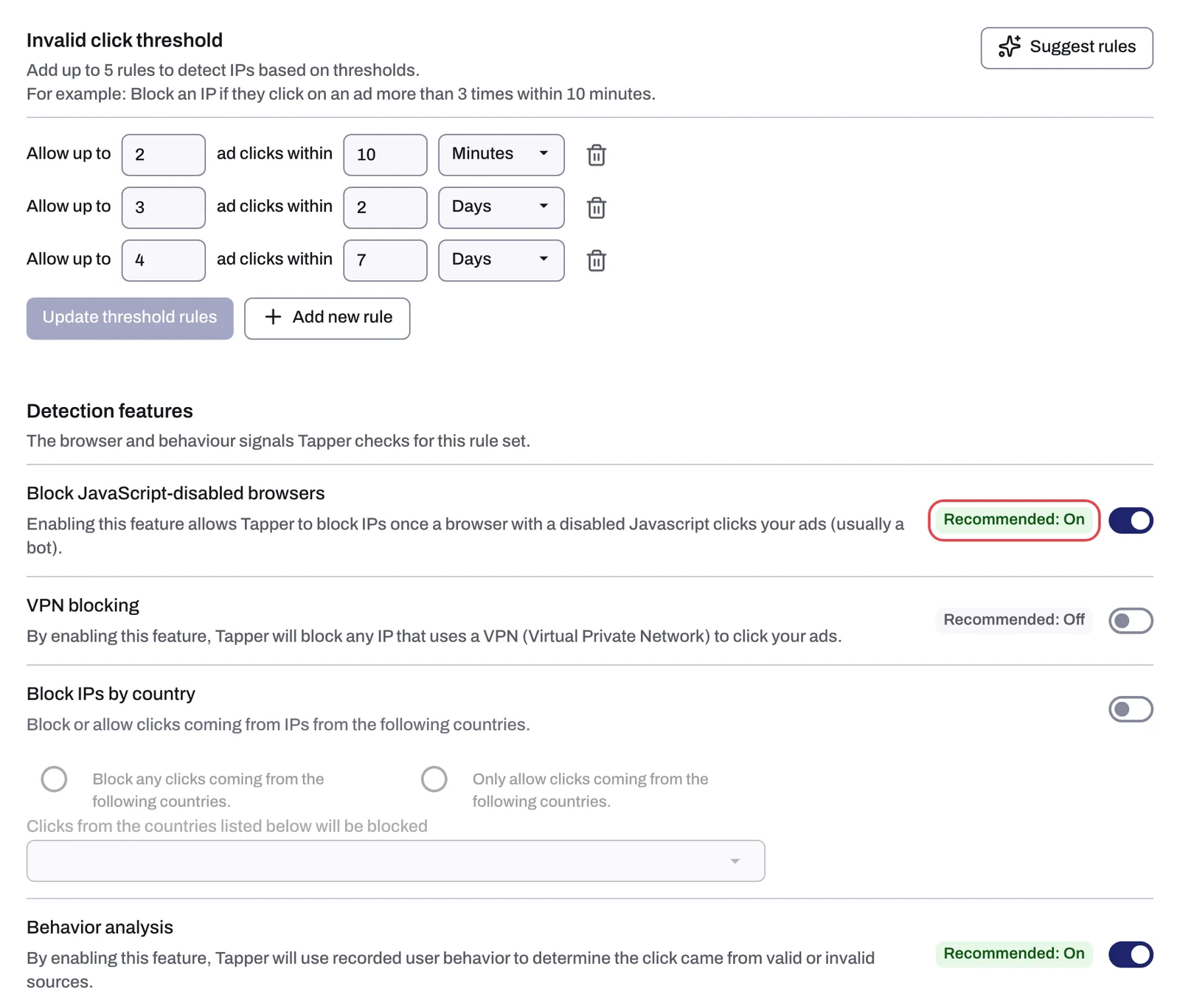
Detection features
Four switches and two number fields, in this order. The chip next to a switch reads Recommended: On or Recommended: Off; a control without a chip has no recommendation.
| Control | Chip | What it does (helper text) | New rule set |
|---|---|---|---|
| Block JavaScript-disabled browsers | Recommended: On | "Enabling this feature allows Tapper to block IPs once a browser with a disabled Javascript clicks your ads (usually a bot)." | On |
| VPN blocking | Recommended: Off | "By enabling this feature, Tapper will block any IP that uses a VPN (Virtual Private Network) to click your ads." | Off |
| Block IPs by country | none | "Block or allow clicks coming from IPs from the following countries." Choose Block any clicks coming from the following countries. or Only allow clicks coming from the following countries. and list the countries. | Off |
| Behavior analysis | Recommended: On | "By enabling this feature, Tapper will use recorded user behavior to determine the click came from valid or invalid sources." | On |
| Suspicious Ad Clicks | none | "Block any IP that clicks [N] times without any events on page." | 3 |
| Minimum Seconds on Site | none | "Block any IP that spends less than [N] seconds on your site." | 2 |
The three switches are explained in Detection features: what each switch does, the country list in Block or allow clicks by country and the two number fields in Suspicious ad clicks and minimum seconds on site.
Aborted ad clicks
A second rule grid, built like the invalid click threshold. An aborted click is one where the script for an ad click fires, but the website does not load and no events are recorded. If at least one session from the same user later shows valid interaction, the click is not blocked.
- Each row reads Allow up to [N] aborted ad clicks within [M] [unit].
- Update threshold rules saves the grid (Update rules on a narrow screen).
- An entity created through onboarding starts with one row: 5 aborted ad clicks within 24 hours.
Details in Aborted ad clicks: block IPs whose clicks never load your page.
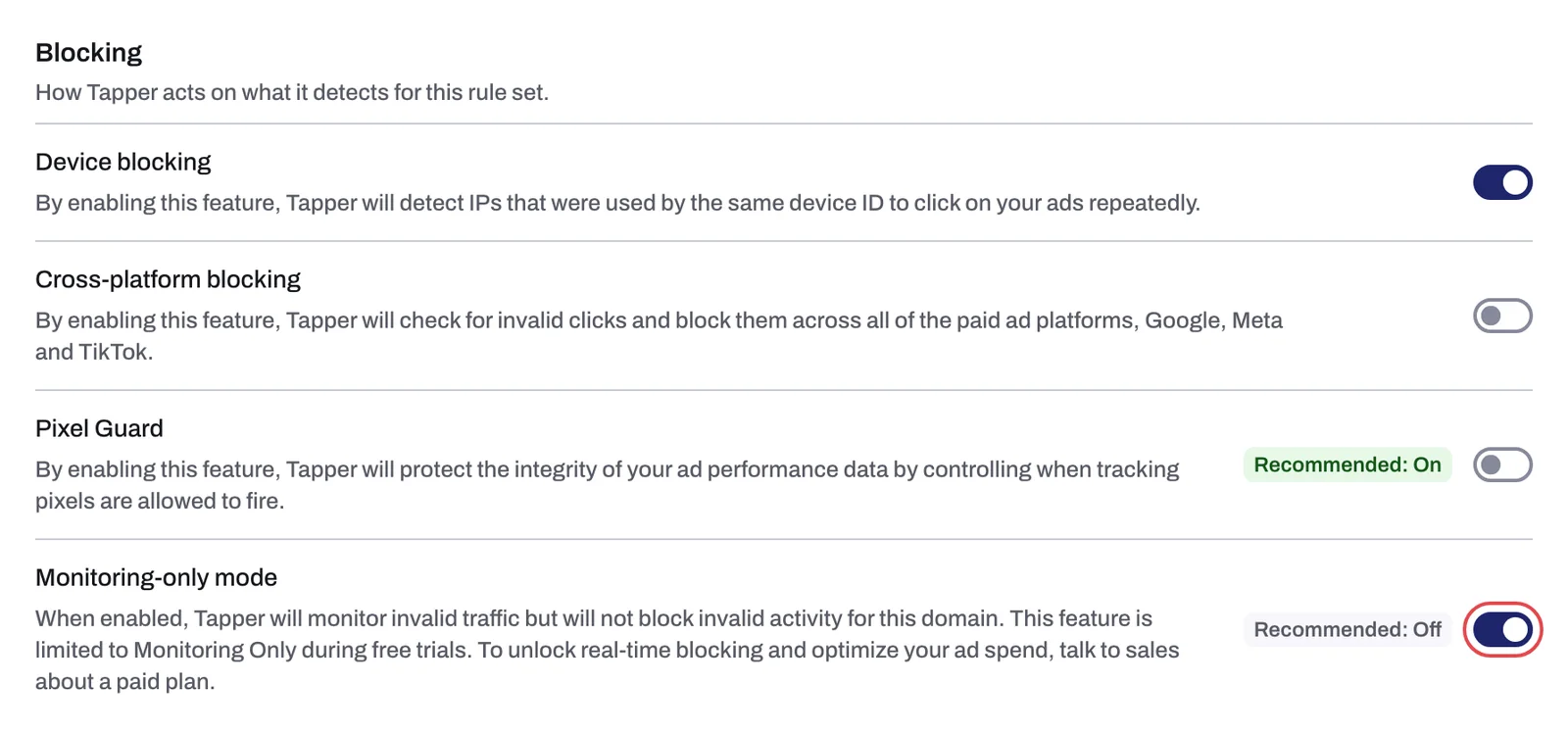
Blocking
Four switches.
| Control | Chip | What it does (helper text) | New rule set |
|---|---|---|---|
| Device blocking | none | "By enabling this feature, Tapper will detect IPs that were used by the same device ID to click on your ads repeatedly." | On |
| Cross-platform blocking | none | "By enabling this feature, Tapper will check for invalid clicks and block them across all of the paid ad platforms, Google, Meta and TikTok." | Off |
| Pixel Guard | Recommended: On | "By enabling this feature, Tapper will protect the integrity of your ad performance data by controlling when tracking pixels are allowed to fire." | Off |
| Monitoring-only mode | Recommended: Off | "When enabled, Tapper will monitor invalid traffic but will not block invalid activity for this domain. This feature is limited to Monitoring Only during free trials. To unlock real-time blocking and optimize your ad spend, talk to sales about a paid plan." | On |
Each switch has its own article: Device blocking, Cross-platform blocking, Pixel Guard and Switch blocking on or off: what changes in your ad accounts.
What a new rule set starts with
The default set of a new entity and every custom set you create start with the values in the last column of the two tables above: switches at their defaults, Suspicious Ad Clicks at 3, Minimum Seconds on Site at 2 and Monitoring-only mode on. A custom set starts with both rule grids empty; the default set has rows only if onboarding created your industry's preset and the aborted-click row of 5 within 24 hours.
The same form during onboarding
The last onboarding step, Set your detection rules, shows this same form with two differences: there is no Rule sets strip and no Applies to, because the wizard edits only the default set. Every change saves itself exactly as on the tab, and Finish closes the wizard. Lift only workspaces skip this step entirely, since they have no detection rules.
Manual IP and CIDR exclusions are not on this tab; they live on Auto IP blocking. See Manually exclude IP addresses and ranges.
Related
Was this helpful?
Related articles
Still need help?
Chat with our team and mention this article.