

Device blocking: catch repeat offenders who change IP
Bad actors who click your ads on purpose rarely use one IP address. They switch networks or rotate proxies, so each visit comes from a new IP address and looks like a new person. Device blocking is the switch in Tapper Block that makes this harder: Tapper recognizes the device behind the clicks, and when the same device keeps clicking, the IP addresses it used are blocked, not just the first one.
How it works
Ad platforms accept IP and audience exclusions, not device IDs: Google Ads takes both, while Meta and TikTok take audience exclusions only. Tapper cannot tell an ad platform to stop showing ads to a device, so it works one level up.
- The monitoring script on your landing page collects device and browser attributes (for example brand, model, screen size and installed fonts) and derives a device ID from them.
- Every ad click that lands on your page is tied to that device ID, together with the IP address it came from.
- When the same device ID clicks your ads repeatedly, Tapper flags it and blocks the IP addresses that device used. In Google Ads, the only platform that takes IP exclusions, those addresses are excluded from your campaigns.
Two things to know about the device ID:
- It is derived from the device and browser, not stored on the device like a cookie, so clearing cookies does not reset it. For a normal visitor it stays stable from one session to the next.
- It is not permanent or guaranteed unique. Bots and spoofing tools deliberately change or fake browser attributes between visits. Tapper treats that instability and tampering as signals in their own right, which is why a tampered fingerprint can show up as its own block reason (Tampered Device) rather than slipping through.
The signals behind the device ID
The device ID is one output of a broader set of browser checks. Tapper combines them into a single decision per visitor instead of showing you a score. The checks include:
- Consistency between browser APIs. A browser reports its environment through several APIs, and a real device reports the same story everywhere: the user agent agrees with the platform and screen dimensions, the device pixel ratio agrees with the screen resolution, the browser languages agree with the request headers. Mismatches point to spoofing or automation.
- Headless and automated browser markers. Signs such as
navigator.webdriverset to true, missing or uniform values from the WebGL, Audio or Canvas APIs, or a lack of variety in fonts and plugins are typical of headless browsers, automation frameworks and click farms. - Stability over time. A normal visitor's fingerprint changes little between sessions. Frequent, unexplained changes from what claims to be the same visitor count against it.
- Geography. The time zone and language the browser reports are compared with the location of the IP address. A browser on a US time zone arriving from an IP in another region is a mismatch worth flagging.
- Behavior. With Behavior analysis switched on in Detection features, on-page behavior (scrolling, clicks, focus changes and the timing between actions) feeds the same decision. See Detection features: what each switch does.
The visible outcome of these checks is the block reason on each visitor, with labels such as Fake User Agent, Tampered Device, Suspicious Screen Resolution and Geographical Inconsistency, plus reasons for headless browsers, Selenium bots and OS and device mismatches. Block reasons explained: what each label means lists them.
What you see in Tapper
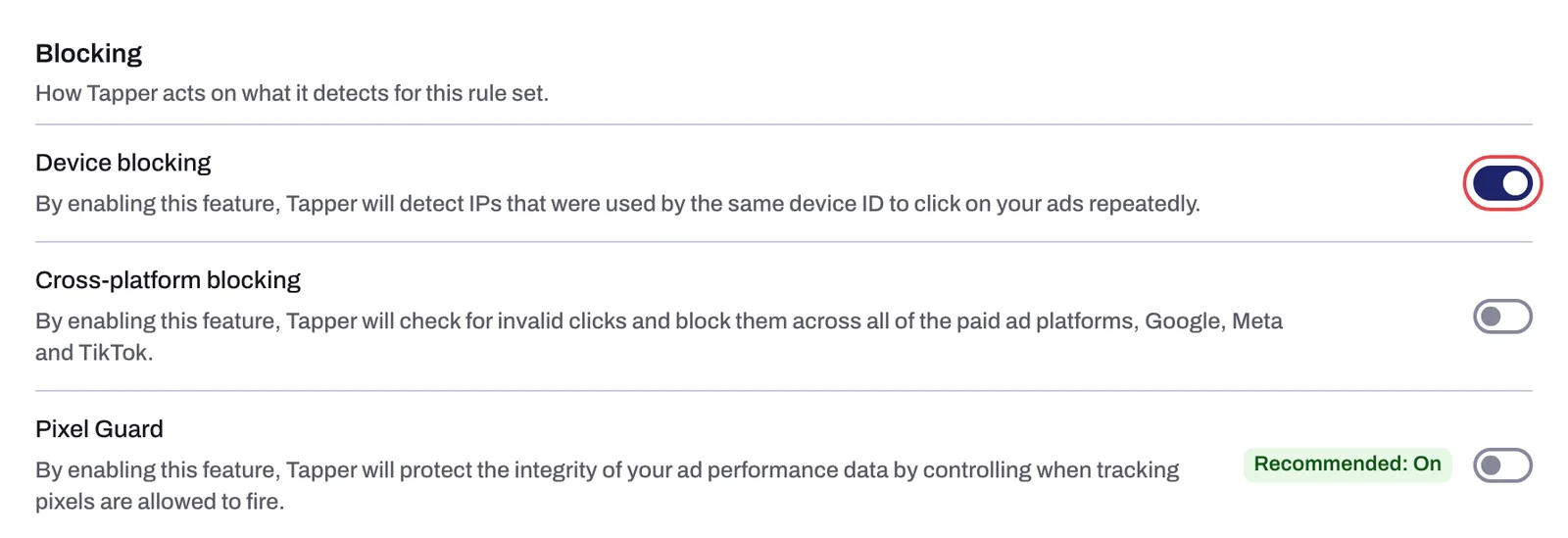
The switch lives on the entity's Web detection rules tab, in the Blocking section. Open Protected Entities, pick the entity, then Detection rules in the left rail.
| Setting | Helper text | Default for a new rule set |
|---|---|---|
| Device blocking | "By enabling this feature, Tapper will detect IPs that were used by the same device ID to click on your ads repeatedly." | On |
There is no Save button on this tab: the switch saves as soon as you click it. The setting belongs to the selected rule set, so if you use several rule sets, check it on each one.
To see the result, open Clicks in the sidebar. The Block reason column shows why a visitor was flagged, and View details opens the visitor drawer (for Google and Meta clicks), which ends with an IP Addresses list. A visitor who came back from more than one IP address shows each of them there.
Before it can work
- The monitoring script must be installed on the landing pages your ads point to. Without it there is no device ID and the switch has nothing to act on. See The monitoring script: what it does and where to find it.
- If your site sends a Content-Security-Policy header, it must allow
https://fingerprint.tapper.aiunderconnect-srcalong with the other Tapper sources, or browsers block the monitoring script and Tapper sees no visits. See Allow Tapper in your Content Security Policy.
Related
Was this helpful?
Related articles
Still need help?
Chat with our team and mention this article.