

Suggested thresholds by industry
Tapper Block ships one table of suggested invalid click thresholds, one row per industry. The onboarding wizard uses it when you pick an industry on the Name your workspace step, and the Suggest rules button on the Web detection rules tab offers the same presets later.
How the presets work
Each preset is three invalid click threshold rules in the form Allow up to [N] ad clicks within [M] [unit]. Tapper counts ad clicks per IP inside each window. An IP that clicks more often than a rule allows is detected as invalid and, when blocking is on for the rule set, excluded on Google Ads, Meta and TikTok. How Tapper Block works explains what an exclusion does on each platform.
The three rules in a preset cover three horizons: a short window that catches bursts of clicks (10 minutes to 1 day), a medium window and a long window that catch slow repeat clicking over days or weeks. The counts are the main difference between industries. Retail is the loosest preset (3 clicks in 10 minutes, 7 in 7 days, 10 in 30 days), since shoppers often come back to the same ad many times. Most other industries allow 2 clicks in the short window and 3 or 4 over the long one.
The presets are a starting point, not a verdict. Every row can be edited, removed or added to afterwards, and Set invalid click thresholds covers how.
Where the presets are applied
- During onboarding. The Industry (required) field on the Name your workspace step is mandatory. When you press Continue, Tapper creates the entity and, on a Block + Lift workspace, adds the industry's three threshold rules to the entity's default rule set. It also adds one aborted ad click preset: 5 aborted ad clicks within 24 hours (see Aborted ad clicks: block IPs whose clicks never load your page). A Lift only workspace gets no preset rules.
- Later, from the entity page. The Suggest rules button in the Invalid click threshold section opens the Choose your industry dialog. Picking an industry and pressing Use suggested rules adds that industry's three rules to the rules already in the list and saves them.
Rules you create during onboarding land on the default rule set, the set that applies wherever no other set is linked. On the entity page, pick the rule set you want to change before you press Suggest rules. Rule sets: apply different rules to platforms, ad accounts or campaigns explains how sets are scoped.
The preset table
Every count is ad clicks per IP within the window.
| Industry | Short window | Medium window | Long window |
|---|---|---|---|
| Automotive | 2 in 1 hour | 3 in 14 days | 4 in 30 days |
| Beauty | 2 in 1 hour | 3 in 7 days | 4 in 30 days |
| E-Commerce | 2 in 10 minutes | 3 in 2 days | 4 in 7 days |
| Entertainment | 2 in 1 day | 3 in 7 days | 4 in 30 days |
| Finance & Banking | 2 in 1 day | 3 in 7 days | 3 in 30 days |
| Healthcare | 3 in 1 day | 4 in 7 days | 5 in 14 days |
| Insurance | 2 in 1 day | 3 in 14 days | 5 in 30 days |
| Marketing | 2 in 1 hour | 3 in 7 days | 4 in 30 days |
| Media | 2 in 1 day | 3 in 14 days | 4 in 30 days |
| Real estate | 2 in 1 day | 3 in 7 days | 5 in 30 days |
| Retail | 3 in 10 minutes | 7 in 7 days | 10 in 30 days |
| Sports/Fitness | 2 in 1 day | 3 in 14 days | 4 in 30 days |
| Telecommunications | 2 in 1 hour | 3 in 1 day | 4 in 30 days |
| Travel | 2 in 10 minutes | 3 in 1 day | 4 in 7 days |
If your business is not in the list, pick the industry whose customers behave most like yours: compare how many clicks each preset allows over the long window with how often a genuine customer of yours comes back before buying. You can also skip the presets and set your own rows. If your business runs on a few expensive clicks, such as high-CPC lead generation, you can go tighter than any preset: the smallest allowed count is 1 click, and Set invalid click thresholds covers that setting.
Apply a preset from the Web detection rules tab
- Open Protected Entities, choose the entity and open the Web detection rules tab.
- Under Rule sets, select the set you want to change. The default set is marked Default.
- In the Invalid click threshold section, press Suggest rules.
- In the Choose your industry dialog, pick the industry and press Use suggested rules.
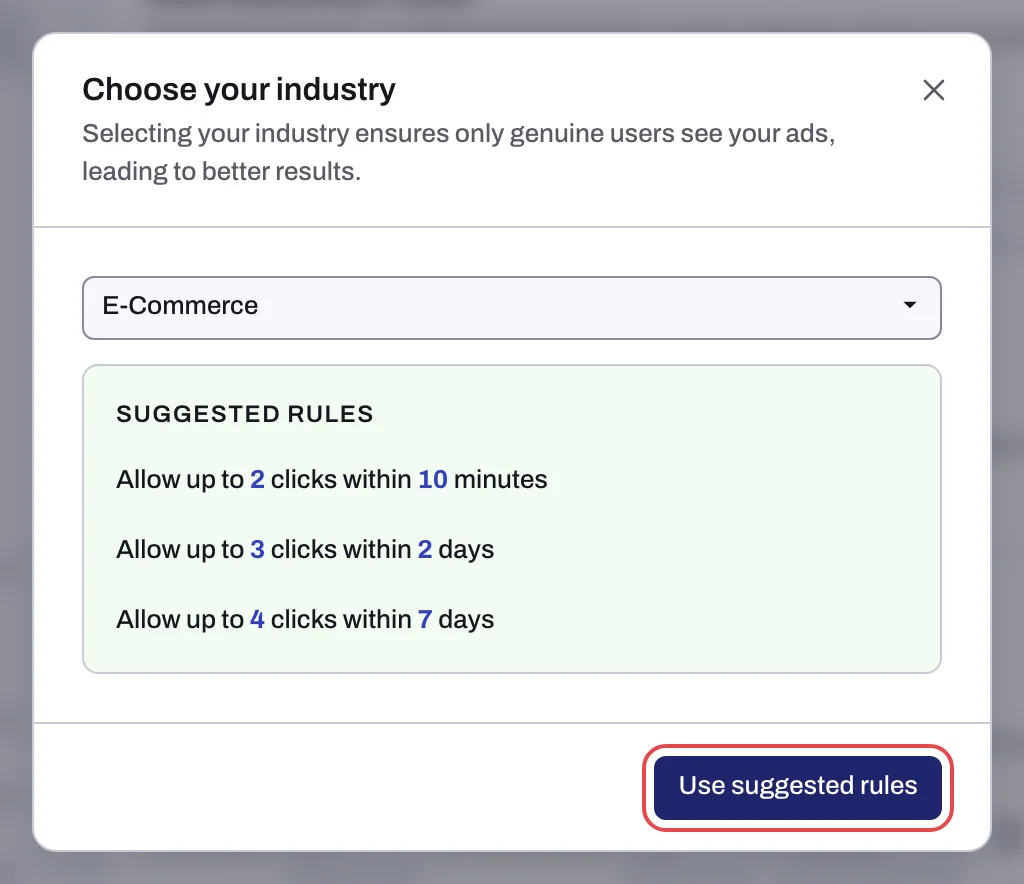
The three rules appear in the list and are saved. Your plan limits how many rules you can have. Rules beyond that number are refused and not saved, so remove rows you no longer need before you apply a preset.
Related
Was this helpful?
Related articles
Still need help?
Chat with our team and mention this article.