

Switch blocking on or off: what changes in your ad accounts
Blocking in Tapper Block is one switch per rule set: Monitoring-only mode on the Web detection rules tab. Turning it off starts blocking; turning it back on returns the entity to monitoring and removes the exclusions Tapper wrote. For why a new workspace starts in monitoring-only mode and how to recognize the mode on screen, read Monitoring-only mode: why nothing is blocked yet and what changes when blocking starts.
Where the switch is
- Open the entity from Protected Entities and select the Web detection rules tab.
- Under Rule sets, select the set you want to change. The default set applies where no other set is linked.
- Scroll to the Blocking section and use the Monitoring-only mode switch. Off means blocking, on means monitoring only. Switches save on click.
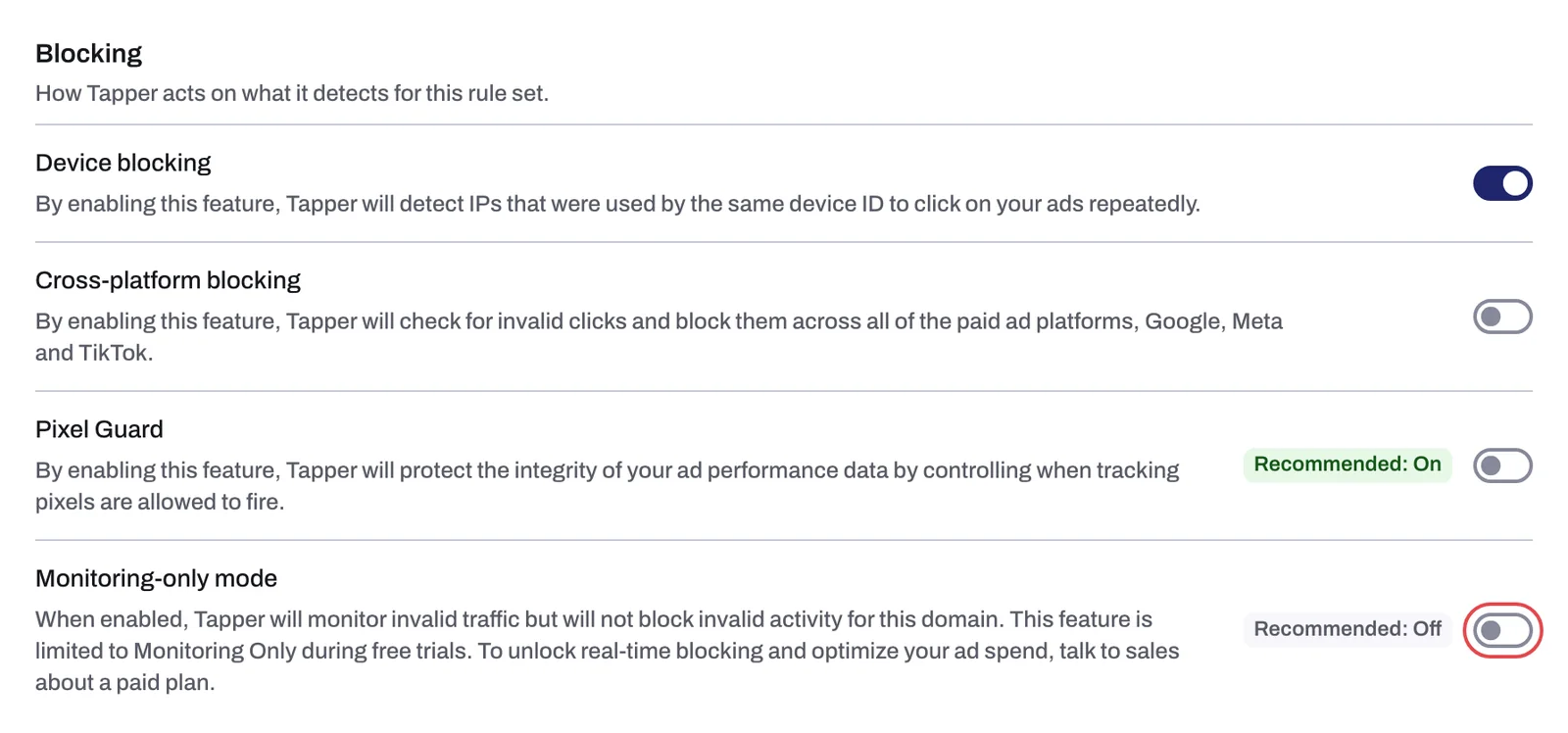
Only an Owner or Admin can change it. The entity blocks for the traffic a rule set covers as soon as that set has the switch off. It counts as monitoring-only only when every live rule set, including the default, has the switch on. The Mode column on Protected Entities reads Blocking or Monitor only.
Turning blocking on
When you turn the switch off on a paid plan, Tapper records the moment blocking started, and detections from then on are enforced. Nothing is applied for the clicks Tapper recorded while the entity was monitoring-only: the visitors the Invalid Traffic page listed before are not pushed to your ad accounts.
From that moment, each new detection becomes an exclusion on the platform the click came from:
- Google Ads: an IP exclusion on your Search, Display, Shopping and Demand Gen campaigns, pushed per flagged click, and the visitor added to the lists Tapper created at connect time, which are excluded on Search, Display, Shopping, Demand Gen and Performance Max campaigns. Tapper also attaches its value rule exclusion to Search, Display and Shopping campaigns and writes placement exclusions to the account-level list. Shadow campaigns exist only where you created one.
- Meta Ads: the visitor added to the "Tapper - Invalid Traffic Audience" custom audience, excluded on every ad set whose Protection switch is on.
- TikTok Ads: the same, per ad group with Protection on.
Once no entity with a connected ad account is still monitoring-only (and the workspace is on a paid plan), the Monitoring only notice goes away, the sidebar row Invalid Traffic reads Exclusions again and the dashboard tiles use their blocking names. What happens when Tapper excludes an IP in Google Ads covers the Google side in detail.
Switching back to monitoring-only
Turn the switch on again and Tapper stops enforcing what it detects. Once the entity as a whole is monitoring-only (every live rule set, including the default, has the switch on), Tapper removes the exclusions it placed from its own detections and keeps the setup it needs to go on measuring.
| Removed from your ad accounts | Kept in place |
|---|---|
| IP exclusions Tapper wrote to Google campaigns | The account-level Google Ads tracking template |
| Audience exclusions on Google campaigns | The conversion actions Tapper created in Google Ads, and Tapper's Google user lists and audiences themselves |
| Value-rule exclusions | The IPs you typed by hand on the Auto IP blocking tab: they keep being pushed to Google Search, Display and Shopping campaigns |
| Placement exclusions | Detection, the dashboard, the Clicks page, the Invalid Traffic page and monthly reports, with the monitoring-only labels |
| Meta ad set and TikTok ad group audience exclusions: their Protection switches turn off | The Meta and TikTok custom audiences themselves, and any shadow campaign you created |
Turning blocking on again later
Switching back re-applies nothing from before. Tapper does not restore the IP or placement exclusions it removed; blocking resumes with the next detection, exclusion by exclusion, exactly as on the first day. The one thing that comes back by itself is the exclusion of Tapper's audiences and value rule on your protected Google campaigns, which Tapper attaches again when blocking turns on.
After switching back, check two places:
- On the Google protection tab, under Manage campaigns, look at the chips on each campaign row: Audience Exclusion, Audience Segment Exclusion and Value Rule Exclusion. Turning a campaign's Protection switch off removes Tapper's audience exclusions and value rules, and turning it on re-applies them.
- On Manage ad sets (Meta) and Manage ad groups (TikTok), switch Protection back on for every ad set or ad group you want protected. Returning to monitoring-only turned those switches off, and nothing turns them on again automatically. Protect all does it in one step for the current filter.
Who cannot turn blocking on
- Free trial and Free plan: the switch cannot be turned off. To move to a paid plan, open Settings, Billing, and use Talk to sales, which opens the Plans page and its Book a call button.
- Lift only workspaces: every entity is created monitoring-only and stays that way; the Web detection rules tab is not shown and a request to block is refused. Blocking needs Block + Lift. You can change products under Settings, General, Products only while no ad account is connected; afterwards, contact Tapper to change products. See Lift only: what your workspace includes and leaves out.
Related
Was this helpful?
Related articles
Still need help?
Chat with our team and mention this article.