

Pixel Guard: keep invalid sessions out of your ad platform signals
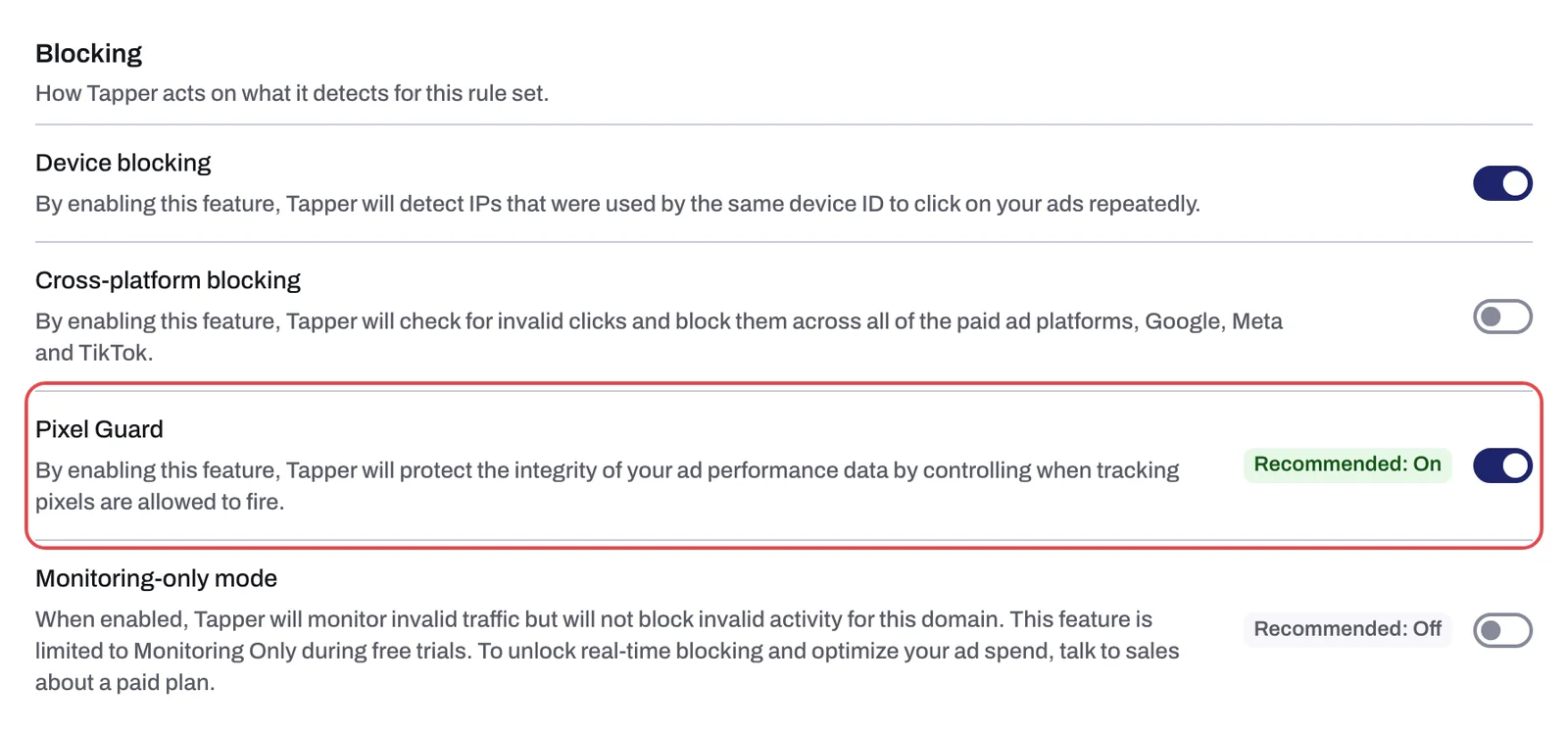
Pixel Guard is a switch in the Blocking section of the Web detection rules tab. When it is on, Tapper controls when tracking pixels are allowed to fire, so sessions it classifies as invalid do not feed the signals your ad platforms use for bidding. The app recommends it (Recommended: On), but a new rule set starts with it off, so you turn it on yourself.
Why it matters
Ad platforms optimize on the signals they receive. Every time a pixel fires on your site, the platform learns from that session: who converted, who stayed, which audience to go after next. When bots, click farms, competitors or other invalid sources trigger those pixels, the platform learns from sessions that will never become customers. That feeds back into bidding, targeting and conversion modeling, and over time you can see:
- higher cost per acquisition
- less stable performance from one week to the next
- audience and conversion signals that no longer describe your real customers
Blocking invalid clicks stops you paying for them. Pixel Guard goes one step further and keeps those sessions out of the data the platform optimizes on.
How it works
In practice:
- Tapper decides which sessions are invalid using the detection rules of the rule set the visitor falls under (thresholds, detection features, country rules).
- With Pixel Guard on, tracking pixels are held back on those invalid sessions, so the ad platform does not receive a signal from them.
- Pixel Guard works through the monitoring script on your pages, so the script must be installed and loading before it can do anything. See The monitoring script: what it does and where to find it.
Pixel Guard is set per rule set. The default set applies wherever no other set is linked, so turning it on in the default set covers every platform, ad account and campaign you have not linked to a custom set. If you use custom rule sets, check the switch in each one. See Rule sets: apply different rules to platforms, ad accounts or campaigns.
What you see in Tapper
Pixel Guard sits in the Blocking section of the Web detection rules tab. It shares that section with three other switches.
| Switch | Chip | Default for a new rule set |
|---|---|---|
| Device blocking | none | on |
| Cross-platform blocking | none | off |
| Pixel Guard | Recommended: On | off |
| Monitoring-only mode | Recommended: Off | on |
The other three switches have their own articles: Device blocking: catch repeat offenders who change IP, Cross-platform blocking across Google, Meta and TikTok and Switch blocking on or off: what changes in your ad accounts.
Turn it on
- Go to Protected Entities.
- Open the entity, then under Website open Detection rules.
- In the Rule sets row, pick the set you want to change. Everything below the row belongs to that set.
- Scroll to Blocking and switch on Pixel Guard.
There is no Save button. The switch saves the moment you click it.
If your site uses a Content Security Policy
Pixel Guard depends on the monitoring script, and a Content-Security-Policy header that does not allow Tapper's sources stops the script before it runs. The Website monitoring tab shows the lines to add:
script-src   https://monitor.tapper.ai
connect-src  https://protect.tapper.ai https://fingerprint.tapper.ai
img-src      https://protect.tapper.ai
worker-src   blob:
If you use Tapper audiences, also add script-src 'unsafe-inline', and for Google audiences https://www.googletagmanager.com. The full list, including the optional line the app recommends leaving out, is in Allow Tapper in your Content Security Policy.
Related
Was this helpful?
Related articles
Still need help?
Chat with our team and mention this article.