

Suspicious ad clicks and minimum seconds on site
Two rows in the Detection features section of the Web detection rules tab exclude an IP because of what happened on your page after an ad click, or rather what did not happen. Suspicious Ad Clicks counts ad clicks from one IP where the monitoring script loaded but the visitor produced no events on the page. Minimum Seconds on Site treats a visit shorter than a number of seconds as a bounce. Both are number fields, both apply to the rule set you have selected, and both need the monitoring script on your landing pages, because the signal they use is what the script records during the visit.
How it works
Suspicious Ad Clicks
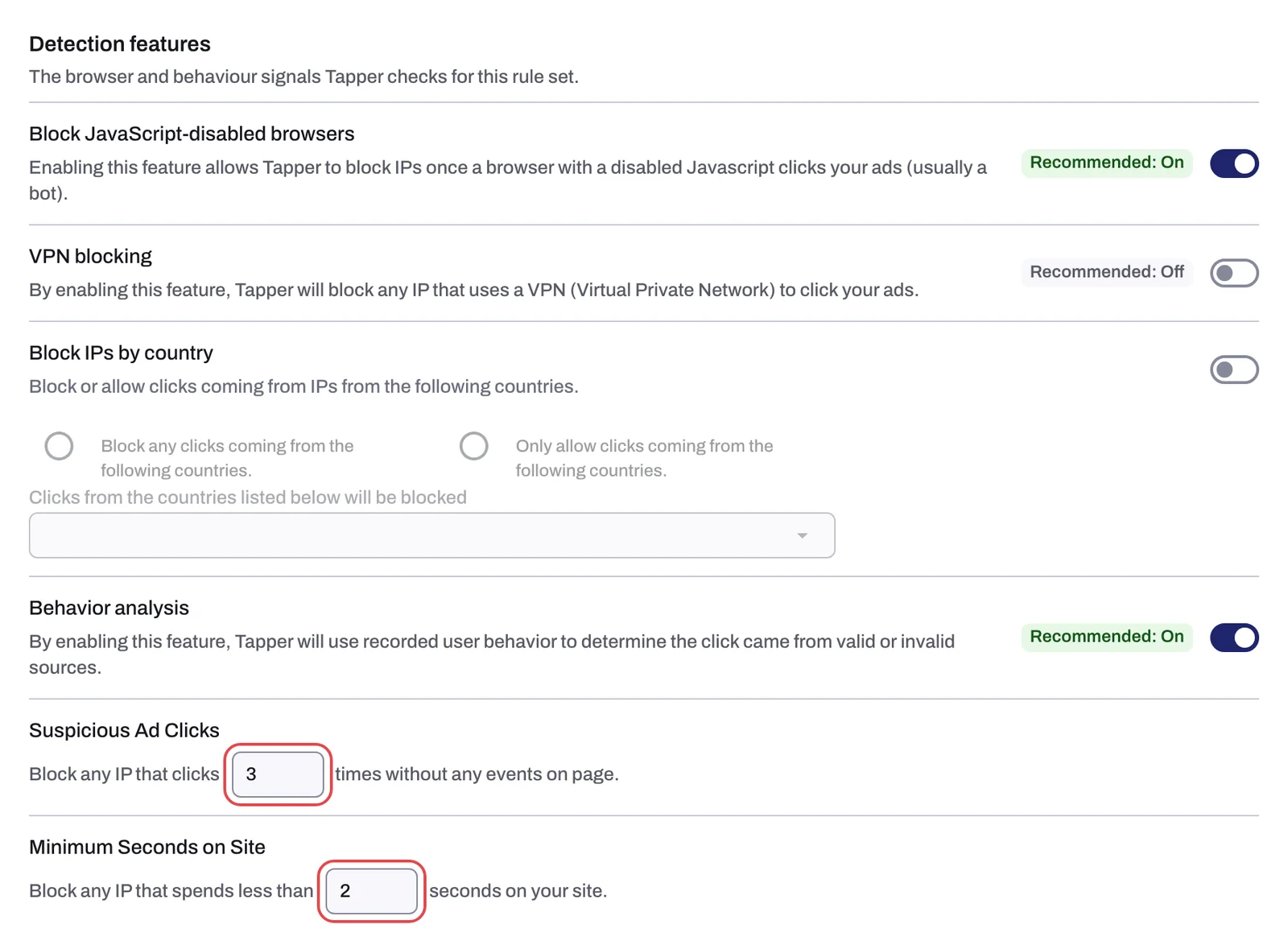
The row reads Block any IP that clicks [N] times without any events on page. A click counts toward N when the ad click reaches your site, the monitoring script loads, and no event is recorded during that visit. When one IP reaches N such clicks, Tapper blocks that IP for the selected rule set. A new entity starts with 3.
The row shows one number and no time window. Set N as the number of empty visits you are willing to see from the same IP before it is excluded.
Minimum Seconds on Site
The row reads Block any IP that spends less than [N] seconds on your site. A visit shorter than N seconds counts as a bounce, and the IP used in that visit is blocked for the selected rule set. A new entity starts with 2 seconds.
Keep this number low. Real visitors do leave a page quickly sometimes, and a high value excludes people who were only in a hurry. The default of 2 seconds catches visits that end before the page could have been read.
What you see in Tapper
Both rows sit in the Detection features section of the Web detection rules tab, after the Behavior analysis switch. The same two rows appear in the onboarding step Set your detection rules, where they apply to the default rule set only.
There is no Save button on this tab. A number field saves itself about half a second after you stop typing.
Change the values
You need the Owner or Admin role in the workspace.
- Open Protected Entities in the sidebar and open the entity.
- In the left rail, under Website, open Detection rules.
- If the entity has custom rule sets, pick the set you want to change in the Rule sets row. Everything below applies to the selected set.
- Scroll to Detection features.
- In the Suspicious Ad Clicks row, type the number of clicks with no events you allow from one IP.
- In the Minimum Seconds on Site row, type the number of seconds a visit must last to count as a real visit.
The values belong to the rule set, so a custom set scoped to one platform, ad account or campaign can carry different numbers from the default set. See Rule sets: apply different rules to platforms, ad accounts or campaigns.
Where the blocks show up
An IP excluded by these rows carries the block reason Suspicious Ad Click or Bounced:
- On the Clicks page, in the Block reason column and the Block reason filter.
- On the Exclusions page, in the Block reason column and in the visitor drawer.
- On the dashboard's Invalid Traffic tab, in Block Reason Trend and Blocked Traffic by Block Reason.
- In your monthly report, in the Invalid Traffic Types section for each platform.
- On the Refunds page, Bounced is listed under Tier 3 - Weak signals and Suspicious Ad Click sits in Tier 2, although that tier's label does not name it. Neither tier is checked by default when you generate a Google refund report.
On a monitoring-only workspace the column and the filter are named Invalid traffic and the dashboard says Invalid traffic reason instead of Block reason. The full list of labels is in Block reasons explained: what each label means.
When a click with no events points at your own setup
Suspicious Ad Clicks only works because a real visit produces events. If visitors you know are real keep showing up with the Suspicious Ad Click reason, treat it as a hint that the monitoring script is not recording on those pages before you raise the number:
- The script is missing from some landing pages. It belongs right after the opening
<body>tag on every page an ad can land on, or in a Google Tag Manager tag that fires on all pages. - Your site sends a Content-Security-Policy header that does not allow Tapper's sources. If the sources are not allowed, browsers block the monitoring script and Tapper sees no visits.
- The Clicks & Failed Script Load % card on the dashboard's Overview tab is high. Its callout reads Failed load rate {x}% of Google Ads clicks and tells you how many ad clicks never loaded the script at all.
Check that the monitoring script is working on your site walks through the check in your browser's developer tools. Clicks where the page never loaded at all are handled by a different section of the same tab: Aborted ad clicks: block IPs whose clicks never load your page.
Related
Was this helpful?
Related articles
Still need help?
Chat with our team and mention this article.