

Rule sets: apply different rules to platforms, ad accounts or campaigns
Every protected entity in Tapper Block comes with one rule set, and everything on the Web detection rules tab belongs to the rule set you have selected: the invalid click threshold, the detection features and the Blocking section. One set is enough for most sites. Create a custom rule set when one platform, ad account or campaign needs different rules from the rest, for example a tighter click threshold on a brand campaign.
How it works
- The default set. Every entity gets a set named Default. It applies wherever no other set is linked, so it catches every click that no custom set claims. You can rename it, but you cannot delete it.
- Custom sets. A custom set has its own thresholds, switches and Blocking settings. The Applies to section tells Tapper where it applies: specific marketing platforms, ad accounts or campaigns.
- One set per campaign. A campaign links to only one rule set. When you link a campaign to a custom set, that set's rules apply to it instead of the default set.
- Monitoring-only is per set. Each rule set has its own Monitoring-only mode switch (last section).
During onboarding you only set up the default set. The Rule sets row and the Applies to section appear on the entity page.
Before you start
- You need the Owner or Admin role in the workspace. Editor members can look but cannot change rules.
- Rule sets live on the entity page, under Website, Detection rules in the left rail (the tab is titled Web detection rules). Lift only workspaces do not have this tab.
Create a rule set
- Open the entity and select Detection rules in the left rail.
- In the Rule sets row, click New rule set.
- In the Create Rule dialog, type a Name and click Create.
- Tapper opens the new set, already selected in the Rule sets row.
- Set the invalid click threshold, the detection features and the Blocking switches for this set. Its two rule grids (invalid click threshold and aborted ad clicks) start empty. There is no Save button: switches save when you click them and number fields save shortly after you stop typing.
- Scroll to Applies to and link the set (next section). Until you do, the set shows a warning triangle in the Rule sets row.

A new custom set starts with the same defaults as a new entity, with Monitoring-only mode switched on (see the last section). For what each setting does and its default, read Web detection rules: every setting on the tab.
Scope a set with Applies to
Applies to appears only when a custom set is selected. Leave a field empty and the set applies everywhere. It has three rows, and each row has its own update button:
| Row | What you pick | Button |
|---|---|---|
| Link Marketing Platform | One or more platforms, shown as codes: GOOGLE_ADS (Google Ads), META_ADS (Meta Ads), TIKTOK_ADS (TikTok Ads), BING_ADS (Microsoft Ads) | Update Marketing Platform Links |
| Link Ad Account | One or more ad accounts connected to this entity | Update Ad Account Links |
| Link Campaign | One or more campaigns from those accounts | Update Campaign Links |
- Select the custom set in the Rule sets row.
- In the row you want, pick the platforms, ad accounts or campaigns.
- Click that row's update button. The button appears once you have changed the selection, and each row saves on its own.
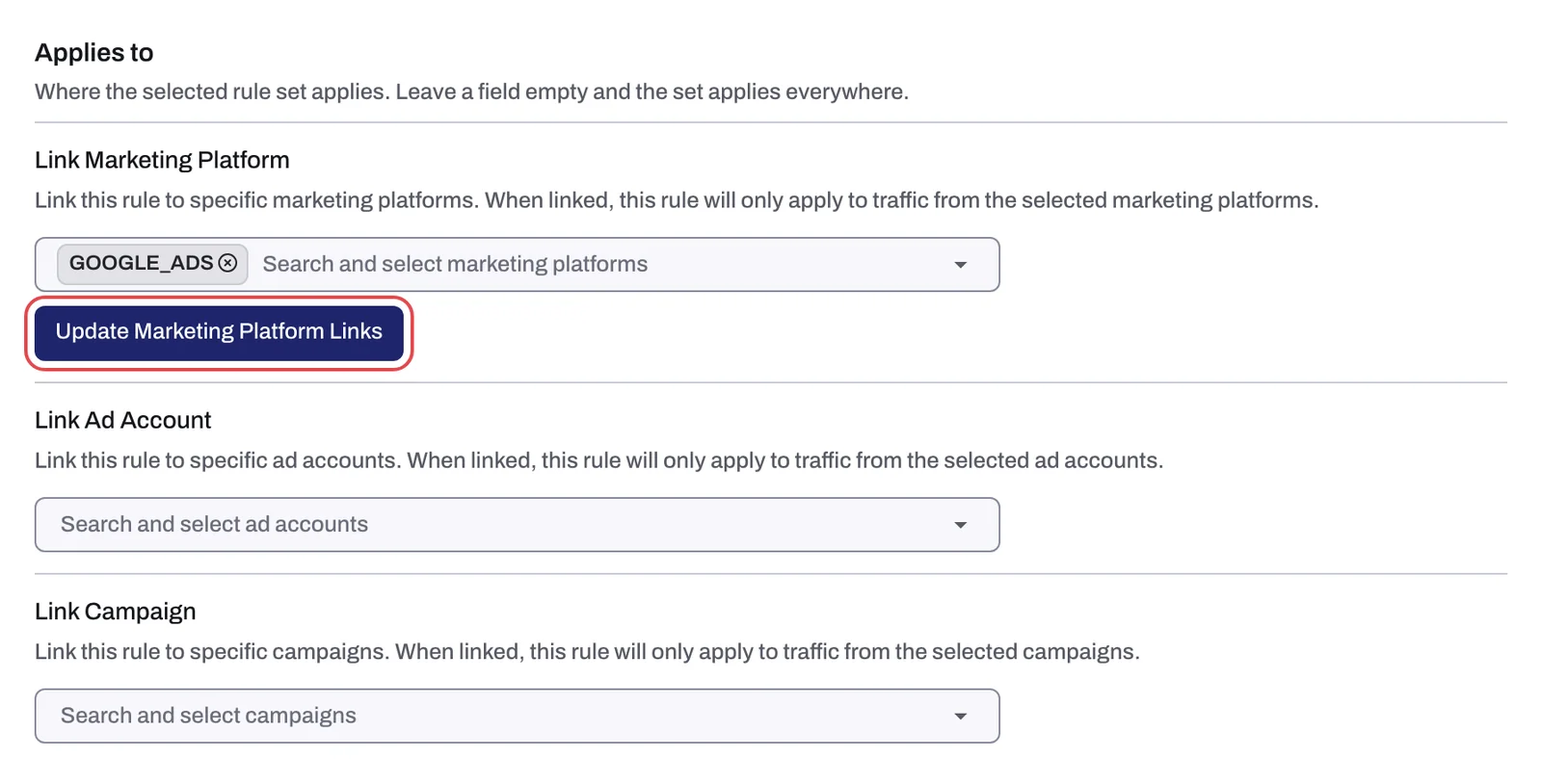
A rule set linked to specific marketing platforms only applies to traffic from them. Ad accounts and campaigns work the same way.
Applies to decides which rules a click is judged by. It does not switch protection on or off for a campaign; that is the Protection switch on the Google protection tab, described in Choose which campaigns Tapper protects.
The warning triangle
A custom set that is linked to nothing shows a warning triangle next to its name in the Rule sets row. It means you created the set but have not told Tapper where it applies. Open Applies to and link at least one platform, ad account or campaign. The default set never shows this warning, because it applies wherever nothing else is linked.
Rename or delete a rule set
- Select the set in the Rule sets row and click the three-dot menu next to it.
- Choose Rename. The Edit Rule dialog opens.
- Change the Name and click Save.
To delete a custom set, open the same Edit Rule dialog and click Delete. Confirm to delete it. Anything that was linked to the set falls back to the default set, since the default set catches everything not linked elsewhere. The default set has no Delete button.
Monitoring-only mode is per rule set
Every new rule set starts with Monitoring-only mode switched on in its Blocking section. While it is on, Tapper detects invalid traffic for the clicks that set covers but does not block them. So if you create a custom set for a campaign and leave the switch on, that campaign is only monitored, even when the default set is blocking.
When the entity as a whole becomes monitoring-only (its last blocking set is switched over), Tapper removes the exclusions it has already written to your ad accounts. Switching one set while others still block removes only that set's audience exclusions. Switching back does not re-apply anything, and blocking resumes with new detections. Details in Monitoring-only mode: why nothing is blocked yet and what changes when blocking starts and Switch blocking on or off: what changes in your ad accounts.
Related
Was this helpful?
Related articles
Still need help?
Chat with our team and mention this article.