

Lift on the dashboard
Lift's figures sit on your dashboard, in one of two forms depending on the products your workspace chose (Choose your products: Lift only or Block + Lift). The recommendations themselves are on the Lift page: see Lift: what it does and where to find it.
Where Lift shows
Open Dashboard in the sidebar's Analytics section.
- On Block + Lift, the Overview tab has a group of tiles titled Lift after Traffic & protection and Spend & conversions, with a short Why panel under it and, when the workspace has a Meta account, the Meta panels.
- On Lift only, Dashboard is one page with no tabs: Spend, the Lift group, the full Why panel, then Upside, Recommendations, the Meta panels and Account watch.
Lift's figures are for the workspace's Owners and Admins. In Demo mode they are sample figures, with no Why panel: see Live and Demo mode on the dashboard.
The Lift group
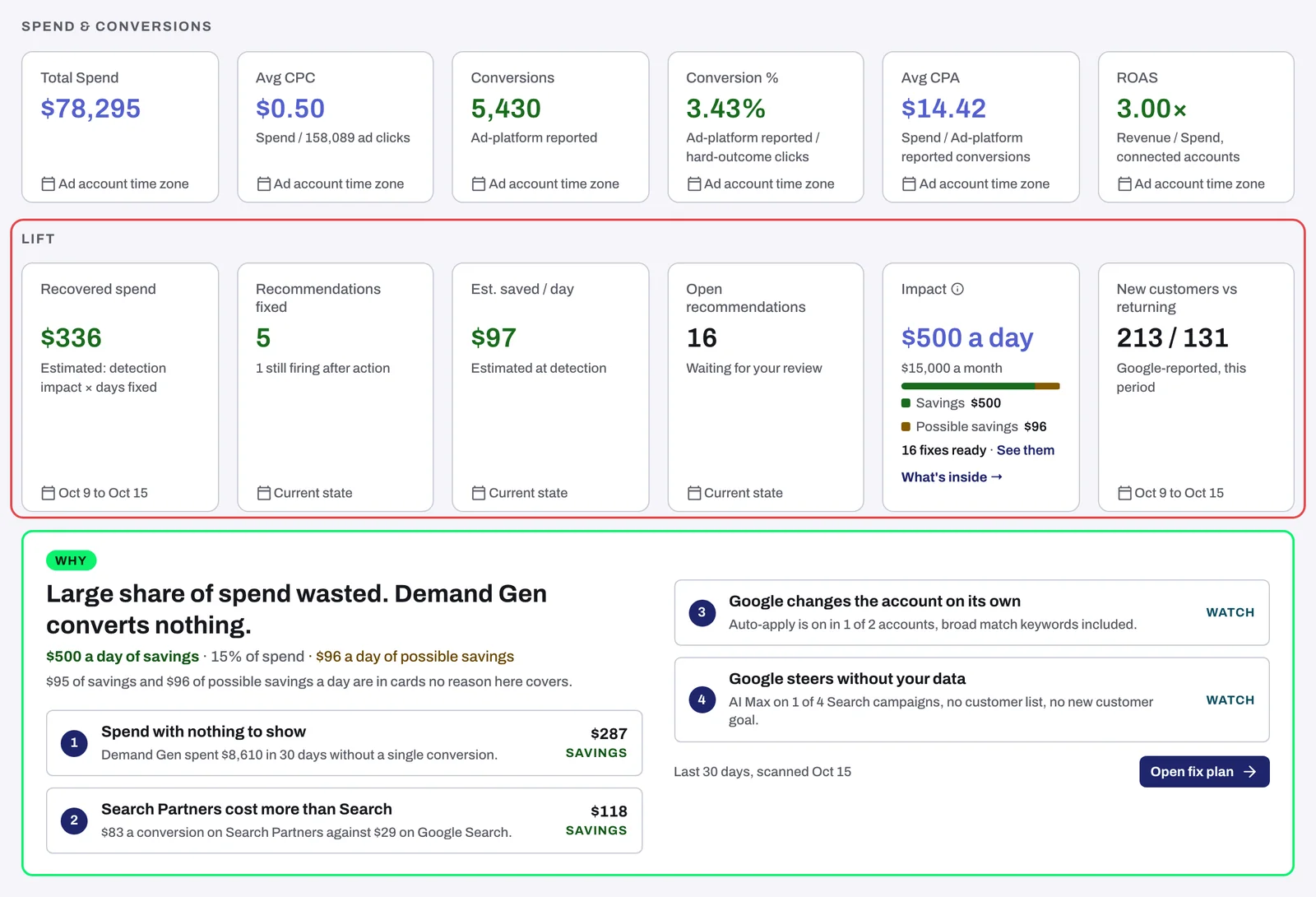
| Tile | What it counts |
|---|---|
| Recovered spend | What your fixes are estimated to have saved inside your dates, from savings only (below). Zero is a real figure: no fixed card's savings count inside those dates. |
| Recommendations fixed | Cards fixed from Lift or marked as done, plus those the daily check saw fixed in the ad platform. It appears once there is one; "{N} still firing after action" counts those the check still finds. |
| Est. saved / day | The daily waste Lift estimated on those cards when it found them ("Estimated at detection"). It appears once one carries money. |
| Open recommendations | Every open card in the workspace, the Settings tab's findings included, so it can exceed the Lift page's count. |
| Impact | The savings on your open recommendations (below). |
| New customers vs returning | Google's split of conversions, new / returning, or Not configured when no customer acquisition goal is set in Google Ads. |
| Returning visitors | Of the conversions Tapper counted on your site in your dates, the share made by visitors it had already seen before them. Shown only when Google reports no split. |
- Recovered spend, New customers vs returning and Returning visitors follow the dates at the top of the page, shown in their chip (such as Oct 8 to Oct 14); Recovered spend never counts today. The others show what is true now, most with a Current state chip.
- On Block + Lift, the group covers your whole workspace and every platform: the platform buttons and Add filter do not narrow it. On Lift only, the platform buttons do (see below).
- Amounts are in the ad account's own currency. A money tile shows one currency and counts the others under it; currencies are never added together.
- A dash (-) means Tapper could not establish the figure. It is never a zero.
How Recovered spend is worked out
For each fixed waste card, Lift multiplies the savings it estimated a day when it found the problem by the days the fix was in effect inside your dates: the day of the fix counts, today does not, in your workspace's time zone. Possible savings never count: a fixed card with no savings counts as fixed, with no money. A fix the daily check still finds adds nothing. So a card priced at $40 a day of savings and fixed 10 days ago adds $400 to a range covering those days, as the tile's line says: "Estimated: detection impact × days fixed".
Impact
Impact is the savings Lift has priced on your open recommendations, on every platform, before any fix: money a day, with the month (the day as shown, times 30) under it. It counts Savings only, money Lift is confident in. Possible savings, money it found but cannot be sure of yet, is shown beside it and never added in, and neither is upside (what tighter bid targets could save on the same results).
Under the headline, a bar and legend split the open waste into Savings, Possible savings and, where no daily check has reached it yet, Not yet checked, which counts in neither. Then come "{N} fixes ready · See them" (your open recommendations; See them opens the Lift page) and What's inside →: the reason behind each part of the possible savings, the money by campaign type, by kind of fix and, with several ad accounts, by ad account, and the five campaigns carrying the most, each linked to its card.
With no savings, Impact reads "$0 a day" (in the account's currency) when the money found is all possible savings, "{N} fixes ready" with "No money at stake today" when there are no possible savings either, and "Nothing to fix today" when nothing is open.
The Why panel
When Lift has a reason to show, a Why panel follows the Lift group: why wasted spend builds up in your Google Ads accounts, with its top reasons, most with their money a day. On Block + Lift it is short; on Lift only it adds bars comparing groups of campaigns by their share of spend and of conversions.
It reads the last 30 days whatever your dates (saying "Last 30 days, scanned {date}" when they differ), and every Google Ads account in the workspace, or the one Google Ads account the Ads account filter names; a filter it cannot follow is named on it. Open fix plan opens the Why tab: see The Why tab and the fix plan. The panel is hidden when there is no reason to show or it cannot load.
The Lift only dashboard
Here the page opens with Spend: your ad spend over your dates, per currency, with a chart of spend per day. Spend by platform gives each platform's spend, change, conversions, cost per conversion, ROAS, Savings / day, Possible savings / day and open recommendations. Press a platform's name to see it alone, in Spend by campaign type.
The Lift group has no Returning visitors but adds Settings to review: the campaign settings Lift expects off that are on ("Expected off, found on", or "{N} changed recently" when some changed since the last check). The platform buttons narrow the page to one platform. New customers vs returning, Settings to review and the Account watch tables cannot follow them, so with a platform picked they show Platform filter not applied and cover every platform. No other filter is followed: a tile or card says so in a chip and shows the whole workspace.
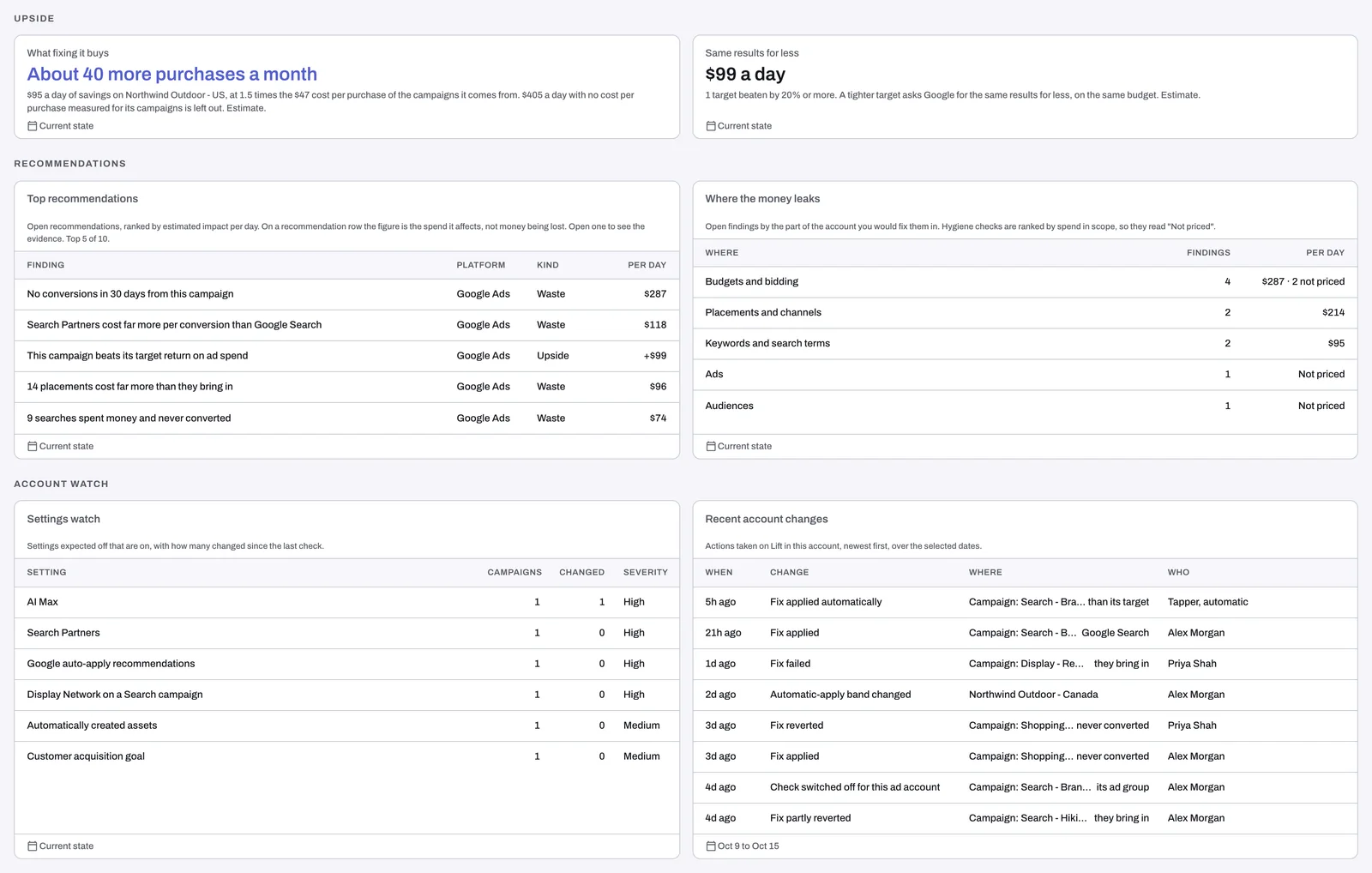
Upside, two estimates per currency:
- What fixing it buys: what your savings would buy on the same budget, such as "About 9 more purchases a month", each priced at a multiple of what the campaigns the money comes from pay per conversion. Savings with no measured cost are left out, and the line says how much. Possible savings never count, and Lift never proposes spending more.
- Same results for less: the daily total of the open target cards, where a campaign or ad group beats its target by 20% or more. A tighter target asks Google for the same results for less, on the same budget. It is never added to savings.
Recommendations:
- Top recommendations: the five open cards worth the most a day; Finding opens the card on the Lift page. Kind says what Per day means: money being lost on Waste, money a change could gain on Upside (shown with a +), and the spend the finding affects on Recommendation, Tune target and Over target.
- Where the money leaks: the same findings grouped by the part of the account you would fix them in, such as Keywords and search terms.
Account watch:
- Settings watch: the open findings of the Settings tab, one row per setting, worst first, with how many campaigns have each (a setting that covers a whole ad account counts once per account), how many changed since the last check, and their Severity (High, Medium or Low). A setting's name opens the Settings tab: see The Settings tab: account settings Lift watches.
- Recent account changes: the latest actions taken on Lift over your dates, newest first. Who reads Tapper, automatic when the action is Tapper's own rather than someone's in your workspace, such as Closed by Tapper (cards a daily check closed), Email sent, or Fix applied automatically (a fix inside an automation band you set: see Automatic fixes and the Activity tab).
The Meta panels
When the workspace has a Meta account, both dashboards show three Meta panels for your dates. On Block + Lift they follow the Why panel; on Lift only, the Recommendations tables.
- Meta campaign performance: every Meta campaign that spent, most spend first, which you can split by market. Open a campaign to see its ad sets, and an ad set to see its ads.
- Meta placements, age and gender: each placement's, or each age and gender group's, share of spend against its share of leads or results, for one market, campaign or ad set at a time.
- Meta results by audience type: one table per goal, one row per audience type, such as a lookalike.
With several Meta accounts, pick one in Meta account. The panels are not shown in Demo mode.
Notices at the top of the dashboard
Campaign settings need review shows on both kinds of workspace while a High severity settings finding is open: "{setting}: flagged on {N} campaigns", and how many other High settings need review too. Review settings opens the Lift page's Settings tab. It has no close button and goes once every High finding is fixed, dismissed or no longer found. To be emailed when settings drift, see Lift emails: settings alerts and the weekly digest.
On Lift only, picking a platform you have not connected shows a notice such as "Connect Meta Ads to start Lift", with a Connect Meta Ads button.
Lift starts once Tapper has set your workspace up. If your workspace is new and Open recommendations stays at 0, contact your Tapper contact: see No Lift recommendations yet.
Related
Was this helpful?
Related articles
Still need help?
Chat with our team and mention this article.