

Get started with Lift
Tapper Lift checks your Google Ads, Meta Ads (Facebook and Instagram) and TikTok Ads accounts every day and lists the changes worth making, with the evidence and, where Lift can price it, the money per day in the ad account's own currency. When a Google Ads or Meta Ads card offers a fix, you press it and Tapper makes the change for you, with nothing to copy into Google Ads or Ads Manager. Any other change, including every TikTok one, you make in the ad platform and then mark as done. To sign up first, see Create your Tapper account.
Before you start
- The Owner or Admin role. Only a workspace's Owner and Admins can connect ad accounts and use Lift; Editor members cannot. Whoever signs up is the Owner of the new workspace. Invitations start on Editor, so invite the people who will work the list as Admin (see Invite members and set their roles).
- A sign-in that can open your ad accounts, on Google, Facebook or TikTok for Business. For Google Ads fixes, the Google sign-in's access has to allow changes, such as Standard or Admin.
Recommendations shown blurred are ones Lift has found: each one opens when your agreement with Tapper starts. Until then the Lift page leads with what Lift found, and Unlock recommendations asks your Tapper contact for full access.
Step 1: choose your products
A new workspace's setup wizard starts with Choose your products. Both choices include Lift:
- Block + Lift (preselected) adds Tapper Block, which puts Tapper's tag on your website and blocks invalid traffic in your ad accounts; the wizard has two more steps for it, Website monitoring and Detection rules.
- Lift only leaves Block out: no tag on your website, nothing written into an ad account when you connect it, and the wizard ends on the Lift page.
You can change the choice until you connect an ad account: see Choose your products: Lift only or Block + Lift and Lift only: what your workspace includes and leaves out. On the next step, Name your workspace, Lift takes your answer to How do you measure success on your ads? as how your accounts make money. A workspace that already exists includes Lift, so go straight to step 2.
Step 2: connect an ad account
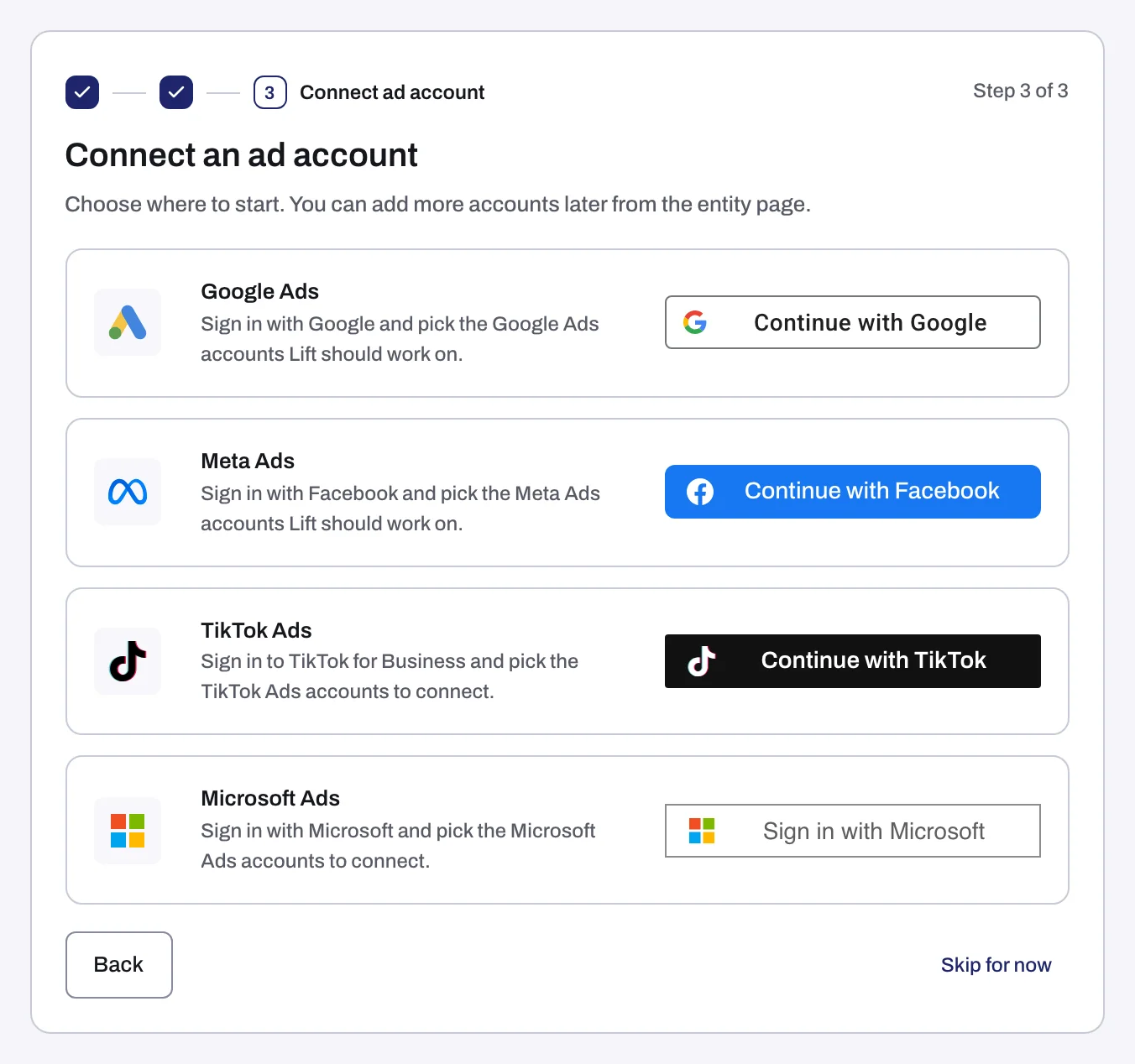
On Connect an ad account (Add an account outside the setup wizard), press your platform's button (Continue with Google, Continue with Facebook or Continue with TikTok), sign in, and tick the accounts Lift should check (Lift does not check Microsoft Ads accounts). See Connect or reconnect Google Ads for Lift, Connect Meta Ads for Lift or Connect TikTok Ads for Lift.
When the first recommendations appear
Once Tapper has set your workspace up:
| Account | First recommendations |
|---|---|
| Google Ads, on Lift only | A first check about 45 minutes after you connect, otherwise the next daily check. |
| Google Ads, on Block + Lift | The next daily check. |
| Meta Ads | The first daily check after Lift has read up to 90 days of the account's history: usually the day after you connect. |
| TikTok Ads | The first daily check after Lift's first read of the account. Lift reads TikTok accounts once a day, after 12:00 UTC, when TikTok has settled the previous day's figures. |
Until then the Lift tab shows No open opportunities, or TikTok recommendations are on their way when your only Lift account is on TikTok. Still empty? See No Lift recommendations yet.
Step 3: work the list
- Open Lift in the sidebar, in the Protection section, and pick the Lift tab.
- Read the line above the list: per currency, Savings per day (money Lift is confident in) and, beside it, Possible savings (money Lift found but cannot be sure of yet), never added together, then the count of recommendations with no money to save. Tabs above it narrow the list by platform and by state (Open, Done, Dismissed, Resolved).
- Start at the top of the list, headed Keywords and ads first: keywords and search terms, then ads, budgets and bidding, placements, products and conversion tracking, then audiences and settings; in each, money to save comes first, then spend affected, largest first.
- Press a row to show its card. On a wide screen the card shows beside the list, and the top card is already there; on a phone it opens as its own page, with Back to the list. It shows what Lift found, the evidence and, on most cards, what to do: see Read a Lift card: money, priority and evidence.
- Act on the card:
- On Google Ads, a card can carry a fix button named for its change, for example Pause campaign. Press it, check the change in the confirmation, and confirm: Tapper makes the change for you, and the card moves to Done.
- Otherwise, make the change in the ad platform yourself (a Meta card's Open in Meta Ads Manager and a TikTok card's Apply in TikTok Ads Manager take you there), then press Mark as done and confirm: the card moves to Done.
- If the card does not apply to you, press Dismiss, with a reason.
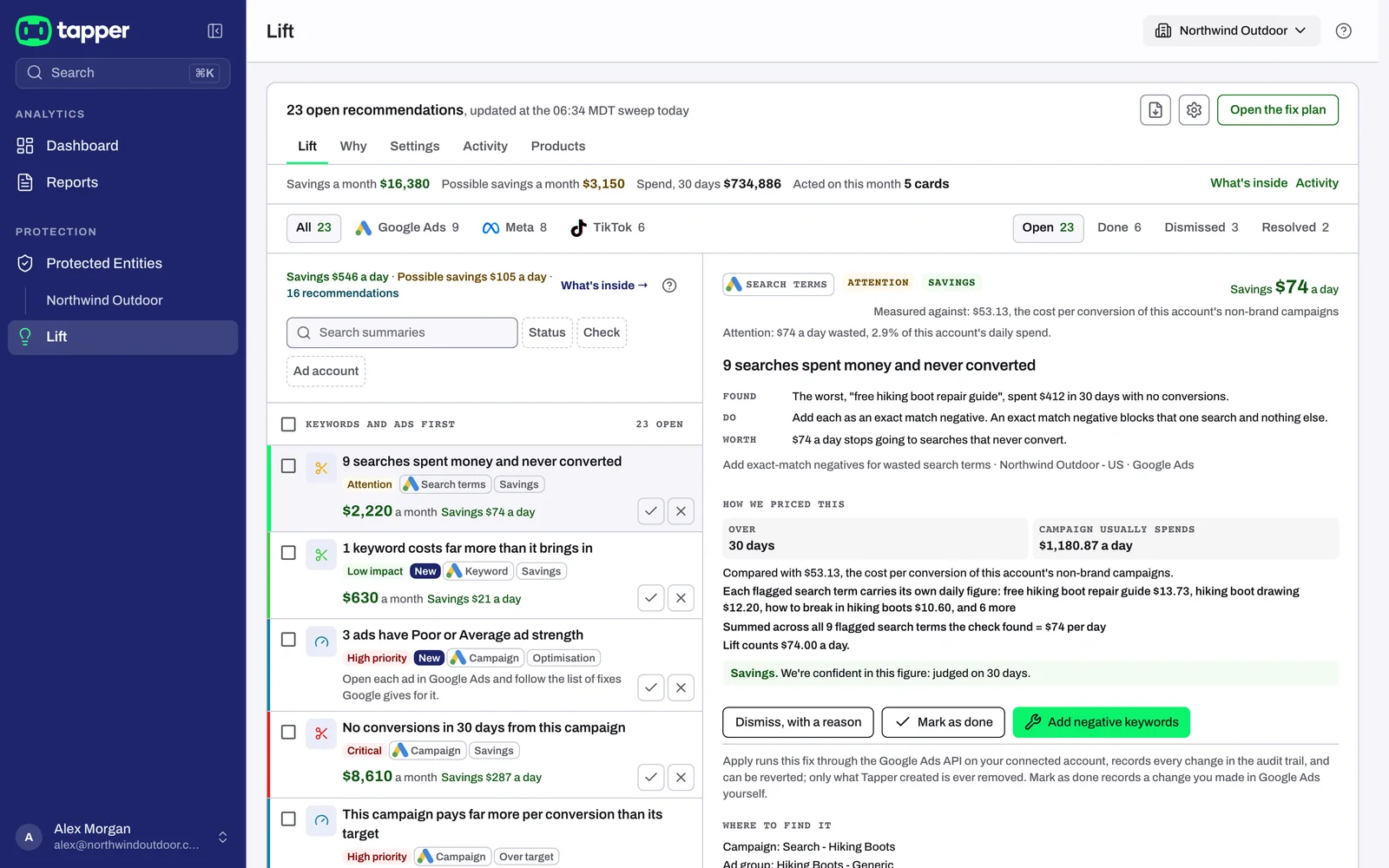
Every button is in Fix, mark as done, dismiss and revert. Lift changes nothing in an ad account until a person presses a fix and confirms it. The one exception is yours to set: on Google Ads, an Owner or Admin can set an automation band that lets Tapper tighten a target CPA or raise a target ROAS on its own, within the band, once a person's own fix of that kind has stuck on that account (see Automatic fixes and the Activity tab).
The Why tab and the fix plan
The Why tab explains, reason by reason, why wasted spend builds up in your Google Ads accounts; until it has a reason to show, it reads No reasons to show yet. The Fix plan beside the reasons, which Open the fix plan at the top of the page also opens, puts the fixes in order, largest first: press Apply on a step, then Review and apply on each of its cards, and Tapper makes each fix you confirm. See The Why tab and the fix plan.
What happens next
- Lift checks each account once a day; the top of the Lift page says when the list was last updated. A change you make in the ad platform shows after the next daily check, and a card whose issue the check no longer finds moves to Resolved.
- For email, press Turn on alerts on the Get alerted when account settings drift banner, for settings alerts and a short Monday summary, or switch each one on in Settings > Notifications: see Lift emails: settings alerts and the weekly digest.
If something goes wrong
- "Only a workspace owner or admin can connect an account.": ask an Owner or Admin to connect it, or see Only a workspace owner or admin can connect an account.
- On Lift only, an account that is connected in another Tapper workspace is refused: an Owner or Admin of that workspace has to disconnect it there.
- The Lift page reads Connect an ad account to start Lift: the selected entity has no Google Ads, Meta Ads or TikTok Ads account yet. Press Connect an ad account.
- A grayed-out fix button gives its reason when you hover over it. For "Write access has not been verified for this ad account yet, so fixes cannot be applied.", contact your Tapper contact, and meanwhile make the change in Google Ads and press Mark as done. See A fix was refused or cannot be reverted.
Related
Was this helpful?
Related articles
Still need help?
Chat with our team and mention this article.