

Connect or reconnect Google Ads for Lift
Lift checks each connected Google Ads account once a day and lists the changes worth making on the Lift page. Connecting an account takes a Google sign-in and a tick in a list.
Before you start
- You need the Owner or Admin role in the workspace. Members with the Editor role cannot connect accounts or use Lift.
- Use a Google login that can open the Google Ads account, directly or through a manager account, with an access level that can make changes, such as Standard or Admin: Tapper makes Lift's fixes through that login.
- Know whether your workspace runs Lift only or Block + Lift (Settings > General > Products): it decides what connecting writes into Google Ads.
Where to connect
Each of these opens Add an account for the protected entity you are on. With several entities, pick one first in the Lift page's Protected entity dropdown.
- The Lift page, with no ad account yet. Under Connect an ad account to start Lift, press Connect an ad account.
- The Lift page, with Meta Ads or TikTok Ads already connected. Press the dashed Google Ads Connect platform tab.
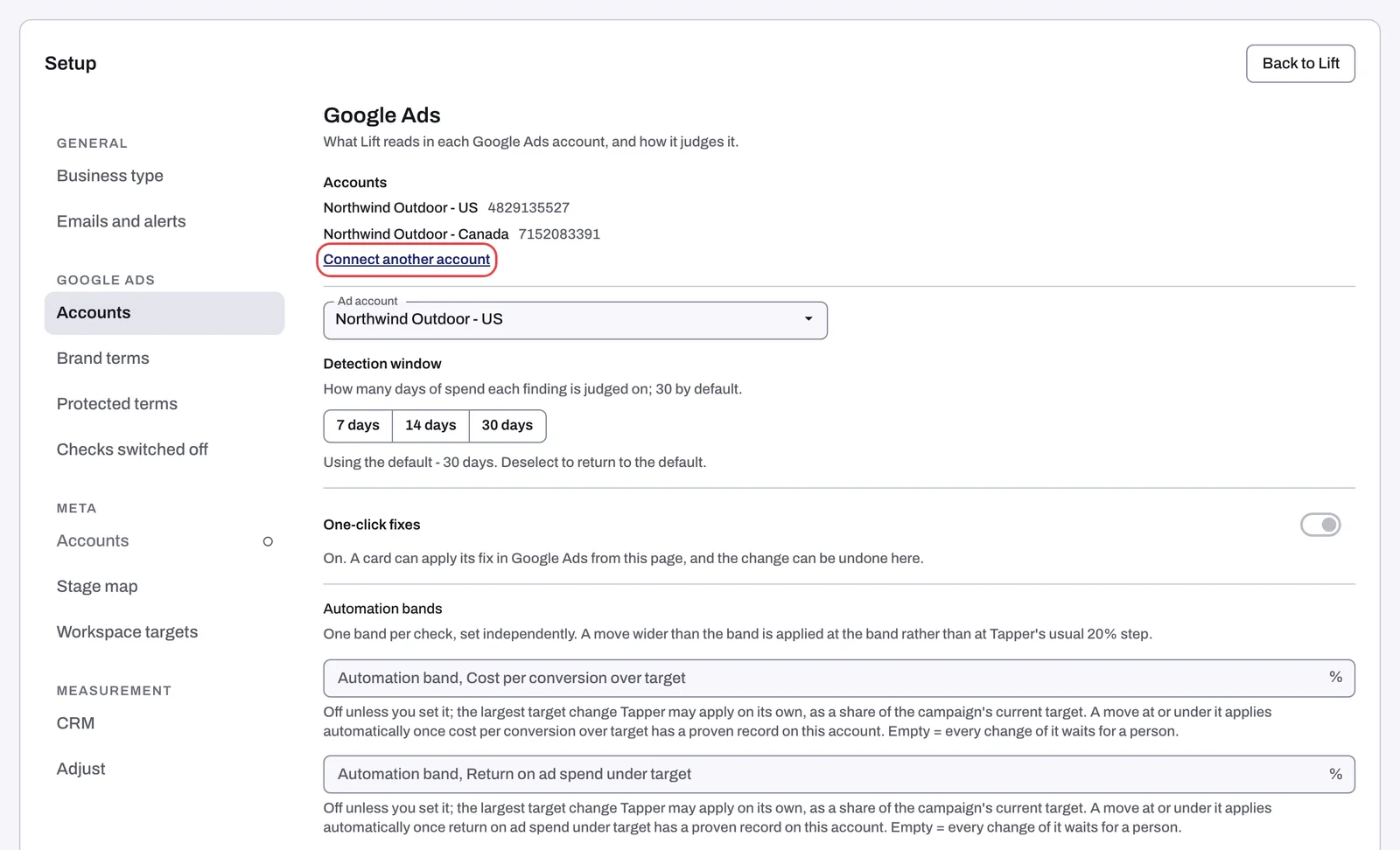
- Setup. Press the gear at the top of the Lift page (Setup), then pick Accounts under Google Ads in the left rail (on a phone, in the Setup section list). In the Accounts block, press Connect another account (Connect Google Ads while none is connected).
- The entity page. In Protected Entities, open the entity's Google protection tab and press Add account (Connect Google Ads while it has none).
A new workspace's setup wizard shows the same platform rows on its Connect an ad account step.
Steps
On a Block + Lift workspace these pages say "protect" instead, and Connect Google Ads follows that version.
1. Sign in with Google
- On the Google Ads row, press Continue with Google. A popup opens, or the same tab if your browser blocks popups.
- Pick your Google login and allow access to your email address and Google Ads, with the Google Ads box ticked.
- The popup closes and the account list opens. There is nothing to accept in Google Ads afterwards.
2. Choose the accounts
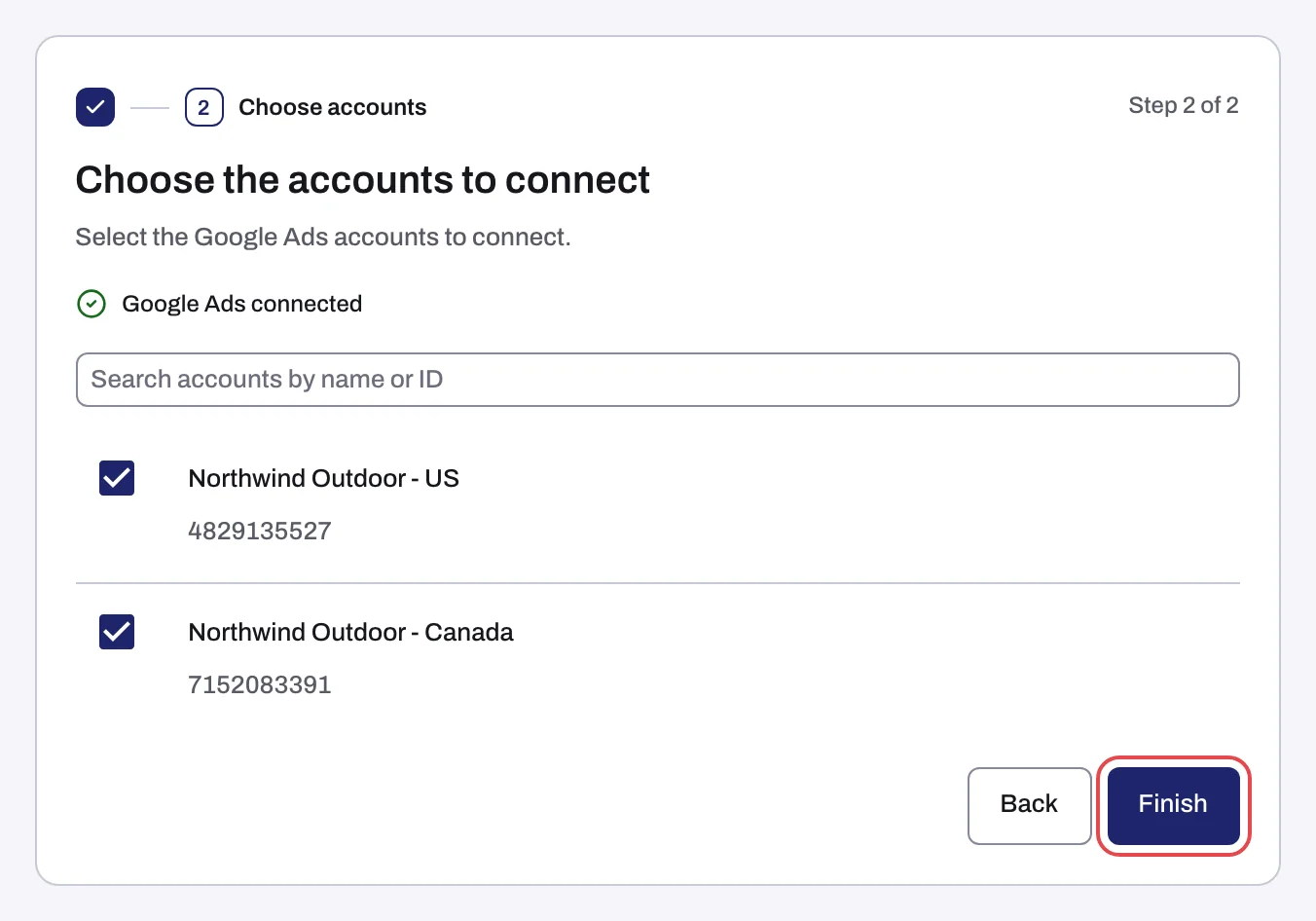
- Choose the accounts to connect lists every account the login can reach, by name and ID; a manager account shows as its client accounts. Search accounts by name or ID finds one.
- Tick each account Lift should check. Accounts Google reports as "Cancelled in Google Ads", "Suspended in Google Ads" or "Closed in Google Ads" are grayed out: Tapper cannot connect them.
- Press Finish.
The Google Ads connected line above the list only means the sign-in worked: nothing is linked until you press Finish.
3. Let Tapper link them
Press Done: from Add an account it takes you to the entity's Google protection tab, from the setup wizard to the Lift page.
What connecting changes in Google Ads
| Workspace | What connecting writes into Google Ads |
|---|---|
| Lift only | Nothing: no tracking template, conversion actions, user lists or audiences. Tapper only reads the account. |
| Block + Lift | The same connection also installs Tapper Block, which replaces the account-level tracking template with Tapper's own (yours is put back when you disconnect) and creates four conversion actions, two user lists and two audiences, as Connect Google Ads explains. |
After that, Lift changes the account in two ways only:
- A fix you press. On a card that offers one, press the fix button (it is named for the change, for example Pause campaign) and confirm. Tapper makes the change in Google Ads for you: there is nothing to copy into Google Ads. See Fix, mark as done, dismiss and revert.
- An automation band, if you set one. Bands are off unless an Owner or Admin sets one in Setup > Google Ads. Within its band, Tapper tightens a target CPA or raises a target ROAS on its own, once a person's own fix of that kind has stuck on that account. See Automatic fixes and the Activity tab.
What happens next
- Lift only. Tapper loads the account's figures at once, and Lift's first check runs about 45 minutes after you connect. If the figures are not ready, the next daily check picks the account up instead.
- Block + Lift. There is no early check: the next daily check picks the account up.
From then on Lift checks the account once a day, so a change you make in Google Ads yourself shows on the Lift page after the next daily check. Lift starts once Tapper has set your workspace up.
If something goes wrong
Each connection message is explained once, in a Tapper Block article:
- Connection failed, Sign-in cancelled or Connection status unknown, also for "Your Tapper session ended." and a sign-in with the Google Ads box unticked.
- Only a workspace owner or admin can connect an account.
- No Google Ads accounts found, or the list did not load, also when Google Ads is limiting requests.
- Google Ads says your sign-in has no access to the account, also for "Google Ads signed Tapper out of ..." and an account Google Ads reports as not active.
After Finish:
- "2 accounts connected, 1 did not": the connected accounts are in Tapper, and each failed one shows its reason. Press Retry the failed accounts when it shows, or Done with the connected accounts and retry the others later from the entity page.
- This Google Ads account is already connected: it is already on this entity.
On the Lift page:
- Your workspace is new and the Lift tab stays on No open opportunities: contact your Tapper contact, and see No Lift recommendations yet.
- A fix button is grayed out, and pointing at it shows "Write access has not been verified for this ad account yet, so fixes cannot be applied.": contact your Tapper contact.
This account is connected in another Tapper workspace
On a Lift only workspace, an account live in another Tapper workspace is refused. Retrying does not help: an Owner or Admin there disconnects it, then you connect it here. If you cannot tell which workspace holds it, write to support@tapper.ai with the account ID.
Reconnect an account
When Google stops letting Tapper use an account, its card on the Google protection tab shows Needs reconnect (Google Ads signed Tapper out, or the sign-in lost access) or Not active. Until it is reconnected, Lift skips it: no daily check, its open cards stay as they were, no weekly digest, and no fix can be applied or reverted on it.
Press Reconnect on the card and sign in with a Google login that has access. To reconnect several with one sign-in, press Reconnect 2 selected (with your own count): every card in error starts with Select for reconnect ticked, so untick any account that needs a different Google login. For Not active, reactivate the account in Google Ads first. Once an account is reconnected, the next daily check picks it up again. See Reconnect an ad account that stopped working.
Disconnect an account
Disconnect is in the ⋮ menu on the account's card on the Google protection tab; confirm with Disconnect. Tapper stops reading the account, and its open Lift cards close with none of their money counted as saved. Changes made by Lift fixes stay as they are. On a Lift only workspace there is nothing to put back; on a Block + Lift workspace, see Disconnect an ad account for what Tapper puts back.
Related
Was this helpful?
Related articles
Still need help?
Chat with our team and mention this article.