

Connect Meta Ads for Lift
Connect a Meta ad account and Lift checks its campaigns, ad sets and ads every day, on Facebook and Instagram alike, and lists what is worth changing on the Lift page. Connecting is a Facebook sign-in and a tick in a list.
Before you start
- You need the Owner or Admin role. Members with the Editor role cannot connect accounts or use Lift.
- Use a Facebook profile with Advertiser or Admin access to each ad account. Lift's fixes are made through that profile, so it needs access that can make changes.
- Lift starts once Tapper has set your workspace up.
Steps
These are the Lift only labels. On Block + Lift the screens say "protect" and each account needs a Meta pixel: follow Connect Meta Ads instead. The product choice locks once any ad account is connected, so check it first: Choose your products: Lift only or Block + Lift.
1. Open Setup's Meta section
- Open Lift in the sidebar. If the workspace has several protected entities, pick the right one in the Protected entity dropdown.
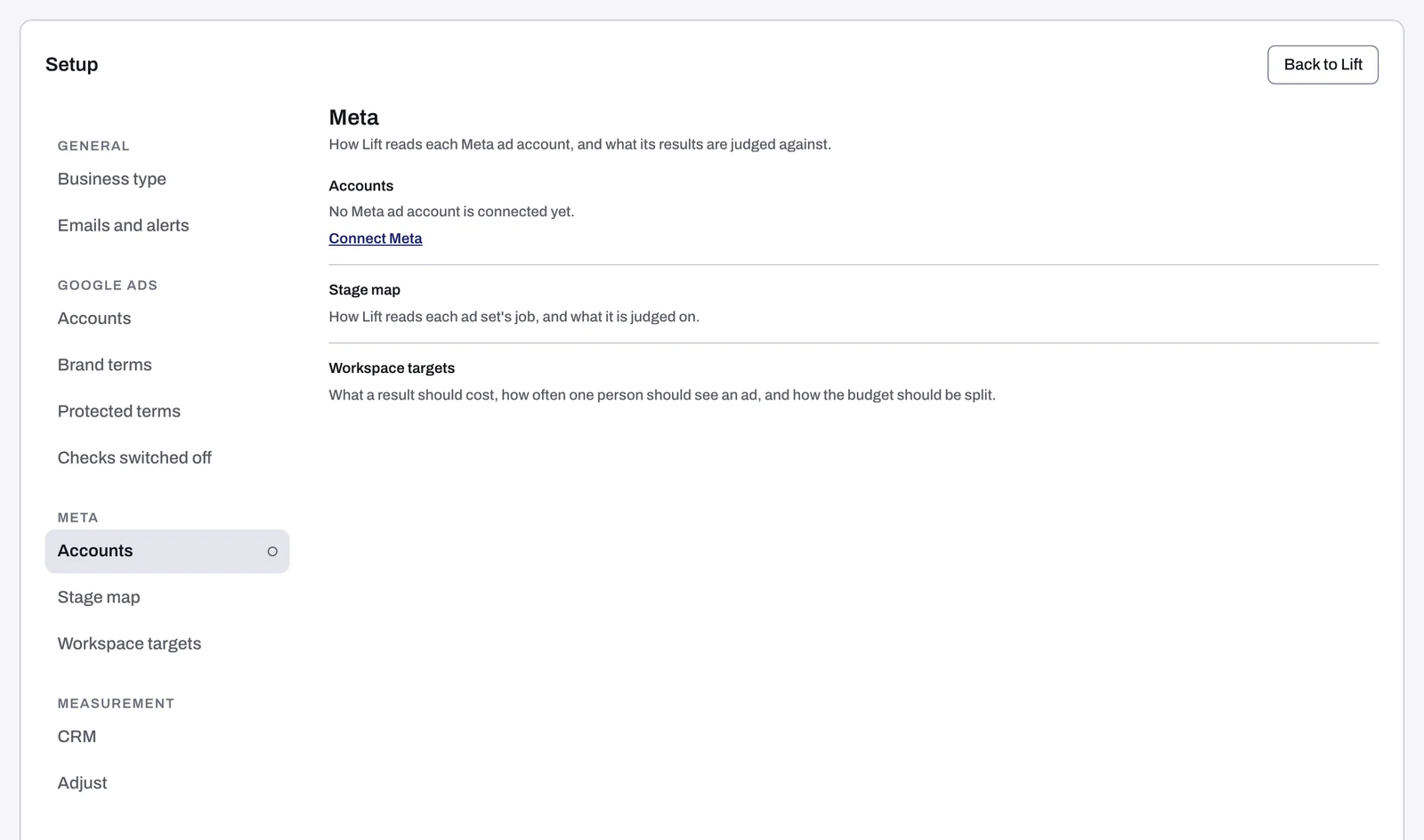
- Press the gear in the top bar, then pick Accounts under Meta in the left rail (on a phone, in the Setup section list).
- Under Accounts, press Connect Meta, or Connect another account if the entity already has one.
Add account on the entity's Meta protection tab (Connect Meta Ads while it has no account), or the dashed Meta Connect tab on the Lift page, opens the same Add an account page. With no ad account on the entity yet, the Lift page has no gear, and its Connect an ad account button opens that page too. A new workspace's setup wizard shows the same rows.
2. Sign in with Facebook
- On the Meta Ads row, press Continue with Facebook.
- Follow Meta's screens and share every ad account Lift should check. Connect Meta Ads shows each screen.
3. Choose the accounts
- On Choose the accounts to connect, tick each ad account Lift should check.
- Under each ticked account the list shows Accept the terms on Meta. You can skip it: those terms matter only on Block + Lift, where Tapper creates an audience.
- Press Finish.
4. Wait while Tapper links them
The page then reads Meta Ads connected (or 2 Meta Ads accounts connected). Done takes you to the entity's Meta protection tab, or to the Lift page from the setup wizard.
What Lift reads
Lift uses this connection, with no second sign-in, and its reads never create or change anything in the account. Once a day it reads:
- Its configuration: the account's status, spending limit, balance, currency and time zone, and how each campaign, ad set and ad is set up (budget, bid, optimization goal, learning stage, attribution setting, frequency caps, targeting, Advantage+ settings, creative), plus its automated rules and its custom audiences (name, type and retention).
- Its results: daily figures from the account down to each ad (spend, reach, frequency, clicks, conversions by attribution window, Meta's own result), ad set breakdowns such as placement, age and gender, and video views.
- Its tracking health: Meta's daily event counts and event quality, such as Event Match Quality and Conversions API coverage. Lift reads them for each dataset (pixel, Conversions API or CRM) your active ad sets optimize for, and for others that fired in the last 7 days.
It never reads the business behind the account, payment card or invoice details, the rules inside your website audiences, lookalike seeds, or who an automated rule notifies.
What Lift changes in your Meta account
- Connecting on Lift only creates nothing in the account and needs no Meta pixel. On Block + Lift it also sets up Tapper Block.
- The funnel stages and targets you set in Setup stay in Tapper.
- On every card, Open in Meta Ads Manager takes you to what the card is about. Make the change there, then press Mark as done.
Lift never recommends spending more: budget advice is a cut, or a move that keeps the account's total the same.
When the first cards appear
There is no quick first check for a new Meta account. Tapper first reads its history (90 days of account and ad set figures, 28 days of the rest), and the first cards come with the first daily check after that read finishes: usually the day after you connect. If it does not complete, Tapper tries it on up to three days in all, then goes on with its usual daily read.
So an ad set that was already spending can get a card, money included, from the first check. A new ad set gets no card from most checks until it has spent on 7 of the last 28 days, and no money figure before 14 days of spend and the end of its learning phase. Money is per day, in the ad account's own currency.
Lift then checks the account once a day, judging the previous day in the account's own reporting time zone, so a change made in Ads Manager shows after the next daily check.
Meta cards show under the Meta platform tab. If your workspace is new and nothing appears after a few days, contact your Tapper contact, and see No Lift recommendations yet.
Next: check the stages and set your targets
Both are in Setup's Meta section, below Accounts:
- Stage map: the funnel stage Lift gives each ad set. It decides which ad sets are compared with each other, so correct any that are wrong. See Check the funnel stage Lift gives each Meta ad set.
- Workspace targets: what a result should cost, how often one person should see an ad, and how the budget should be split, per ad account in its own currency. See Set your Meta targets: cost per result, frequency and budget split.
If something goes wrong
- On a Lift only workspace, an account connected in another Tapper workspace is refused: an Owner or Admin of that other workspace disconnects it there, then you connect it here.
- Some accounts did not connect: the page names each one with its reason, and you can retry them later from the entity page.
- Other messages while connecting are explained in Meta Ads account could not be connected.
When an account stops working
Its card on the entity's Meta protection tab says what is wrong:
| On the card | What to do |
|---|---|
| Needs reconnect, "Meta signed Tapper out of this account" | Reconnect Meta. The Facebook login can expire or be removed in Facebook settings. |
| Needs reconnect, "The connected Facebook profile lost access" | Reconnect Meta with a profile that has Advertiser or Admin access. |
| Needs attention, "Meta can't reach this ad account" | Check the account in Meta Business settings, then reconnect Meta. |
Press Reconnect on the card and sign in with Facebook again; Reconnect 2 selected above the cards (with your own count) covers every card ticked Select for reconnect in one sign-in. Until then, Lift does not read or check the account, and its cards stay as they were. See Reconnect an ad account that stopped working.
If Meta stops an account from running ads, Lift runs only its account checks on it, such as "Ad account disabled or flagged by Meta".
Disconnect, in the card's menu, stops Lift reading the account, and its open Lift cards close with no money counted as saved.
Related
Was this helpful?
Related articles
Still need help?
Chat with our team and mention this article.