

Connect TikTok Ads for Lift
Lift checks every TikTok Ads account connected to your workspace once a day, on Lift only and Block + Lift workspaces alike, and lists the changes worth making in its campaigns, ad groups and ads. Connecting is a TikTok for Business sign-in and a tick in a list. Lift never changes anything in the account: you make each change yourself in TikTok Ads Manager.
Before you start
- You need the Owner or Admin role. Members with the Editor role cannot connect accounts or use Lift.
- Use a TikTok for Business login that can open the ad account: the account list shows only the ad accounts that login reaches.
- On Lift only, connecting creates nothing in the TikTok account and needs no TikTok Pixel. On Block + Lift, the same connection also creates Tapper Block's audience in the account, which needs a TikTok Pixel installed on your website: see Connect TikTok Ads.
- Connecting your first ad account locks the product choice: see Choose your products: Lift only or Block + Lift.
Where to connect
- On the Lift page. Above the list, press the dashed TikTok Connect tab, which shows while the entity has no TikTok account. It opens Add an account. If the entity has no ad account Lift can check yet, press Connect an ad account instead.
- During setup. Use the setup wizard's Connect an ad account step.
- On the entity. See Add another ad account to an entity.
Steps
1. Sign in to TikTok for Business
- On the TikTok Ads row, press Continue with TikTok.
- Log in to TikTok for Business and authorize Tapper. Connect TikTok Ads walks through each sign-in step.
2. Choose the accounts
- On Choose the accounts to connect (Choose the accounts to protect on Block + Lift), find your accounts, or use Search accounts by name or ID.
- Tick each account Lift should check.
- Press Finish (Continue in the setup wizard of a Block + Lift workspace).
3. Wait while Tapper links them
The page then reads TikTok Ads connected, or 2 TikTok Ads accounts connected for several. Press Done: the setup wizard of a Lift only workspace takes you to the Lift page, and Add an account to the entity's TikTok protection tab. In the setup wizard of a Block + Lift workspace the button reads Continue and the wizard goes on to Install website monitoring.
What happens next
What Lift reads, and when
Lift reads the account and never writes to it. Once a day, after 12:00 UTC, when TikTok has settled the previous day's figures, it reads the account's campaigns, ad groups, ads and custom audiences, and each ad group's and ad's daily figures: spend in the account's own currency, TikTok's own results and cost per result for the ad group's goal, conversions and purchases, clicks, impressions and video views, plus each ad group's reach and frequency over the last 7 and 28 days.
TikTok restates conversions after the fact, so Lift reads the last 28 complete days again every day (30 days on an account's first read). For the same reason, each check judges the account up to the day three days back, in the account's own time zone, and leaves the two most recent days out of every cost comparison. Lift leaves out TopView and Promote campaigns, and raises no card on a campaign, ad group or ad that TikTok is not delivering. Lift's Setup has no TikTok section: there is nothing more to fill in.
When the first recommendations appear
Lift starts once Tapper has set your workspace up. A new TikTok account gets no early check: Lift reads it at the next daily read, and its first cards come from the daily check after that read. Lift also gives no advice on an ad group that Tapper estimates is still learning (TikTok does not report learning), that has fewer than 7 days of spend in the last 28, or whose campaign has not spent in the last 3 days; the Results stopped card, which warns when results stop while the spend goes on, is the one exception.
Until the first TikTok card arrives, the TikTok tab on the Lift page reads 0 and the list reads TikTok recommendations are on their way. Your TikTok account is connected and nothing is wrong with it. The same message shows when Lift checked the account and found nothing worth changing.
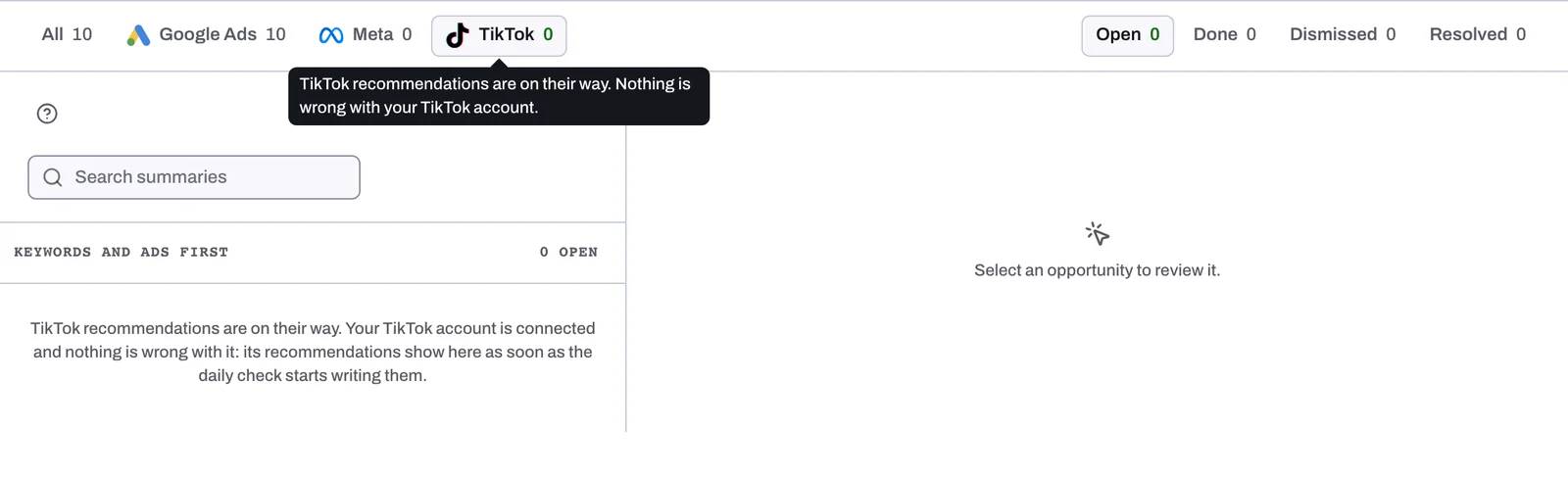
On a day when TikTok's figures have not fully arrived, or Tapper's spend for the last 7 days is more than 5% from TikTok's own report, Lift adds no card and the account's open TikTok cards leave the list until a later check passes. Then they come back, or close if Lift no longer finds the problem.
What you do with a TikTok card
On an open card, Apply in TikTok Ads Manager opens the account's campaign list in a new tab, and Where to find it names the campaign and its ID (a card about the whole account reads Account-wide). Once you have made the change, press Mark as done and confirm, and the card moves to the Done tab. The checks Lift runs on TikTok Ads explains what each card looks for, and Fix, mark as done, dismiss and revert covers the buttons.
If something goes wrong
- "Only a workspace owner or admin can connect an account.": ask an Owner or Admin to connect it, or see Only a workspace owner or admin can connect an account.
- Connection failed, Sign-in cancelled or Connection status unknown after signing in: see what each sign-in message means.
- No ad accounts found: the login you used reaches no TikTok ad account. Press Connect a different account and sign in with one that can open it.
- On a Lift only workspace, an account connected in another Tapper workspace is refused: an Owner or Admin of the other workspace disconnects it there, then you connect it here.
- Some accounts did not connect: the page names each one with what to do next, and you can retry them later from the entity page.
- No TikTok card after the first daily checks: first check that the account's card on the entity's TikTok protection tab shows Connected (see below), then see No Lift recommendations yet. If your workspace is new and the Lift page stays empty, contact your Tapper contact.
TikTok signed Tapper out of the account
When TikTok signs Tapper out of an account, its card on the entity's TikTok protection tab reads "TikTok signed Tapper out of this account" with the chip Needs reconnect. Until you reconnect it, Lift neither reads nor checks the account: its open cards stay as they were and no new card comes. Press Reconnect on the card and sign in to TikTok for Business again; Reconnect an ad account that stopped working has the steps.
Disconnecting an account
Disconnecting a TikTok account closes its open Lift cards without counting any savings. On a Lift only workspace there is nothing to put back: connecting created nothing in the account, and Lift never changed it. See Disconnect an ad account.
Related
Was this helpful?
Related articles
Still need help?
Chat with our team and mention this article.