

Invite members and set their roles
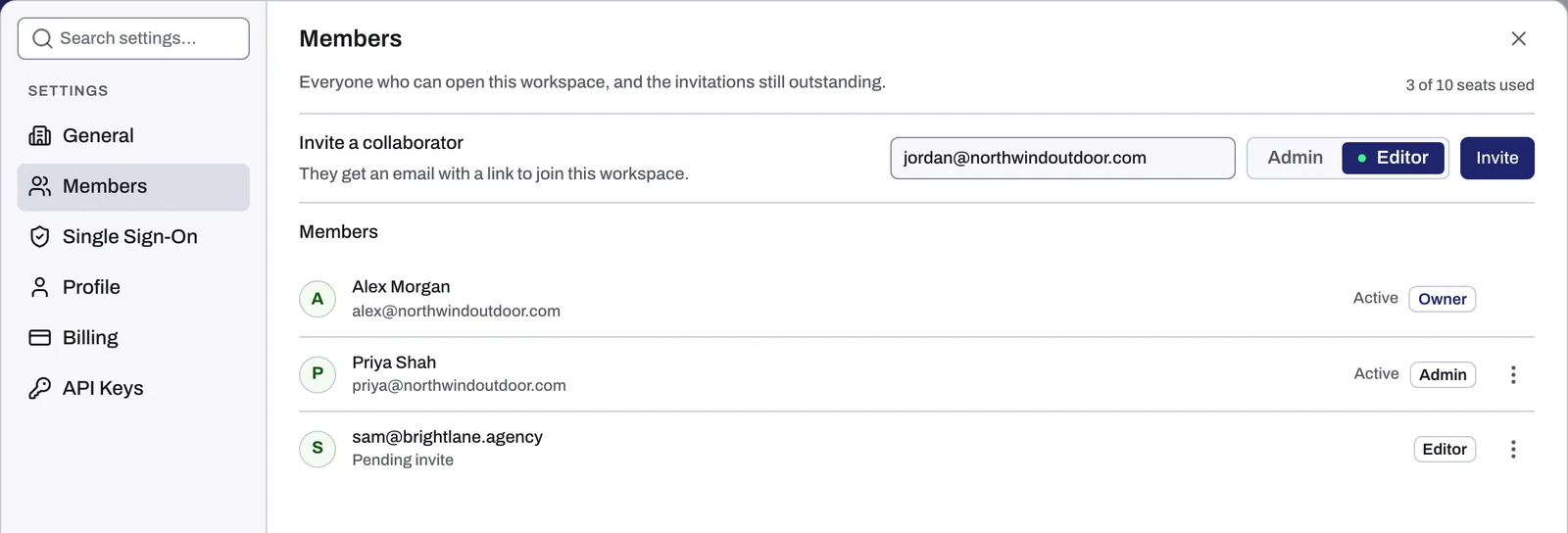
Owners and admins bring people into a workspace from Settings, Members. You type their email address, pick a role, and Tapper emails them a link to join. Later you can change their role, remove them, or withdraw an invitation they never accepted.
Before you start
- You need to be the workspace's Owner or an Admin. Editor members see the list of members but not the invite form or the row menus.
- Every person in the workspace takes a seat, the owner included, and each pending invitation keeps one too. When your plan caps seats, the Members section shows a counter that reads {n} of {max} seats used, where the second number is your plan's limit. Your plan's seats are listed under Billing: see Billing: your plan, renewal, seats and invoices.
Invite someone
- Open the account menu at the bottom of the sidebar, click Settings, then Members (or go to
https://app.tapper.ai/settings/members). - Under Invite a collaborator, type the person's email address.
- Choose the role: Admin or Editor (selected by default). An Editor cannot use Lift. What each one can do is in Roles: what Owners, Admins and Editors can do.
- Click Invite.
What the invited person gets
- An email with the subject You've been invited to join {workspace} on Tapper and an Accept invitation button.
- If the address already has a Tapper account, the person is added to the workspace at once. The email link only signs them in and opens it.
- If the address is new to Tapper, the link lets them create a login for that address, with a password, Google or SSO, and join in the same step. Point them to Accept a workspace invitation if they need help.
- Until they join, their row in the list reads Pending invite.
- Invitations do not expire. A link stops working only when you send that address a newer invitation or withdraw the one it has.
Change someone's role
- In Members, open the menu at the end of the person's row.
- The menu shows their role now, checked (Current role: Admin), and offers the other one: click Change role to Editor (or Change role to Admin on an Editor's row).
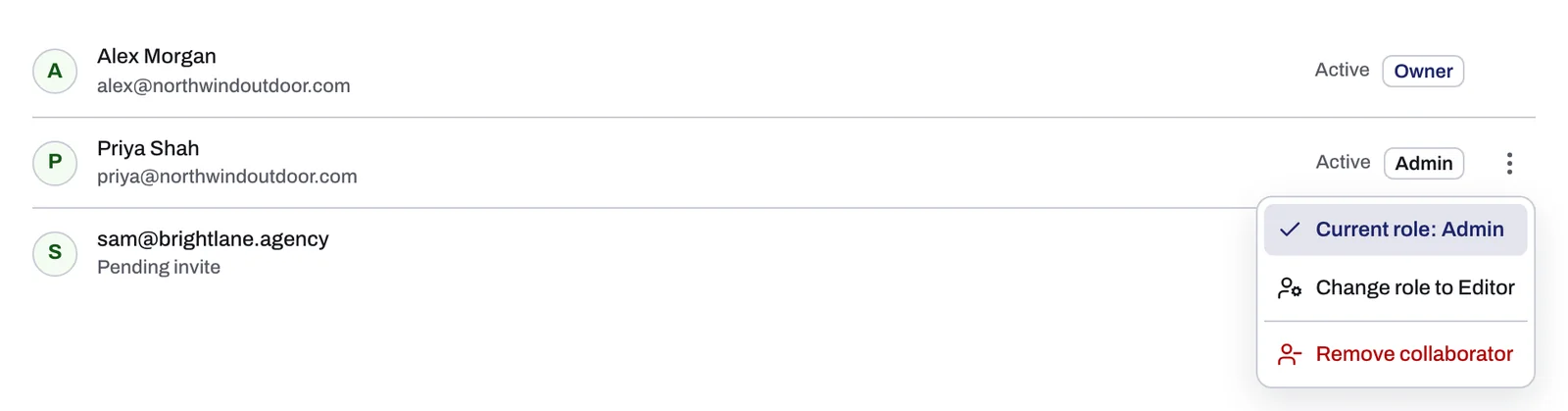
This works for pending invitations too: the person joins with the new role. The owner's row has no menu, because the owner role cannot be given or taken away here. If you are an admin and change your own role to Editor, you lose the member controls straight away.
Remove a member or withdraw an invitation
- Open the menu on the person's row.
- Click Remove collaborator for a member, or Withdraw invitation for a pending invite.
- Confirm.
Withdrawing an invitation stops its link working at once. Removing a member is permanent: if they later sign in through your company's single sign-on, that does not bring them back into the workspace. Either way, the seat is freed.
People who join through single sign-on
If your workspace uses single sign-on with Create accounts automatically switched on, Anyone who signs in with your company login joins this workspace without an invite. They join with the role chosen in Role for new members, which is Editor unless you change it; nobody becomes an owner this way. See Set up single sign-on (SSO) for your workspace.
If something goes wrong
| Problem | What to do |
|---|---|
| The invitation email never arrived | Ask the person to check their spam folder. Check that their row shows Pending invite with the right address. If the address is wrong, withdraw the invitation and invite the right one. |
| There is no invite form | Your role is Editor. Ask the owner or an admin to invite the person, or to make you an admin. |
| Your plan includes {n} team members per workspace. Upgrade to add more. | Every seat is used, pending invitations included. Remove a member or withdraw a pending invitation to free a seat, or look at a plan with more seats under Billing. |
| You want to hand the workspace to someone else | Ownership cannot be changed in Members. Write to support@tapper.ai and Tapper support transfers it. |
Related
Was this helpful?
Related articles
Still need help?
Chat with our team and mention this article.