

Monitoring-only mode: why nothing is blocked yet and what changes when blocking starts
If your dashboard shows invalid clicks but your ad accounts show no exclusions, your workspace is in monitoring-only mode. This is normal for a new workspace: Tapper Block detects and records invalid traffic from day one, but it does not exclude that traffic in Google, Meta or TikTok until blocking is switched on.
How it works
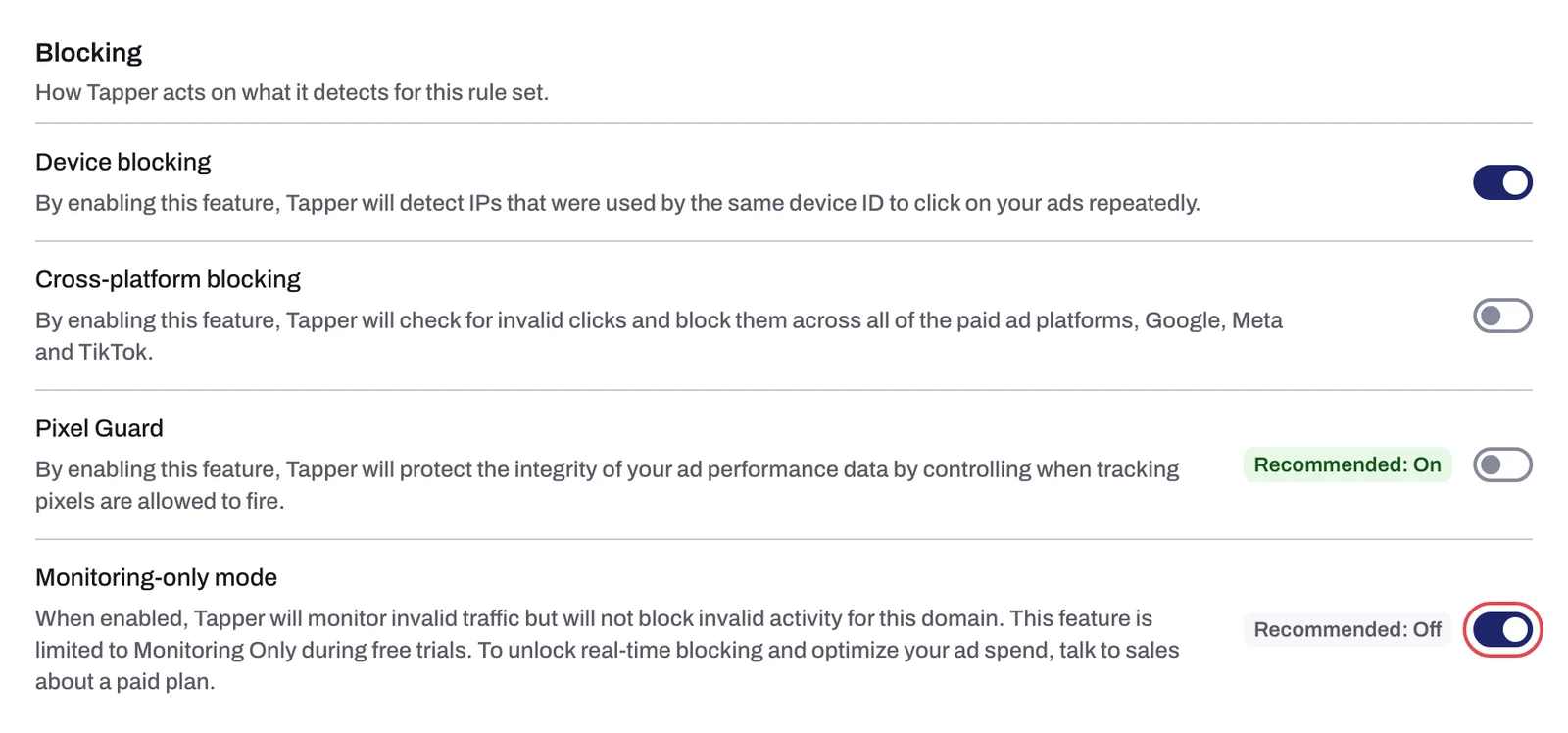
Monitoring-only mode is a switch on each rule set of a protected entity. You find it on the Web detection rules tab, in the Blocking section, as the last row: Monitoring-only mode.
Three rules decide what your workspace does:
- Every new rule set starts with the switch on. That includes the default set created with every entity and every custom set you add later. Nothing is blocked until someone turns the switch off.
- Blocking is a paid feature. During the free trial and on the Free plan, the switch cannot be turned off. Tapper keeps detecting and the dashboard fills up either way. To move to a paid plan, open Settings, Billing, and use Talk to sales, which opens the Plans page and its Book a call button.
- An entity counts as monitoring-only only while every live rule set is. As soon as one rule set, the default included, has the switch off, the entity blocks on the traffic that set covers.
Mobile app detection rules have their own Monitoring-only mode row: "When enabled, invalid traffic is detected and flagged but no blocking or alerting actions are taken."
What you see in Tapper
Tapper relabels its screens so that nothing reads as blocked when nothing is. Here is how to recognize the mode:
| Where | In monitoring-only mode | Once blocking is on |
|---|---|---|
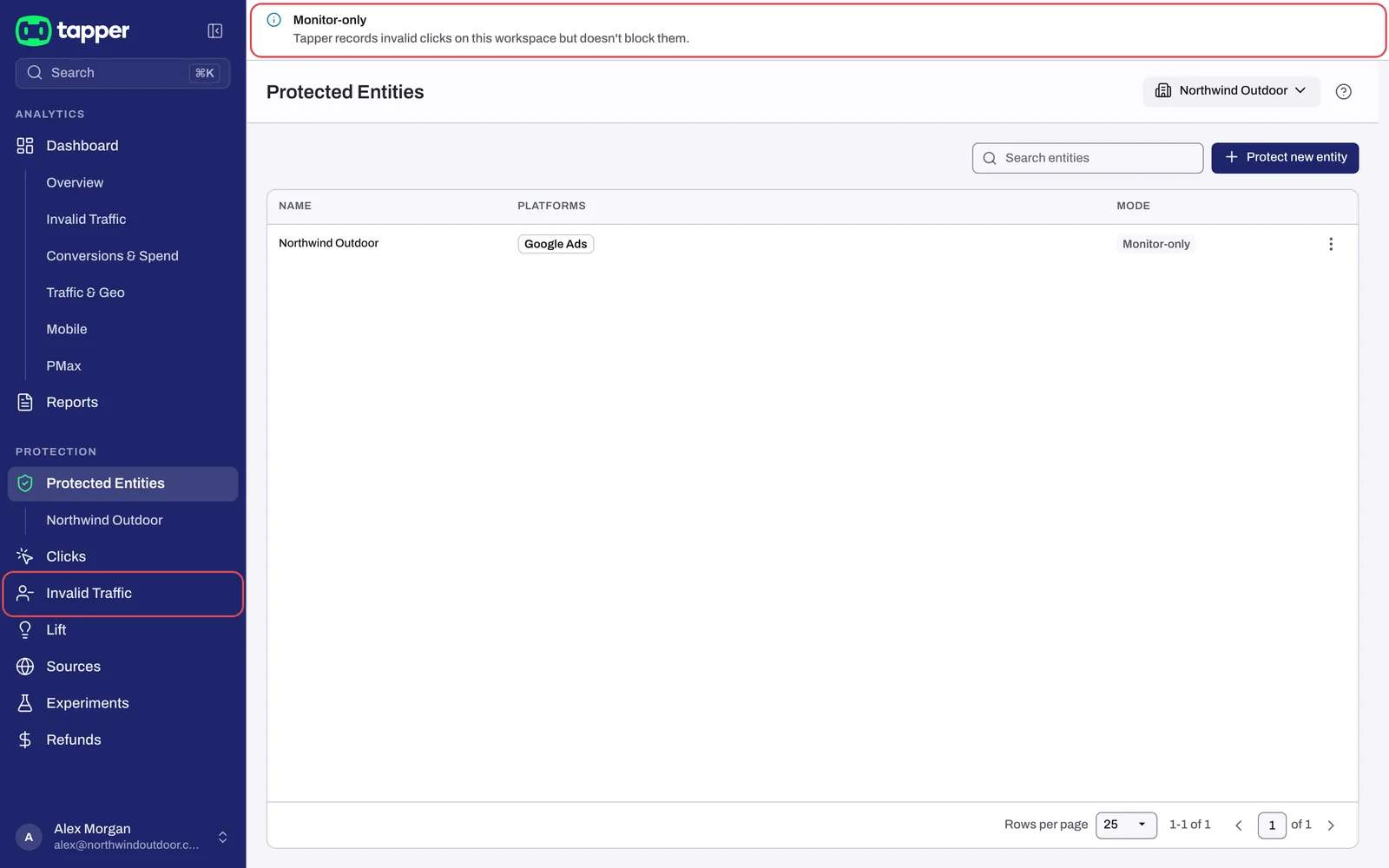
| Top of every page | A notice that cannot be closed: Monitor-only, "Tapper records invalid clicks on this workspace but doesn't block them." | No notice |
| Sidebar, Protection section | Invalid Traffic | Exclusions |
| Protected Entities, column Mode | Monitor-only | Blocking |
| Dashboard tile Total Blocks | Total Invalid | Total Blocks |
| Dashboard tile IP Blocks | Invalid IPs | IP Blocks |
| Dashboard tile Audience Blocks | Invalid Audience Exclusion Users | Audience Blocks |
| Dashboard tile Saved Spend | Wasted Spend, shown in red | Saved Spend |
| Dashboard filter and chart Block reason | Invalid traffic reason | Block reason |
| Clicks page column and filter | Invalid traffic | Block reason, Blocked |
| Monthly report cards | Wasted Clicks, Wasted Spend | Blocked Clicks, Reallocated Spend |
The notice appears whenever an entity with a connected ad account is monitoring-only, and never on a Lift only workspace. On the Free plan there is no notice, because Tapper sends you to the trial-ended page instead: see Your free trial has ended or a payment failed. The Invalid Traffic page lists the visitors Tapper would have excluded, so you can review what blocking will act on before you switch it on.
What still happens in monitoring-only mode
Monitoring-only stops the exclusions Tapper writes from its own detections: no IP exclusions, no audience exclusions and no placement exclusions go to your ad accounts. Three things keep working:
- The IPs you enter by hand on the Auto IP blocking tab (section Manually exclude IPs) are still pushed to your Google Search, Display and Shopping campaigns. Use this list carefully on a monitoring-only entity: it is the only exclusion written anyway.
- The Google Ads tracking template and conversion actions Tapper set up when you connected the account stay in place, so your click data keeps flowing.
- Detection and reporting: the dashboard, the Clicks page, the Invalid Traffic page and monthly reports all fill up as if blocking were on, with the labels above.
What changes when blocking starts
On a paid plan, an Owner or Admin opens the entity, selects the rule set on the Web detection rules tab and turns Monitoring-only mode off. Switches save on click, so there is no Save button. From that moment Tapper acts on what it detects for the traffic that rule set covers: on Google Ads it writes IP, audience and placement exclusions, and on Meta and TikTok it attaches its invalid traffic audience as an exclusion to the ad sets and ad groups whose Protection switch is on. Only new detections are enforced; nothing is applied retroactively for clicks recorded while the entity was monitoring-only. Repeat this for every rule set you want to block on.
If you later turn the switch back on, Tapper removes the exclusions it placed. Switch blocking on or off: what changes in your ad accounts lists exactly what is retracted and what stays.
Lift only workspaces
A workspace that chose Lift only has no blocking to switch on. Its entities are created monitoring-only and stay that way, the Monitor-only notice is not shown, and the Exclusions and Clicks rows are not in the sidebar. To block invalid traffic you need Block + Lift; see Lift only: what your workspace includes and leaves out.
Related
Was this helpful?
Related articles
Still need help?
Chat with our team and mention this article.