

Name your workspace, pick its time zone, industry and domains
The second step of the setup wizard, Name your workspace, renames the workspace that sign-up created, sets the time zone every date in Tapper uses, and creates your first protected entity. Choose the industry with care: on a Block + Lift workspace it decides which invalid click threshold rules Tapper starts with.
Before you start
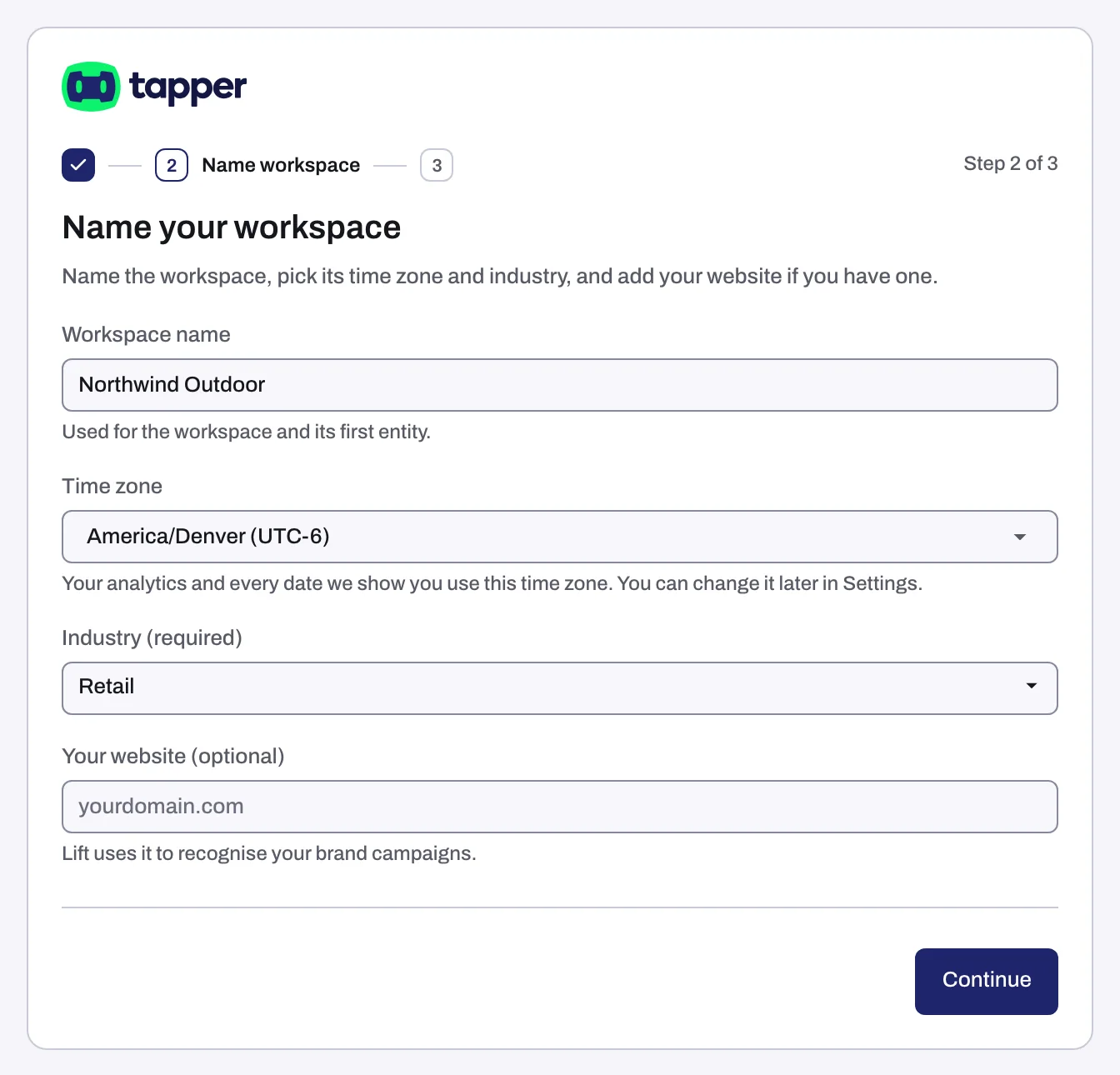
- You reach this step right after Choose your products: Lift only or Block + Lift. It is step 2 of 5 on a Block + Lift workspace and step 2 of 3 on Lift only. An app measured with Adjust adds a Connect Adjust step after this one.
- Sign-up created a workspace named Default. This step gives it its real name.
The fields
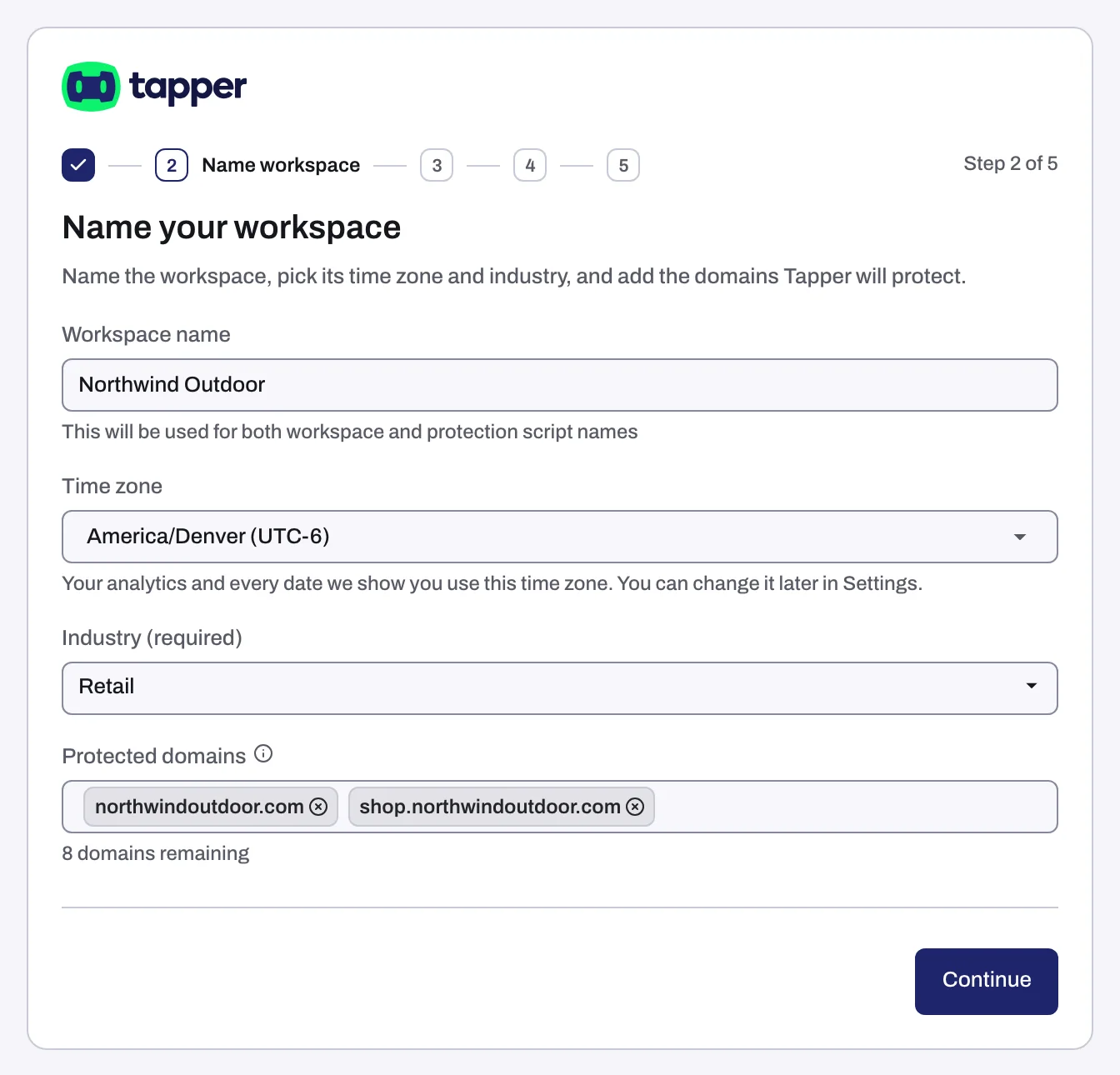
| Field | What to enter | Notes |
|---|---|---|
| Workspace name | Your company or brand name (placeholder "e.g. Acme Co.") | The same name goes on your first entity. |
| Time zone | Search the list ("Search time zones"); options read like "America/New_York (UTC-4)" | Your browser's zone is preselected. Your analytics and every date Tapper shows use it, and you can change it later in Settings. |
| Industry (required) | One of 14 industries ("Select industry") | Stored on the entity. With Block + Lift it seeds the preset rules listed below. |
| Protected domains (Block + Lift only) | The domains Tapper should protect, one at a time: type a domain and press Enter, and it becomes a chip in the field | Your plan sets how many domains you can add. |
| Your website (optional) (Lift only) | Your main domain (placeholder "yourdomain.com") | Lift uses it to recognise your brand campaigns. |
The tooltip on Protected domains explains the accepted format: "Enter the domain you'd like Tapper to protect. You can use formats like www.yourdomain.com or simply yourdomain.com."
Steps
- Type a Workspace name.
- Open Time zone and pick the zone your team reports in.
- Choose your Industry (required), the closest match to your business.
- With Block + Lift, add each domain under Protected domains. On Lift only, enter Your website (optional) or leave it empty.
- Press Continue. The wizard moves on to Connect an ad account.
What Continue creates
Pressing Continue does five things in the background:
- Saves the workspace name and time zone.
- Creates your first protected entity, carrying the industry you chose. An entity (the app also calls it a protection script) is the object that holds everything about one brand or website: its domains, its detection rule sets, its monitoring script, and the ad accounts and MMP integrations you connect to it. See Protected entities: what they are and how to add one.
- Adds each protected domain to that entity.
- On Block + Lift, creates the industry's preset invalid click threshold rules on the entity's default rule set, plus one aborted ad click rule: allow up to 5 aborted ad clicks within 24 hours. An aborted ad click is one where the ad click fires but your page never loads and no events are recorded.
- On Lift only, creates no preset rules. Lift only has no detection rules step, and its default rule stays in monitoring-only mode.
The preset rules each industry creates
Every preset reads "Allow up to N ad clicks within M" on the Web detection rules tab. An IP that clicks more often than a row allows is flagged.
| Industry | Preset rules (clicks within window) |
|---|---|
| Automotive | 2 in 1 hour; 3 in 14 days; 4 in 30 days |
| Beauty | 2 in 1 hour; 3 in 7 days; 4 in 30 days |
| E-Commerce | 2 in 10 minutes; 3 in 2 days; 4 in 7 days |
| Entertainment | 2 in 1 day; 3 in 7 days; 4 in 30 days |
| Finance & Banking | 2 in 1 day; 3 in 7 days; 3 in 30 days |
| Healthcare | 3 in 1 day; 4 in 7 days; 5 in 14 days |
| Insurance | 2 in 1 day; 3 in 14 days; 5 in 30 days |
| Marketing | 2 in 1 hour; 3 in 7 days; 4 in 30 days |
| Media | 2 in 1 day; 3 in 14 days; 4 in 30 days |
| Real estate | 2 in 1 day; 3 in 7 days; 5 in 30 days |
| Retail | 3 in 10 minutes; 7 in 7 days; 10 in 30 days |
| Sports/Fitness | 2 in 1 day; 3 in 14 days; 4 in 30 days |
| Telecommunications | 2 in 1 hour; 3 in 1 day; 4 in 30 days |
| Travel | 2 in 10 minutes; 3 in 1 day; 4 in 7 days |
Change it later
- Workspace name: open Settings, section General, card Workspace, edit Name and press Save.
- Time zone: Settings, section General, card Time zone, field Workspace time zone. Daily charts from your ad platforms stay in the ad account's time zone. See Workspace time zone: which day your numbers count in.
- Domains: on the entity's Web detection rules tab, section Protected domains. The same plan limit applies there.
- Industry: Settings has no industry field. To use another industry's presets, press Suggest rules on the Web detection rules tab, pick the industry in Choose your industry and press Use suggested rules. The presets are added to the rules already there, so remove the rows you no longer want with Remove rule.
Related
Was this helpful?
Related articles
Still need help?
Chat with our team and mention this article.