

Lift only: what your workspace includes and leaves out
A Lift only workspace has Tapper Lift and leaves out Tapper Block, the product that puts Tapper's monitoring script on your website and blocks invalid traffic in your ad accounts. Block's pages, tabs and setup steps are left out of the app rather than shown dimmed, and connecting an ad account writes nothing into it.
What a Lift only workspace includes
- Lift on Google Ads, Meta Ads and TikTok Ads. Lift checks your connected accounts on those three platforms every day and lists what it finds on the Lift page. Lift starts once Tapper has set your workspace up: if your workspace is new and the page stays empty, see No Lift recommendations yet.
- The Lift page, with the Lift, Why, Settings and Activity tabs (and Products when the entity has a Google Ads account for an online store), and Setup behind the gear icon, with its General, Google Ads, Meta and Measurement sections. See Lift: what it does and where to find it.
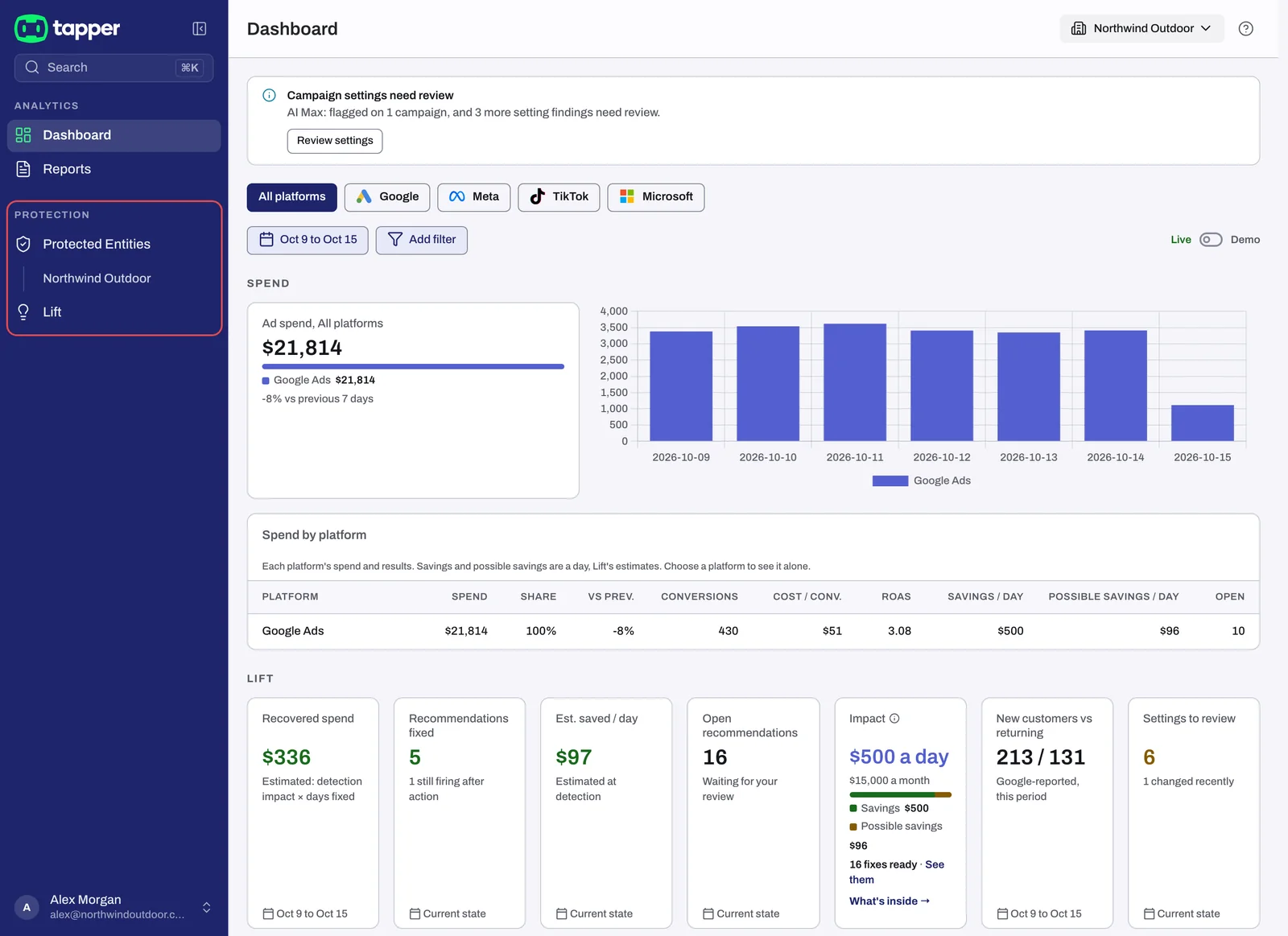
- A Lift dashboard. Dashboard is a single page of Lift figures: Spend by platform, the Lift tiles (among them Impact, Open recommendations and Settings to review) and, further down, Upside, Top recommendations, Where the money leaks, the Meta panels when you have a Meta account, Settings watch and Recent account changes. See Lift on the dashboard.
- Protected entities, which hold your connected ad accounts. Each entity has its ad platform tabs (Google protection, Meta protection, TikTok protection and Microsoft protection) and its Google Analytics, CRM and Adjust tabs.
What connecting an account does
Connecting an ad account takes an Owner or Admin. On a Lift only workspace the connection writes nothing into the account: Tapper only reads it.
| Platform | What Tapper does not set up |
|---|---|
| Google Ads | No account-level tracking template, conversion actions, user lists or audiences. |
| Meta Ads | No Tapper audience. No Meta pixel is needed, so an account without one connects. |
| TikTok Ads | No Tapper audience. No TikTok Pixel is needed. |
| Microsoft Ads | No tracking template, conversion goals, UET tag or remarketing lists. Lift does not check Microsoft Ads accounts. |
On Block + Lift, the same connection also sets Block up in the account: see What Tapper creates in your Google Ads account.
After connecting, Lift changes nothing in an ad account on its own. On Google Ads, it makes a change when an Owner or Admin presses a fix button on one of its cards and confirms it. On Meta Ads and TikTok Ads you make the change yourself: the card's Open in Meta Ads Manager or Apply in TikTok Ads Manager button opens the ad platform. On Google Ads there is one exception, and only if you set it: an Owner or Admin can add an automation band in Setup's Google Ads section, under Automation bands, which lets Tapper tighten a target CPA or raise a target ROAS on its own, by no more than the band, once a person's own fix of that kind has stuck on that account. See Fix, mark as done, dismiss and revert and Automatic fixes and the Activity tab.
Two more things set a Lift only connection apart:
- An account that is already connected in another Tapper workspace is refused.
- A Google Ads account gets a first check about 45 minutes after you connect it, and the app says the first recommendations appear within a few hours. Meta Ads and TikTok Ads accounts get their first cards from a later daily check.
The steps are in Connect or reconnect Google Ads for Lift, Connect Meta Ads for Lift and Connect TikTok Ads for Lift.
What is not there
A Lift only workspace has no monitoring script to install, no detection rules to set and no blocking, so every Block screen is left out. Where the two choices differ on screen:
| Where | Block + Lift | Lift only |
|---|---|---|
| Setup wizard | Website monitoring and Detection rules steps | Neither step: it finishes on the Lift page |
| Sidebar, Protection section | Protected Entities, Clicks, Exclusions (or Invalid Traffic), Lift, Sources, Experiments, Refunds | Protected Entities and Lift |
| Bottom bar on a phone | Dashboard, Protected Entities, Clicks, Profile | Dashboard, Protected Entities, Lift, Profile |
| Dashboard | Several tabs, with Lift's tiles on Overview | One Lift page with no tabs |
| Entity list | Protect new entity button | Add entity button |
| Entity page | Status Protected or Setup incomplete; opens on Web detection rules | Status Lift active or Connect an ad account; opens on Google protection |
| Entity tabs | Website, Ad platforms, Mobile app and Advanced groups | Ad platforms, and Advanced with Google Analytics, CRM and Adjust; no protection switches on the platform tabs |
| Notices | Monitor-only and Google Ads setup doesn't match your protection rules, when they apply | Neither shown |
| Lift tab with no open cards | Review detection rules button | Review Lift settings button |
Change to Block + Lift, or back
Both choices include Lift. While no ad account is connected to the workspace, an Owner or Admin can switch:
- Open Settings and select General.
- Under Products, pick Block + Lift or Lift only.
- Press Save products.
Switching to Block + Lift adds Block's pages and setup steps. Other members cannot change products.
To change it after that, contact your Tapper contact: see How to get help from Tapper.
Related
Was this helpful?
Related articles
Still need help?
Chat with our team and mention this article.