

Billing: your plan, renewal, seats and invoices
The Billing section of Settings shows your own subscription: your plan, when it renews, how many seats it has, and the buttons to change plans, reach your invoices or cancel. Every workspace you own runs on it.
Where to find it
Open Settings and choose Billing. Everything sits in one section, Subscription.
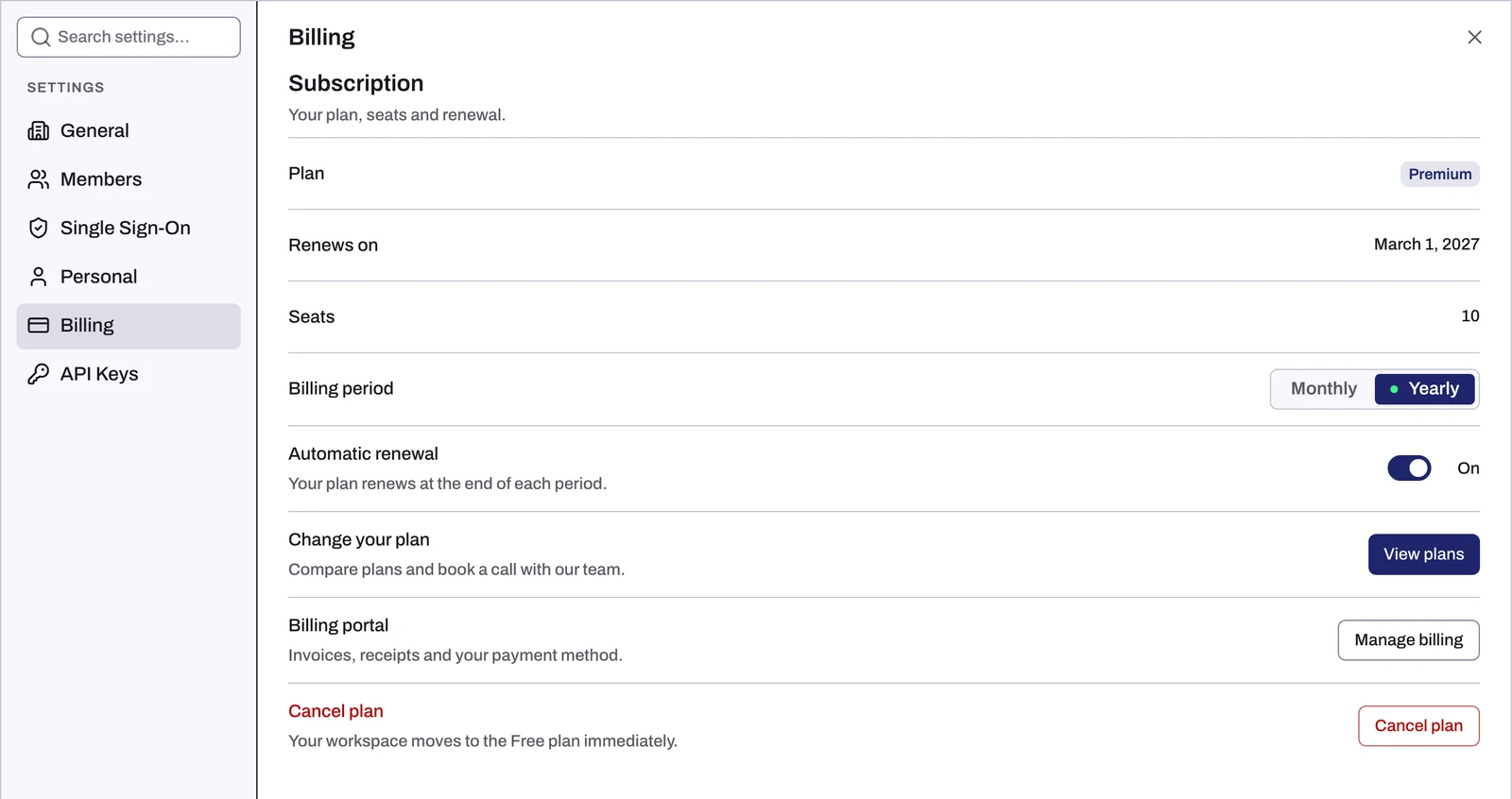
Which plan your workspace uses
A workspace runs on its owner's newest live subscription. If the owner has several workspaces, they all run on that plan.
Billing always shows the subscription of the person signed in. For a workspace you own, that is the plan the workspace runs on. For a workspace someone else owns, their plan applies, and only they see it in Billing: what you see there is your own subscription, which does not apply to that workspace.
What each row shows
| Row | What it shows |
|---|---|
| Plan | The plan's name: Free, Basic, Premium, or your plan's own name. A Trial chip appears during the free trial, and a Payment failed chip when a charge did not go through. |
| Renews on or Active until | Renews on gives the next renewal date when the plan renews automatically. Active until gives the date the plan runs until when it does not. During the free trial, the Active until date is not the day the trial ends. |
| Seats | How many seats the plan includes, or Unlimited. Members and pending invitations use seats, and the owner counts as one. The Members section shows how many are used. |
| Billing period | Paid plans only: Monthly or Yearly. |
| Automatic renewal | Paid plans only: On or Off. |
Change your plan
- On the Free plan or the free trial, the button is Talk to sales. On a paid plan it is View plans.
- Both open the Plans page, with an Enterprise and Startup/SME toggle and a Book a call button that opens a calendar to book time with Tapper's team.
- There is no checkout in the app: Book a call is the only button on the Plans page.
- When Tapper changes your plan, an upgrade starts at once and you pay only the difference for the rest of the period you already paid for. A downgrade starts when the period you paid for ends, and you keep the higher plan until then. Nothing is refunded.
Invoices and payment method
On a paid plan, Manage billing opens Tapper's billing portal, run by Stripe, at pay.tapper.ai. That is where your invoices, receipts and payment method live. The button appears on paid plans only.
Cancel your plan
- In Billing, click Cancel plan.
- The dialog Cancel the plan says that your plan will not renew, that you keep it until the end of the period you paid for, and that nothing is refunded. Click Cancel the plan to confirm, or Keep my plan to back out.
Canceling changes your own subscription, so when the paid period ends every workspace you own moves to the Free plan.
If a payment fails
The Plan row shows a Payment failed chip, and your plan stays active for now. Update your payment method through Manage billing. If the plan ends before a charge goes through, every workspace you own falls back to the Free plan and the app shows the trial-ended page in its place. What to do then is in Your free trial has ended or a payment failed.
Related
Was this helpful?
Related articles
Still need help?
Chat with our team and mention this article.