

Change your password
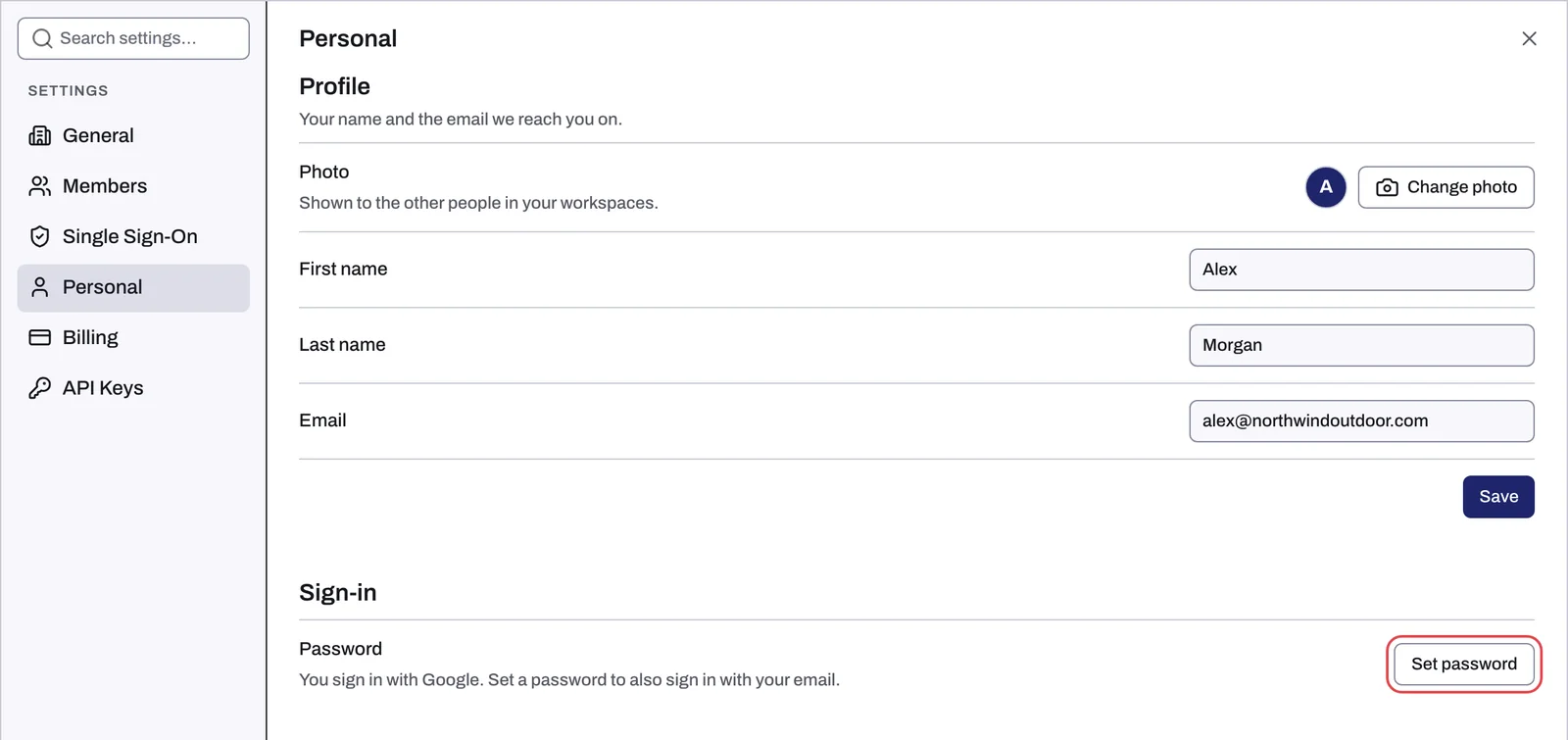
To change your Tapper password, use a reset link from the sign-in page: Tapper emails you a link, and you choose the new password on the page it opens. The Password row in Settings, Personal is for accounts created with Google that have no password yet: its Set password button adds one.
Before you start
- You need access to the inbox of the email address you sign in with: the reset link goes there.
- If you created your account with Google and never chose a password, there is no password to change yet: see If your account was created with Google below to add one.
Steps
- Open the account menu at the bottom of the sidebar (your photo and name) and click Log Out. The reset pages open only when you are signed out.
- Go to the sign-in page (
https://app.tapper.ai/log-in) and click Forgot password?. The page Reset your password opens. - Type the address you sign in with in Email.
- Click Reset password.
- Open the email from Tapper and click its link. The page Set a new password opens.
- Type your new password in New Password.
- Click Reset password.
- Sign in with your email address and the new password.
Reset a forgotten password has more on these pages, including what to do when the email does not arrive.
If your account was created with Google
Add a password in Settings, so you can sign in with your email address as well as with Google:
- Open the account menu at the bottom of the sidebar and click View Profile. This opens the Settings window on its Personal section. You can also open Settings and choose Personal, or go to
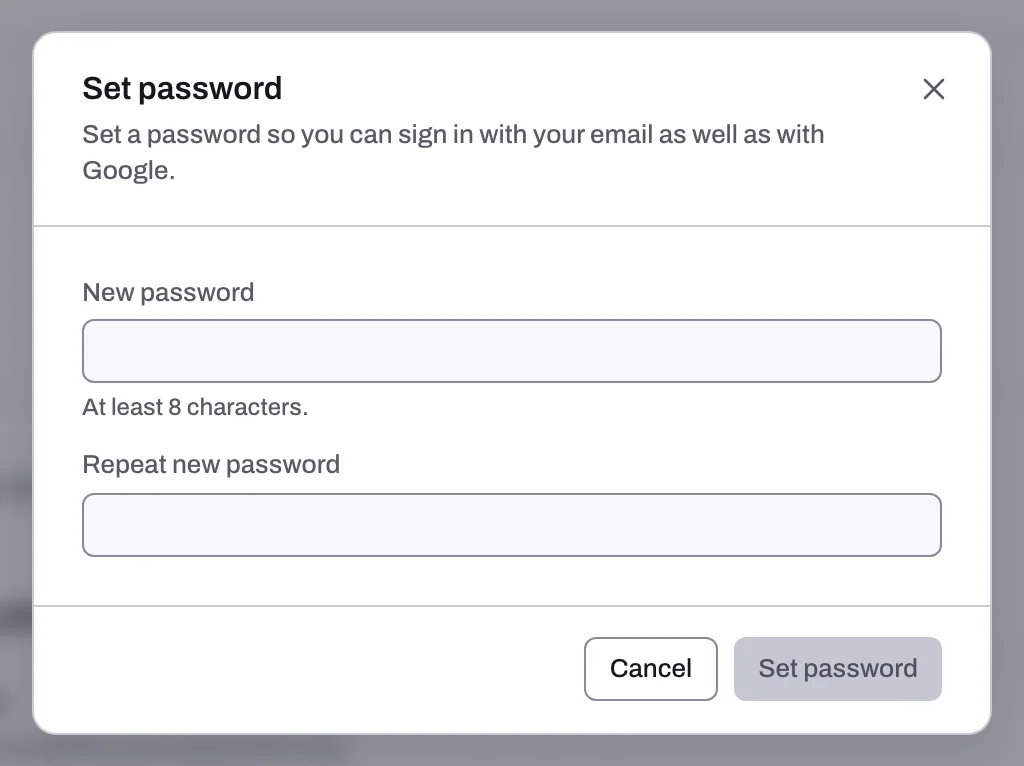
https://app.tapper.ai/settings/personal. - In the Sign-in section, click Set password on the Password row.
- Type your new password in New password.
- Type it again in Repeat new password.
- Click Set password.
Password rules
- At least 8 characters.
- No other rules: Tapper does not require numbers, symbols or capital letters.
If something goes wrong
| Message | What to do |
|---|---|
| Passwords do not match. | The two new-password fields differ. Type the new password again in both. |
| Current password is required. | Your account already has a password, and the Set password dialog cannot change it. Close the dialog and use a reset link instead, as in the steps above. |
The rest of the Personal section
The same section holds your profile, two-factor authentication and the theme:
- Your name, photo and email address: see Update your profile, photo, email and theme. If your company manages your email domain through single sign-on, the email cannot be changed here; Tapper says Your company manages @{your domain} accounts, so this email address cannot be changed here.
- A second sign-in step with an authenticator app: see Turn on two-factor authentication (2FA).
Related
Was this helpful?
Related articles
Still need help?
Chat with our team and mention this article.