

Update your profile, photo, email and theme
Your name, photo, email address and theme live in the Personal section of Settings. Your name, photo and email address belong to your login, not to a workspace, so a change here shows in every workspace you belong to. The workspace's own name and logo are elsewhere: see Workspaces: create, switch, rename and delete.
Open the Personal section
Open the account menu at the bottom of the sidebar (your photo and name) and click View Profile. You can also open Settings and choose Personal, or go to https://app.tapper.ai/settings/personal.
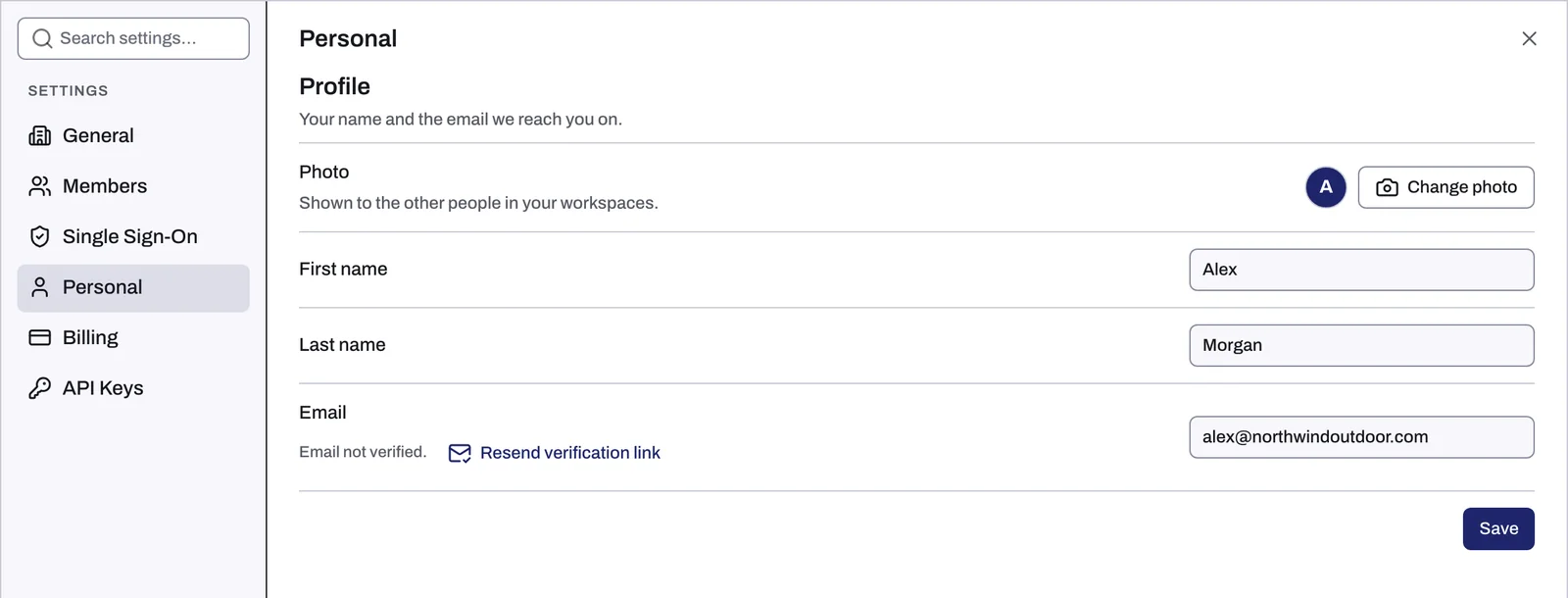
Change your photo
- In Profile, next to Photo, click Change photo.
- Pick an image file from your computer.
The photo uploads as soon as you pick it, with no Save needed, and is shown to the other people in your workspaces.
Change your name
- Edit First name and Last name.
- Click Save.
Change your email address
- Replace the address in Email.
- Click Save. From now on you sign in with the new address.
- Tapper emails a verification link to the new address (subject "Verify your email for Tapper"). Until you follow it, the row shows Email not verified.
- Open the email at the new address and follow the link. If it does not arrive, click Resend verification link.
Choose a theme
Under Theme, the Appearance control has three choices:
- Light
- Dark
- System, which follows the light or dark setting of your computer or phone
The theme is saved for the browser you choose it in, so another browser or device can keep a different one. The same control is in the account menu at the bottom of the sidebar, and the sign-in pages have one too.
The rest of the Personal section
- Sign-in: the Password row. To change your password, or to add one to an account created with Google, see Change your password.
- Two-factor authentication: add a code from an authenticator app to every sign-in. See Turn on two-factor authentication (2FA).
If something goes wrong
| What you see | What to do |
|---|---|
| User with that email already exists. | Another Tapper account already uses that address. Choose a different one, or sign in to that other account. |
| Email not verified. stays after you clicked the link | Reload the page. If it is still there, click Resend verification link again and check your spam folder. |
| Could not upload image. | Try another image file, such as a PNG or JPG. |
Related
Was this helpful?
Related articles
Still need help?
Chat with our team and mention this article.