

Create and manage API keys
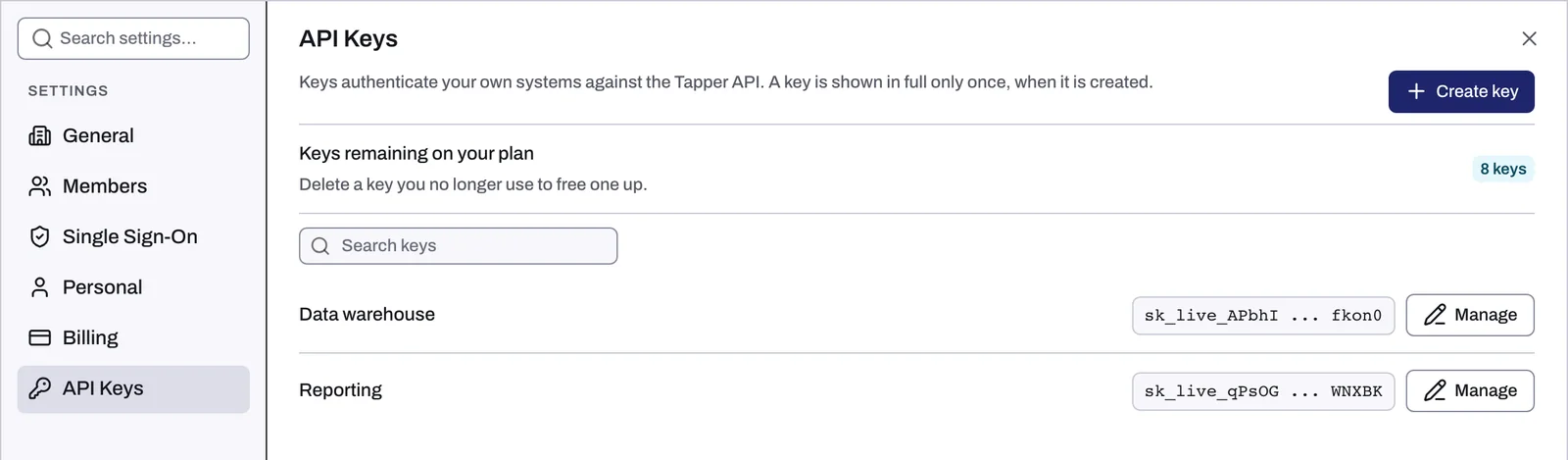
API keys let your own systems talk to the Tapper API. A key is shown in full only once, when it is created.
Before you start
- You need to be an Owner or Admin of the workspace. Editor members cannot create or manage keys.
- API Keys is in Settings on every paid plan and during the free trial. When the workspace runs on the Basic or Premium plan, it is always there. On any other plan, it is there while the workspace has fewer than 10 keys: once it has 10, API Keys disappears from Settings and opening
https://app.tapper.ai/api-keystakes you back to the dashboard without a message.
Create a key
- Open Settings and choose API Keys (
https://app.tapper.ai/api-keys). - Click Create key. The dialog Create new API key opens.
- Type a name in API key name. Name the key after the system that will use it.
- Click Create. Tapper shows the full key with a copy button.
- Copy the key straight away and store it somewhere safe, such as your password manager or your system's secret store.
Rename or delete a key
- In API Keys, click Manage on the key's row. The Manage API key dialog opens.
- To rename it, change API key name and click Update.
- To delete it, click Delete, then confirm with Delete key. Anything still calling the API with that key stops working immediately.
Delete keys you no longer use, both for security and to free a slot.
Limits
| Limit | Value |
|---|---|
| Keys per workspace | At most 10 |
| Keys left | Shown as Keys remaining on your plan |
Keys belong to the workspace, not to you. If you work in several workspaces, each one has its own keys.
Related
Was this helpful?
Related articles
Still need help?
Chat with our team and mention this article.