

Sign in to Tapper: password, Google or SSO
You can sign in to Tapper in three ways: with your email address and password, with your Google account, or through your company's single sign-on (SSO). All three start on the sign-in page at https://app.tapper.ai/log-in. If two-factor authentication is on for your account, Tapper also asks for a code from your authenticator app after you sign in, whichever of the three ways you use.
No account yet? On the sign-in page, click Start a free trial next to "New to Tapper?", or see Create your Tapper account. If a colleague invited you, open the link in the invitation email instead: see Accept a workspace invitation.
Sign in with your email and password
- Open
https://app.tapper.ai/log-in. - Type your Email and Password. To check what you typed, click the eye icon at the right end of the Password field.
- Click Sign in.
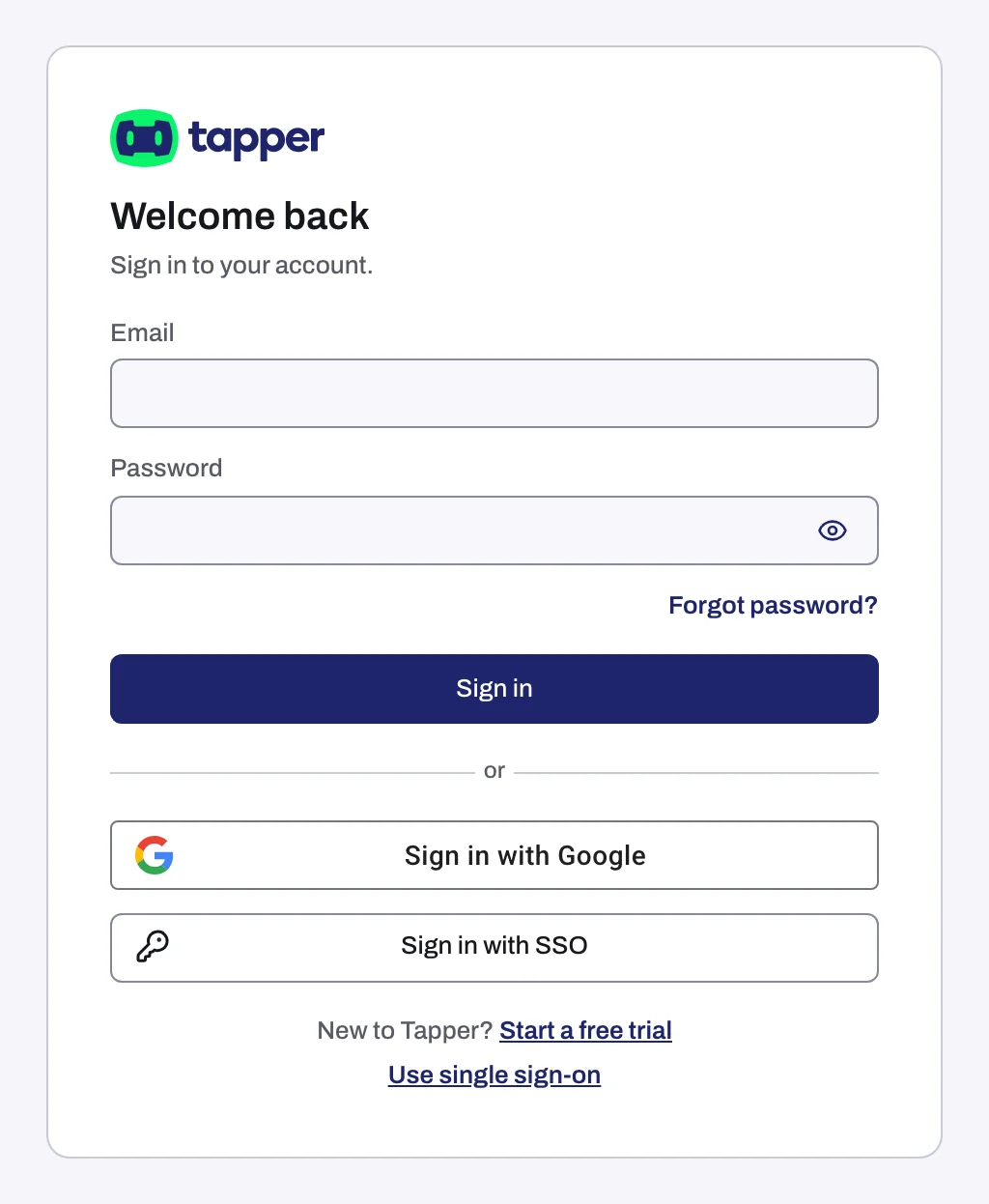
If you do not remember your password, click Forgot password? on the same card and follow Reset a forgotten password.
Sign in with Google
- Click Sign in with Google.
- Choose the Google account you use for Tapper.
Signing in and signing up with Google are the same step. Tapper matches the Google account by its email address: if that address already has a Tapper account, you are signed in to it; if it has none, Tapper creates a new account for it on the spot instead of showing an error. So choose the Google account with the same email address as your Tapper login.
An account created with Google has no password. You can only sign in to it with Google until you set one in Settings, Personal, Sign-in, with Set password: see Change your password.
Sign in with SSO
SSO works once an owner or admin has set it up for your company's email domain in Tapper: see Set up single sign-on (SSO) for your workspace.
- Click Sign in with SSO.
- Type your Work email. Tapper only needs the domain part.
- Click Continue, then sign in on your company's login page.
To go back to the password form or Google, click Sign in another way.
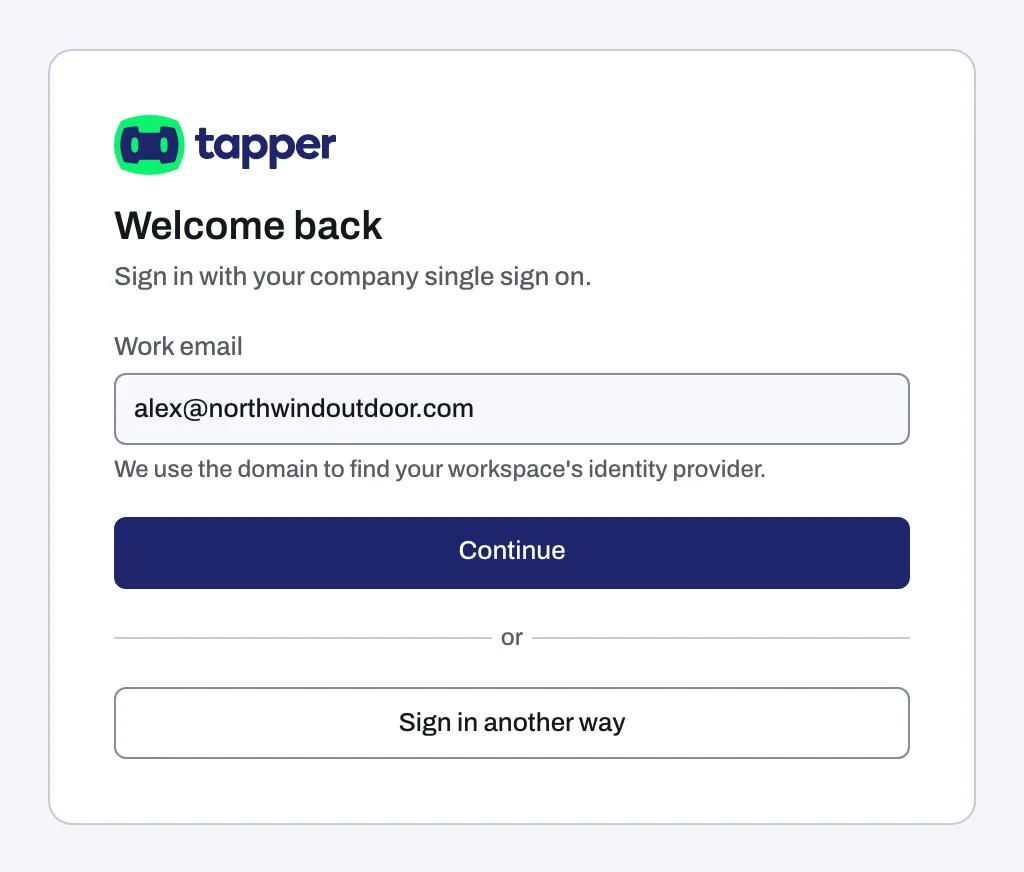
If your email domain has no SSO connection in Tapper, the card says No single sign-on is set up for this email domain. Sign in with your password, or ask your workspace owner.
Starting from your company's app portal
Your company can add Tapper as an app in its identity provider, for example as a tile in Okta or Microsoft Entra. That link opens a page headed Sign in with your company login, with a Work email or company domain field. The page never starts the sign-in by itself, so click Continue. When the link already carries your company's domain, the button reads Continue to {your domain}'s sign-in. To use a password instead, click Sign in with a password instead.
When a workspace requires SSO
A workspace can require everyone with your email domain to use the company login. If you got in another way, Tapper shows Sign in with your company login and explains that the workspace asks people with your domain to use it. Click Continue with your company login, or click one of your other workspaces, listed under or open another workspace, to go there instead. The rule only applies to that workspace; your other workspaces are not affected.
Enter your two-factor code
When two-factor authentication is on for your account, the next page after you sign in (with a password, Google or SSO) asks for the 6-digit code from your authenticator app.
- Open your authenticator app and find the Tapper entry.
- Type the current code in One Time Password.
- Click Continue.
If you no longer have the phone with your authenticator app, click Lost your device? Contact support, which reaches support@tapper.ai. There are no backup codes. To turn 2FA on or off, see Turn on two-factor authentication (2FA).
How long you stay signed in
Tapper keeps you signed in on a browser until 30 days pass without you using Tapper there: each visit starts the 30 days again. To sign out, open the account menu at the bottom of the sidebar (your photo and name) and click Log Out. The same Log Out button is at the bottom of the Settings window.
If you cannot sign in
A wrong email or password shows Incorrect email or password. For that message and every other sign-in problem, such as a lost authenticator or an SSO domain Tapper cannot find, see Can't sign in: wrong password, lost authenticator, SSO not found.
Related
Was this helpful?
Related articles
Still need help?
Chat with our team and mention this article.