

Can't sign in: wrong password, lost authenticator, SSO not found
If Tapper will not let you in, the message on screen tells you which path to take. The four you are most likely to meet are "Incorrect email or password.", a lost or wrong authenticator code, "No single sign-on is set up for this email domain.", and the Sign in with your company login page that appears when a workspace requires single sign-on.
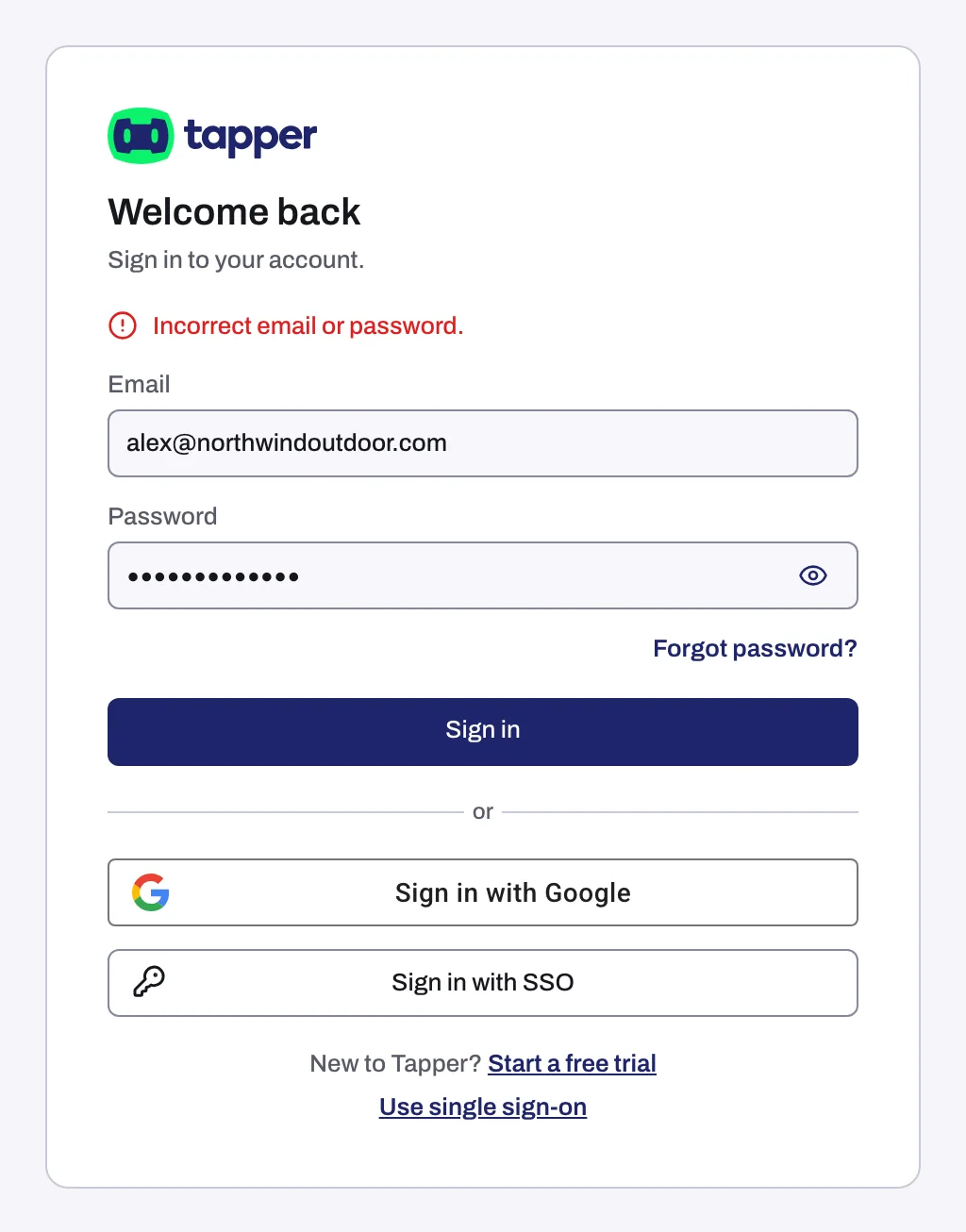
"Incorrect email or password."
Why it happens
The email address and password do not match an account. Two common causes: a typo, or an account created with Sign in with Google, which has no password until you set one.
Fix it
- Check the email address, then click the eye icon at the right end of the Password field to see what you typed.
- If you signed up with Google, click Sign in with Google instead.
- If you do not remember the password, click Forgot password? and follow Reset a forgotten password. The reset link lasts 14 days.
Tapper allows 20 sign-in attempts per 15 minutes from the same IP address. If you reach the limit, wait before you try again.
The authenticator code is wrong or your device is lost
Why it happens
With two-factor authentication on, Tapper asks for a 6-digit code from your authenticator app after your password. Tapper has no backup or recovery codes, so without the device that holds your authenticator app you cannot produce a code.
Fix it
- Open the authenticator app on the device you used when you set up 2FA, type the current Tapper code into One Time Password, and click Continue.
- If the device is lost or reset, click Lost your device? Contact support and email support@tapper.ai from the address you sign in with.
Once you are back in, you can set 2FA up again on a new device: see Turn on two-factor authentication (2FA).
"No single sign-on is set up for this email domain."
Why it happens
You chose Sign in with SSO on the sign-in page (or followed the Use single sign-on link) and entered a work email whose domain has no single sign-on connection in Tapper.
Fix it
- Check that you typed your work email, not a personal one.
- Click Sign in another way (on the single sign-on page, Sign in with a password instead) and sign in with your password or with Google.
- If your company should be using single sign-on, ask your workspace owner or an admin to set it up and verify the domain: see Set up single sign-on (SSO) for your workspace.
The "Sign in with your company login" page
Why it happens
The workspace you opened requires single sign-on for your email domain, and you are signed in with a password or Google. The page reads "Sign in with your company login" and explains that the workspace asks people with an email at your domain to sign in with their company login. "Your other workspaces are not affected." If your company has locked accounts on your domain to its own workspace, the page reads "Use your company workspace" instead: while that lock is on, it is the only workspace your account can use.
Fix it
- Click Continue with your company login to sign in through your company's identity provider.
- Or, under or open another workspace, click one of your other workspaces to work there instead. The list appears only when you belong to other workspaces, and not when your domain is locked.
- Or click Log out.
If it still happens
Email support@tapper.ai from the address you sign in with. Include the exact message on screen, the sign-in method you used (password, Google or SSO) and, for SSO, your email domain.
Related
Was this helpful?
Related articles
Still need help?
Chat with our team and mention this article.