

Workspaces: create, switch, rename and delete
A workspace is the container for everything you set up in Tapper: its protected entities, connected ad accounts, members and settings. You can belong to several, some you own and some you were invited to. You manage them in Settings, General, and switch between them from the workspace button at the top of the app.
Each workspace has exactly one owner, and it runs on the owner's plan: the number of workspaces you can create and the seats in each come from that plan.
See your workspaces
- Open Settings from the account menu at the bottom of the sidebar. General opens first (
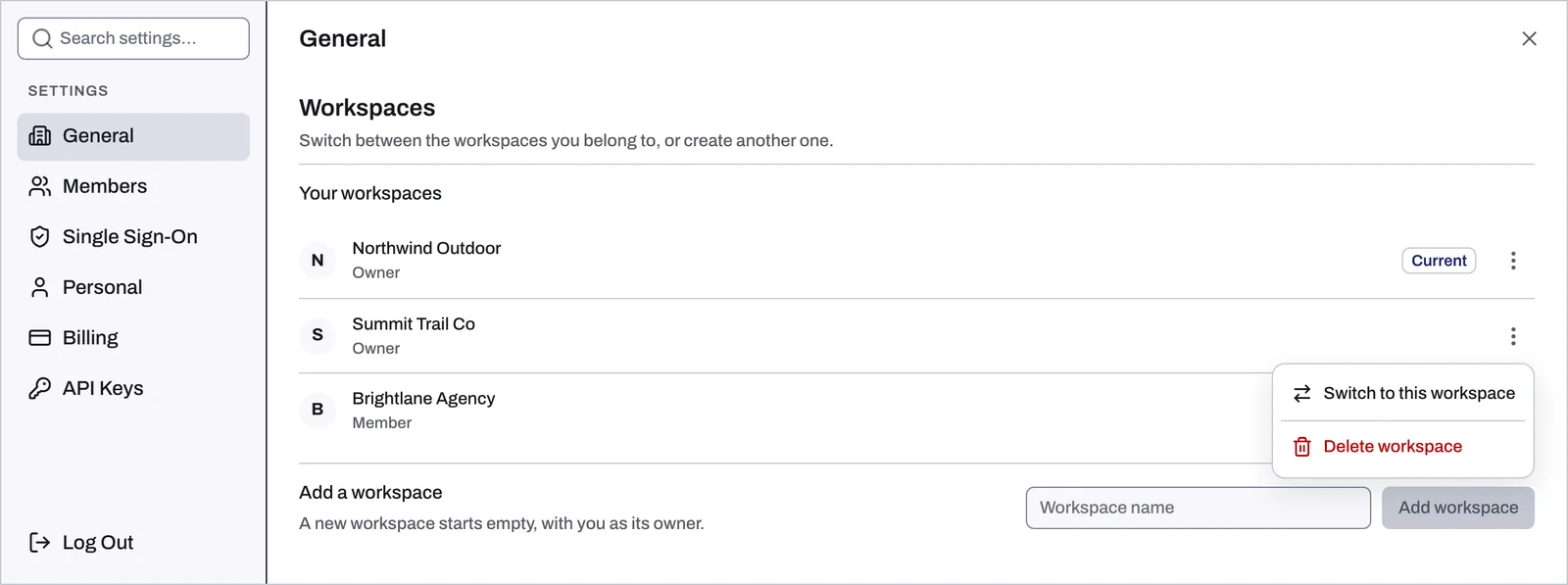
https://app.tapper.ai/settings). - Scroll to Workspaces. The list shows every workspace you can open. Each row is tagged Owner if it is yours or Member if you were invited, and the one you are in carries the Current chip.
Switch to another workspace
- From Settings: in Workspaces, open the row's menu and click Switch to this workspace. The app reloads inside that workspace.
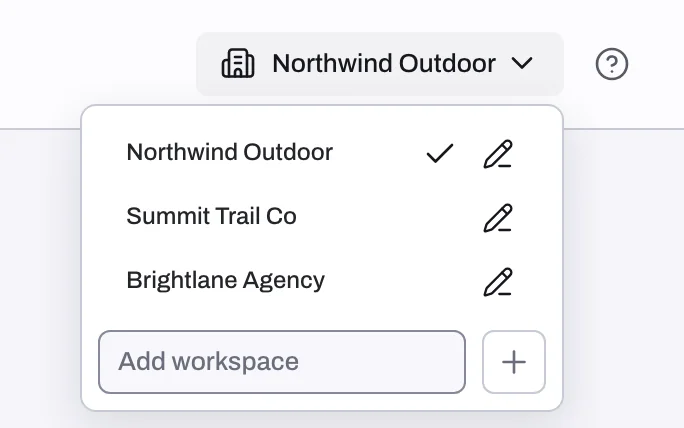
- From the top bar: on a computer, click the workspace button at the top of the app and choose a workspace from the list. On a phone, the same switcher is the first row of the navigation menu.
If the workspace requires your company's single sign-on and your current session did not use it, Tapper takes you through your company login first.
Create a workspace
- In Settings, General, Workspaces, find Add a workspace. A new workspace starts empty, with you as its owner.
- Type a name in Workspace name.
- Click Add workspace.
- Tapper switches to the new workspace and opens its setup wizard at Choose your products. Work through the wizard to set the workspace up, starting with Choose your products: Lift only or Block + Lift.
You can also type a name in the Add workspace field at the bottom of the top-bar switcher and click its plus button.
If your plan has no workspace left, Tapper tells you so and offers a See plans button. See Billing: your plan, renewal, seats and invoices.
Rename a workspace or change its logo
These settings apply to the workspace you are in, so switch to it first. Owners and admins can change them.
- In Settings, General, go to Workspace.
- To change the name, edit Name (1 to 320 characters) and click Save.
- To change the logo, click Change logo and pick an image. It uploads straight away, with no Save needed, and shows next to the workspace name in the sidebar.
The same General section holds the workspace's products and its time zone: see Workspace time zone: which day your numbers count in.
Delete a workspace
Only the owner can delete a workspace. In Settings, Delete workspace is never offered on the workspace you are currently in, so switch first.
- Switch to a different workspace.
- In Settings, General, Workspaces, open the menu on the row of the workspace to delete and click Delete workspace.
- Read the confirmation and click Delete workspace again.
Change the owner
A workspace always has exactly one owner, and ownership cannot be moved from Settings. To transfer a workspace to someone else, write to support@tapper.ai: Tapper support makes the change.
Related
Was this helpful?
Related articles
Still need help?
Chat with our team and mention this article.