

Set up single sign-on (SSO) for your workspace
Single sign-on (SSO) lets your team sign in to Tapper with your company's identity provider instead of a Tapper password. Tapper uses OpenID Connect, so providers such as Okta, Microsoft Entra, Auth0 and Ping work. The values you paste into your identity provider are in Configure your identity provider for Tapper SSO.
Before you start
- Only an Owner or Admin of the workspace can set up single sign-on.
- Tapper supports OpenID Connect only. SAML is not supported, so there is no metadata URL, entity ID or ACS URL to enter.
- Create the Tapper application in your identity provider first, and have its issuer URL, client ID and client secret at hand.
- You need access to your domain's DNS settings, or a colleague who has it, to add one TXT record per email domain.
Fill in the connection
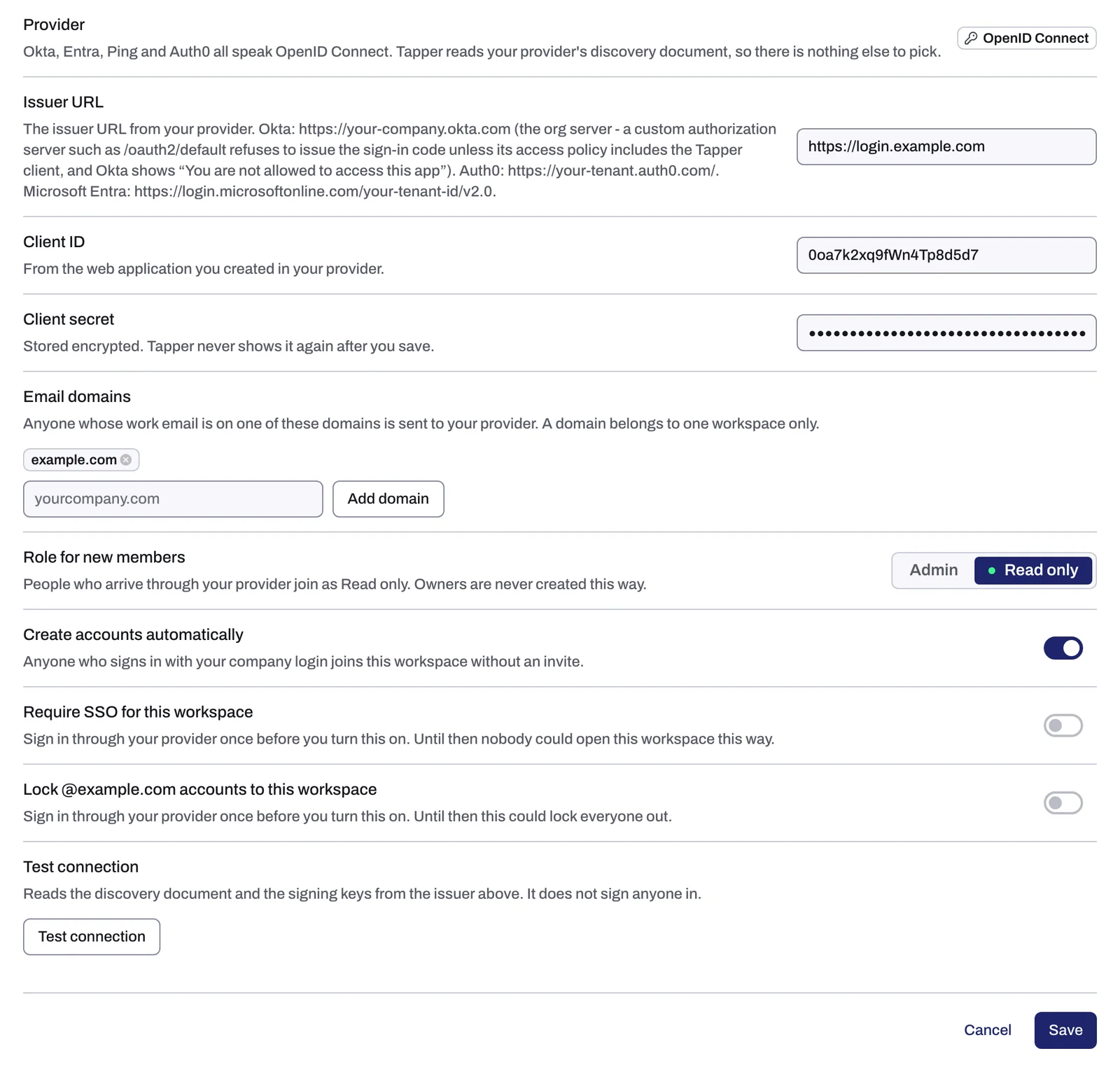
- Open Settings and choose Single Sign-On (
https://app.tapper.ai/settings/sso). If your workspace has no connection yet, the page reads No single sign-on yet: click Set up single sign-on to open the form. - In Issuer URL, paste the issuer from your identity provider.
- In Client ID, paste the client ID of the application you created.
- In Client secret, paste its client secret. Tapper stores it encrypted and never shows it again after you save.
- In Email domains, add each domain your team's work email addresses use, for example
yourcompany.com. - In Role for new members, choose the role people get when they join through your provider. It is Editor unless you change it. Roles: what Owners, Admins and Editors can do explains each role.
- Click Save, then click Test connection to check the issuer you entered before anyone tries to sign in. It does not sign anyone in.
Verify your email domains
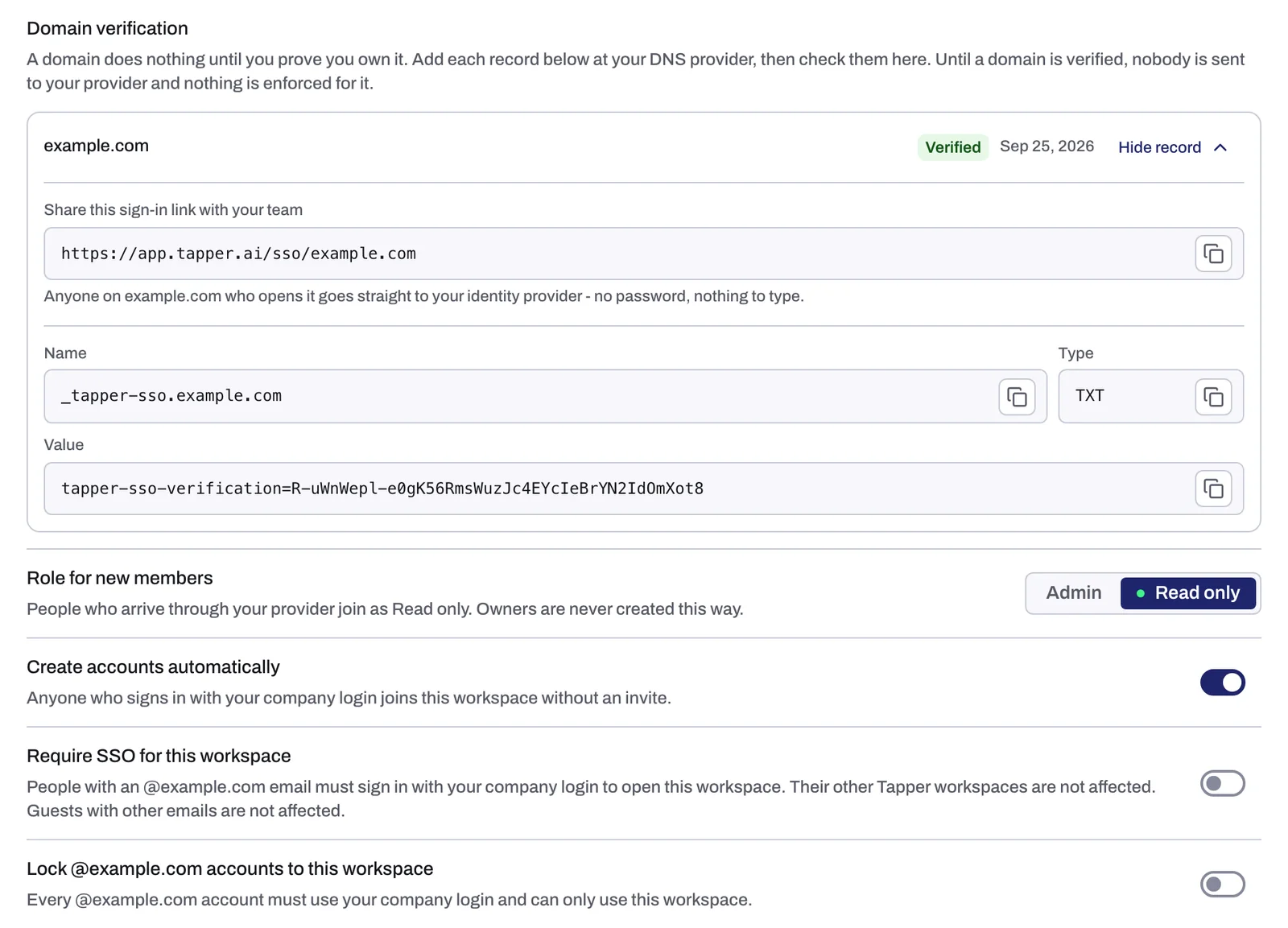
A domain works for single sign-on only after you prove you own it with a DNS record. Once you save the connection, a Domain verification area appears with a card for each domain you added. Until a domain is verified, its card shows the TXT record, each part with a copy button:
| Part of the record | What to enter at your DNS provider |
|---|---|
| Type | TXT |
| Name | _tapper-sso.yourcompany.com (with your own domain) |
| Value | tapper-sso-verification= followed by the token Tapper shows for that domain |
- Copy the Name, Type and Value from the domain's card in Domain verification.
- Add the record at your DNS provider.
- Back in Tapper, click Check DNS records. The button shows while at least one domain is not verified yet.
Each domain carries a chip:
| Chip | Meaning |
|---|---|
| Verified | Tapper found the record. The domain is ready for single sign-on. |
| Not found yet | Tapper checked and could not see the record yet. DNS changes can take a while to appear, so check again later. |
| Not verified | No check has confirmed the record yet. Add it, then click Check DNS records. |
Verification does not expire.
A Verified domain's card shows Share this sign-in link with your team: the link https://app.tapper.ai/sso/yourcompany.com with a copy button. Send it to your team, as described in How your team signs in below.
Choose who must use your company login
Three switches sit under the connection. Each one works on its own.
| Switch | What it does |
|---|---|
| Create accounts automatically | Anyone at your domains who signs in with your company login joins this workspace without an invite, with the role from Role for new members. With it off, only people you invite can join. |
| Require SSO for this workspace | People with an email at your domains must sign in with your company login to open this workspace. Their other Tapper workspaces are not affected, and guests with other email domains are not affected. |
| Lock @yourcompany.com accounts to this workspace | Every account at your domain must use your company login and can only use this workspace. The label shows your own domain. |
When one of the last two switches applies and someone arrives with a password or Google session, Tapper shows a page titled Sign in with your company login (or Use your company workspace when the domain is locked). It explains that the workspace asks people with an email at your domain to sign in with their company login, and offers Continue with your company login, or open another workspace and Log out.
How your team signs in
- On the sign-in page, people click Sign in with SSO, enter their Work email and click Continue. Tapper uses the domain to find your identity provider. The Use single sign-on link under it opens a page that asks for a Work email or company domain instead.
- Or send them the link from Share this sign-in link with your team on a verified domain's card,
https://app.tapper.ai/sso/yourcompany.com. It opens a page with a Continue to yourcompany.com's sign-in button that hands people to your provider. The page never starts sign-in on its own, so people click that button once. - You can also add a Tapper tile with the same link to your provider's app launcher. The values for the tile are in Configure your identity provider for Tapper SSO.
If something goes wrong
- Test connection fails. Check the issuer URL first. The public guide Set Up Your Identity Provider shows where the issuer lives in Okta, Auth0, Microsoft Entra and Ping.
- A domain stays on Not found yet. Check that the record name starts with
_tapper-sso.and that the value matches the token in Tapper exactly, then click Check DNS records again later. - Someone sees "No single sign-on is set up for this email domain. Sign in with your password, or ask your workspace owner." Their email domain is not in Email domains on your connection, or it is not verified yet.
To stop using single sign-on, click Remove on the connection and confirm. Your team goes back to signing in with a password or Google. Anyone already in the workspace keeps their access.
The public guide Single Sign-On walks through the same setup.
Related
Was this helpful?
Related articles
Still need help?
Chat with our team and mention this article.