

Turn on two-factor authentication (2FA)
Two-factor authentication (2FA) adds a second step to signing in to Tapper: after your password (or after you sign in with Google or SSO), you type a 6-digit code from an authenticator app on your phone. Someone who learns your password still cannot get in without the phone. Tapper works with any authenticator app that shows time-based codes, such as Google Authenticator, Authy or 1Password. It does not send codes by text message or email.
Before you start
- Install an authenticator app on your phone.
- 2FA belongs to your own login, so it covers you in every workspace you belong to. Other members turn it on for themselves.
Turn on 2FA
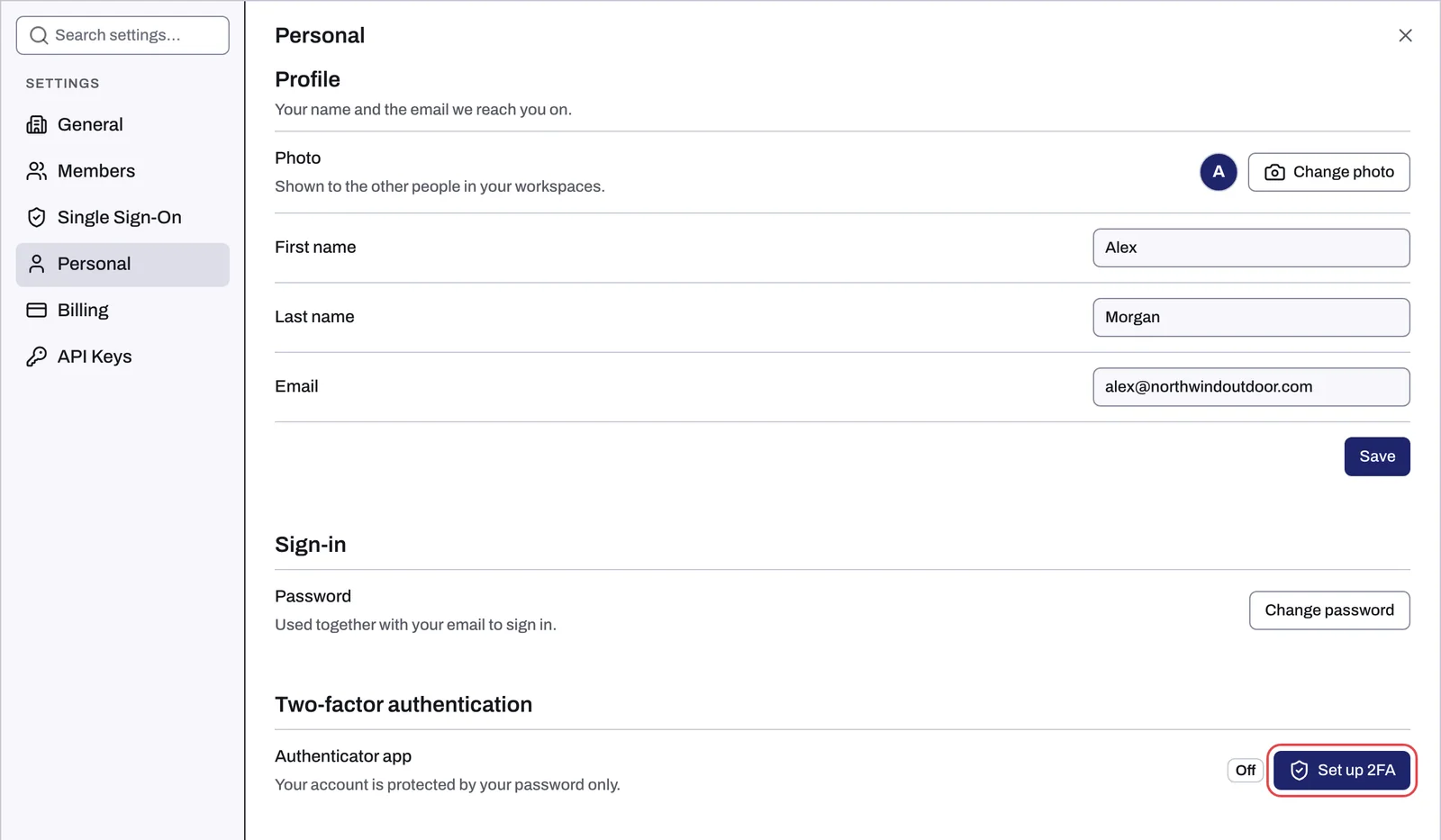
- Open the account menu at the bottom of the sidebar (your photo and name) and click View Profile. You can also open Settings and choose Personal, or go to
https://app.tapper.ai/settings/personal. - Find Two-factor authentication. The Authenticator app row shows Off.
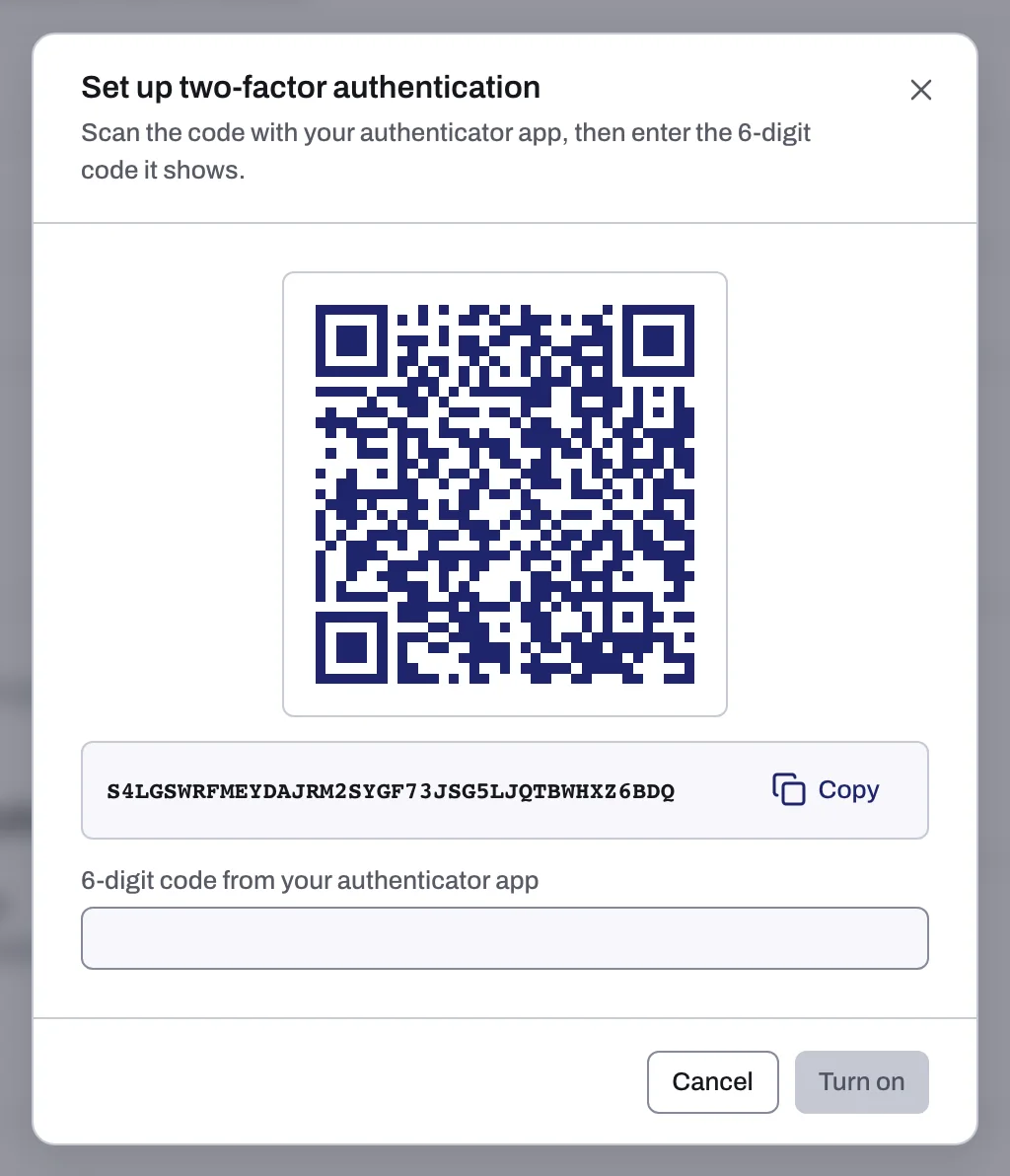
- Click Set up 2FA. The setup dialog opens.
- In your authenticator app, add a new account and scan the QR code. If you cannot scan it, click Copy next to the secret key and paste the key into the app instead.
- Type the 6-digit code the app now shows into 6-digit code from your authenticator app.
- Click Turn on. The row shows On.
The code in the app changes every 30 seconds. If it changes while you type, use the new one.
What changes when 2FA is on
- After you sign in, whether with your password, Google or SSO, Tapper opens Enter your authentication code. Type the current code in One Time Password and click Continue. There is no option to remember a device, so you do this every time you sign in.
Turn off 2FA
- In Settings, Personal, Two-factor authentication, click Turn off 2FA.
- Confirm with a code from your authenticator app. Afterwards, your password alone signs you in.
- Type the current code and click Turn off.
Turning 2FA off needs a working code. Before you change or reset your phone, either move your authenticator app's accounts to the new phone or turn 2FA off first, then set it up again on the new phone.
If something goes wrong
| What you see | What to do |
|---|---|
| That code is not right. Check the app and try again. | Make sure you are reading the Tapper entry in the app and typing the code currently shown. Codes depend on the phone's clock, so check that your phone sets its time automatically. |
| You lost the phone or the app entry | On the code page, click Lost your device? Contact support or write to support@tapper.ai. See Can't sign in: wrong password, lost authenticator, SSO not found. |
Related
Was this helpful?
Related articles
Still need help?
Chat with our team and mention this article.