

Configure your identity provider for Tapper SSO
Before Tapper can send your team to your company login, your identity provider needs an application for Tapper with a few Tapper values pasted into it. The steps are the same in Okta, Microsoft Entra, Auth0 and Ping, the four providers the public guide covers. The Tapper side of the setup is in Set up single sign-on (SSO) for your workspace.
Before you start
- You need admin rights in your identity provider to create an application.
- Tapper uses OpenID Connect only. Do not create a SAML application.
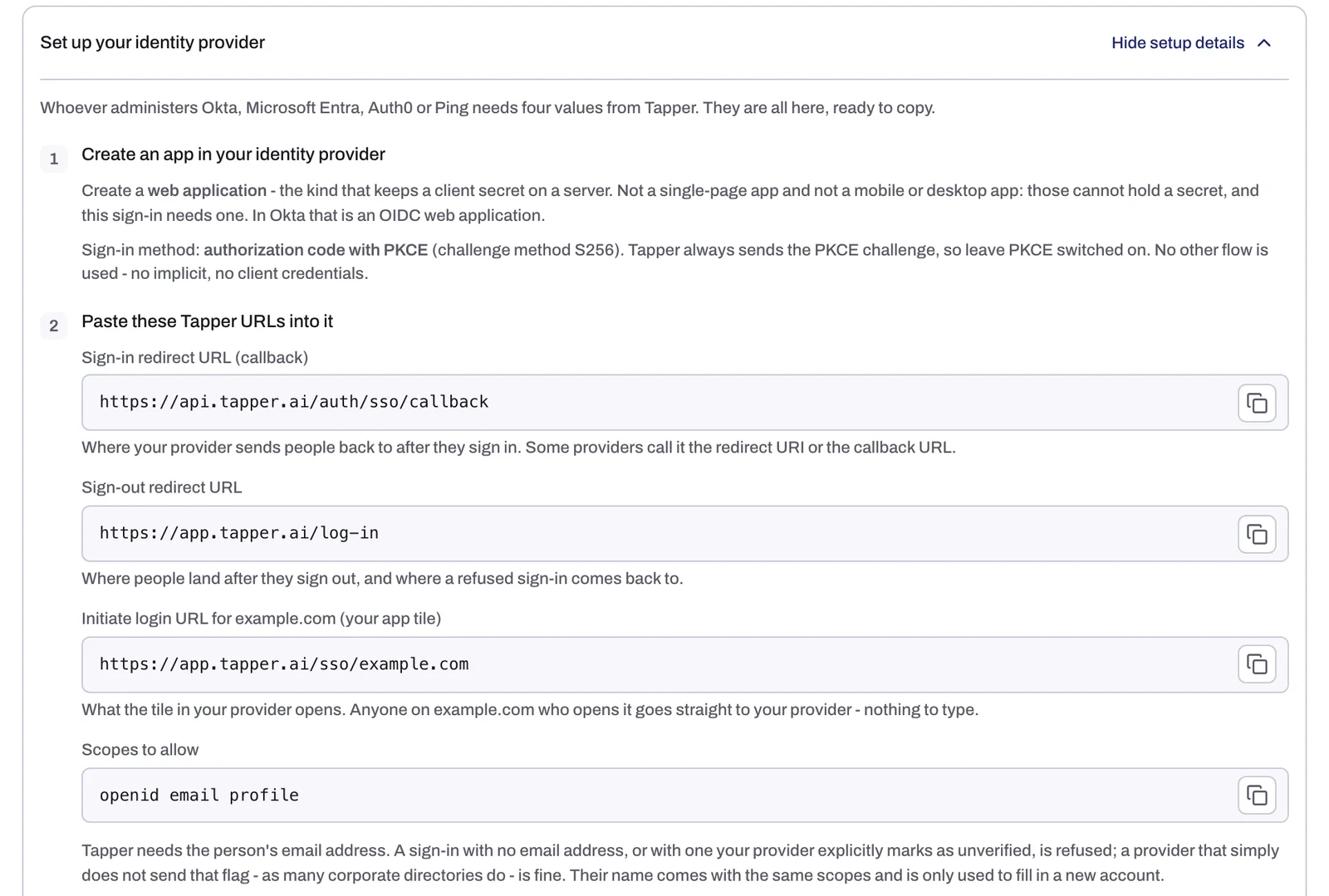
- The same values are listed on Tapper's Single Sign-On settings page for you to copy, so an Owner or Admin can open Settings, Single Sign-On and copy them from the Set up your identity provider panel (click Show setup details if it is closed).
Values to paste into your provider
| Setting in your provider | Value |
|---|---|
| Sign-in redirect URL (callback) | https://api.tapper.ai/auth/sso/callback |
| Sign-out redirect URL | https://app.tapper.ai/log-in |
| Initiate login URL (the Tapper tile in your app launcher) | https://app.tapper.ai/sso/yourcompany.com, with your own domain |
| Scopes | openid email profile |
| Sign-in flow | Authorization code with PKCE, challenge method S256 |
Providers name these settings differently. The callback, for example, is often called the redirect URI.
Tapper needs each person's email address. A sign-in with no email address, or with one your provider explicitly marks as unverified, is refused. A provider that does not send that flag at all is fine.
Steps
Create the application in your provider
- In your identity provider, create a new OpenID Connect web application for Tapper: the kind that keeps a client secret on a server. Do not create a single-page, mobile or desktop app, because those cannot hold the client secret this sign-in needs. In Okta, that is an OIDC web application.
- Set the sign-in flow to authorization code with PKCE (
S256) and leave PKCE switched on. - Paste the callback URL and the sign-out redirect URL from the table above.
- Allow the scopes
openid email profile. - If you want a Tapper tile in your app launcher, paste the initiate login URL with your own domain.
- Give the people or groups who will use Tapper access to the application.
Bring three values back to Tapper
Copy these from the application you just created and paste them into Settings, Single Sign-On in Tapper:
| In your provider | In Tapper |
|---|---|
| Issuer | Issuer URL |
| Client ID | Client ID |
| Client secret | Client secret |
Then add your email domains and verify them, as described in Set up single sign-on (SSO) for your workspace.
Where to find the issuer and which application type to create
Each provider shows the issuer in a different place. The public guide Set Up Your Identity Provider covers Okta, Auth0, Microsoft Entra and Ping: the application type to create, the grant type, the scopes and claims, and exactly where each one shows its issuer.
Using Okta? The issuer is your organization's own address, such as https://your-company.okta.com, with nothing after the host. A custom authorization server (one ending in /oauth2/default) refuses to issue the sign-in code unless its access policy includes the Tapper app, and your people see "You are not allowed to access this app".
About the app tile
Use the initiate login URL with a domain you have verified in Tapper. Before your domain is verified, you can use https://app.tapper.ai/sso instead: that page asks for a Work email or company domain first.
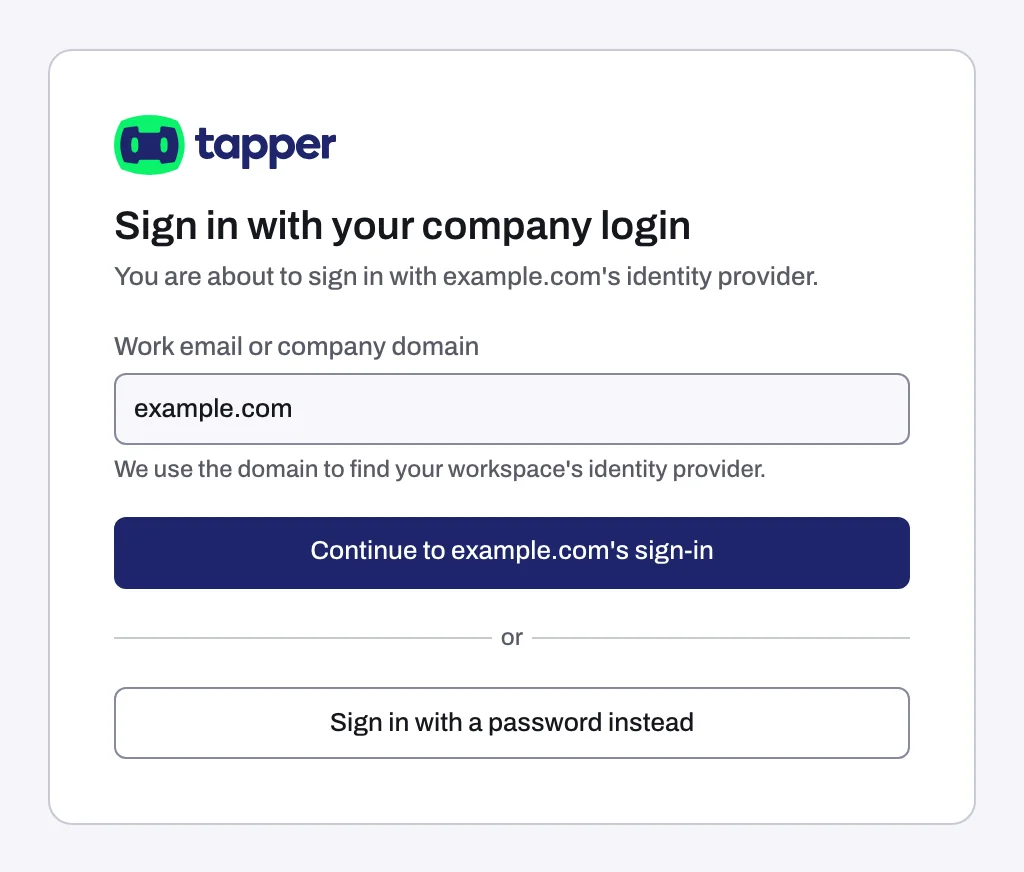
When someone clicks the tile, Tapper opens a page titled Sign in with your company login with a Continue to yourcompany.com's sign-in button. Tapper never starts the sign-in by itself, so the person presses that button to go to your provider. Sign in with a password instead is also on the page.
Check it
Back in Tapper, click Test connection on the Single Sign-On page to check the issuer before anyone signs in. If it fails, compare the issuer with the one the public guide describes for your provider.
Related
Was this helpful?
Related articles
Still need help?
Chat with our team and mention this article.