

Tapper Lift for online stores
Tapper Lift reads every product your Google Shopping, Performance Max and Meta catalog ads promote. It judges each one on what your store actually sold. It sorts your products into groups, shows where your ad spend goes, and checks whether Google's and Meta's numbers can be trusted.
Which accounts get it
Lift for online stores runs on ad accounts whose business type is "online store". You choose it when you connect, and you can change it in account settings. Lead generation, app and other accounts get the checks that fit them instead.
Where the numbers come from
- Your store comes first. Units sold, revenue and refunds come from your store: Shopify, Salesforce Commerce Cloud, or your own order feed if your store is custom built. Revenue is shown without VAT. Wherever Lift can match a product to your store, it judges that product on your store's sales.
- "Google says" and "Meta says" sit beside it. These are impressions, clicks, cost, conversions, conversion value and return, as each platform reports them.
- One line compares them. For example: "Google counted 143 purchases worth $X. Your store recorded 237 orders worth $Y from Google ad clicks."
- When no store is connected, Lift uses GA4 as the outside count. GA4 figures are web only, follow GA4's own credit rules, and miss people who declined cookies. Each card says so.
- For app sales, Lift uses Adjust when you connect it.
- Currencies stay separate. Ad figures are in your ad account's currency and store figures in your store's. The two are never added together.
Judge on
Two settings on each account decide whose numbers Lift judges by:
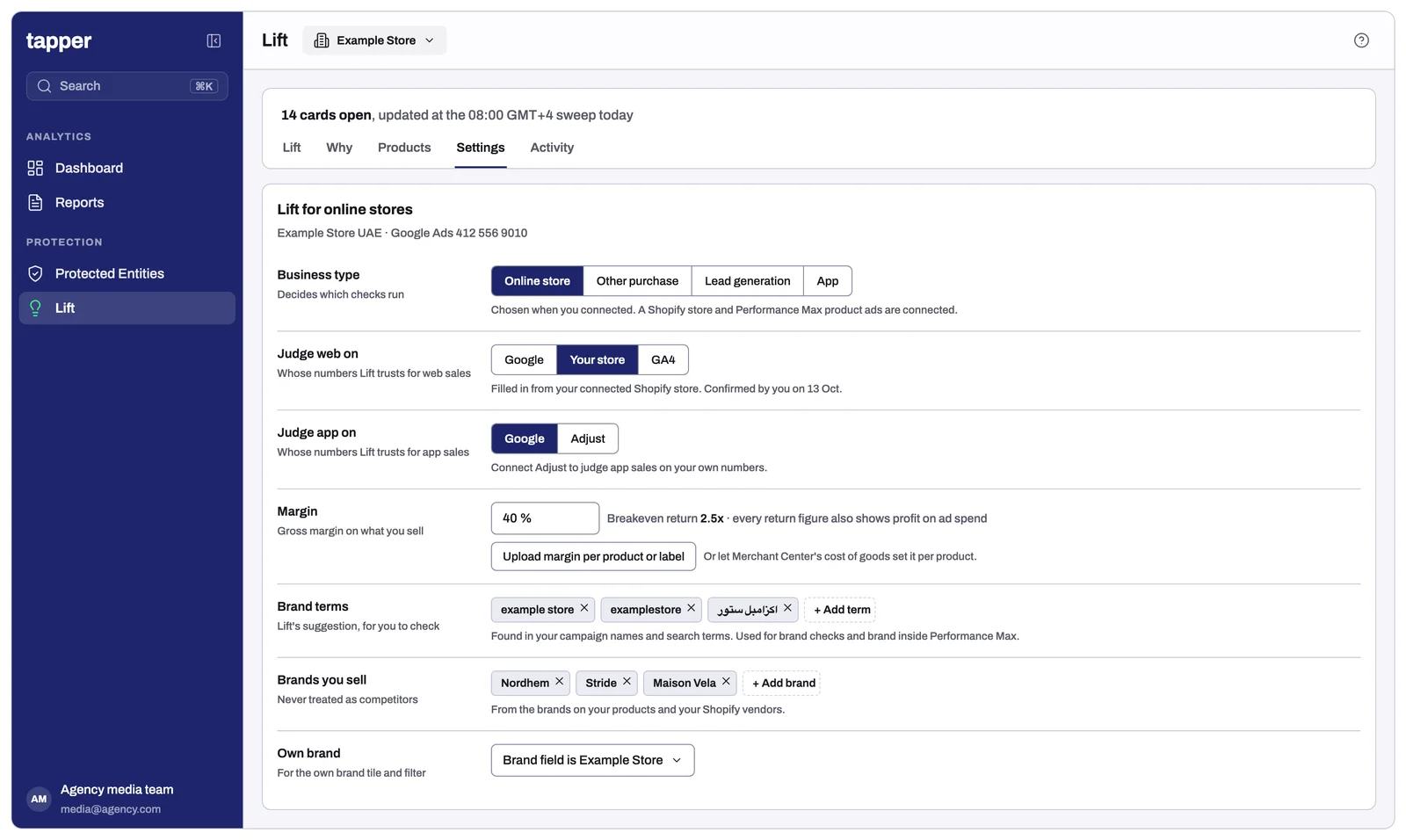
- Judge web on: Google, your store or GA4.
- Judge app on: Google or Adjust.
Lift fills them in from what you have connected, and you confirm them.
The scoreboard
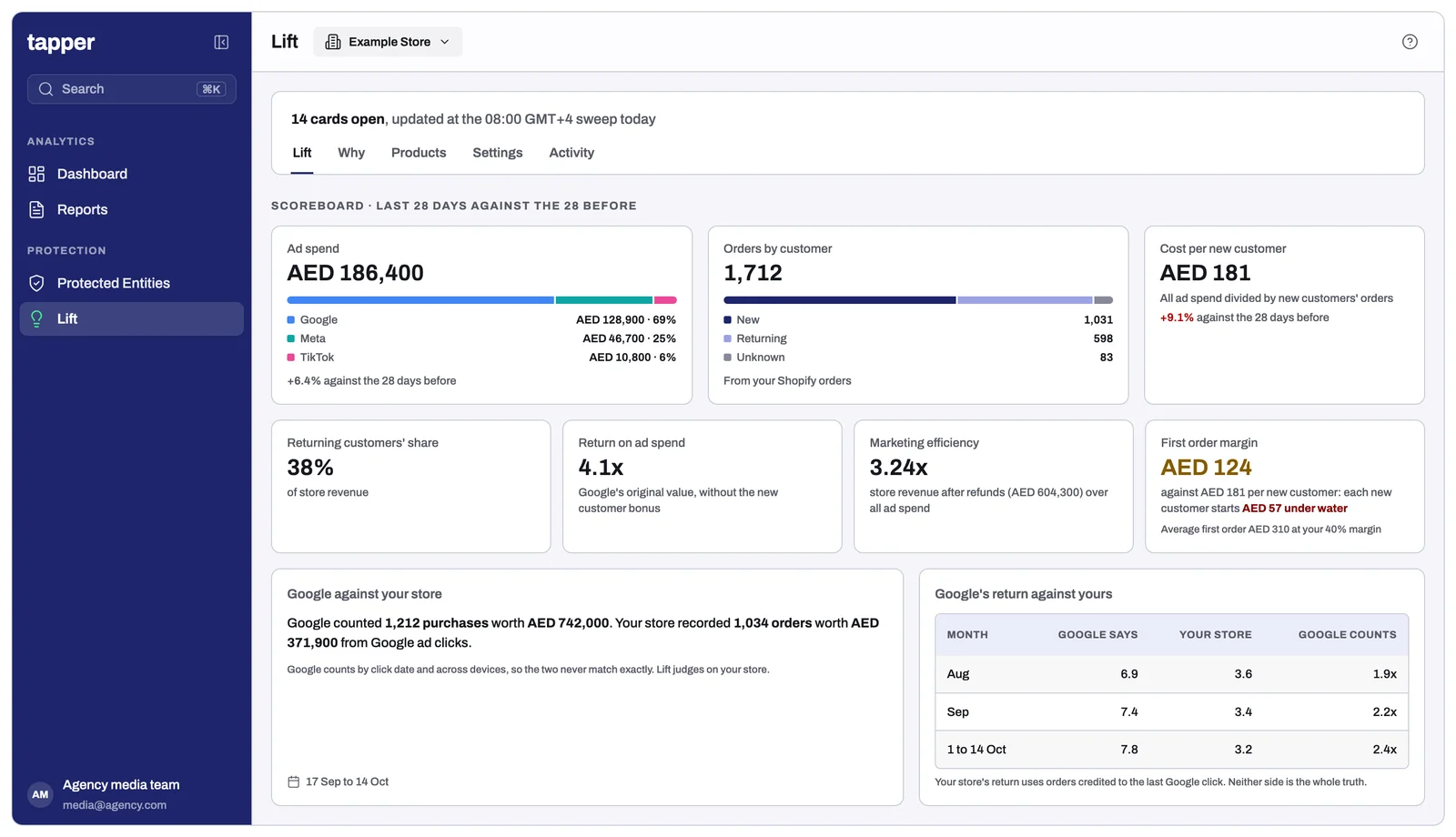
At the top of Lift for online stores, for the last 28 days against the 28 before:
- Ad spend across Google, Meta and TikTok.
- Purchases and revenue split into new, returning and unknown customers. The split comes from your store where it is connected, and from Google's estimate otherwise.
- Cost per new customer: all spend divided by new customers' purchases.
- Returning customers' share of revenue.
- Return on ad spend, read from Google's original conversion value, without the extra value Google adds for new customers.
- Marketing efficiency: your store's revenue after refunds, divided by all your ad spend.
- First order margin against cost per new customer, when your margin is set. For example: "Each new customer starts SAR 40 under water."
- Google's return against yours, by month and by campaign type.
The Products tab
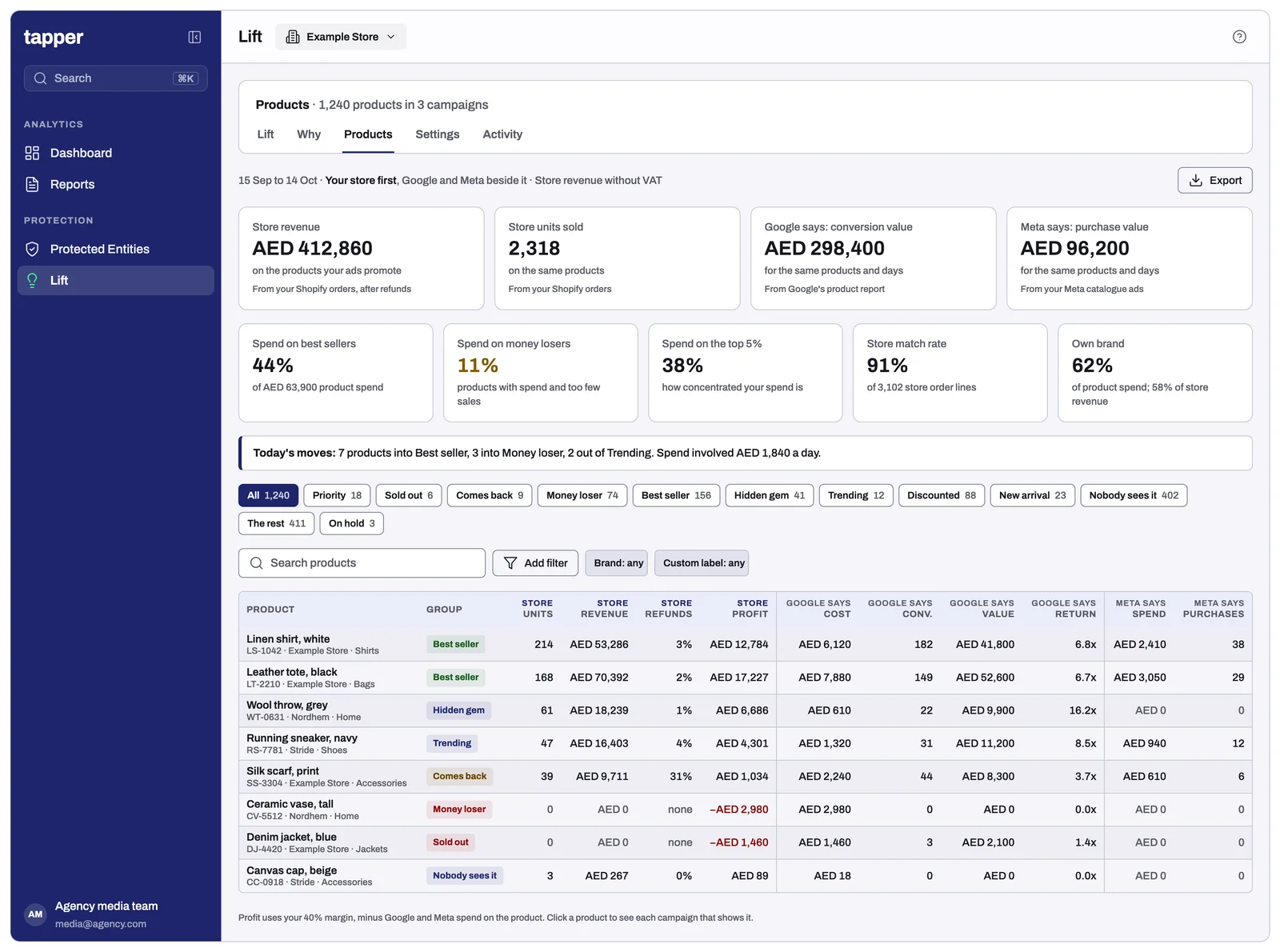
The tiles:
- Spend on best sellers: the share of your product spend going to your best sellers.
- Spend on money losers: the share going to products that cost money and sell nothing, or too little.
- Spend on the top 5% of products: how concentrated your spend is.
- Store match rate: the share of your store's order lines that Lift can match to a product your ads promote. A low rate usually means the product IDs in your feed differ from your store's.
- Own brand against other brands: your spend and sales split between your own brand and the other brands you sell. It comes from the brand field, or from a label you choose.
The table:
- One row per product, added up across every campaign that shows it. Each campaign is one click away.
- Your store's figures come first: units sold, revenue, refund rate, and profit when your margin is known.
- Then "Google says" and "Meta says": impressions, clicks, cost, conversions, value, cost per conversion and return.
- You can filter by group, brand, product type, category, custom label, or own brand against other brands. You can search by name, sort by any column, and export to a spreadsheet.
- Today's moves lists the products that moved into or out of each group that day, with the spend involved.
Product groups
Every product sits in one group, updated every day. A product takes the first group it fits, in this order:
| Group | Who is in it |
|---|---|
| Priority | Products you mark "push" on your merchandising list, until the end date you set. |
| Sold out, still advertised | Products that cost money on a day your store or feed showed them sold out. |
| Comes back | Refunded at least twice as often as your store's products overall, on at least 5 orders in 60 days. |
| Money loser | No sales in 30 days while spending at least what your account pays for one sale. Also products whose return is below the campaign's target return, or whose cost per sale is above the campaign's target cost. |
| Best seller | In the top 25% of your products by sales over 30 days, with at least 3 sales. |
| Hidden gem | In the top quarter by sales, but shown less than your typical product. |
| Trending | Sales value in the last 7 days at least twice the 7 days before, on at least 3 sales. |
| Discounted | Sale price below the regular price. |
| New arrival | First seen in the last 14 days, with fewer than 50 impressions. |
| Nobody sees it | Fewer than 50 impressions in 30 days. |
| The rest | Every other product with impressions or cost. |
| On hold | Products you mark "hold" on your merchandising list stay out of every group until the end date. |
Your merchandising list
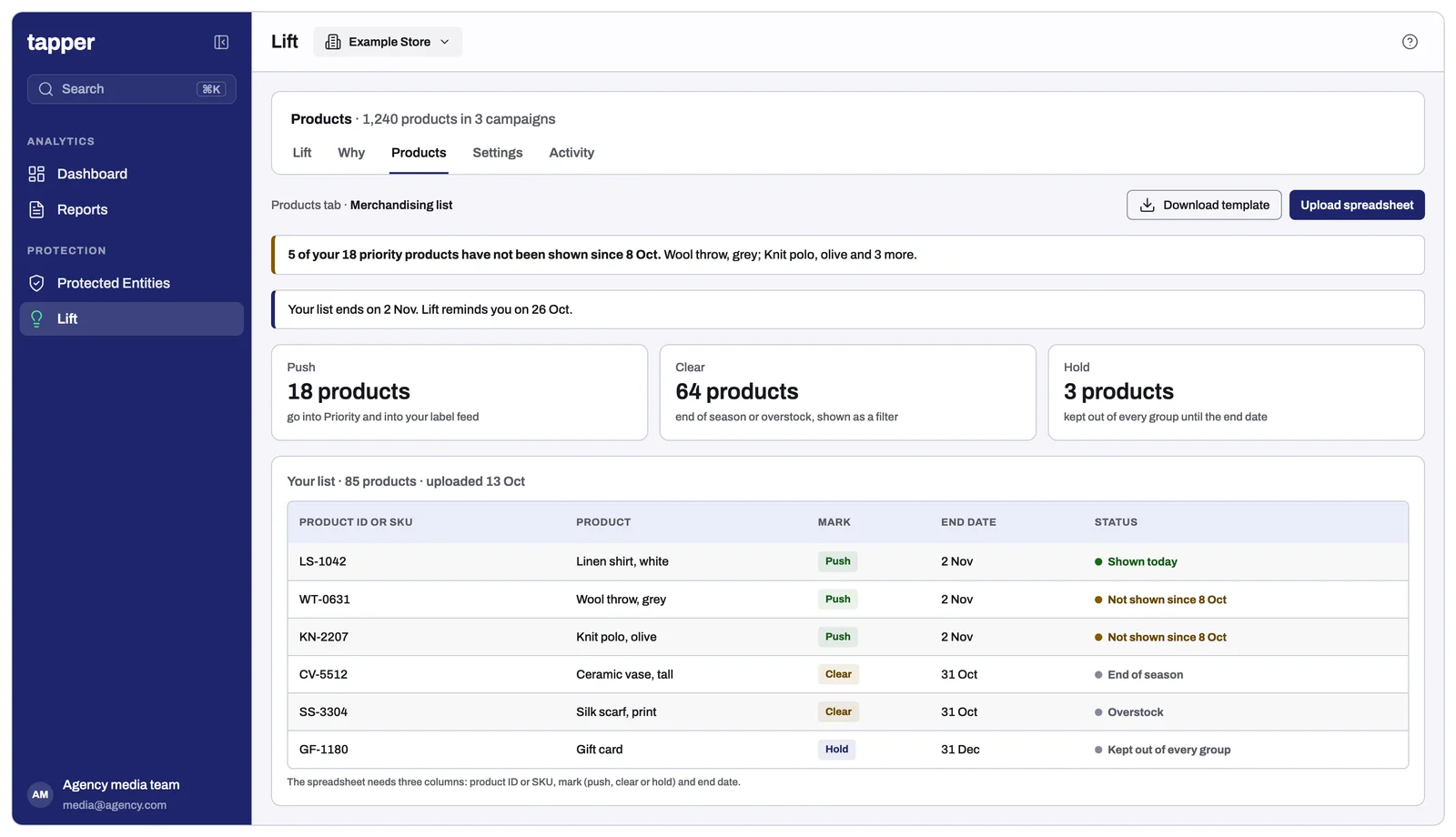
Upload a spreadsheet of product IDs or SKUs and mark each one:
- Push: the product goes into Priority and into your Tapper label feed.
- Clear: marks end of season or overstock. It is shown as its own filter.
- Hold: the product stays out of every group.
Each line has an end date, and Lift reminds you a week before the list expires. If any priority products go 7 days without being shown, Lift tells you how many and which ones.
Getting your groups into your campaigns: the Tapper label feed
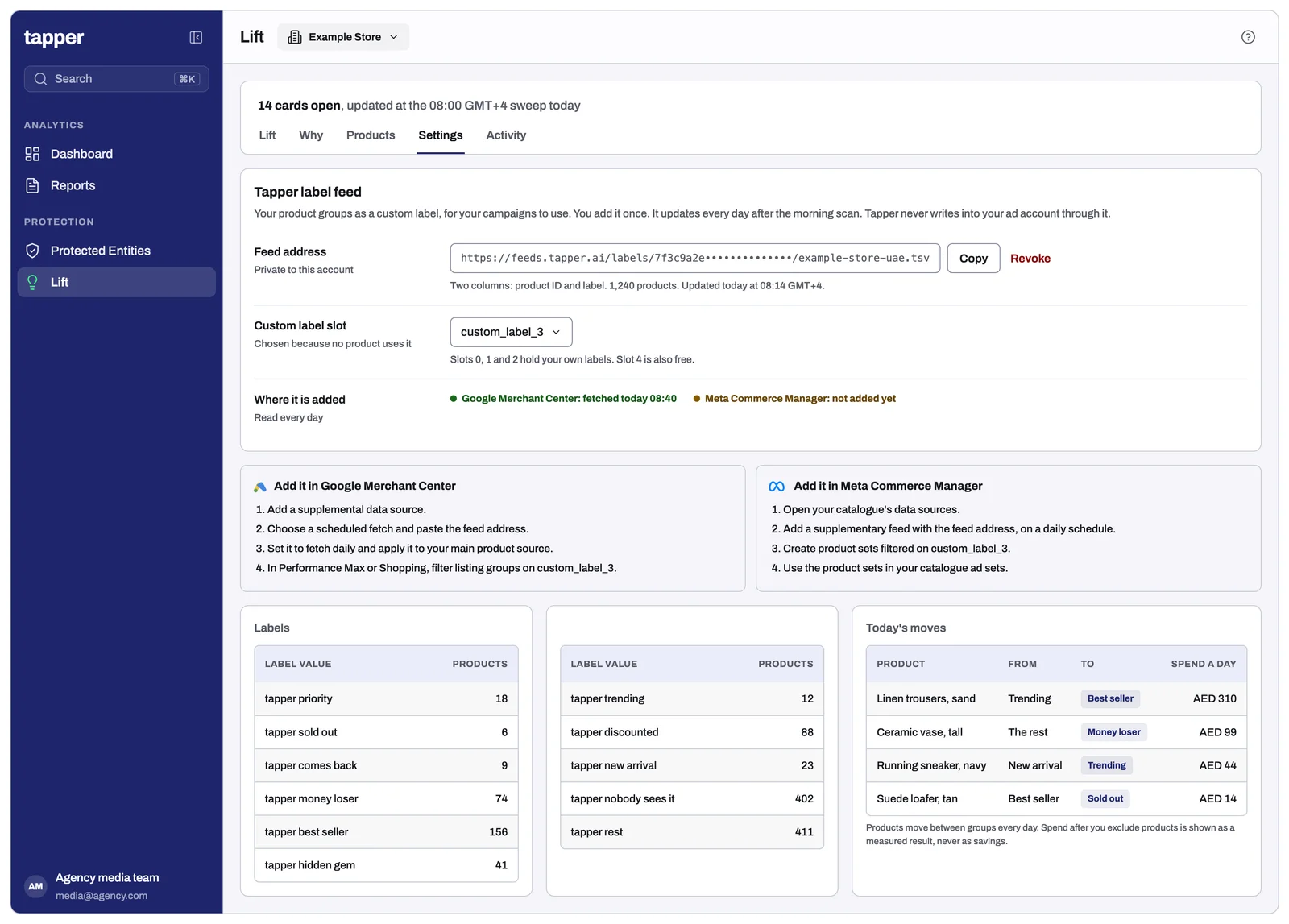
Each online store account gets a private feed address with two columns: the product ID and its group, for example "tapper best seller". You add it once:
- in Google Merchant Center, as a supplemental data source fetched daily;
- in Meta Commerce Manager, as a supplementary feed.
Your agency then builds on the labels. On Google, that means an asset group or listing group. On Meta, it means a product set.
Lift uses a custom label slot that none of your products already use. The feed holds only product IDs and labels, updates every day without needing approval, and can be revoked from the same screen. Tapper never writes into your ad account through it.
- Spend after you exclude products: when you move products out through the label, Lift shows their spend before and after. It is a measured result and is never counted as savings.
- Meta segment priority: Meta lets a catalog run as one product set while some product groups are boosted and others reduced. Where Meta makes this available to your account, Lift recommends the priorities and you press to apply them.
Product checks
Each check raises a card on the Lift tab.
| Check | What it finds |
|---|---|
| Best sellers starved of spend | Your best sellers share a campaign with the rest of your catalog but get less of its spend than their share of its sales. This covers Performance Max, standard Shopping and Meta catalog ads. It runs on campaigns with at least 30 sales and 20 products with cost. The card closes when your best sellers have their own asset group or product set. Your budget stays the same. |
| Sold out but still advertised | Spend on products your store shows as sold out. On Google this usually means your feed is behind your store, and the card says so. |
| Products that come back | Frequently refunded products still taking spend. Google and Meta count the sale but never see the refund, so they keep promoting the product. |
| Money losers | Products with spend and no sales, or with sales far below your target. Each card names the products with their brand and category. |
| Hidden gems | Top sellers that are shown too little. The card suggests giving them their own asset group through the label, with your budget unchanged. |
| Trending products | Products whose sales doubled in a week. The card suggests their own asset group through the label, with your budget unchanged. |
| Discounted products | Products on sale, ready to run as their own group. |
| Sell through and product age | Units sold against stock, and days since a product was first seen. Slow sellers are suggested for your "clear" list. |
| Priority products not shown | Products you marked "push" that have had no impressions for 7 days. |
| Products nobody sees, and products never served | Large parts of your catalog getting no impressions, listed by category and label. |
| Product overlap | The same product promoted by several campaigns that compete with each other. |
| Best channel per product | A product that sells on one of Google and Meta but only costs money on the other. Lift suggests excluding it on the weak channel. It never moves budget between channels. |
| Segments under target | A custom label, brand or category carrying at least 15% of a campaign's cost with a return below target, or with cost and no sales. |
| Feed health and disapprovals | Products Google has stopped serving, ranked by their earlier spend. Also missing GTINs, titles that are too long, promotion names used as product types, and catch all labels. |
| Price competitiveness | Products priced at least 10% above Google's benchmark price that convert at under half the campaign's rate. This needs your account to qualify for Google's Market Insights. |
| Standard Shopping bids | Bids by product group. |
| Performance Max channel split | How much of a campaign's spend goes to Shopping, Search, YouTube and Display, with the 28 day trend. It flags a channel with spend and no sales, or one costing three times the campaign's average per sale. |
| Your brand inside Performance Max | How much of a campaign's spend buys searches for your own name, and what each click costs compared with your brand Search campaign. Lift works out your brand terms, and you check them. |
| Products that don't match the creative | An asset group or Demand Gen ad group whose products don't match what its images and text advertise. |
| Feed only asset groups | Asset groups that run on your feed alone, by design, are no longer flagged as weak creative. Where you run both kinds on the same products, Lift compares their return. |
| Placements on suspicious or wrong country websites | Sites with domain endings known for abuse, or a country domain outside your target countries. |
| AI Max | The search term, headline and landing page Google chose together, where they don't fit. |
| Shopping in Europe through a comparison shopping service | In the 21 countries where Google uses comparison shopping services, Lift checks whether you run through Google's own. If you do, it suggests moving to another service. Lift names no partner. |
| Entry products | Your ads spend most on some products, but new customers first buy others. Lift shows the top five of each. |
Checks on your measurement
These decide whether the other figures can be trusted.
| Check | What it finds |
|---|---|
| Google learning from cart and checkout | Your value bidding steers toward add to cart, checkout or app install value instead of sales. Lift suggests making purchase the only primary action. |
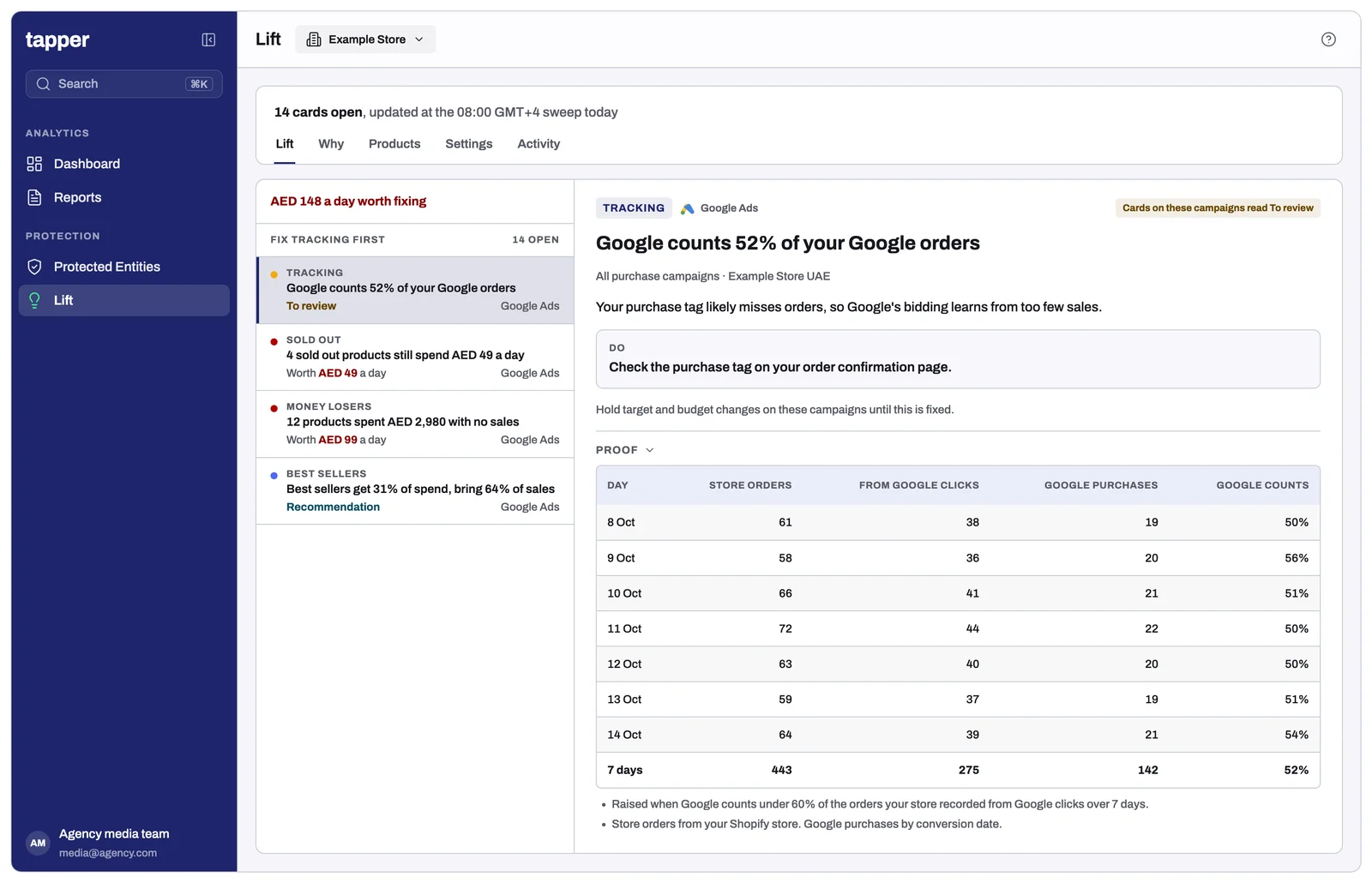
| Store orders against Google purchases | A card is raised when Google counts fewer than 60% of the orders your store recorded from Google clicks over 7 days. That usually means a broken purchase tag. |
| Conversion values that can't be right | An action whose value per conversion jumps 20 times above its normal level, or a cart step worth more than an order. |
| Conversion actions that shouldn't count | Test or staging actions, old Universal Analytics goals, hidden actions still counted, actions that recorded nothing in 90 days, and actions filed under the wrong category. |
| Google's count drifting from yours | A conversion source that stops reaching Google, or starts counting twice, while your business carries on. |
| Google's return against yours | Per campaign, the return Google reports against the return your own records show. Lift translates your target onto your own scale and gives the target that holds breakeven. Neither side is called the real return; each card shows what each side can't see. |
| Changes made while the numbers were wrong | Target, budget and bid changes made while a measurement problem was open, with who made them. Also targets changed three or more times in 21 days. |
| App purchases inside web campaigns | Campaigns where half or more of the value is app purchases, so their return is an app return. |
| Brands you sell are not competitors | Searches for brands you stock are never treated as competitor searches or suggested as negatives. You can edit the list. |
| Language set up against the campaign name | Asked as a question, since some advertisers target English on purpose. |
| Paused campaigns that earned their keep | A campaign paused in the last 90 days that beat the account by 25% or more. A restart is only suggested as a move from a named weaker campaign, at most 20% of that campaign's budget, with your total unchanged. |
| Pinned headlines behind poor ad strength | When 80% or more of an ad's headlines are pinned, the fix is unpinning. |
| Click bidding on sales campaigns | Shopping or non brand Search campaigns with 30 or more purchases still bidding for clicks. Lift suggests testing value bidding through Google's own experiments. |
| New customer goal | Whether each campaign bids for new customers only, and how much extra value Google adds for a new customer. |
| Cost of the next sale | From Google's budget simulator. It flags when the last part of a budget returns below your breakeven. It is Google's projection, not a measurement, and the card says so. |
| Campaigns that take credit | Brand and remarketing campaigns where at least 60% of purchases come from customers you already have. |
| New and existing customers on Meta | Advantage+ shopping campaigns split into new, engaged and existing customers. |
While a measurement problem is open, the cards it affects read "To review" with the reason. Those cards also say: "Hold target and budget changes on these campaigns until this is fixed."
Margin and profit
Set your margin in Lift's settings. Every return figure then also shows profit on ad spend and your breakeven return. You can also upload a margin per product or per custom label. Where Merchant Center carries cost of goods, profit is worked out per product. The Products tab then shows profit, and profit on ad spend, per product and per group.
How to read a card
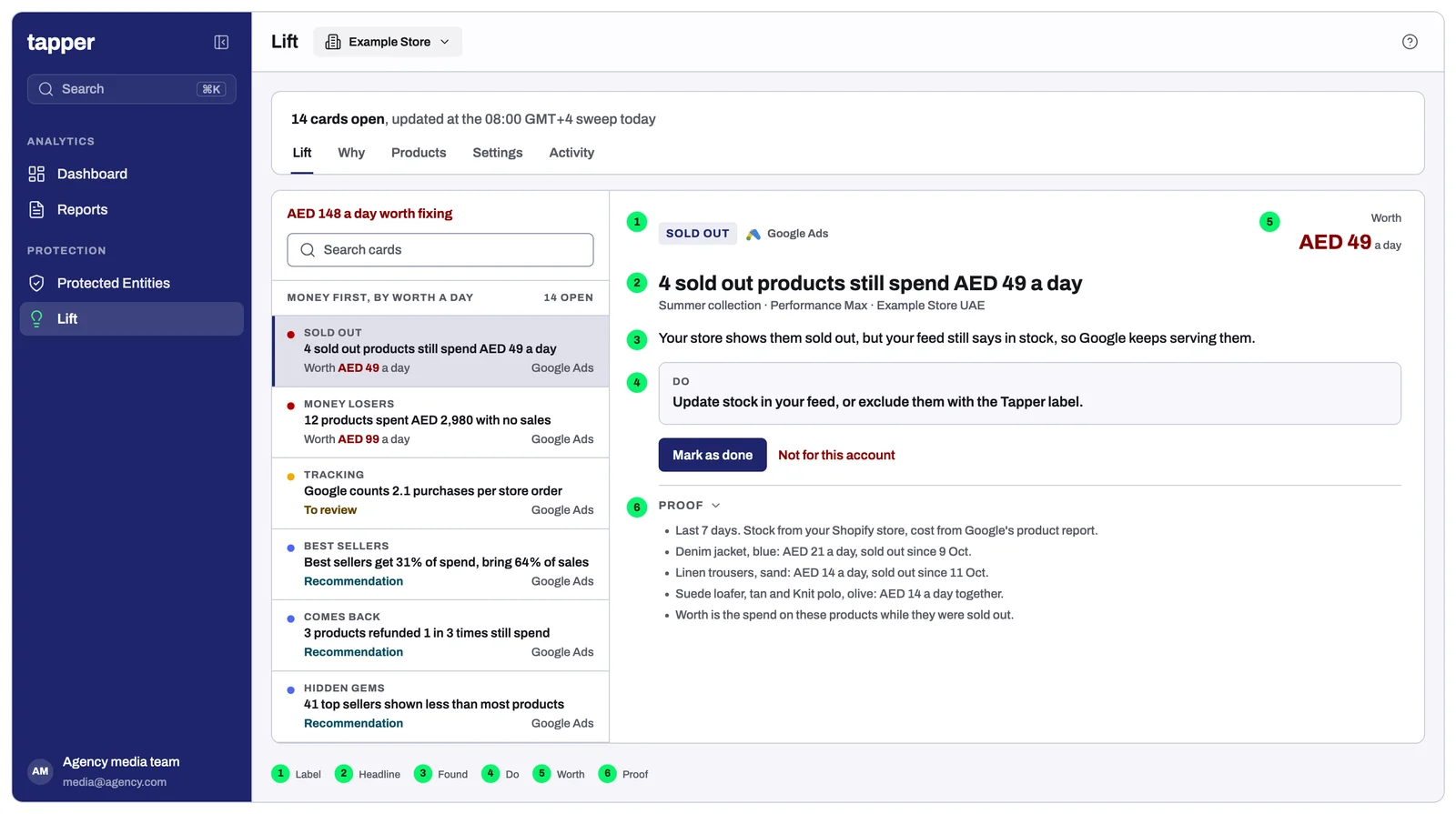
- Label: the term a media buyer uses, such as Best sellers, Sold out or Tracking.
- Headline: what happened, with the number.
- Found: why it matters, in one sentence.
- Do: one action.
- Worth: the money Lift can price. Cards with nothing priced have no Worth line.
- Proof: windows, comparisons and the spend involved, folded under the card.
Connecting your data
- Shopify: install the Tapper app with order access. Stock and discount checks also need product and inventory access, which you approve in Shopify.
- Salesforce Commerce Cloud: your administrator creates a read only API client for Tapper, with order read access only.
- Custom built stores: your servers send each order to a secure address Tapper gives you, with the Google click ID saved when the visitor landed.
- Google Merchant Center: link it in Lift for the full product list, disapprovals, price competitiveness and cost of goods.
- Meta catalog: connect it with your Meta ad account for product results and product sets.
- GA4 and Adjust: connect them in Lift as outside counts.
What Lift never does
- It never changes your feed, campaigns, budgets or targets. You add the label feed yourself, and your agency decides how to use it. Meta segment priority applies only when you press it.
- It never asks you to spend more.
- It never counts a refunded product's spend, or a product you excluded, as savings.
- It never creates campaigns or ads.
Questions
Why do my store figures differ from Google's? Google counts conversions the way your account is set up to count them, which can include steps before a purchase. It also counts by click date and across devices. Your store counts orders. Lift judges on your store.
Why is a product missing store figures? Its ID in your feed doesn't match a product in your store, or it didn't sell in the period. The store match rate tile shows how much matches.
Why does a sold out product still show spend on Google? Google stops serving products your feed marks out of stock. If one still spends, your feed is behind your store.
Which return is the real one? Neither on its own. Google can't see refunds. Your store can't see every path to a sale. GA4 misses people who declined cookies. Lift shows each side and what it misses.
How often does it update? Once a day, after the morning data pull. The label feed updates daily too.
Related
Was this helpful?
Related articles
Still need help?
Chat with our team and mention this article.