

Check the funnel stage Lift gives each Meta ad set
Lift gives every Meta ad set a funnel stage, which decides the checks that run on it and the similar ad sets it is compared with. Lift works out the stage once a day from the ad set's goal and audience, and Meta cards show it as a chip, for example "Bottom of funnel, prospecting". The Stage map in Setup shows every ad set's stage and why, and lets you correct it.
How Lift gives an ad set its stage
The kind of goal the ad set optimizes for and the audiences it includes give the stage:
| Who the ad set reaches | Awareness goal | Consideration goal | Conversion goal |
|---|---|---|---|
| People with no history with the brand | Top of funnel | Middle of funnel, prospecting | Bottom of funnel, prospecting |
| People who have engaged with the brand | Top of funnel | Middle of funnel, re-engagement | Middle of funnel, re-engagement |
| People who have visited the site or used the app | Top of funnel | Middle of funnel, retargeting | Bottom of funnel, retargeting |
| Existing customers only | Top of funnel | Retargeting | Retargeting |
Retargeting on its own means existing customers: ad sets for site or app visitors with a consideration or conversion goal read Middle or Bottom of funnel, with the sub-segment retargeting.
- Goals: awareness includes reach, impressions, video views, ThruPlay and post engagement, and anything bought as Reservation; consideration includes link clicks, landing page views, messaging, calls and leads, including conversion leads (an offsite conversion or value goal that buys a lead); conversion includes other offsite conversion and value goals, and app installs. Lift reads the ad set's own goal, and the campaign objective only when the ad set has none.
- Lead generation: on an account whose business is lead generation, lead goals (instant forms, quality leads, quality calls, booked appointments, conversion leads) count as conversion goals. A Meta ad account counts as lead generation when you answered Leads to "How do you measure success on your ads?" for its protected entity at workspace setup or, without that answer, when the entity's Google Ads accounts all agree on it. Setup has no business type for a Meta ad account, so if your lead ad sets still read Middle of funnel, set their stage yourself.
- Audiences, in this order (excluded audiences never count): with Advantage+ audience on, Meta chooses who sees the ads, so the ad set counts as reaching people with no history with the brand; an included audience Tapper cannot identify makes it Not classified yet; any website, app or dataset audience means site or app visitors; any engagement or video audience means people who have engaged; only customer lists or offline conversion audiences mean existing customers; anything else (interests, lookalikes, broad) means no history with the brand.
- Not classified yet also covers a goal Tapper does not read a stage from yet. An awareness ad set is always Top of funnel, whatever its audience. Ad sets that are not classified get only the checks that run on every stage, such as the learning and account checks, until they have a stage.
Open the stage map
You need the Owner or Admin role on the workspace.
- In the sidebar, select Lift.
- Press the gear icon (Setup) at the top right. Setup opens on General.
- In the left rail, under Meta, select Stage map (on a phone, use Setup section).
- If the protected entity has more than one Meta ad account, pick one with the Ad account filter.
What the stage map shows
Ad sets are grouped by campaign, highest spend over the last 7 days first. Each campaign's own row ("Whole campaign") has a box that selects the whole campaign.
| Column | What it shows |
|---|---|
| Ad set | The ad set's name and Meta ID. |
| Stage | The stage and sub-segment, over when Lift last read it ("Read", in your workspace's time zone) and, if you or a naming rule decided it, what Tapper's classifier read. |
| Decided by | Set by you, From a naming rule or Tapper's classifier. |
| Why | The goal, who the ad set reaches, the audiences it targets and excludes, and any matching naming rule that is not in use. |
| Audience split | How Meta split the last 7 days of spend it could place between new, engaged and existing customers. It never changes the stage, and stays empty until audience segments are set up in Ads Manager. |
| Spend, last 7 days | In the ad account's own currency. |
Filter by Stage or Decided by, or search by ad set or campaign name.
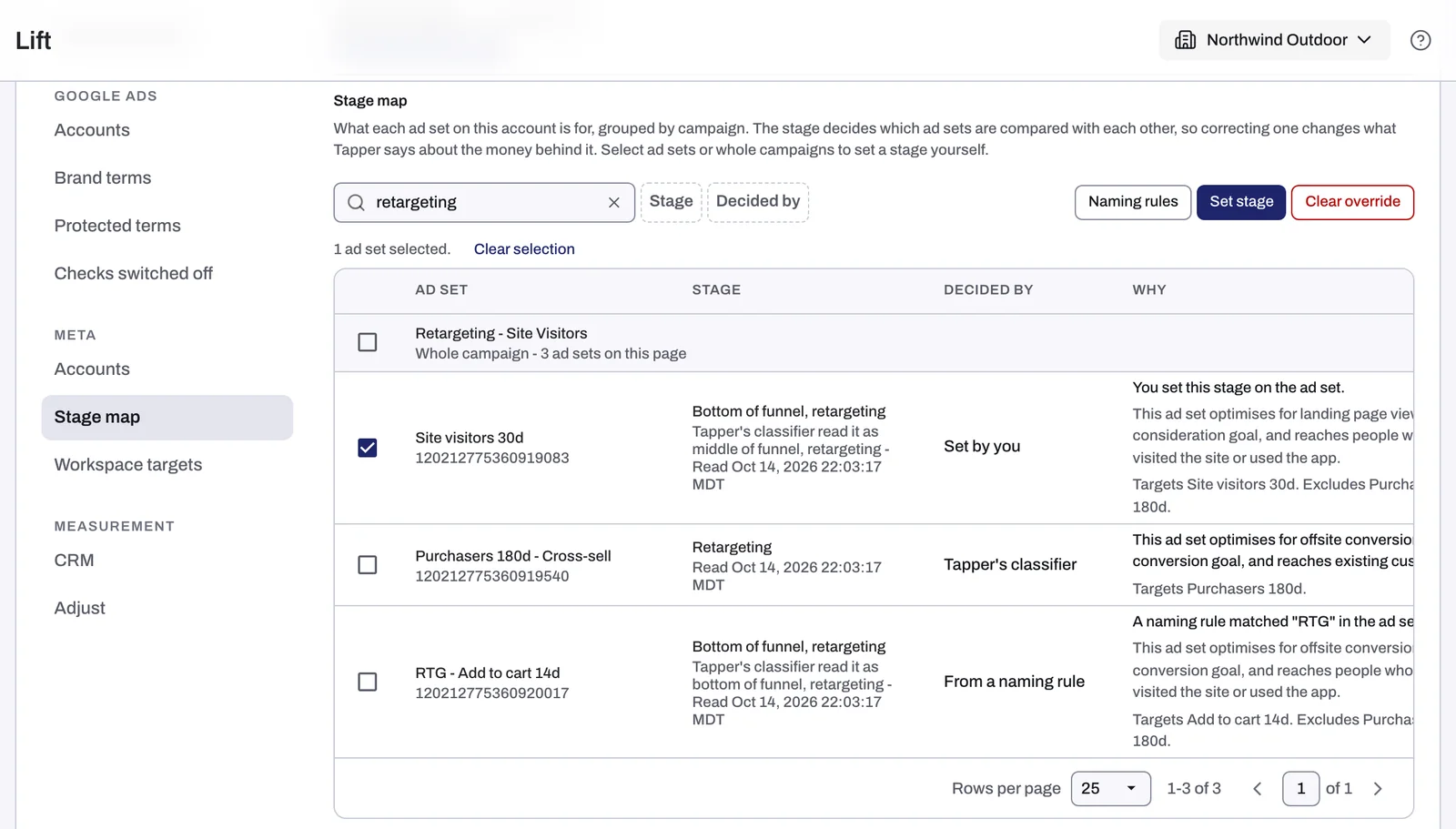
Set the stage yourself
- Tick the box beside each ad set to change, or the box on a campaign's row to set the whole campaign.
- Press Set stage.
- Pick the Funnel stage: Top of funnel, Middle of funnel, Bottom of funnel or Retargeting.
- If you want, pick a Sub-segment: prospecting, retargeting or re-engagement.
- Press Set stage.
The first answer wins, in this order: a stage you set on the ad set, a stage you set on its campaign, a naming rule with both its switches on (below), then Tapper's own reading, which the map keeps showing beside yours. A campaign's stage covers all its ad sets, including ones added later. To undo, tick what you set the stage on (the ad set, or the campaign's row), press Clear override and confirm: the next answer in that order takes over.
When a change takes effect
Lift reads each Meta ad account's campaigns, ad sets and audiences once a day, at 04:00 UTC, and works out every stage from that read. Changes you make here are saved at once and used from the next read: the map's Stage, Decided by and Why change then, new ad sets appear, and the cards follow at the daily check after it. A card from a check that does not run at the new stage moves to Resolved, with no saving counted.
Read stages from your ad set names
A naming rule sets the stage from text your names already use, for example "tof" or "remarketing".
- Above the table, press Naming rules.
- Press Add a rule.
- In Text in the name, type the text to match, up to 64 characters. It matches anywhere in the ad set or campaign name, ignoring capitals.
- Pick the Funnel stage and, if you want, a Sub-segment.
- To let the rule decide stages by itself, turn on Switched on and Use it for ad sets added later (a new rule starts with both off).
- Press Save rule.
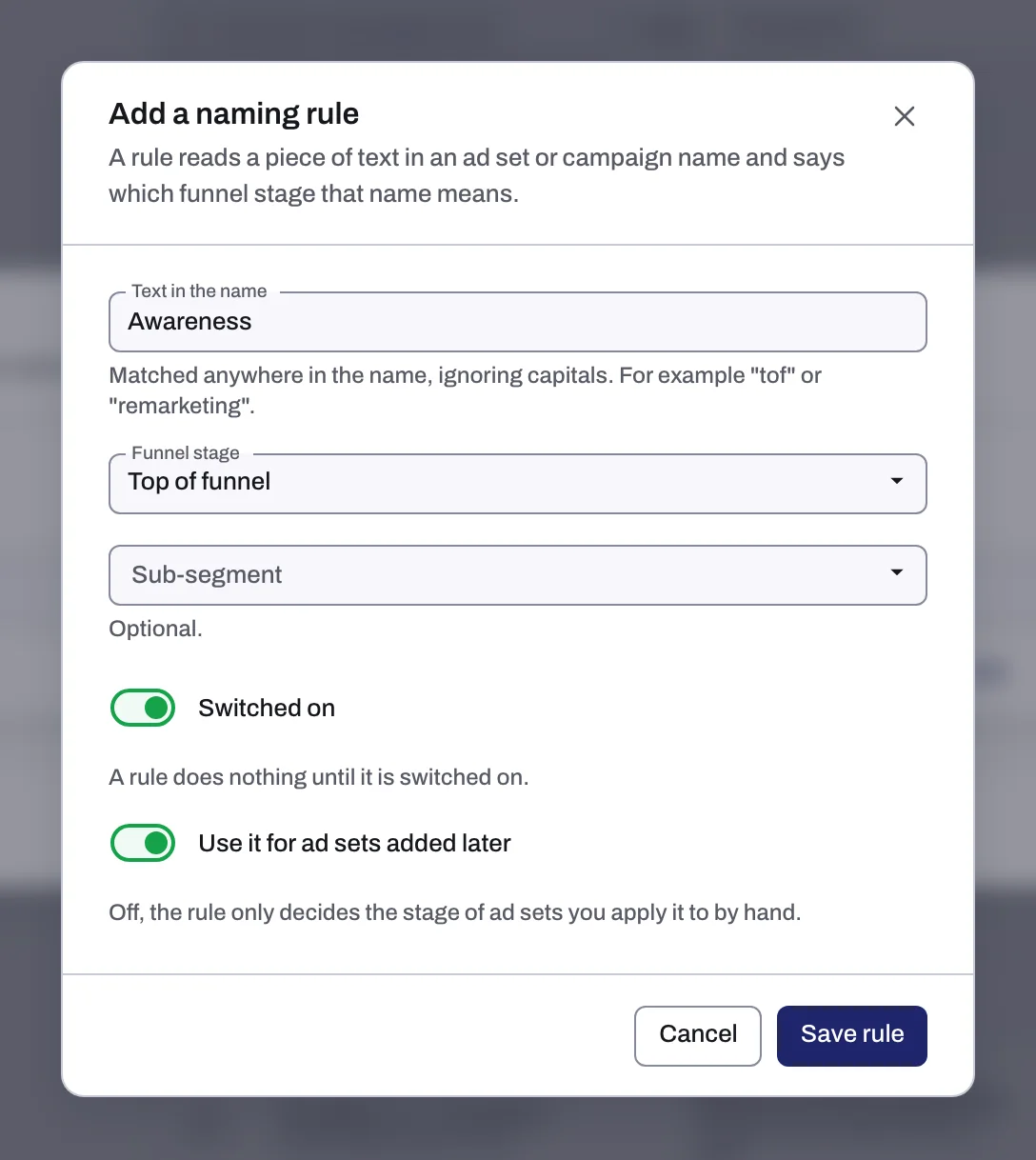
- With both switches on, the rule decides the stage of every ad set whose name matches, existing and new, unless you set one yourself. The ad set's own name is checked before its campaign's, and when two rules match, the longer text wins.
- Apply now sets the rule's stage, as a stage set by you, on the ad sets that match today, whatever its switches say: press Check what matches, then Apply.
- Edit changes a rule's stage, sub-segment and switches, not its text: for other text, delete the rule and add another.
- Delete stops the rule. Stages it set with Apply now stay until you clear them; ad sets it decided by itself go back to Tapper's reading, or to another rule that matches, at the next daily read.
If the map is empty
"No ad sets match" with "This account has no ad set snapshots yet." means Lift has not read the account yet. Lift does not read an account that needs reconnecting: reconnect it. Lift starts once Tapper has set your workspace up, so if your workspace is new and the map stays empty, contact your Tapper contact.
Related
Was this helpful?
Related articles
Still need help?
Chat with our team and mention this article.