

The Why tab and the fix plan
The Why tab on the Lift page explains why wasted spend builds up in your Google Ads accounts, reason by reason: for example campaigns that spend with no conversion, or Search Partners costing more than Google Search. Beside it, the Fix plan turns those reasons into numbered steps, largest savings first, so you can work through them in order.
Open the Why tab
- Press Why in the Lift page's tabs, or Open the fix plan in the top bar.
- On a phone, press See why on the Why the waste builds up panel of the Lift tab.
- On the dashboard, press Open fix plan on the Why panel.
When your workspace has reasons to show, opening Lift from the sidebar lands on the Why tab. Like the rest of Lift, it is for workspace Owners and Admins.
What it covers
The Why tab reads Google Ads accounts only, every one in the workspace rather than only the protected entity you picked. When the Lift tab's Ad account filter names one Google Ads account, or you come from a dashboard filtered to one, it covers that account alone. Meta Ads and TikTok Ads cards stay on the Lift tab, so the two tabs' money can differ.
It shows one currency at a time, the one with the most spend first; with several currencies, buttons switch between them. Money is per day, in the ad account's own currency, and currencies are never added together. The tab reads the last 30 days, as of the last daily scan ("Last 30 days, scanned {date}").
Read the reasons
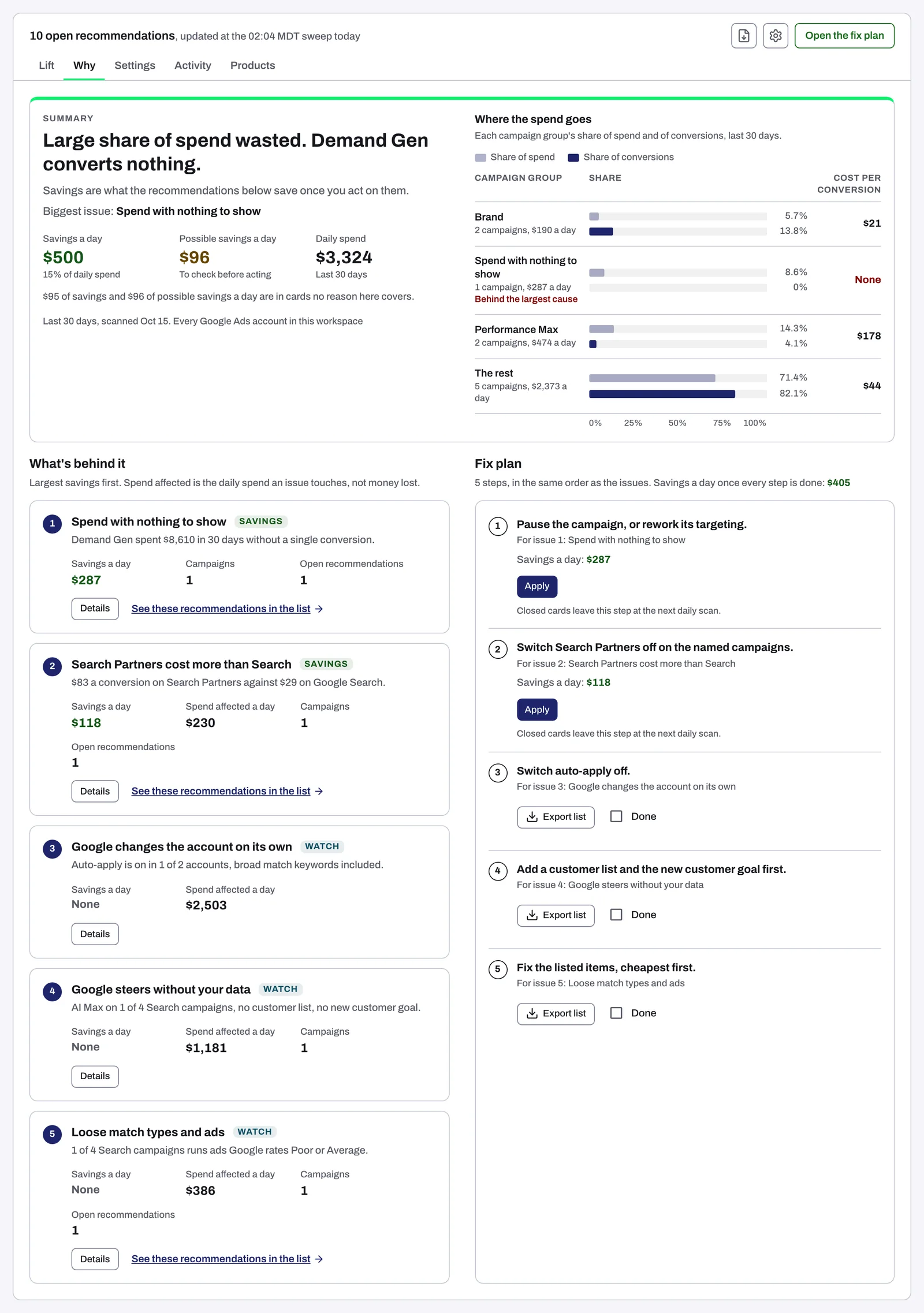
The page opens on Summary: a headline, what the money means, and Biggest issue: naming the top reason. Under them are labeled figures: Savings a day with its share of daily spend, Possible savings a day when there are some, and Daily spend. Savings is money Lift is confident in. Possible savings is money Lift found but cannot be sure of yet, and it is never added into savings. When some of it sits in cards no reason here covers, a line says how much; those cards are on the Lift tab. Beside the figures, Where the spend goes compares up to four groups of campaigns by their share of spend and of conversions. Each group shows its cost per conversion, or "None" when it has no conversions; the group behind the largest cause has its cost in red.
Under What's behind it, every reason is a numbered card, largest savings first. Each has a tag, Savings, Possible savings or Watch, one line of evidence and labeled figures where they apply: Savings a day or Possible savings a day, Spend affected a day, Campaigns and Open recommendations. Spend affected is the daily spend an issue touches, not money lost. A reason with no money of its own, such as Google's auto-apply changing the account on its own, reads "None". The reason about many small leaks reads "In the total above": the plan works those cards as one batch.
Press Details on a reason for its side panel: What it means (the evidence, then What to do: and the figures), How it was worked out (how Lift measures it, the bar it must pass and the figure a week earlier), and, when the reason has one, The list behind it, largest first, whose Export button downloads the list as a CSV file. See these recommendations in the list, on the reason and in its panel, opens the Lift tab filtered to its cards.
Work through the fix plan
The plan's line, for example "5 steps, in the same order as the issues. Savings a day once every step is done: $405", counts only the savings in its steps. Each step shows its fix, the issue it is for ("For issue 1: ..."), its savings or possible savings a day, and Apply, Export or a Done box.
Apply
Apply shows when Tapper can make changes in every account in the step.
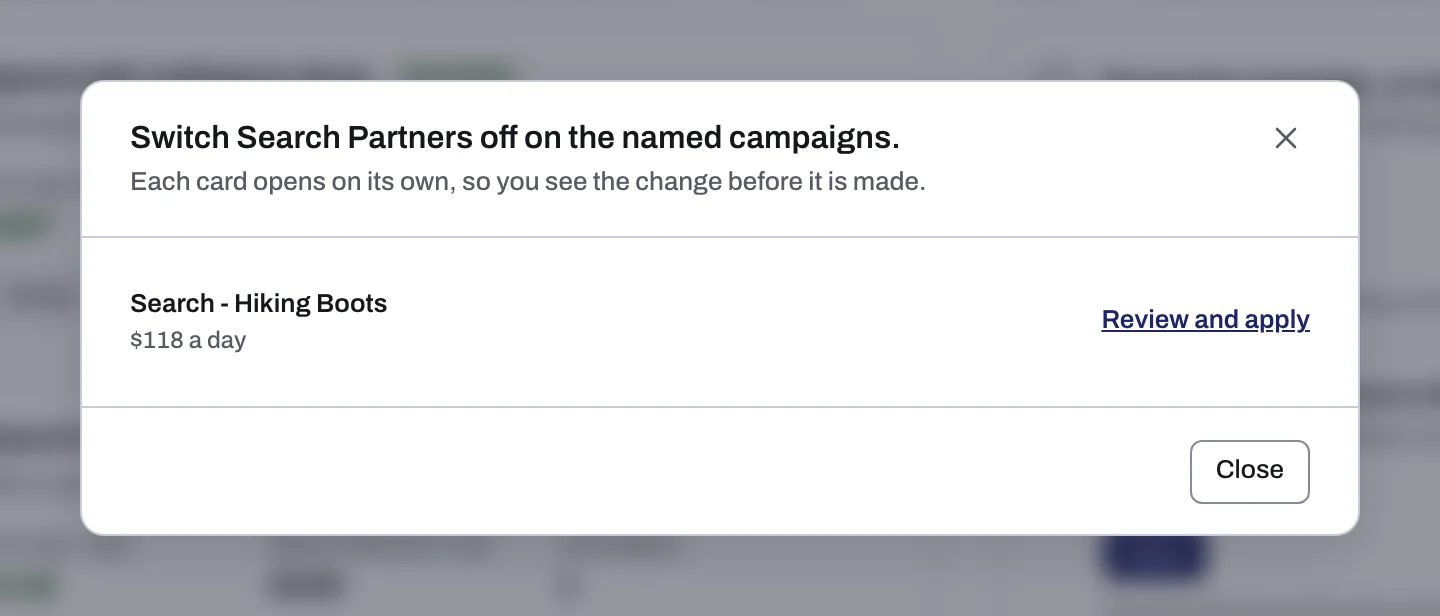
- Press Apply. A dialog lists the step's cards; each opens on its own, so you see the change before it is made.
- Press Review and apply beside a card. The card opens on the Lift tab.
- If the card has one fix, its confirmation opens: check what changes and confirm. If it offers several, or its fix is Pause campaign, press the fix button on the card (it is named for the change, for example Pause campaign) and confirm.
- Tapper makes the change in Google Ads for you, with nothing to copy into Google Ads, and the card moves to the Done tab. Go back to the Why tab for the step's next card.
A card with no fix button is one you change in Google Ads yourself, then press Mark as done. More in Fix, mark as done, dismiss and revert and A fix was refused or cannot be reverted.
Export
Export shows instead when Tapper cannot make changes in one of the step's accounts: "An account here is read-only, so this step is exported to apply by hand." It downloads the step's cards as a CSV file. Make those changes in Google Ads, then mark each card as done. If you expected Tapper to be able to change that account, contact your Tapper contact.
One step never offers Apply, whatever access Tapper has: the one about brand campaigns that cost many times more per conversion than your main brand campaigns. Export its list and check those campaigns in Google Ads yourself.
Done
Steps Tapper cannot apply, about structure or settings such as switching auto-apply off, have a Done box to tick once the change is made. Some offer a list to work from: Export list, or Keep list and Merge list for Google Ads Editor. Your tick is saved for the workspace, so colleagues see "Ticked by {name}, {time ago}." under the step.
After a fix
The plan reads open cards only. A card you fix, mark as done or dismiss leaves its step at the next daily scan, and the step's money and the plan's total update then. A change you make in Google Ads yourself also shows after the next daily scan.
The Why panel on the dashboard
The dashboard shows the same reasons in a Why panel whose one action, Open fix plan, opens the Why tab. On Block + Lift it is a short panel without the bars, under the Lift tiles of the Overview tab. On Lift only it is the full panel, under the Lift tiles (Choose your products: Lift only or Block + Lift).
The panel always reads the last 30 days, whatever dates you pick. It follows the Ads account filter when that names one Google Ads account, and Open fix plan then opens the Why tab for that account; a filter it cannot follow is named on the panel. It is hidden in Demo mode, when the dashboard's platform filter picks a platform other than Google Ads, and when there is no reason to show. See Lift on the dashboard.
When the tab is empty
Until there is a reason to show, the tab reads No reasons to show yet. The Why the waste builds up panel and the dashboard's Why panel stay hidden until then.
- Reasons come from Google Ads accounts only. With none in the workspace the tab stays empty, and your Meta Ads and TikTok Ads cards are on the Lift tab. See Connect or reconnect Google Ads for Lift.
- Lift starts once Tapper has set your workspace up. If your workspace is new and the Lift page stays empty, contact your Tapper contact, and see No Lift recommendations yet.
- With accounts in more than one currency, try the other currency's button above the message.
If the tab reads "Couldn't load the reasons behind the waste", press Retry.
Related
Was this helpful?
Related articles
Still need help?
Chat with our team and mention this article.