

The Products tab: your products, grouped
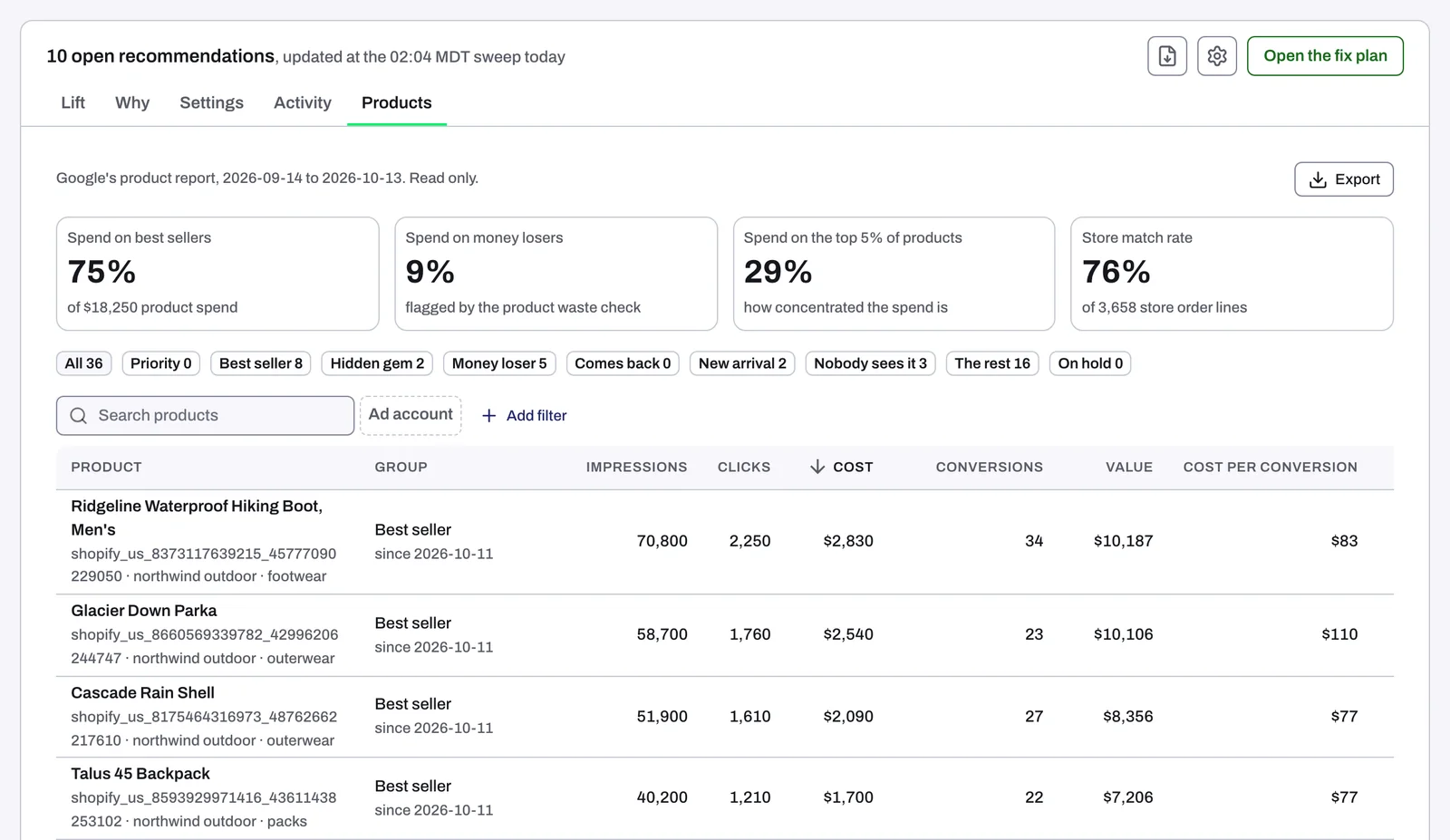
For an online store on Google Ads, the Products tab on the Lift page lists the products your campaigns showed or spent on, from Google's product report. Lift puts each one in a group, such as Best seller, Money loser or Nobody sees it, by a rule you can read on the tab, and where a store is connected the tab adds your store's own units sold and revenue beside Google's figures.
When the tab shows
The Products tab comes after Activity in the Lift page's tabs. It shows only when the protected entity you picked has a Google Ads account whose Business type is Online store (you sell products from a catalogue or product feed). That answer is in Setup (the gear in the Lift page's top bar), under General. Where nobody has answered for an account, Lift reads its business type from the account's data, and Setup asks you to confirm it. Lift Setup: business type, emails and Google Ads settings covers changing it.
- The tab reads Google Ads only, so Meta Ads and TikTok Ads accounts never add it. For those platforms, see How Lift works on Meta Ads and How Lift works on TikTok Ads.
- On an entity with no online store account, the tab is not there.
- The tab shows one Google Ads account at a time. With several online store accounts it opens on the first, and the Ad account chip beside Search products switches to another.
- Like the rest of Lift, it is for workspace Owners and Admins.
How Lift groups your products
Lift reads Google's product report for the account once a day, and the line at the top of the tab gives the dates its figures cover. In its daily scan of the account, which runs once Tapper has set your workspace up, Lift then puts each product in one group. Until an account's products have their groups, the tab says "Groups appear after the next daily scan of this account."
Each group is a chip above the table, with its number of products. Hover over a chip for its rule, and press it to list only that group's products; All lists every product.
| Group | Which products |
|---|---|
| Priority | Marked push on your merchandising list, until its end date. |
| Best seller | In the top 25% of the account's products by conversion value over 30 days, with at least 3 conversions. |
| Hidden gem | In the top quarter by conversion value or store sales, shown less than your typical product, and not a best seller. |
| Money loser | Flagged by Lift's product waste check (Products spending more than they return), or no conversions in 30 days while spending at least what the account pays per conversion on its products. |
| Comes back | Refunded at least twice as often as the store's products overall (units refunded over units sold), on at least 5 orders in 60 days, in the connected stores. |
| New arrival | First seen in the last 14 days, with under 50 impressions. Lift starts naming new arrivals once it has read the account's products for 14 days. |
| Nobody sees it | Fewer than 50 impressions in 30 days across the account's campaigns. |
| The rest | Every other product with impressions or cost. |
| On hold | Marked hold on your merchandising list: kept out of every group until its end date. |
| Not grouped yet | Products the daily scan has not grouped yet. They are grouped after the next one, and this chip shows only while there are some. |
A product is in one group at a time. Where it fits more than one, the first in this order wins: Priority, Comes back, Money loser, Best seller, Hidden gem, New arrival, Nobody sees it, then The rest.
Lift's product checks are listed under Products and feed in The checks Lift runs on Google Ads.
The tiles
| Tile | What it shows |
|---|---|
| Spend on best sellers | The share of the account's product spend that went to Best seller products, with the total product spend under it. |
| Spend on money losers | The share of product spend that went to Money loser products. |
| Spend on the top 5% of products | The share of product spend that went to the 5% of products that spent most: how concentrated the spend is. |
| Store match rate | The share of your store's order lines over the report's dates that match a product in Google's report. With no store connected it reads "no store connected". |
| Spend on own brand | Once the account has brand terms (see Brand terms in Setup > Google Ads): the share of product spend on your own brand, with its share of conversion value and the shares that went to third-party brands and to products with no brand. A line under the tiles gives the rule. |
A share Lift cannot work out reads "-".
The product table
The table has one row per product, by default largest cost first and 50 to a page. Press the Impressions, Cost, Conversions, Value or Return heading to sort by it, largest first.
| Column | What it shows |
|---|---|
| Product | The title, with the product ID, brand and product type under it. |
| Group | Its group, and since when. Hover for the group's rule and the group it was in before. |
| Impressions, Clicks, Cost, Conversions, Value | Google's figures for the product, added up over every campaign that showed it. |
| Cost per conversion, Return | Cost divided by conversions, and value divided by cost (for example 3.20x). |
| Campaigns | The campaign that showed the product, or how many did. Hover for their names. |
| Store units, Store revenue | Units sold and revenue in your store over the report's dates, where a store is connected and the product matches. |
| Store refunded | The share of those units refunded so far, with the number of units refunded. Shown only once Tapper reads refunds from your store. |
| Own brand | Own brand, Third party or No brand (the product feed gives none), once the account has brand terms. Add filter can filter on it too. |
| Profit | Once the account has a Contribution margin in Setup > Google Ads: conversion value times the margin, minus cost. |
Cost, value and cost per conversion are in the ad account's own currency, and store revenue is in your store's. A cell with nothing to show reads "-".
Search products finds a product by title or ID. Add filter adds a Brand, Product type, Category or Custom label filter, one value each, chosen from the values across the whole account. With nothing to list, the table reads "No products with impressions or cost in this window".
Export, at the top right, downloads a spreadsheet (a CSV file) of up to 5,000 products with every figure the table shows, following the group, filters and search you have set.
Related
Was this helpful?
Related articles
Still need help?
Chat with our team and mention this article.