

Export a Lift report as PDF
The Lift report is a PDF of every Lift finding on a protected entity's Google Ads, Meta Ads and TikTok Ads accounts for a period you choose, with waste broken down by priority and by campaign type or objective. Use it to show a client, a manager or anyone outside Tapper where an account is losing money and what has been done about it. It takes about a minute to prepare.
Before you start
- You need the Owner or Admin role on the workspace. Members with the Editor role cannot use Lift.
- The protected entity needs a connected Google Ads, Meta Ads or TikTok Ads account. Without one, the export icon is grayed out, with "Available once a Google Ads, Meta Ads or TikTok Ads account is connected." beside it: see Connect or reconnect Google Ads for Lift, Connect Meta Ads for Lift or Connect TikTok Ads for Lift.
Prepare the report
- In the sidebar, under Protection, select Lift. If your workspace has several protected entities, pick one in Protected entity at the top of the page.
- Press the export icon in the top bar (Export report), beside the Setup gear. The Export Lift report dialog opens.
- Under Period, choose Last 7 days, Last 30 days (the default), Last month or Last quarter. For other dates, press Custom, pick the first and last day on the calendar and press Apply.
- Under Google Ads accounts, the entity's accounts are listed under the field. The heading names your platform, or reads Ad accounts when the entity has accounts on several, listed under each platform's name. To cover all of them, leave the field empty: it reads All {N} Google Ads accounts (or All {N} ad accounts). That means every account of this entity, never another entity's. To narrow the report, press an account in the list, and press more to add them. With several platforms, a button per platform, such as All Meta Ads (5), picks or clears that platform's accounts.
- Press Prepare PDF. The dialog reads Preparing your Lift report, usually for under a minute. You can press Close and come back: the report waits under Recent exports.
- When it reads Your Lift report is ready, press Download PDF to save the file, or Open to read the report as a web page in a new tab.
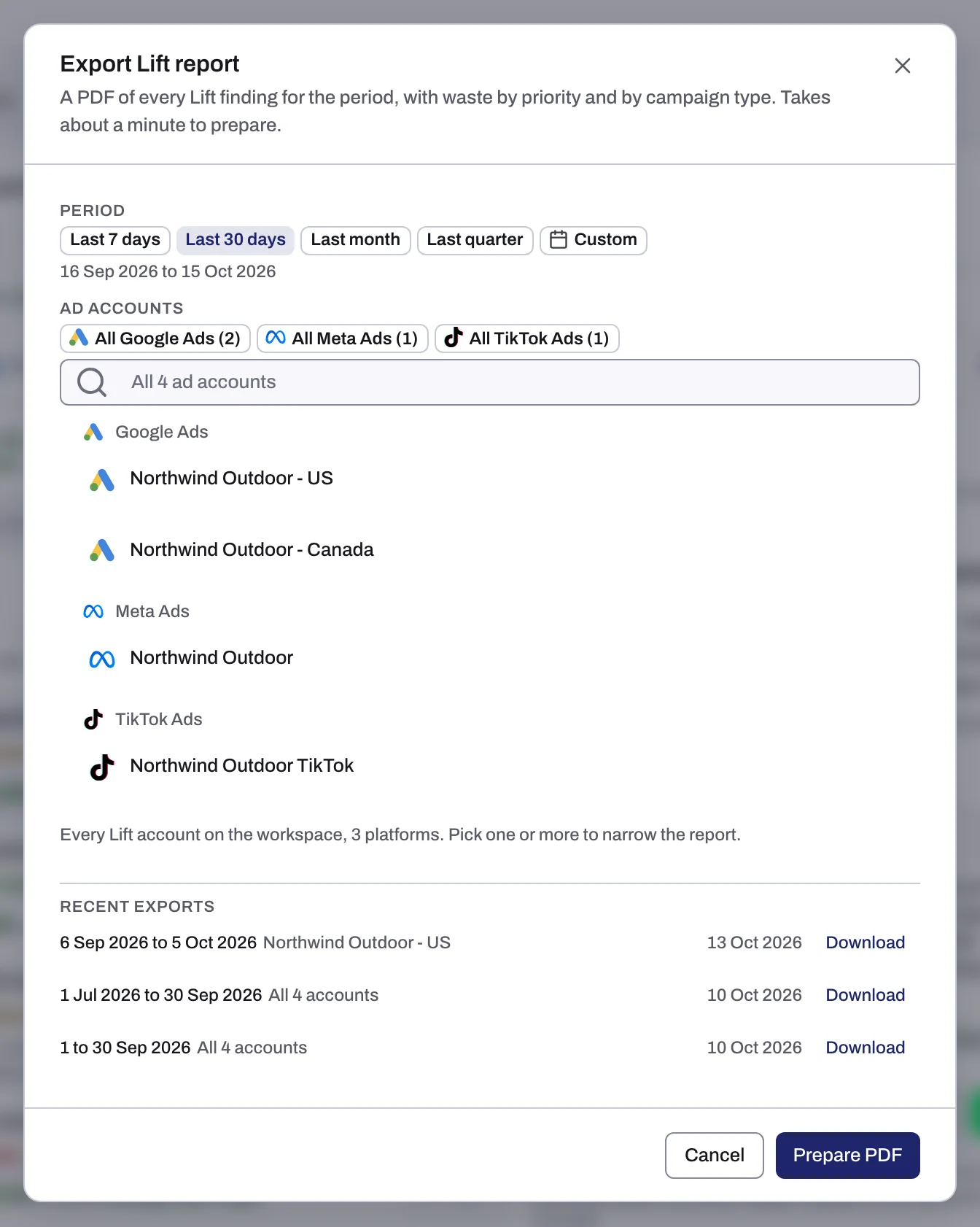
Last 7 days and Last 30 days end today; Last month and Last quarter are the previous whole calendar month and quarter. Dates are calendar days in your workspace's time zone, shown under the choices, for example "1 to 30 Sep 2026".
Get a report again
The dialog also lists the entity's latest reports, up to eight, under Recent exports, with their dates and accounts. Press Download next to one to get it again. A report still being built shows Preparing, and one that failed shows Failed.
A finished report stays in the list for 7 days, then leaves it. The links behind Open and Download PDF work for 15 minutes, so share the downloaded file rather than a link. Later, use Download under Recent exports, which fetches a fresh link each time.
What the report contains
The report opens with the workspace (or the account, when it covers one), the accounts, the period and its time zone. With accounts on more than one platform, Across platforms comes first: the four figures for all platforms together, never adding two currencies, and a By platform table. Each platform then has its own section, opened by its name and accounts. A section starts with four figures: Savings a day (possible savings beside it), Open items, Actioned in period and Est. recovered in period. Then:
- Open waste by priority: open waste as Critical, Attention and Low impact, with savings and possible savings a day and savings over 30 days. Upside (headroom, not waste), recommendations and settings are counted on rows of their own and never added to the waste money.
- All findings by priority: findings open now, and those actioned, resolved or dismissed in the period.
- What's inside: why money counts as possible savings, the money by kind of fix, and the campaigns carrying the most open waste.
- By campaign type on Google Ads (Search, Performance Max, Demand Gen, Video and any other type found), By objective on Meta Ads and TikTok Ads (such as Sales or Leads): the same open, actioned, resolved and dismissed counts, with savings and possible savings a day and the spend estimated recovered on each. A Meta Ads section adds By funnel stage.
- Actioned and Estimated recovered: what was acted on, resolved or dismissed in the period, and the spend the fixes are estimated to have recovered, from savings only (an estimate, not a measured saving).
- All findings: every finding live during the period, open ones first, with its campaign, priority, estimate a day and status, up to 1,000 rows.
The report ends with notes on reading its figures. Three to know before you send it:
- Savings and possible savings are never added together, and neither are currencies: a finding's money is a daily estimate made when Lift found the issue, in the ad account's own currency.
- Actioned means fixed from Tapper or marked as done. Resolved means Lift closed the card, for example because it no longer finds the issue.
- Open items are as they stood on the day you prepared the report, and the figures stay fixed in the file. The period decides what counts as actioned, resolved, dismissed or recovered.
The report is for reading. To act on a finding, open its card on the Lift tab and press the fix button where the card has one (it is named for the change, for example Pause campaign) and confirm: Tapper makes the change in Google Ads for you. There is no CSV or spreadsheet version of the report.
Lift in your monthly report
The monthly report on your Reports page also opens with a Tapper Lift section when your workspace has Lift, a connected Google Ads account and open waste, acted-on cards or recovered spend to show. It leads with Impact (savings a day and a month, with possible savings beside them and never added in), then up to four reasons with what fixes them, or the largest savings by check: see Monthly reports: what is in your report and how to download it.
If something goes wrong
- The report could not be prepared: the reason shows under it. Press Try again, then Prepare PDF. A report not finished after 15 minutes fails with "The report did not finish. Try again."
- "A report covers at most 366 days.": choose a shorter Custom period.
- "{N} reports are still being prepared for this workspace. Wait for one to finish, then try again.": a workspace can prepare up to three reports at a time.
- "Rendered as a web page", with Download PDF grayed out: the PDF could not be made this time. Open still shows the report; prepare it again for a PDF.
- The report reads "There is nothing to report.": Lift found nothing on those accounts in that period, and no earlier fix was still recovering spend. If your Lift tab is empty too, see No Lift recommendations yet.
If a report keeps failing, write to support@tapper.ai with the entity, the period and the accounts you chose: see How to get help from Tapper.
Related
Was this helpful?
Related articles
Still need help?
Chat with our team and mention this article.