

Lift Setup: business type, emails and Google Ads settings
Setup is where you tell Lift how to read your accounts: each Google Ads account's business type, email recipients and how Lift judges it, your Meta funnel stages and targets, and your CRM and Adjust connections. Except for the automation bands, nothing you set here changes your ad accounts: it changes what Lift looks for in its daily checks.
Before you start
You need the Owner or Admin role on the workspace: members with the Editor role cannot load or save Setup. See what each role can do.
Open Setup
- In the sidebar, select Lift.
- Press the gear icon (Setup) in the top bar. Setup opens on General, with its own bar in place of the page's tabs; Back to Lift takes you back.
- Pick a section, or one of its blocks, in the left rail (on a phone, in Setup section).
| Section | What it holds |
|---|---|
| General | How each ad account makes money, and who gets its emails and alerts. |
| Google Ads | What Lift reads in each Google Ads account, and how it judges it. |
| Meta | How Lift reads each Meta ad account, and what its results are judged against. |
| Measurement | Your CRM and Adjust connections. |
Setup covers one protected entity (with more than one, pick it in Protected entity at the top of the page), and most settings belong to the ad account picked in Ad account. TikTok Ads accounts have nothing to set, so there is no TikTok section. Setup is not the Lift page's Settings tab, which lists the Google Ads settings Lift watches: see The Settings tab: account settings Lift watches.
Save your changes
In General and Google Ads, Save at the foot of the settings saves the picked account only, so save before you pick another. Brand terms, checks switched off, the Meta blocks and Measurement have their own buttons. Some saves ask first; confirm with Save anyway:
- This changes what the engine looks for: a new detection window, ad testing floor or wait after a target change, or ROAS turned off. Some open cards close at the next daily check, without counting as fixed, and others may appear.
- This lets Tapper change this account on its own: setting an automation band.
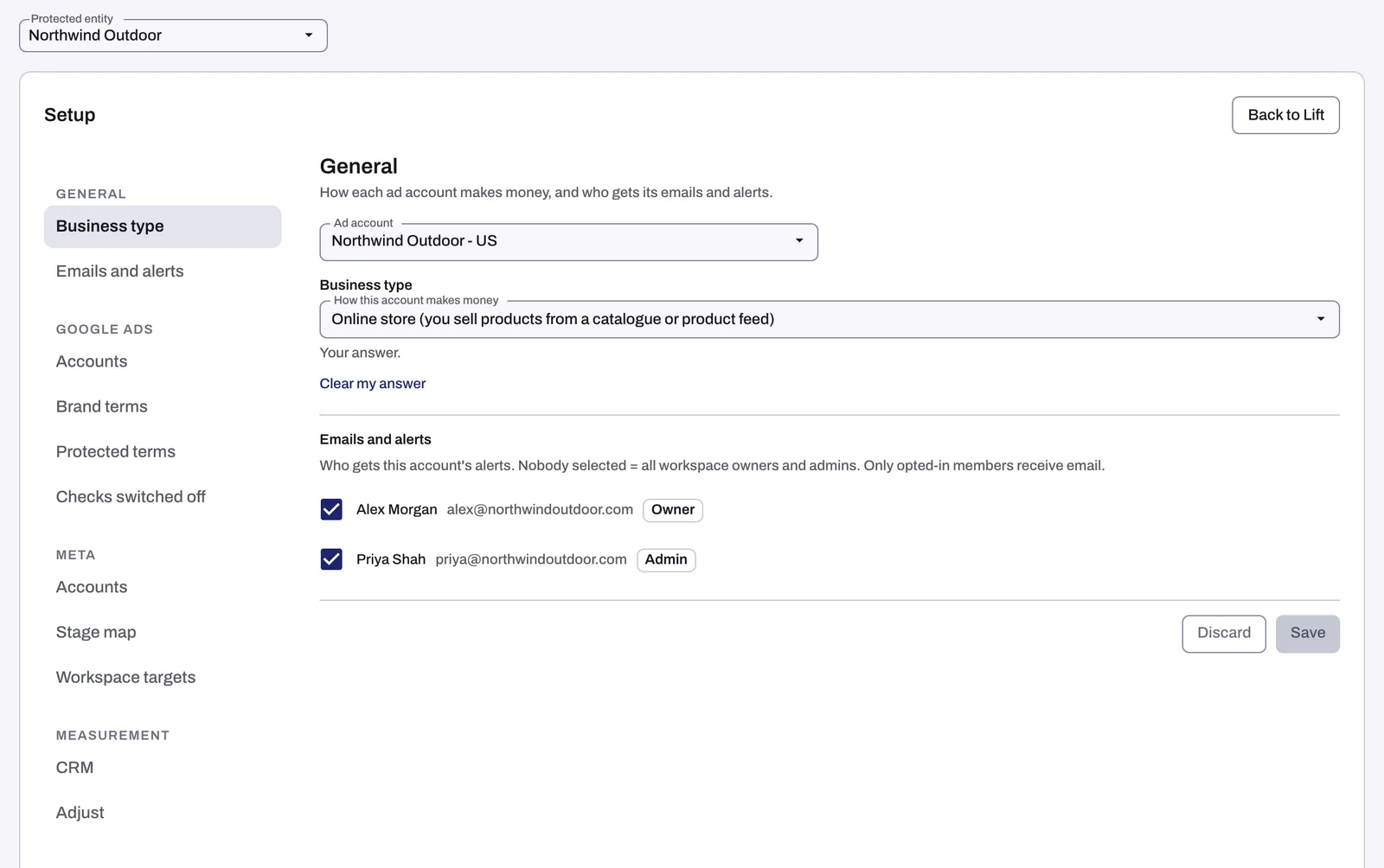
General: business type and emails
General needs a Google Ads account. Without one it reads "Available once a Google Ads account is connected."
Business type
How this account makes money offers Online store (you sell products from a catalogue or product feed), Bookings and subscriptions (tickets, bookings, subscriptions, plans or applications paid online), Leads (forms, calls, sign ups) and App installs and in-app actions. The answer changes what Lift does:
- Online store adds the Products tab: see The Products tab: your products, grouped.
- Leads leaves out the checks about new customers.
- App installs and in-app actions, once answered (a reading of the account's data is not enough), leaves out the new-customer and product checks, and the money on the account's cards counts as possible savings, since it rests on app conversions as Google counts them.
The line under the answer says where it comes from. An answer from sign up or read from the account's data has Confirm: press it to make the answer yours, or choose another, then press Save; cards follow at the next daily check. Clear my answer drops yours when you save. If it reads "Set by Tapper", ask your Tapper contact to change it. A Meta ad account takes your sign-up answer, or that of the entity's Google Ads accounts when they all agree.
Emails and alerts
Tick who gets this Google Ads account's settings alerts and weekly digest, then press Save. Nobody ticked means every Owner and Admin. Only members who turned the emails on receive them: one marked "not subscribed" first presses Turn on alerts on the Lift tab, or turns them on under Notifications in their own settings. A Meta or TikTok account's digest goes to the Owner and Admins who turned the emails on. See Lift emails: settings alerts and the weekly digest.
Google Ads
Accounts lists the entity's Google Ads accounts, with Connect another account (or Connect Google Ads): see Connect or reconnect Google Ads for Lift. The settings below belong to the account picked in Ad account.
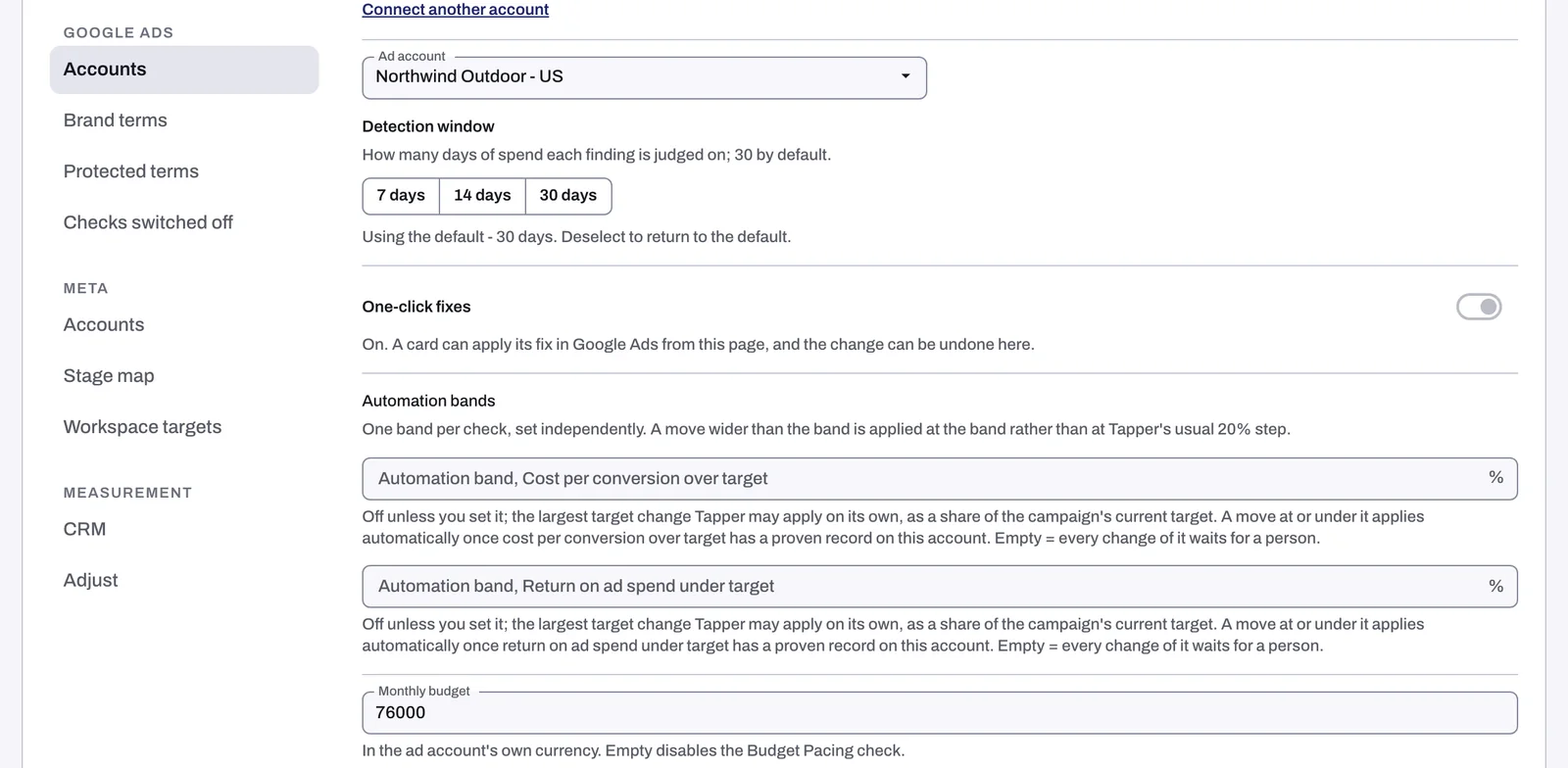
| Setting | What it changes |
|---|---|
| Detection window | The days of spend each finding is judged on: 7 days, 14 days or 30 days (the default). A shorter window reacts faster but sees fewer conversions, so fewer campaigns can be judged. A few checks keep their own windows. |
| One-click fixes | Shown only: whether a card can make its fix in Google Ads for you. If it reads Turned off, ask your Tapper contact. |
| Automation bands | For Cost per conversion over target and Return on ad spend under target: the largest target change Tapper may make on its own, from 1 to 50% of the current target, once a person's own fix of that kind has stuck on that account. Empty, the default, means every change waits for a person. See Automatic fixes and the Activity tab. |
| Monthly budget | What the account should spend in a month, in its own currency. Monthly budget off track flags a month heading more than 15% over or under it; empty turns that check off. |
| Contribution margin | Roughly what share of an order is left after product and delivery costs. It adds Margin on ad spend and Breakeven ROAS to cards judged on return on ad spend. Lead generation accounts show Set a margin anyway instead. |
| Zero-conversion spend threshold | The spend at which a campaign with no conversions gets a card. Empty, Lift works it out from the account's cost per conversion. |
| Ad testing | How much an ad must run before An ad losing its ad group's test judges it: Minimum impressions per ad (1,000 by default) and Minimum days of data per ad (15 of the last 30 days by default; 0 turns it off). |
| After a target change | Days to wait before judging (21 by default; 0 judges straight away): how long target, efficiency and low or no conversion cards wait after a target or bid strategy change. |
| Use ROAS for this account | On by default. Turn it off when the conversion value is an internal accounting figure: Lift then judges on cost per conversion only, and open return on ad spend cards close without counting as fixed. |
| Conversions counted | The conversion actions Lift divides spend by; nothing ticked means Google's own Conversions column. While any are ticked, the keyword, search term, ad, placement, channel and network checks do not run, and cost per conversion is judged per campaign. |
Brand terms
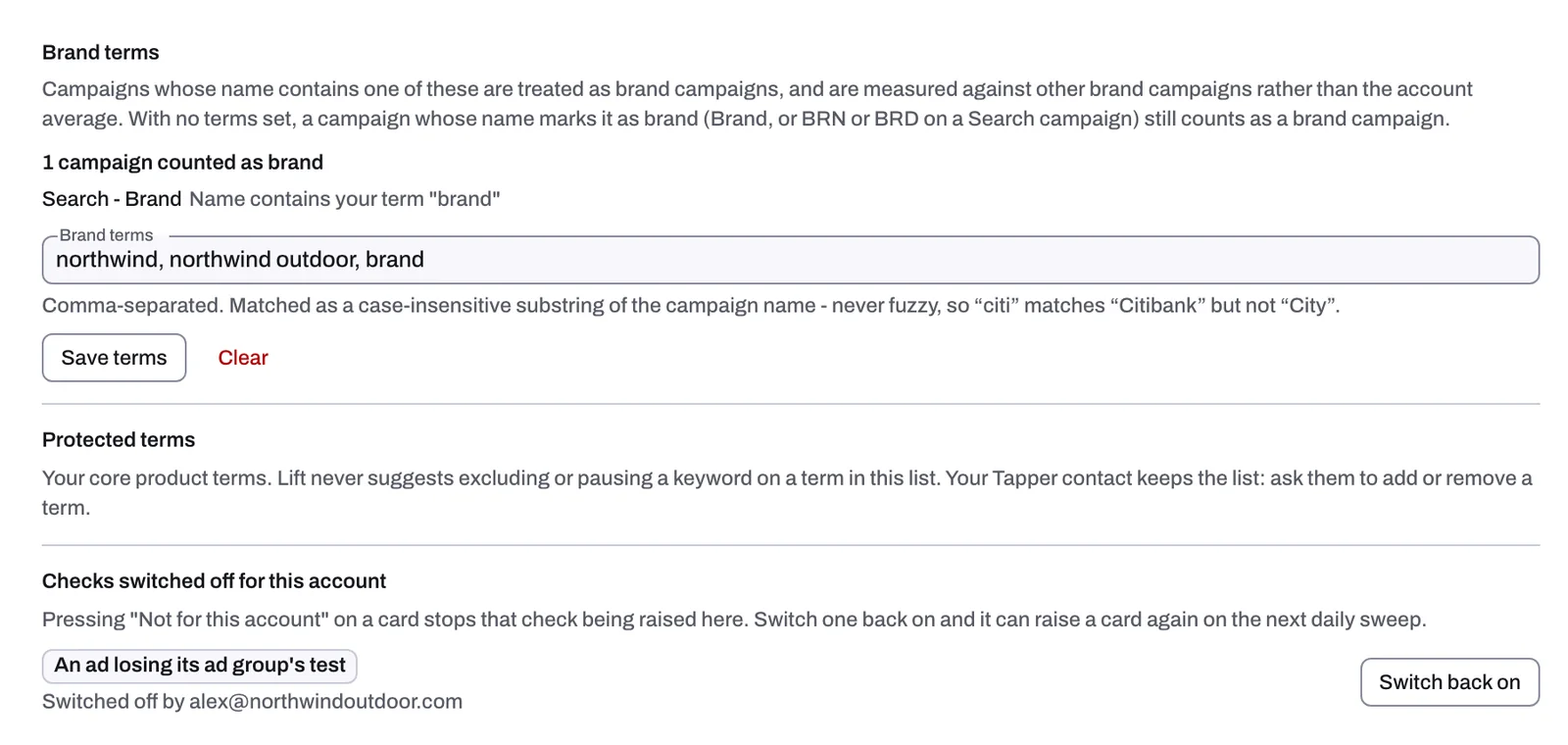
A campaign whose name contains a brand term, ignoring capitals, is a brand campaign: Lift compares it with your other brand campaigns rather than the account average, and money on a brand Search campaign's card counts as possible savings, since that spend can be brand protection. Type plain words separated by commas and press Save terms. The block lists the brand campaigns and why; a term that matches almost every campaign is not used. With no terms, Lift guesses from the account's domain and name (Accept these keeps the guess), and a campaign whose name marks it as brand (Brand, or BRN or BRD on a Search campaign) counts anyway. Clear removes your terms. To set one campaign as non-brand, press Mark as not brand protection on a card that counts its money as possible savings because it is a brand campaign.
Competitor names
Tapper keeps the list of competitor names your campaigns bid on: ask your Tapper contact to add or remove one. A campaign is a competitor campaign when more than half its keyword spend over 30 days is on these names. A campaign with no keyword spend counts when its name says competitor, competition, conquest or conquesting. Its cards say such campaigns usually cost more per conversion, and judge its cost per conversion only against your other competitor campaigns.
Protected terms
Your core product terms: Lift never suggests excluding or pausing a keyword on one of them. The list is not shown here: ask your Tapper contact to add or remove a term.
Checks switched off
This lists each check switched off on this account from a card (Dismiss, with a reason, then Not for this account), and who did it. Switch back on lets it raise cards again from the next daily check. A check switched off from a Meta card is not listed: contact Tapper support to switch it back on.
Meta
Accounts lists your Meta ad accounts, with Connect Meta or Connect another account. Stage map shows the funnel stage Lift gives each ad set, and lets you correct it. Workspace targets holds what a result should cost, how often one person should see an ad and how the budget should be split, per ad account. Nothing here changes your Meta account: see Check the funnel stage Lift gives each Meta ad set and Set your Meta targets: cost per result, frequency and budget split.
Measurement: CRM and Adjust
These are the protected entity's CRM and Adjust connections: connecting here or on the entity's tabs is the same.
- CRM: Connect your Salesforce org links your Salesforce, read-only, so Tapper can match each lead's real outcome to the ad click behind it. Lift's checks do not read it: they judge on the conversions your ad platforms report. See Connect Salesforce (read-only) on the CRM tab.
- Adjust: Lift compares Google's install count with your Adjust's on the Google Ads app campaigns matched to your app (Google and your Adjust count installs differently), reading campaign totals once a day and changing nothing in Adjust. Choose Or paste the API token of an Adjust user on your team, type the App token and the API token, and press Check it: Lift checks the app at once, and says why if the check did not pass.
Related
Was this helpful?
Related articles
Still need help?
Chat with our team and mention this article.