

The Settings tab: account settings Lift watches
The Settings tab on the Lift page flags Google Ads settings that look wrong, read from each account's own configuration: Search Partners or AI Max switched on, Google applying its own recommendations, a campaign whose setup changed. It needs no performance data, so a finding shows at the next daily check after a setting changes, not weeks later. The tab is for workspace Owners and Admins, like the rest of Lift.
How it works
- Google Ads only. The tab reads the selected entity's Google Ads accounts. Meta Ads and TikTok Ads have no settings checks: see How Lift works on Meta Ads, How Lift works on TikTok Ads, The checks Lift runs on Meta Ads and The checks Lift runs on TikTok Ads.
- Once a day. Lift's daily check compares each account's settings with your choices under What to flag, with each campaign's baseline and with the previous check.
- A question, not money. A finding asks whether you meant the setting, so it never appears in the Lift tab's list. Rows have no fix button and do not open: change the setting in Google Ads, and the row leaves the tab at the next daily check that no longer finds it. Nothing on this tab changes your Google Ads account.
What it flags
| Finding | What Lift saw | Severity |
|---|---|---|
| Search Partners enabled | A Search or Shopping campaign also shows ads on Google's search partner sites. | High |
| Display Network on a Search campaign | A Search campaign also serves on the Display Network. | High |
| Automatically created assets | Google creates assets for the campaign on its own. | Medium |
| AI Max enabled | AI Max is on for a Search campaign. | High |
| Audiences set to targeting, not observation | A Search or Shopping campaign's audiences are on Targeting, limiting who it reaches. Not raised when it targets only your own lists. | High |
| Location targeting includes people elsewhere | The campaign also reaches people merely interested in its locations. Not raised without location targeting. | High |
| Google auto-apply recommendations | Google applies some of its recommendations without review. | High |
| Recommendations Google is queuing for this account | Google has recommendations waiting for review. | High if a queued kind applies on its own, else Medium |
| No customer acquisition goal | Google cannot tell new customers from returning ones. Not raised on lead generation or app installs accounts. | Medium |
| Settings changed from the approved baseline | At least one of five campaign settings no longer matches its baseline (below). | Medium |
| Campaigns targeting different places | One card per account: campaigns whose locations break your Block IPs by country rule in Block. Not raised in Monitoring-only mode or on Performance Max campaigns. | High from 5 campaigns, Medium from 2, else Low |
| Campaign languages that differ from their names | One card per account: campaigns named for English or Arabic (EN or AR, for example) whose language targeting leaves that language out, takes in every language, or lists 40 or more languages including the other one. | Medium from 5 campaigns, else Low |
Two of these also get money cards on the Lift tab when they cost too much, Search Partners costing more than Google Search and Display ads running inside a Search campaign. Their fix buttons, Turn off Search Partners and Turn off Display expansion, make the change for you once you confirm (The checks Lift runs on Google Ads).
Read the tab
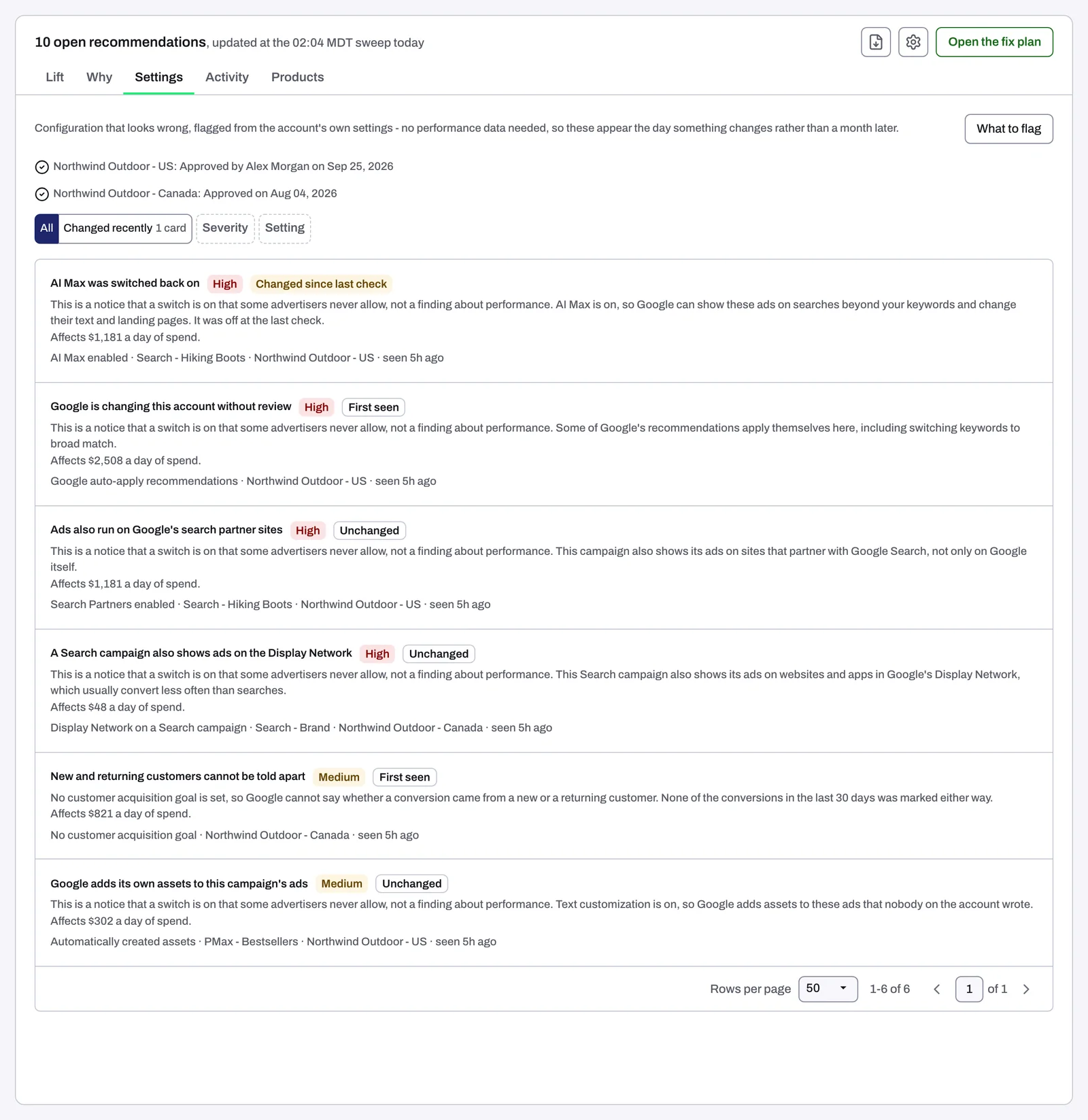
- Baseline lines, one per Google Ads account, under the tab's opening sentence, which has the What to flag button at its right.
- Filters. When something changed recently, a switch offers All and Changed recently, the findings whose setting changed since the last check, with their number of cards. Severity and Setting take several values, each option with its number of cards.
- Campaigns targeting different places has its own box above the list, with a chip for each kind of mismatch and its count (Block or allow clicks by country explains the rule).
- Campaign languages that differ from their names has its own box too: what each campaign's name says, what its language targeting does, the question to answer, and the campaigns as chips.
- Rows. The finding's sentence, a severity chip and a change chip: Changed since last check, Unchanged, or First seen when Lift has nothing earlier to compare (findings outside What to flag always show it). Then what Lift found, the spend the setting affects per day, in the ad account's own currency (not money lost), and a gray line, "{finding} · {campaign} · {ad account} · seen {age}", with the campaign only when the finding is about one. On each page, changed rows come first, then by severity and spend; 50 rows a page by default.
The baseline
The baseline is each campaign's agreed setup, kept by Tapper: every day Lift compares its ad rotation, ad schedule, device bid adjustments, brand lists and location targeting with it. The settings Tapper sees when you connect an account become its campaigns' baselines, already confirmed; where Tapper has none from then, the first settings it finds wait for a person:
- The account's line reads "Baseline not yet approved." with the number of campaigns waiting. Approve baseline confirms them all: "Approving writes nothing to Google Ads."
- Then it reads "Approved by {name} on {day}", or "Approved on {day}" for a baseline taken at connection.
If a campaign changed on purpose:
- On its Settings changed from the approved baseline row, press Accept as new baseline.
- In Accept these settings as the new baseline?, press Accept as new baseline.
Its current settings become the baseline and nothing changes in Google Ads; the row leaves at the next daily check. If nobody meant the change, set it back in Google Ads instead.
Choose what to flag
Most accounts want six of these settings off, so Lift flags each one when it is on. For an account that runs one on purpose:
- Press What to flag.
- Pick the Ad account (already picked when the entity has one).
- For each setting, choose Flag when on (the default), Flag when off or Don't flag, and note why if you like. "Using the default" marks a setting nobody changed.
- Press Save.
The six are Search Partners, Display Network on a Search campaign, Automatically created assets, AI Max, Audience targeting and Locations of interest. Findings follow your choice from the next daily check, and Don't flag closes them. The other findings are not in What to flag: a baseline change clears after Accept as new baseline, the rest once the setting changes in Google Ads (or once the campaigns and your country rule agree), each at the next daily check. If an account keeps one of them on purpose, tell your Tapper contact.
When a setting changes
While a High finding is open, the dashboard shows Campaign settings need review at the top, naming one High finding, for example "Search Partners: flagged on 3 campaigns, and 2 more setting findings need review." Review settings opens this tab. The notice goes once no High finding is open. A Lift only dashboard also counts the findings in Settings to review and lists them in Settings watch (Lift on the dashboard).
For email, press Turn on alerts on the Get alerted when account settings drift banner on the Lift tab; it subscribes you to the settings alert and the Monday digest. To turn either off, or back on, use Manage alerts on that banner or Notifications in your settings. The settings alert ("{account}: {N} setting changes need review") goes out when a finding opens or reopens, or a setting is switched back on, at most once a day per ad account: see Lift emails: settings alerts and the weekly digest.
When the tab is empty
- "No settings to check yet": the entity has no Google Ads account. See Connect or reconnect Google Ads for Lift.
- "No settings flagged": every watched setting matches what you expect.
- Lift starts once Tapper has set your workspace up. If your workspace is new and the tab stays empty, contact your Tapper contact, and see No Lift recommendations yet.
- "Could not load settings findings.": press Retry.
Related
Was this helpful?
Related articles
Still need help?
Chat with our team and mention this article.