

Getting the most from Tapper Lift for online stores: a guide for agencies
Lift works best when it can see the store, the product feed and the ad accounts together, and when your campaigns can use the groups it builds. Most steps take a few minutes and are done once.
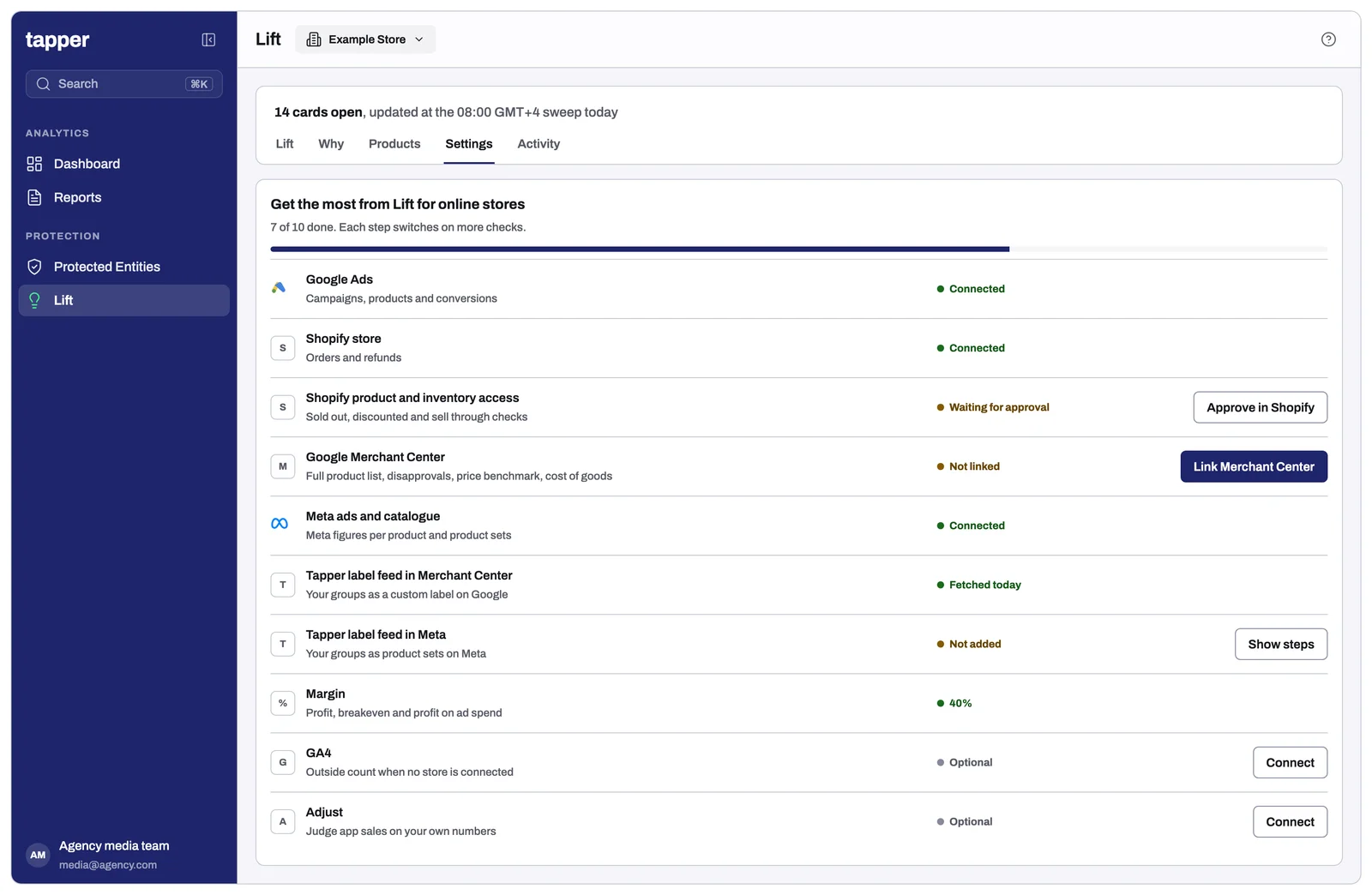
1. Connect everything Lift can read
Each connection switches on more checks. Lift's Settings tab shows a checklist of what is connected and what is missing.
- Google Ads. Gives Lift campaigns, products and conversions. Connect every account that runs Shopping, Performance Max or Demand Gen for the store.
- The store. This is what makes your client's sales the source of truth. Without it, Lift can only judge on Google's and Meta's own numbers.
- Shopify: the store owner installs the Tapper app with order access. To switch on the sold out, discounted and sell through checks, the owner also approves product and inventory access in Shopify.
- Salesforce Commerce Cloud: the client's administrator creates a read only API client for Tapper, with order read access only.
- Custom built stores: the client's developers send each order to a secure address Tapper provides. Each order must include the Google click ID saved when the visitor landed.
- Google Merchant Center. Link it in Lift. Lift then sees the full product list, including products that never served, plus disapprovals and the reasons. It also gives Google's benchmark prices (where the account qualifies for Market Insights) and cost of goods, if you keep it there.
- Meta. When you connect Meta, include the product catalog in the access you grant. Without it, Meta has no figures per product, no product sets, and no best channel check.
- GA4. Connect it if the store isn't on Shopify, Commerce Cloud or the order feed. Lift then uses it as the outside count for web sales.
- Adjust. Connect it if the client sells through an app, so Lift can judge app sales on the client's own numbers.
2. Confirm the settings
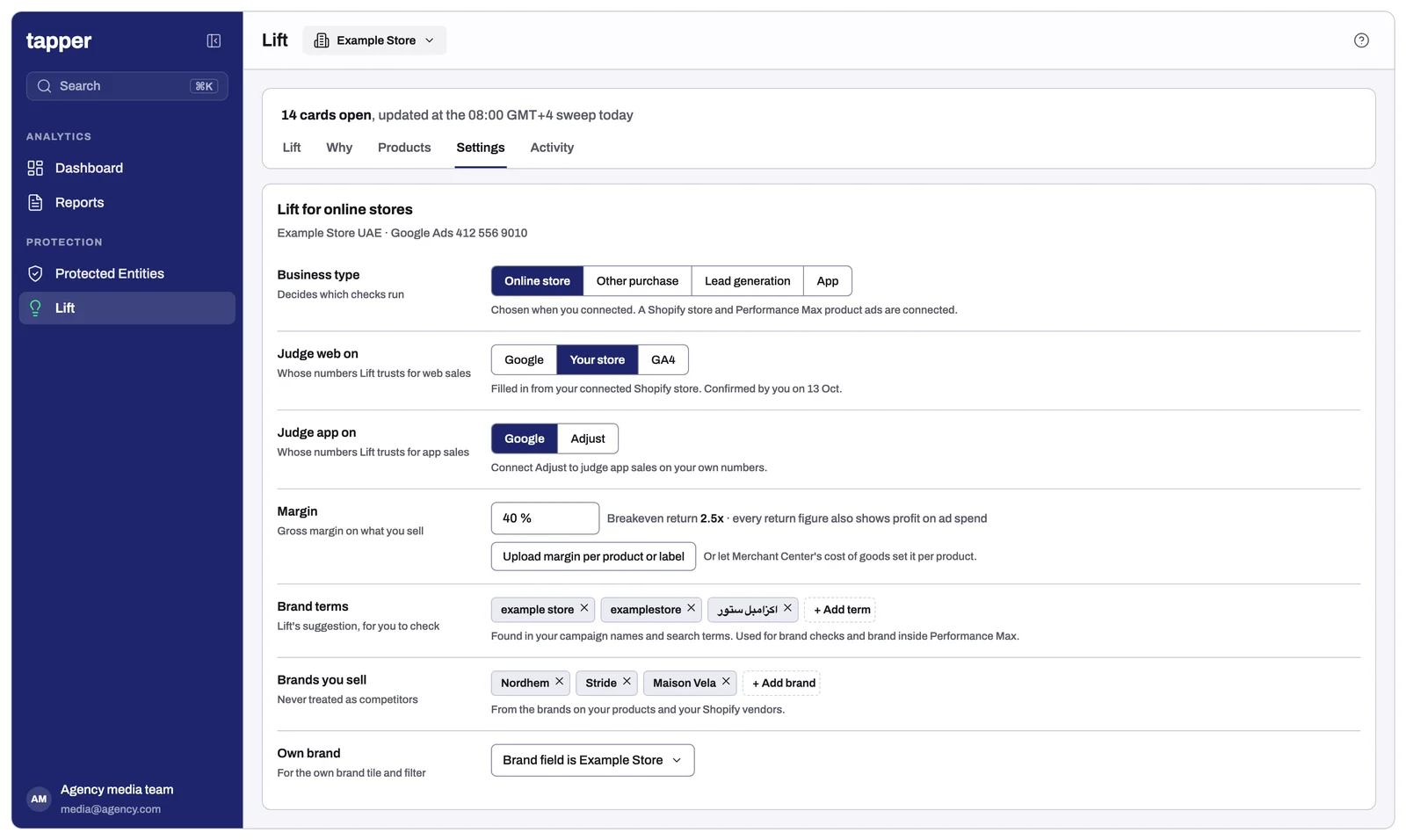
All of these are on the Settings tab.
- Business type: check it says "Online store". This decides which checks run.
- Judge web on and Judge app on: Lift fills these in from what is connected. Confirm them with your client. If the store is connected, "Your store" is almost always the right choice for web.
- Margin: set the client's gross margin. Profit, breakeven return, profit on ad spend and the first order margin check all need it. If margins vary a lot, upload a margin per product or per custom label.
- Brand terms: Lift suggests your client's brand terms from campaign names and search terms. Check the list, and add spellings in Arabic and other languages.
- Brands you sell: for a multi brand retailer, make sure every brand the store stocks is on this list. Searches for those brands are then never treated as competitor searches or suggested as negatives.
- Own brand: tell Lift which brand value, or which label, marks the client's own products.
3. Prepare the product feed
- Match product IDs to the store. Lift can only put store sales next to a product when the ID in the feed matches the store's. Watch the Store match rate tile on the Products tab. If it is low, the feed's IDs differ from the store's, and fixing that does more for Lift's accuracy than anything else on this list.
- Keep one custom label slot free. The Tapper label feed needs one of custom label 0 to 4 that no product uses. If all five are taken, free one up, or tell Lift which slot to use.
- Keep stock current. Google stops serving products marked out of stock, so a sold out product that still spends means the feed is behind the store.
- Send sale prices. Products with a sale price in the feed fill the Discounted group.
- Use real categories in product type. Promotion names such as "mega deals nov" break category reports. Avoid catch all label values like "untagged".
- Fill in GTINs and keep titles within Google's length.
- Add cost of goods in Merchant Center if you can. Lift then works out profit per product without an upload. For this, the purchase tag also needs to send cart data.
4. Clean up conversion tracking
Lift's measurement checks flag these, but fixing them up front saves weeks.
- In sales campaigns, make purchase the only primary conversion action. Set add to cart, checkout and app installs to secondary.
- Remove or set to secondary any test or staging actions, old Universal Analytics goals, and actions that have recorded nothing for 90 days.
- File each action under the category it actually records. A first visit should never be filed as a purchase.
- Check that the new customer goal is set the way the client intends. That means either bidding for new customers only, or bidding on everyone with extra value for new customers.
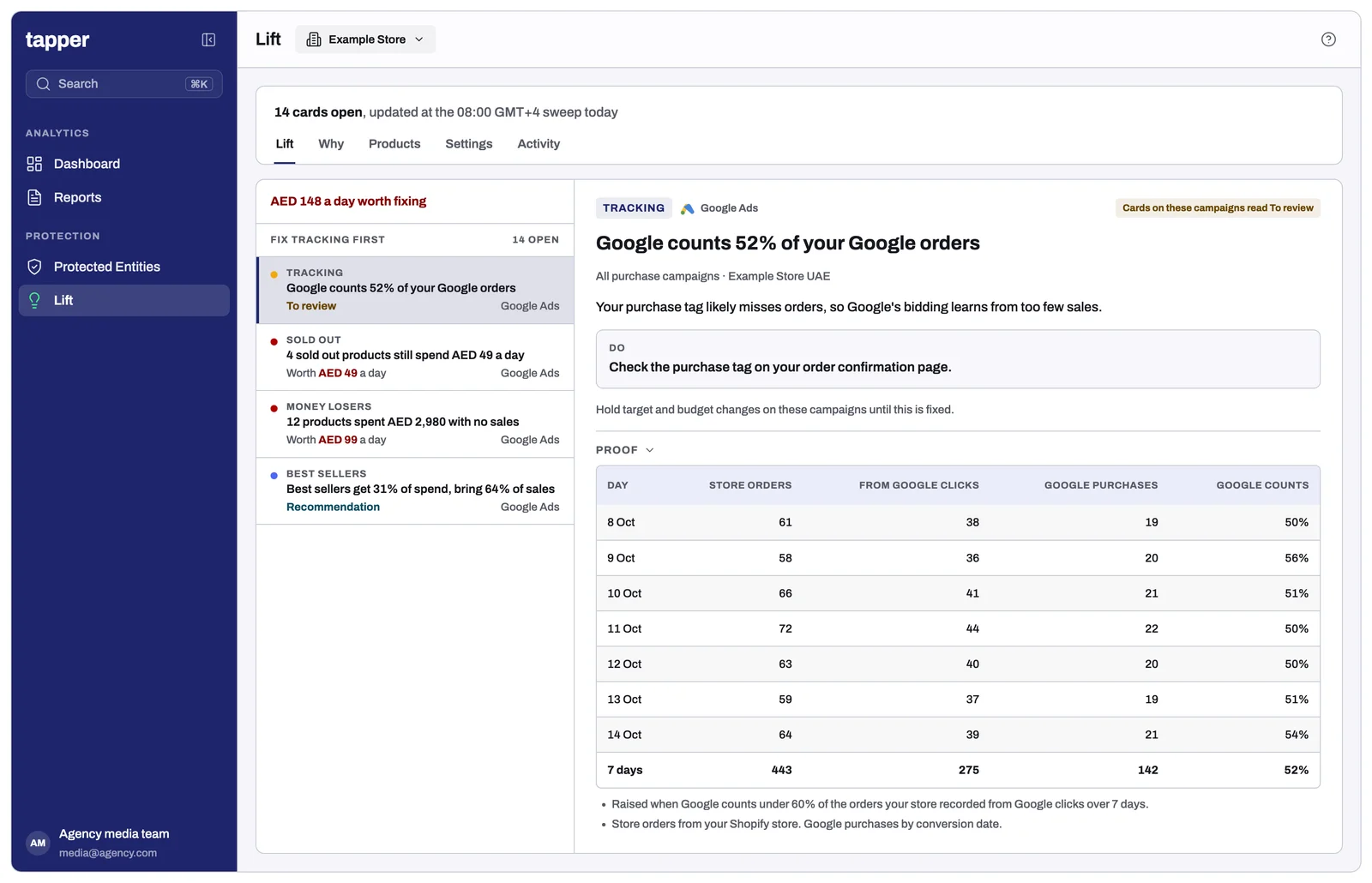
- While a measurement card is open, hold target and budget changes on the campaigns it names. Changes made on wrong numbers are the most common reason a good account drifts.
5. Add the Tapper label feed and build on it
This is the step that turns Lift's findings into results. The feed writes nothing into the ad account. You add it once, and your campaigns filter on the labels. Lift's Settings tab has the feed address and the exact steps.
- Google Merchant Center: add the feed address as a supplemental data source, fetched daily, applied to the main product source.
- Meta Commerce Manager: add the same address as a supplementary feed on a daily schedule.
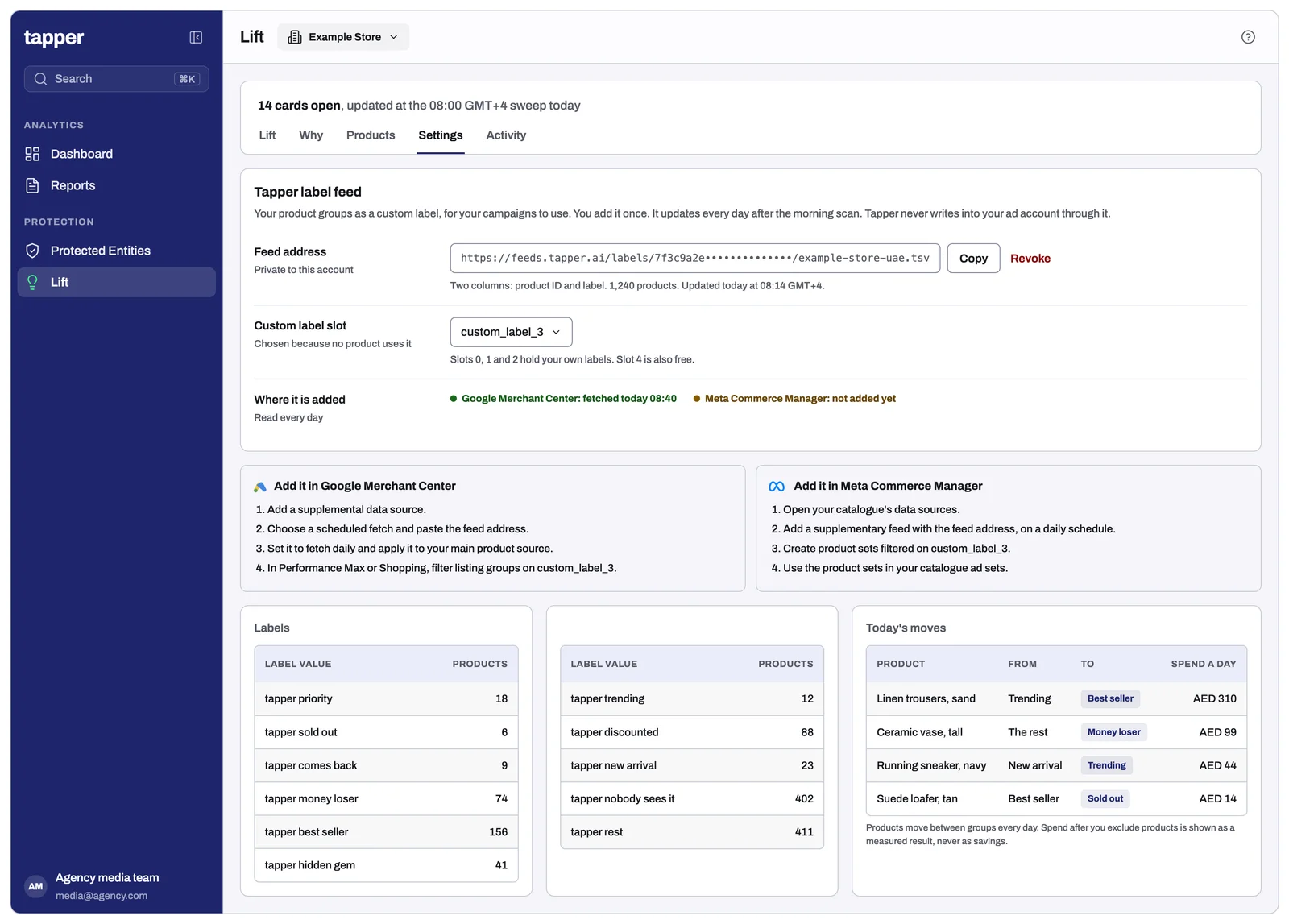
Then build on the labels. Each label value starts with "tapper", for example "tapper best seller". Here is what to do with each group, keeping the client's total budget the same:
| Group | What to do |
|---|---|
| Best sellers | Give them their own asset group (Performance Max) or product set (Meta), and exclude them from the catalog wide group. This is the move behind most product feed results. It stops best sellers sharing spend with thousands of products that don't sell. |
| Money losers | Exclude them through the listing group, or move them to a campaign with a stricter target. |
| Hidden gems, trending and new arrivals | Give them their own asset group so Google can't ignore them. Use a lower target if they are new. |
| Nobody sees it | For products that matter to the client, an asset group with a lower target forces some exposure. |
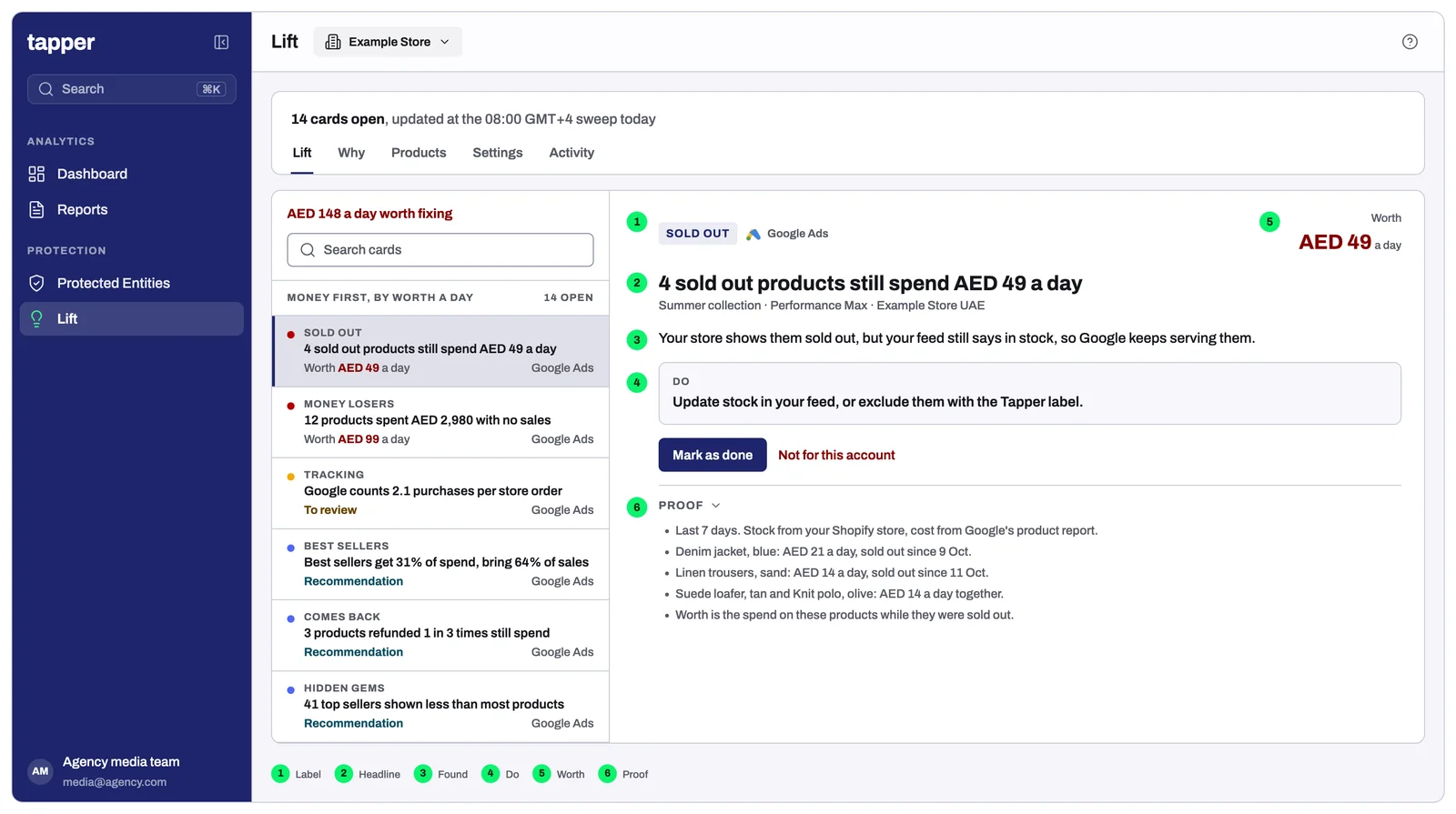
| Sold out | Fix the stock in the feed. Until then, exclude the products with the label. |
| Comes back | Lower the bid or exclude products refunded much more often than the rest. Google and Meta count the sale but never see the refund. |
| Priority | Your client's "push" products, as their own asset group or product set. |
| Standard Shopping | Subdivide product groups by the Tapper label. |
Labels change every day as products move between groups. Because your listing groups and product sets filter on the label, they follow along without anyone editing them. The Products tab shows each day's moves.
Feed only asset groups, with no creative of their own, are fine. Lift doesn't flag them as weak creative.
6. Upload the merchandising list
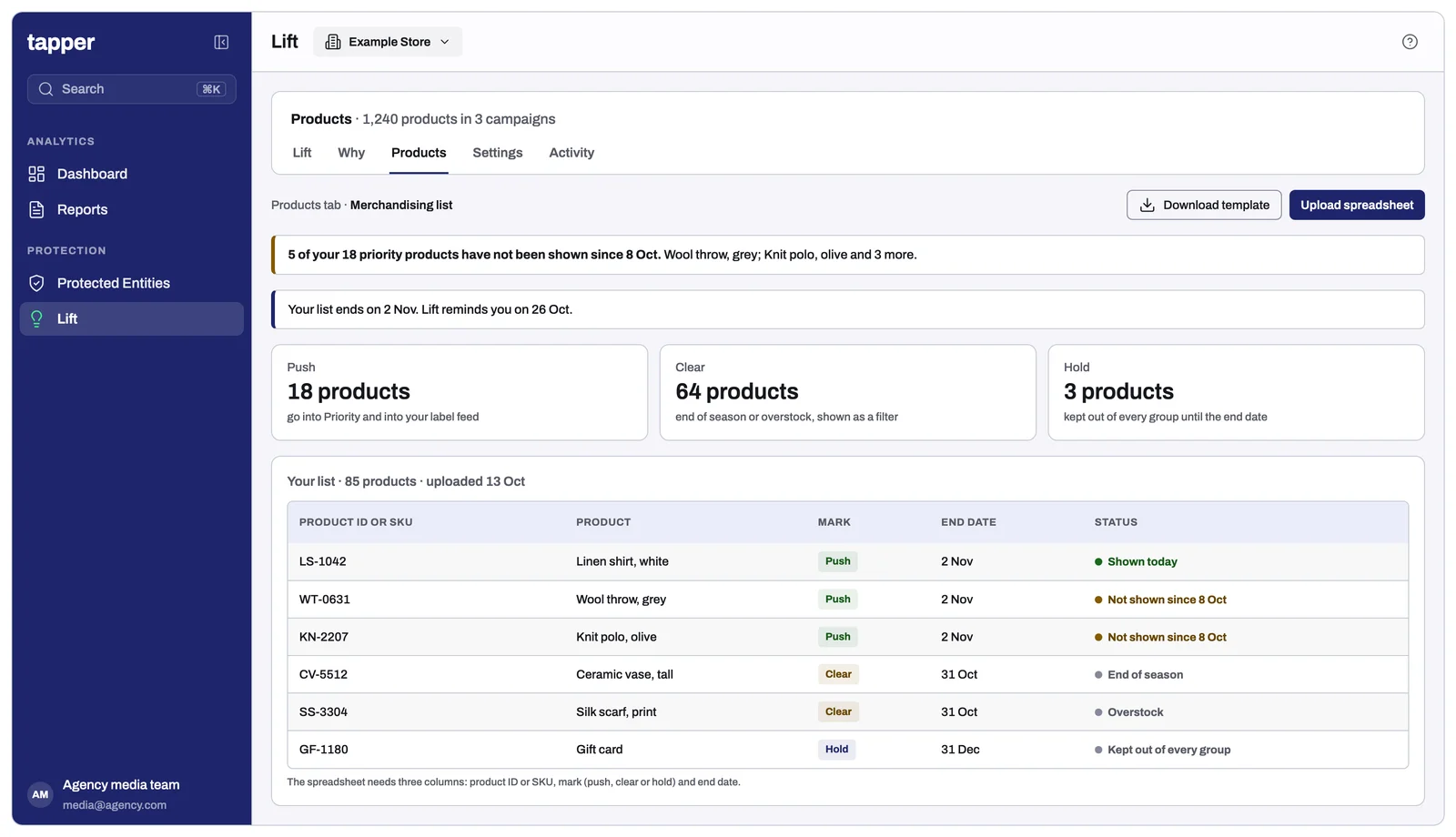
Ask the client's category or ecommerce manager for a spreadsheet with three columns: product ID or SKU, a mark, and an end date.
- Push: products that must sell, such as new ranges and hero products.
- Clear: end of season or overstock.
- Hold: products to keep out of every group, such as gift cards or items being withdrawn.
Refresh it before each season or promotion. Lift reminds you a week before it ends. If priority products go 7 days without being shown, Lift raises a card.
7. Work the cards every week
- Start with measurement cards. Tracking, broken conversion values and Google's count against the store: until these are fixed, the money on other cards is marked "To review".
- Then the cards with a Worth line, highest first.
- Mark as done when you act, so Lift can measure the result.
- Not for this account when a check doesn't fit the client, for example a placement the client keeps for reach. The card stops returning.
- Performance Max channel split: Performance Max has no channel level bid. The levers are placement exclusions for Display, the asset mix for YouTube, and brand exclusions and negatives for Search.
- Price competitiveness: pricing is the client's decision. Share the card with them rather than cutting bids on your own.
- Europe: if the client runs Shopping in the EU, Switzerland or the UK, your Tapper contact will ask which comparison shopping service the account uses.
8. Give it time
Groups and most checks start the day after the first data pull. New arrivals are judged once Lift has 14 days of product history. Trending needs about 8 days. Refund rates build over 60 days of orders. Price benchmarks update weekly once Merchant Center is linked.
Checklist
- Google Ads, the store and Meta with its catalog are connected.
- Shopify product and inventory access is approved.
- Merchant Center is linked.
- Business type, Judge on, margin, brand terms and brands you sell are confirmed.
- Store match rate is above 80%.
- A custom label slot is free.
- Purchase is the only primary action in sales campaigns.
- The label feed is added in Merchant Center and in Meta.
- Best sellers and money losers each have their own asset group and product set.
- The merchandising list is uploaded, with end dates.
Related
Was this helpful?
Related articles
Still need help?
Chat with our team and mention this article.