

Accept a workspace invitation
A workspace owner or admin can invite you to their Tapper workspace. You get an email with a link, and that link opens a page for your invitation alone: you sign in or create your login there and land in the workspace. You never go through the trial sign-up form. If you are sending the invitation, see Invite members and set their roles.
Before you start
- Open the link from the mailbox it was sent to. The invitation is tied to that exact email address, and the page does not let you change it.
- Your role (Admin or Editor) was chosen by the person who invited you. What each role can do is in Roles: what Owners, Admins and Editors can do.
Steps
Open the invitation email
- Look for an email with the subject You've been invited to join {workspace} on Tapper, where {workspace} is the name of the workspace you were invited to. Check your spam folder if it is not in your inbox.
- Click Accept invitation. The link opens
https://app.tapper.ai/invite/...and shows the page Accept your invitation to {workspace}. - The Email field already contains the invited address and is read-only. What the page offers next depends on whether that address has a Tapper account.
If you already have a Tapper account
The page reads Log in as {email} to join.
- Type your password and click Log in and join. If you forgot it, use Forgot password? on the page, or see Reset a forgotten password.
- Or click Sign in with Google if your account uses Google, or Sign in with SSO if your company signs in through its identity provider.
- If two-factor authentication is on for your account, enter the 6-digit code from your authenticator app when asked. You come back to the invitation afterward.
If you are already signed in to Tapper as the invited address when you open the link, there is nothing to type: the page adds you and opens the workspace.
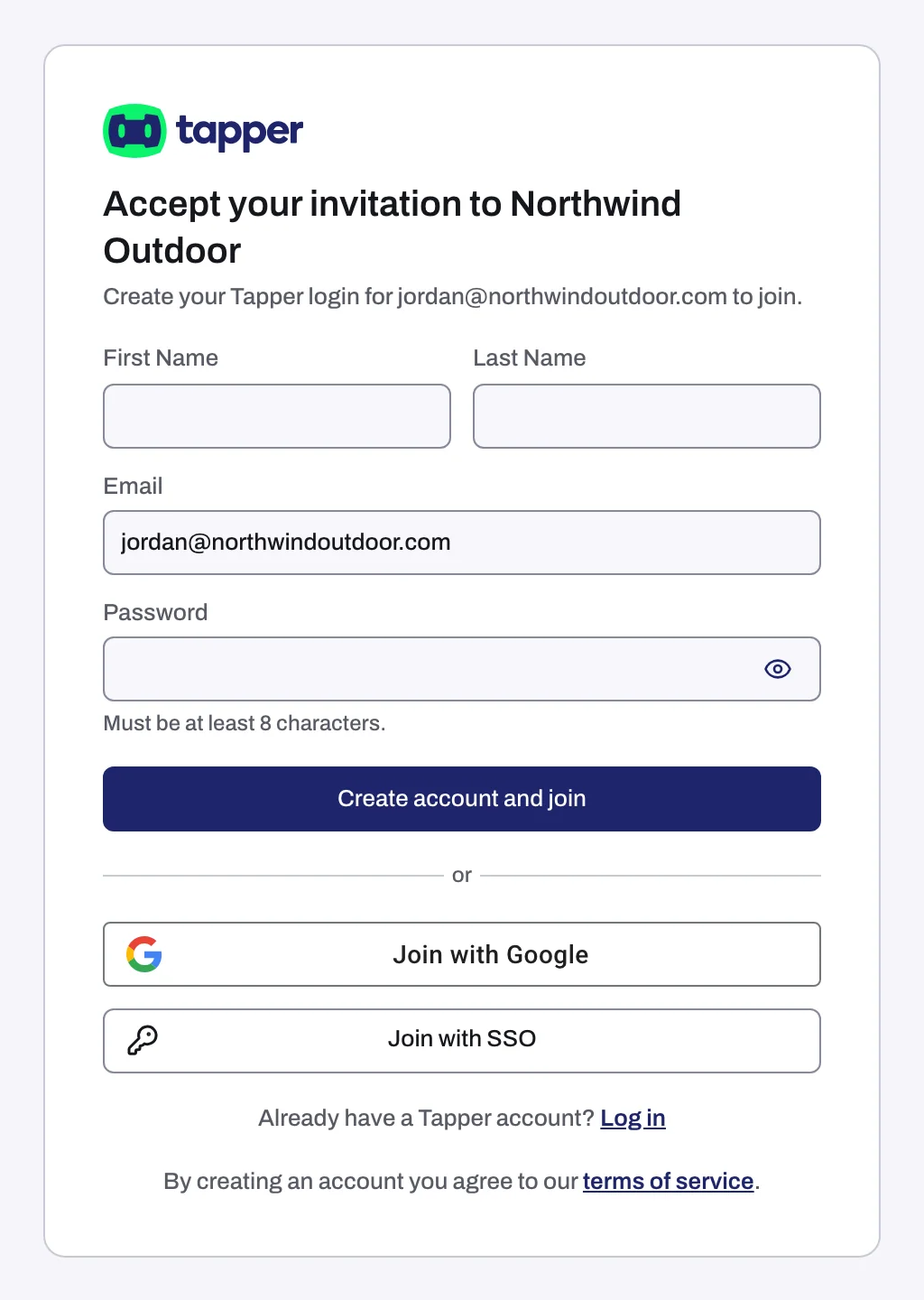
If you are new to Tapper
The page reads Create your Tapper login for {email} to join.
- Fill in First Name and Last Name, choose a Password of at least 8 characters and click Create account and join.
- Or click Join with Google to use a Google account for that same address, or Join with SSO if your company signs in through its identity provider.
Your login is created for the invited address and you join the inviting workspace straight away.
If your company requires SSO
When the workspace requires single sign-on for your email domain, the page shows one line, {workspace} uses your company login for @{domain}., and one button, Continue with SSO. Click it and sign in with your company identity provider. Password and Google are not offered in this case.
If you are signed in as someone else
When you open the link while signed in as a different address, the page says so: You are signed in as {current}; continuing signs you in as {invited}. Complete the login, sign-up, Google or SSO step for the invited address. That replaces your current session with the invited account, which is the one that joins. The account you were signed in with is never added to the workspace.
What happens next
- Once you are in, Tapper opens the workspace and shows the notice You joined {workspace}.
- If you already had a Tapper account when the invitation was sent, you were added to the workspace at that moment. The email link then only signs you in and opens it.
- The workspace appears under Workspaces in Settings, alongside any workspace you own, and you can switch between them there: see Workspaces: create, switch, rename and delete.
- Invitations do not expire. A link only stops working when the workspace sends you a newer invitation or withdraws the one you have.
If something goes wrong
| What the page says | What to do |
|---|---|
| This invitation link no longer works | The link was replaced by a newer invitation or withdrawn. Open the most recent invitation email, or ask the workspace owner or admin to invite you again. |
| Invitation already accepted | This invitation was used already. Use Log in on the page to sign in with the invited address, then open the workspace from Workspaces in Settings. If it is not listed, ask the workspace owner or admin to invite you again. |
| An account with this email already exists. Log in to join. | You tried to create a login for an address that has one. Sign in instead, with the password, Google or SSO. |
| That Google account is for a different address. Sign in with Google as {email}. | You picked another Google account. Try again and choose the invited address. |
| Single sign on is not set up for this address. Use another way in. | Your email domain has no SSO connection in Tapper. Use the password or Google option instead. |
| Your company has locked @{domain} accounts to another workspace, so this invitation cannot be accepted. | Your company's SSO setup keeps accounts on your domain in its own workspace. Ask the owner or admin of that workspace, or write to support@tapper.ai. |
| We couldn't open this invitation right now. Try again in a minute. | A temporary error. Click Try again or reload the page. |
If the email never arrives and you already have a Tapper account, you were added when the invitation was sent: sign in and open the workspace from Workspaces in Settings. If you are new to Tapper, ask the person who invited you to check Members in Settings: your address should show Pending invite. They can withdraw the invitation and send a new one.
Related
Was this helpful?
Related articles
Still need help?
Chat with our team and mention this article.