

Lift: what it does and where to find it
Tapper Lift checks your Google Ads, Meta Ads (Facebook and Instagram) and TikTok Ads accounts every day and lists the specific changes worth making, one card each, with the evidence and, where Lift can price it, the money per day in the ad account's own currency. Some changes Tapper makes for you when you press a fix button; the rest you make in the ad platform. Arriving from your monthly report? Its figures are explained near the end of this page.
How it works
- One card per finding. Each check looks for one kind of problem, such as search terms that spend and never convert, an ad set people see more often than planned, or a TikTok ad group spending with no results. The checks per platform: Google Ads, Meta Ads, TikTok Ads.
- Savings and possible savings. Wasted spend Lift finds is split into Savings, money Lift is confident in, and Possible savings, money it found but cannot be sure of yet (the card says why). The two are never added together, and neither are currencies. Other cards show upside, the spend they affect, or no money.
- Fixing. On Google Ads, when a card has a fix button, press it (it is named for the change, for example Pause campaign) and confirm: Tapper makes the change in Google Ads for you, with nothing to copy across, and Revert this fix undoes it. On Meta Ads, every card has Open in Meta Ads Manager, where you make the change. On TikTok Ads, Apply in TikTok Ads Manager opens TikTok Ads Manager, where you make the change. When you make a change yourself, Mark as done moves the card to Done and changes nothing in the ad account. See Fix, mark as done, dismiss and revert.
- What Lift never does. It never asks you to spend more in total, and no fix raises an account's total budget, cuts a budget shared by several campaigns or changes a portfolio bid strategy's target. A revert removes only what Tapper created. Lift needs no tag on your website.
Where to find it
In the sidebar, under Protection, select Lift; on a phone, a Lift only workspace also has Lift in the bottom bar. Lift is for the workspace's Owners and Admins: an Editor can open the page, but its recommendations do not load. With several protected entities, a dropdown labeled Protected entity, above the panel that holds the Lift tabs, picks whose ad accounts you see; until that entity has a Google Ads, Meta Ads or TikTok Ads account, the page shows Connect an ad account to start Lift. The menu at the top right, with your workspace's name, switches workspaces.
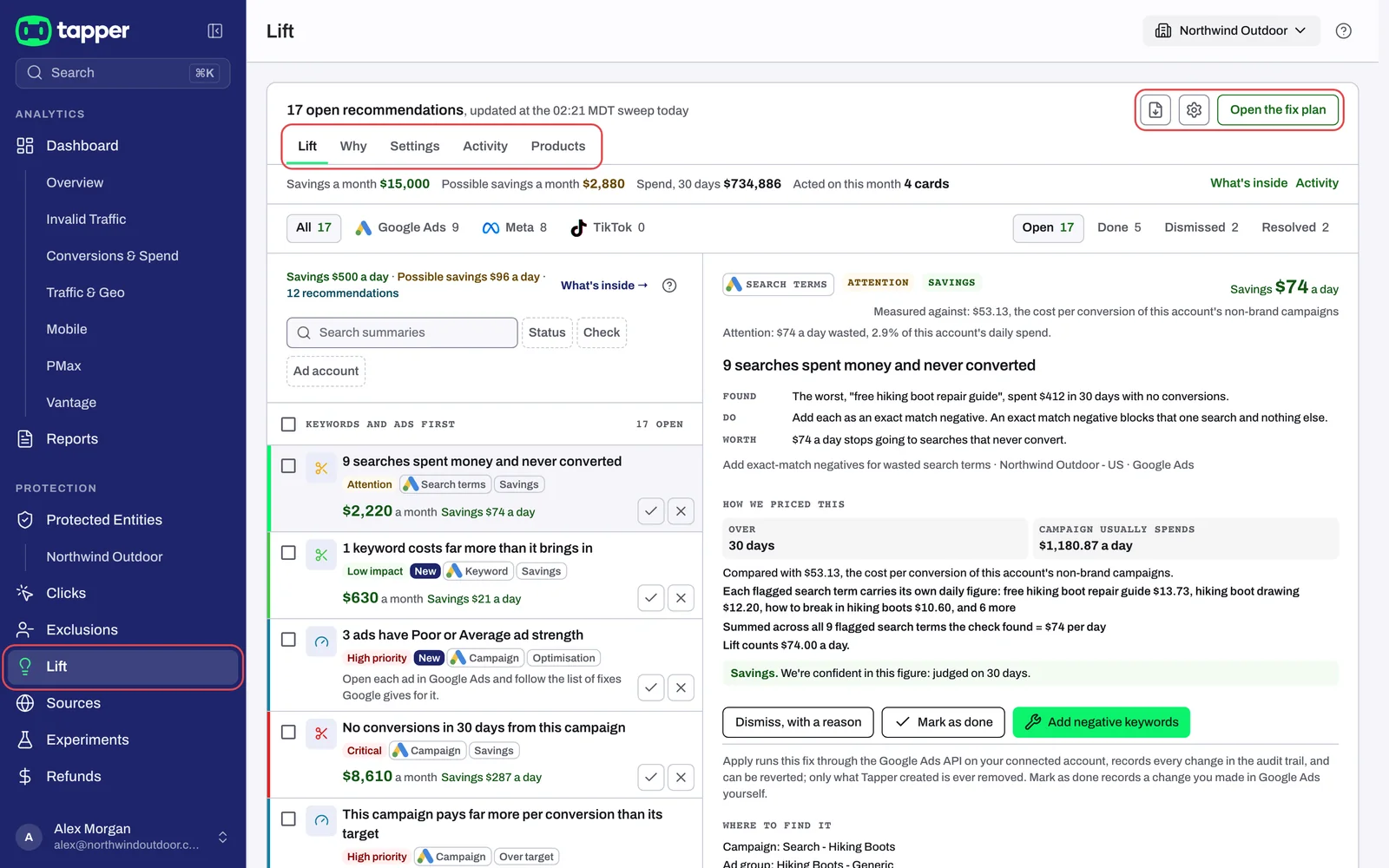
A top bar heads every tab with "{N} open recommendations, updated at the {time} sweep today", in your workspace's time zone. On its right: an export icon, Export report, for a PDF of a period's findings on your Google Ads, Meta Ads and TikTok Ads accounts (Export a Lift report as PDF); the gear, Setup; and Open the fix plan, which opens the Why tab. The tabs:
| Tab | What it holds |
|---|---|
| Lift | The recommendations, below. |
| Why | Why waste builds up across your Google Ads accounts, with a Fix plan of steps, largest first; No reasons to show yet until there is a reason, after which /lift opens here. See The Why tab and the fix plan. |
| Settings | Google Ads settings worth a second look, such as Search Partners switched on, rated High, Medium or Low. See The Settings tab: account settings Lift watches. |
| Activity | Every fix applied from Lift, with Revert while it can be undone, and the actions taken on your cards and settings. See Automatic fixes and the Activity tab. |
| Products | Only when the entity has a Google Ads account whose business type is an online store: its products, grouped, read only. See The Products tab: your products, grouped. |
The Lift tab
On a wide screen, one summary line shows where things stand: Savings a month, Possible savings a month, Spend, 30 days and Acted on this month. Its What's inside link breaks the savings down, and Activity opens that tab. On a phone, a band and four tiles show the same figures. The band holds This month, Your team this week and, when there is a reason to show, Why the waste builds up. The tiles are Spend, 30 days, Savings a month, Possible savings a month and Optimisations; the two savings tiles open What's inside. Below them:
- Platform tabs (All, Google Ads, Meta, TikTok, with counts) and status tabs (Open, Done, Dismissed, Resolved).
- The money line, on Open: per currency, savings, possible savings beside it, any upside (what a tighter bid target could save on the same results) and the count of recommendations with no money to save. What's inside → breaks it down.
- Filters: a search box and the Status, Check and, with several ad accounts, Ad account chips.
- The list, headed Keywords and ads first: keywords and search terms, then ads, budgets and bidding, placements, products and conversion tracking, then audiences and settings; in each, money to save comes first, then spend affected, largest first. A row shows what Lift found in up to three lines (the whole sentence when you point at it or its card is showing), its tags (severity or priority first, then New until you open it) and its money, a month over the day figure; a recommendation's row shows the change to make instead, and a row with no figure reads Not priced.
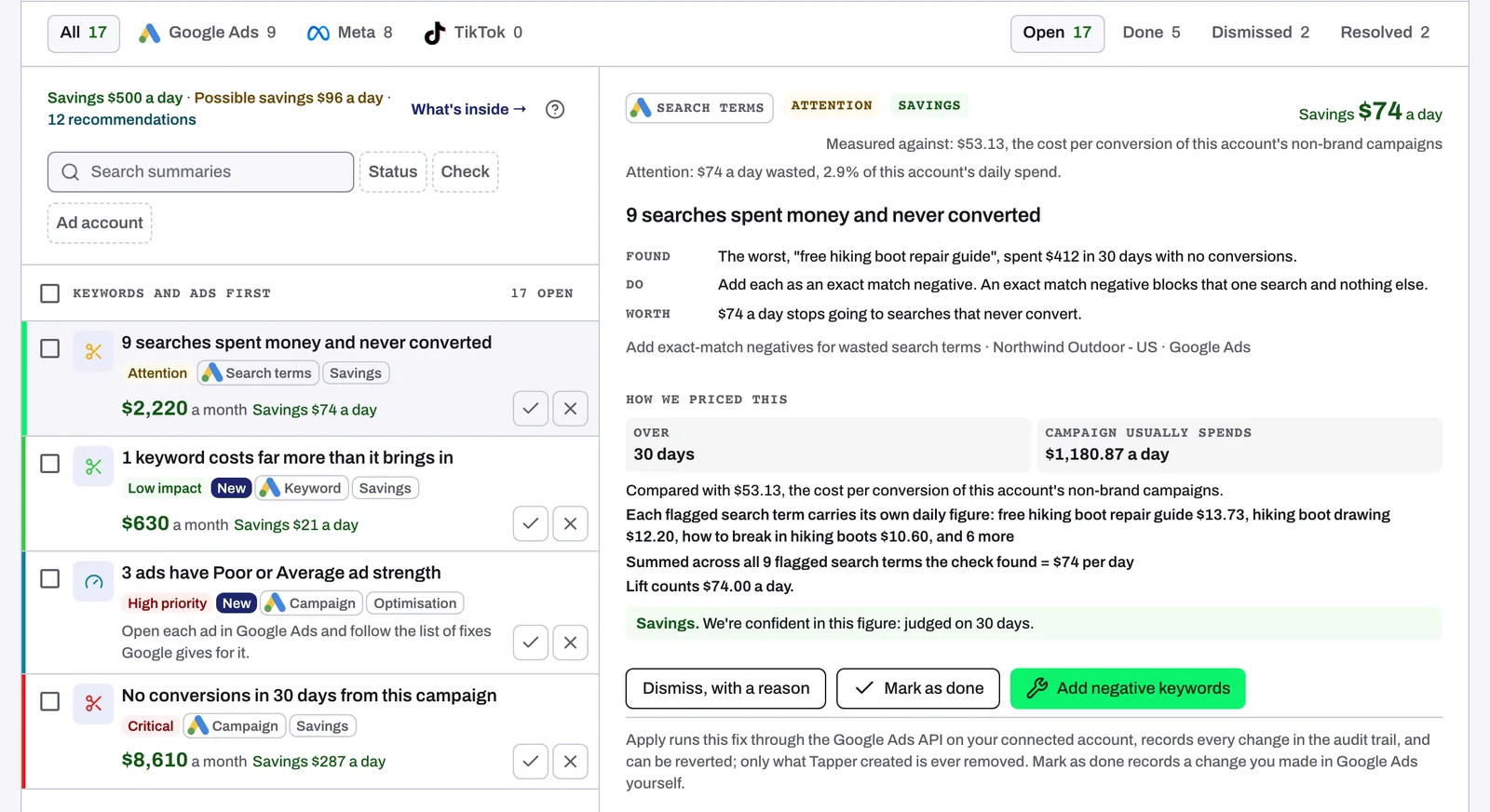
Press a row to show its card. On a wide screen the card shows beside the list and stays in view as you scroll; the top card shows there on arrival. On a phone the card opens as its own page, and Back to the list returns to the list. A card says what Lift found and, for most checks, what to do and, where it is priced, what it is worth; below come how the figure was priced (on priced cards), the buttons, where to find the item in the ad platform and the evidence, and at the bottom History, closed until you press it, lists every change made to the card. On Open, a row's check (Mark as done (E)) and x (Dismiss (D)) open the card's own dialog, and nothing happens until you confirm. See Read a Lift card: money, priority and evidence.
Setup
The gear opens Setup, and Back to Lift returns. Its four sections: General, each Google Ads account's business type and Emails and alerts (who receives its Lift emails); Google Ads, your accounts and the settings Lift judges each by, such as the Detection window (7, 14 or 30 days, 30 by default), Monthly budget, Automation bands, Brand terms and Checks switched off; Meta, your Meta accounts, the Stage map (the funnel stage Lift reads for each ad set) and Workspace targets (your cost per result, frequency and budget split); Measurement, your CRM and Adjust connections. See Lift Setup: business type, emails and Google Ads settings, Check the funnel stage Lift gives each Meta ad set and Set your Meta targets: cost per result, frequency and budget split.
When Lift runs
Lift starts once Tapper has set your workspace up and an ad account is connected. Then it checks each account once a day:
| Platform | The daily check starts | The day it judges |
|---|---|---|
| Google Ads | Once the day's Google Ads data is in, by 08:00 UTC at the latest | Up to yesterday, in the ad account's time zone |
| Meta Ads | Once the morning read of each account is done, by about 08:00 UTC | Up to yesterday, in the ad account's reporting time zone |
| TikTok Ads | After 12:00 UTC, once TikTok has settled the previous day | Three days back, in the ad account's time zone, as TikTok revises recent days |
A change you make yourself in the ad platform shows after the next daily check, not within the hour. If an account's data is late, or does not match the platform's own totals, Lift skips that account for the day: no new card, and its open cards leave the list until a later check, so a card can disappear for a day and come back. For your first day, see Get started with Lift.
If you came from your monthly report
The report's Tapper Lift section leads with Impact: the savings Lift has priced on your open recommendations, a day and a month (30 days), with possible savings beside it. Savings is money Lift is confident in; possible savings is money it found but cannot be sure of yet, never added into the savings. The report shows what was open on the date in its footnote. For today's figures, open the Impact card on your dashboard (its What's inside → breaks them down); for the cards themselves, the Lift page. More in Monthly reports: what is in your report and how to download it.
Related
Was this helpful?
Related articles
Still need help?
Chat with our team and mention this article.