

Google Ads says your sign-in has no access to the account
You see one of these when the Google login Tapper uses cannot open a Google Ads account:
- While connecting, next to the account: "The Google account you signed in with doesn't have access to ... in Google Ads. Reconnect Google Ads with a Google account that does."
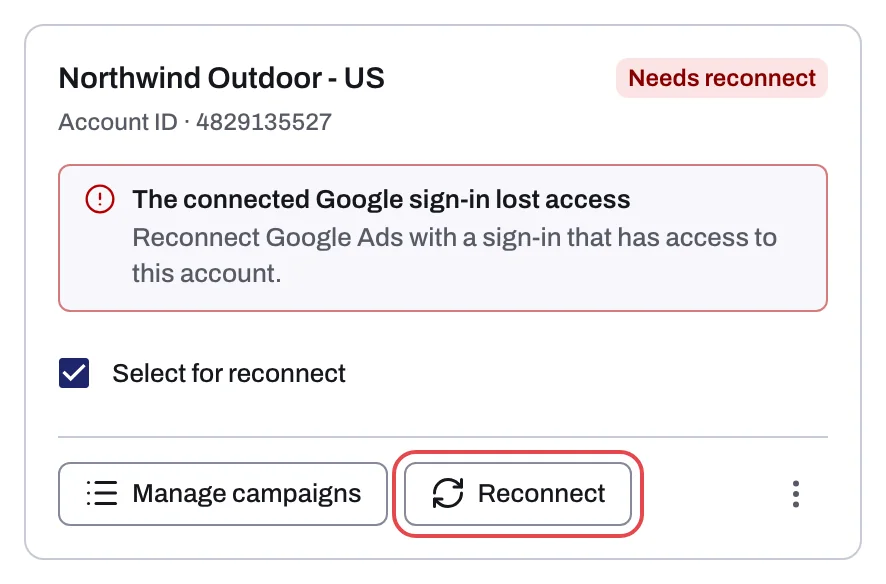
- On an account card on the entity's Google protection tab, with the chip Needs reconnect: "The connected Google sign-in lost access" and "Reconnect Google Ads with a sign-in that has access to this account."
Both mean the same thing, and the fix is the same: sign in with a Google login that has access to the account, or get your login added to it in Google Ads.
Why it happens
Tapper connects through your own Google sign-in. It can use a Google Ads account only if that Google login has access to it in Google Ads, either as a user on the account itself or through a manager account (MCC) that manages it.
- Manager sign-ins work. When your login has access to a manager account, Tapper lists the client accounts under it and connects each one through that manager. You do not need to be added to each client account separately. The manager account itself is never listed.
- The usual causes: you signed in with a different Google login from the one that has access, or that login's access to the account (or the manager's link to the account) was removed in Google Ads.
Fix it
Reconnect with a Google login that has access
- Start the reconnect:
- While connecting: click Reconnect Google Ads on the result screen.
- On an entity: open Protected Entities, click the entity, open Google protection and click Reconnect on the account's card. For several accounts, click Reconnect 2 selected (with your own count); every card in error starts with Select for reconnect ticked.
- In Google's sign-in, pick the Google login that has access to the Google Ads account, directly or through its manager account.
- Back in Tapper, the account connects, or its card's chip reads Connected.
Get your Google login added in Google Ads
If no login you use has access, someone with Admin access to the Google Ads account, or to a manager account above it, adds you in Google Ads:
- In Google Ads, open the account (or the manager account), then Admin and Access and security.
- Add a user with your Google login's email address, choose an access level, and send the invitation.
- Accept the invitation from the email Google sends you.
- Reconnect in Tapper as described above.
Choose an access level that lets the login make changes, such as Standard or Admin. Read only access cannot make changes in Google Ads, so it is not enough for what Tapper does in the account: with Block, connecting itself writes to the account, and Lift's fixes change it too. Google explains each level in About access levels in your Google Ads account.
Two Google messages that look similar
- "Google Ads ... isn't active, so Tapper can't use it. Reactivate it in Google Ads, then connect it again." On a card this is the chip Not active with "Google Ads reports this account is not active" and "Reactivate it in Google Ads, then reconnect it here." Reactivate the account in Google Ads first, then reconnect.
- "Google Ads signed Tapper out of ... Reconnect Google Ads to continue." On a card: "Google Ads signed Tapper out of this account". Click Reconnect and sign in again with a login that has access to the account.
If it still happens
- The account does not appear in the list after you sign in with the right login: see No Google Ads accounts found, or the list did not load.
- The card stays in error after reconnecting: the login you used still cannot reach that account. Check in Google Ads which logins have access to it.
- It still fails: write to support@tapper.ai with the account ID and the exact message.
Related
Was this helpful?
Related articles
Still need help?
Chat with our team and mention this article.