

Connect Meta Ads
Connecting Meta Ads to Tapper is a Facebook sign-in followed by picking ad accounts from a list. With Block, Tapper creates an audience of invalid visitors in each ad account, and you then choose which ad sets exclude it. On a Lift-only workspace Tapper creates nothing in the accounts, and on either choice Lift checks them every day: see Connect Meta Ads for Lift.
Before you start
- You need to be a workspace Owner or Admin.
- Sign in with a Facebook profile that has Advertiser or Admin access to each ad account you want to connect. With Block, a profile that can only view the account (Analyst access) is refused, because Tapper creates an audience there.
- With Block, each ad account needs a Meta pixel, and Meta's Custom Audience terms must be accepted for it. Tapper gives you a link to the terms while you pick accounts.
- On a Lift-only workspace Tapper creates no audience and needs no pixel.
Details and the matching messages are in Before you connect Meta: permissions, the pixel and the Custom Audience terms.
Where you start
- New workspace: the wizard's Connect an ad account step.
- Existing entity: on the entity page, click Add another entity in the header, or Add account on the Meta protection tab. Both open Add an account (Choose platform, then Choose accounts). Add another entity adds an ad account to this entity; it does not create a new one. See Add another ad account to an entity.
Steps
1. Sign in with Facebook
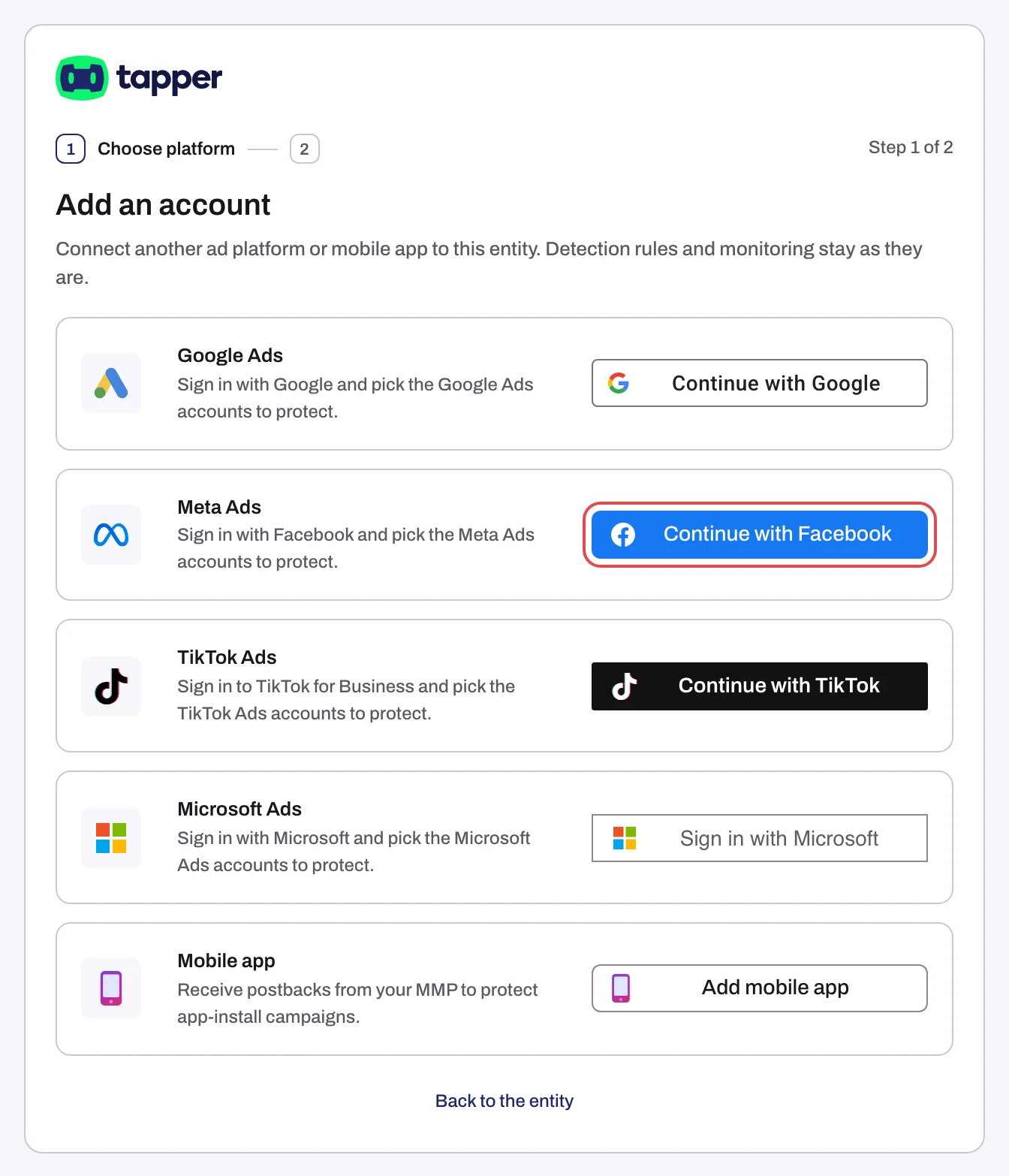
- On the Meta Ads row, click Continue with Facebook.
- A popup opens. If your browser blocks popups, the sign-in runs in the same tab instead.
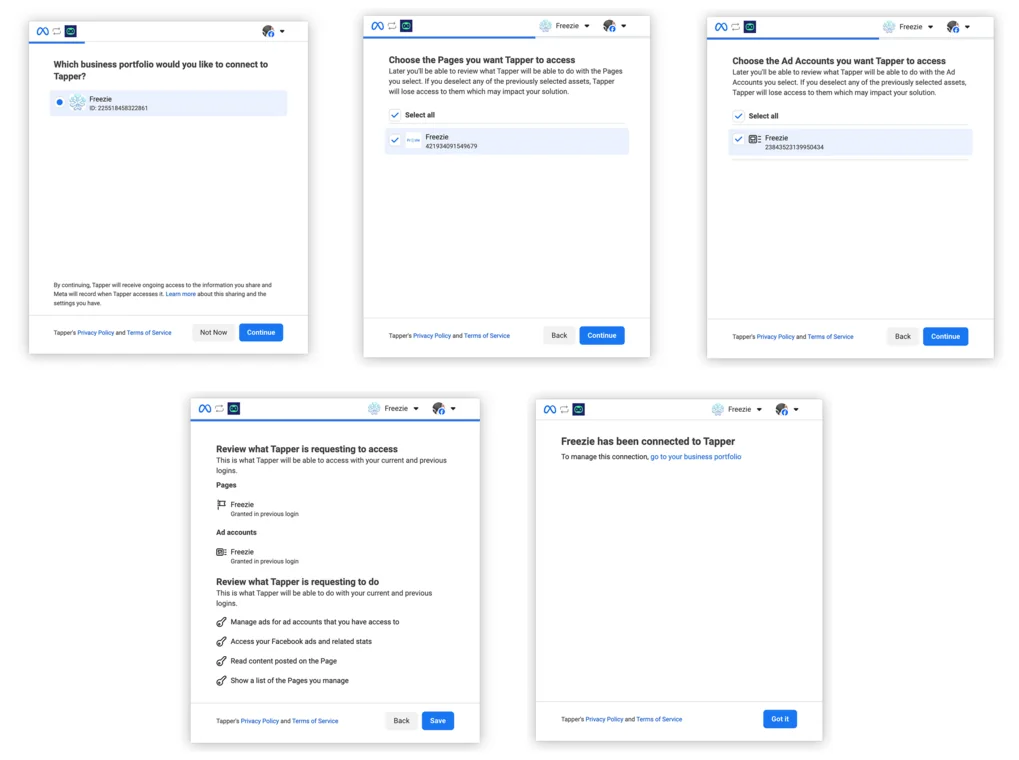
- Log in to Facebook and follow Meta's screens. If Meta asks you to choose a business portfolio, Pages and ad accounts, include every ad account you want to connect and click Continue on each screen.
- On Review what Tapper is requesting to do, Meta lists Manage ads for ad accounts that you have access to, Access your Facebook ads and related stats, Read content posted on the Page and Show a list of the Pages you manage. Tapper needs the first one, so if Meta lets you leave any of them out, keep that one. Click Save. Tapper uses this access to list your ad accounts, read their spend and, with Block, create its audience and attach it to the ad sets you protect.
- When Meta says your business has been connected to Tapper, click Got it. The popup closes itself and Tapper moves on to the account list. The sign-in is held for 30 minutes while you pick accounts.
2. Choose the ad accounts
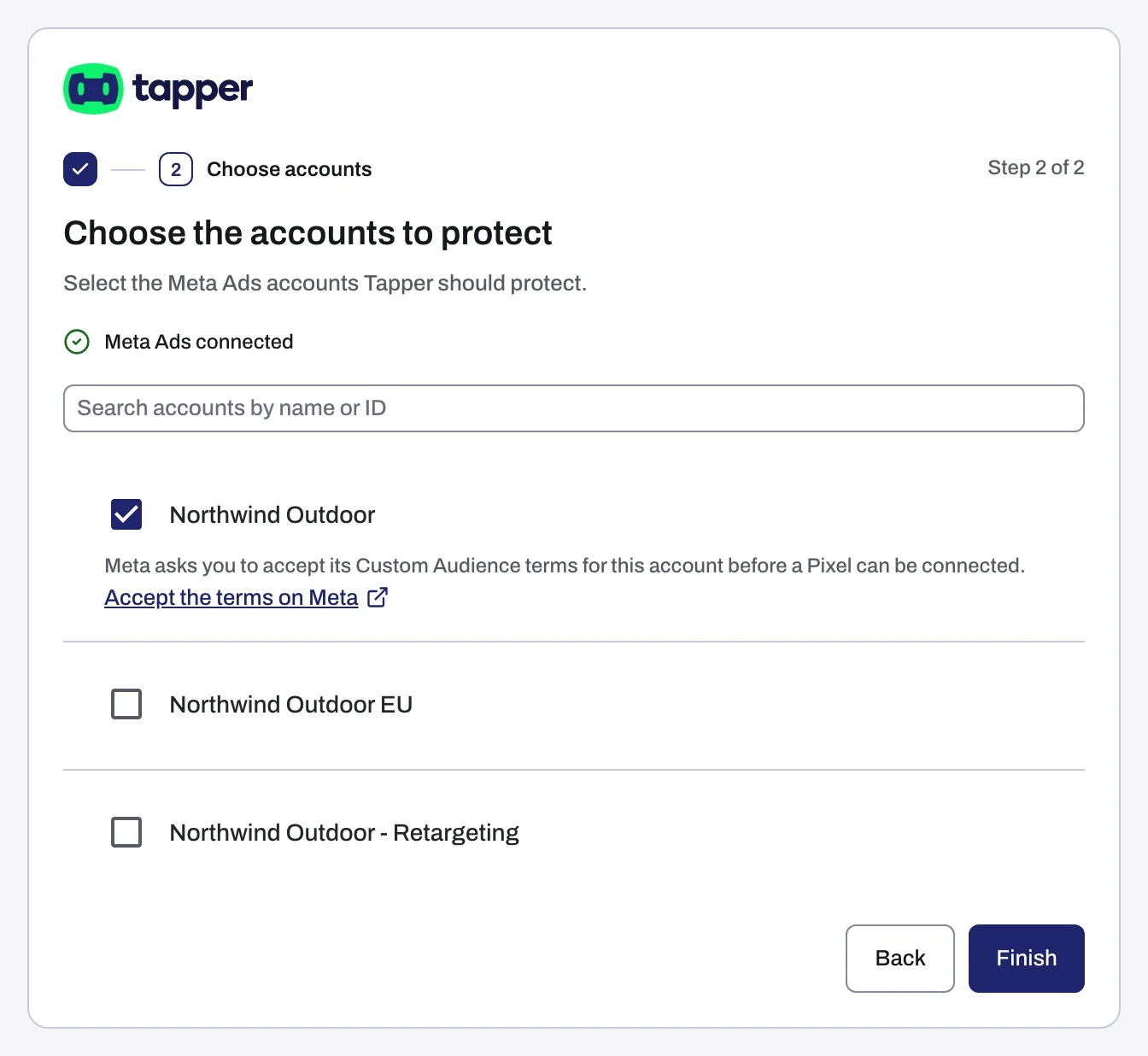
The page is titled Choose the accounts to protect (Lift only: Choose the accounts to connect).
- Tapper shows one flat list of the ad accounts your sign-in can reach, with no business to pick first. Each row shows the account name, or Account followed by its ID.
- Tick each account Tapper should work on.
- With Block, click Accept the terms on Meta for each ticked account. It opens Meta's Custom Audience terms for that ad account; accept them there and come back to Tapper.
- Click Continue (in the wizard of a Block + Lift workspace) or Finish (when adding to an entity, or in the wizard of a Lift-only workspace).
3. Wait for linking
Linking runs in the background for up to 90 seconds, then you see one of these:
- Success: the accounts are connected. In the wizard with Block, you go on to install website monitoring; when adding to an entity, Done takes you to the entity.
- Partial: the page says how many accounts connected and how many did not, and lists each failed account with its reason. Depending on why they failed, the page offers Retry the failed accounts or Reconnect Meta (a fresh sign-in). You can also carry on with Continue with the connected accounts or Done with the connected accounts.
- Taking long: This is taking longer than usual. Click Keep waiting or carry on; the accounts appear on the entity when ready.
4. Switch on protection for your ad sets
This step applies to Block, and it is easy to miss: on Meta, protection is switched on per ad set, and connecting switches none on for you.
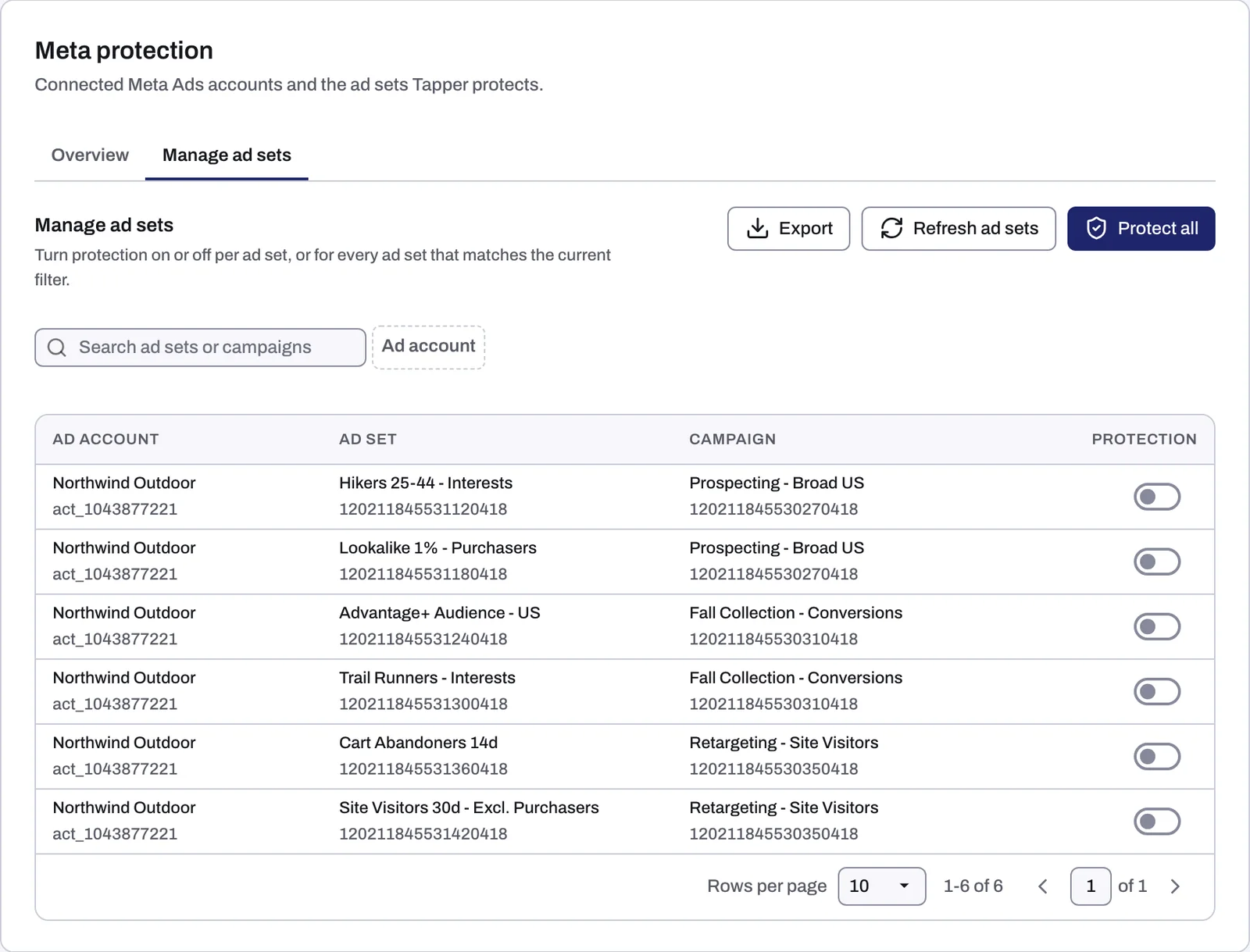
- On the entity, open the Meta protection tab and click Manage ad sets.
- Switch Protection on for each ad set Tapper should protect, or click Protect all to switch on every ad set that matches the current filter.
Switching an ad set on adds Tapper's invalid traffic audience to it as an exclusion. Tapper does no IP blocking on Meta; this audience is how Block protects your Meta ads. Details in Protect Meta ad sets: Protect all or one at a time and How Block protects Meta ads. Before you switch on many ad sets at once, read Meta ads and the learning phase after you turn protection on.
What Tapper creates in your Meta ad account
| Workspace products | What happens when you connect |
|---|---|
| Block + Lift | Tapper creates the custom audience Tapper - Invalid Traffic Audience on each connected ad account. It is excluded only from the ad sets you switch on. |
| Lift only | Nothing is created and no pixel is needed. Lift checks the accounts every day and lists its recommendations on the Lift page. |
What happens next
- The Meta protection tab lists each account under Meta Ads accounts with the chip Connected, its Account ID and a Manage ad sets button.
- Ad sets sync at connect and every 6 hours; Refresh ad sets pulls them right away.
- Add the
ad_idparameter to your Meta ads so Tapper can tie each click to the exact ad: Add the ad_id parameter to your Meta ads. - During a free trial blocking is off: Tapper records invalid clicks but does not block them, and the workspace shows the Monitoring only notice. See Monitoring-only mode: why nothing is blocked yet and what changes when blocking starts.
Dashboard timings: When your data shows up after connecting.
If something goes wrong
- The popup ends with Connection failed, Sign-in cancelled or Connection status unknown: close it and try again from Tapper. See what each connection message means.
- "Tapper couldn't finish connecting this account. Try again; if it fails twice, contact support.": check that the ad account has a Meta pixel and that its Custom Audience terms are accepted, then retry.
- "Tapper was not given permission to manage your ads when Meta was connected, ... Reconnect Meta and allow ads management when Meta asks. If Meta does not ask, first remove Tapper in your Facebook settings under Business integrations, then reconnect Meta.": do exactly that.
- A message saying your Facebook profile needs Advertiser or Admin access: ask an admin of the ad account to give your profile that access in Meta Business settings, or connect with a profile that already has it.
Every Meta failure is in Meta Ads account could not be connected. If an account card later shows Needs reconnect or Needs attention, see Reconnect an ad account that stopped working.
Related
Was this helpful?
Related articles
Still need help?
Chat with our team and mention this article.