

Connect Microsoft Ads
Connect Microsoft Ads to Tapper and it syncs your campaigns and reads their spend.
Before you start
- You need to be a workspace Owner or Admin.
- Sign in with a Microsoft account that can manage the Microsoft Ads accounts you want to connect.
Steps
1. Sign in with Microsoft
- Start from the wizard's Connect an ad account step. On an existing entity, click Add another entity in the header, or Connect Microsoft Ads on the Microsoft protection tab (Add account once a Microsoft Ads account is connected). See Add another ad account to an entity.
- On the Microsoft Ads row, click Sign in with Microsoft.
- A popup opens with Microsoft's account chooser. Pick your Microsoft account and accept what Microsoft asks for: permission to manage your Microsoft Ads accounts, including when you are not signed in to Tapper.
- The popup closes itself and Tapper moves on to the account list. The sign-in is held for 30 minutes while you pick accounts.
2. Choose the accounts
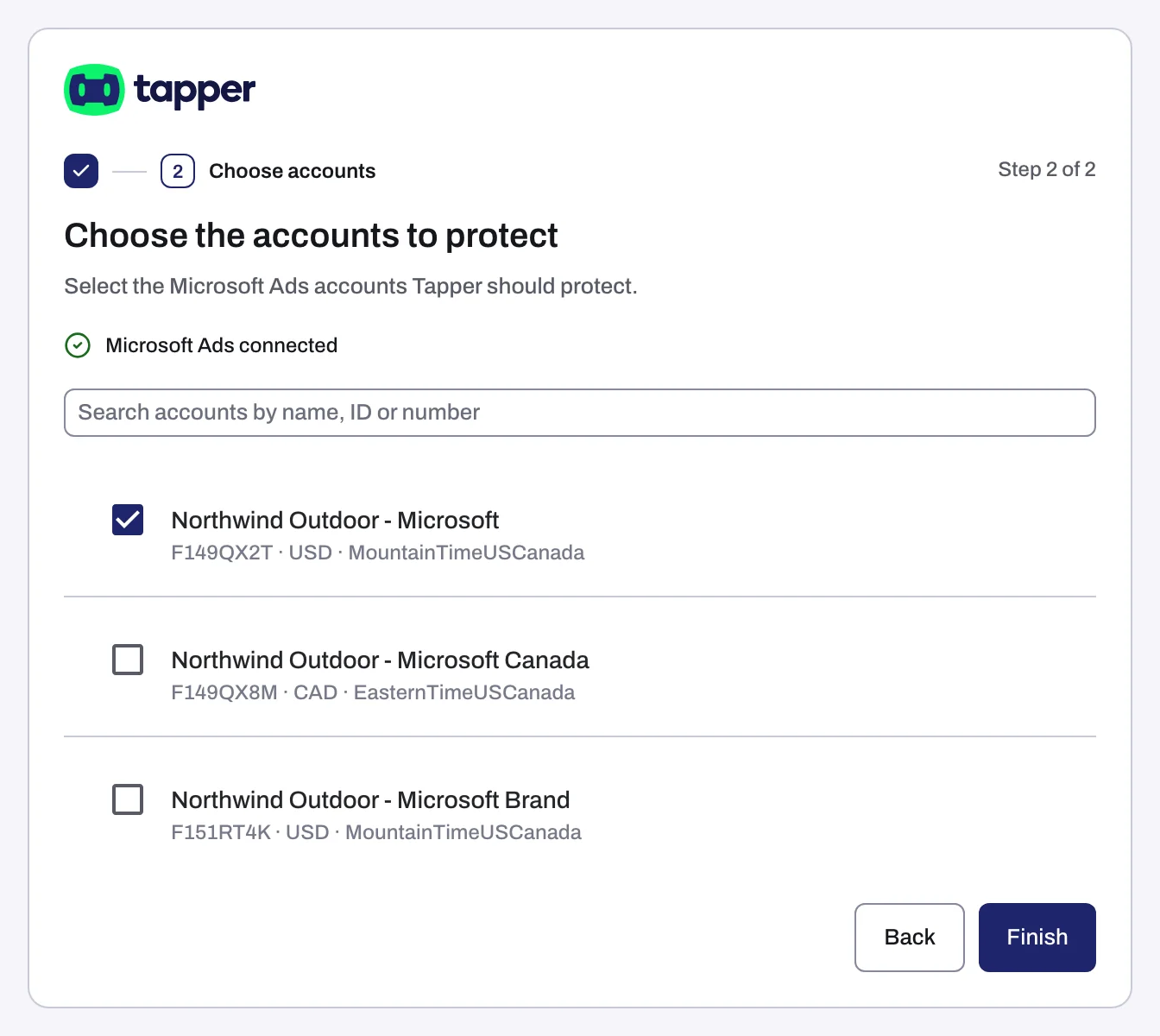
- On Choose the accounts to protect (Lift only: Choose the accounts to connect), find your accounts. Each row shows the account name and a line with its account number, currency and time zone, plus its status when the account is not active. Use Search accounts by name, ID or number if the list is long.
- Tick each account Tapper should work on.
- Click Continue (in the wizard of a Block + Lift workspace) or Finish (when adding to an entity, or in the wizard of a Lift-only workspace).
Linking runs in the background for up to 90 seconds. The success, partial and This is taking longer than usual outcomes are the same on every platform; Connect Google Ads walks through each one.
What Tapper sets up in your Microsoft Ads account
| Workspace products | What happens when you connect |
|---|---|
| Block + Lift | Tapper sets the account-level tracking template, turns on Microsoft click ID (MSCLKID) auto-tagging, creates offline conversion goals, a UET tag and two remarketing lists, then syncs your campaigns. |
| Lift only | Nothing is set up. Tapper reads the accounts' campaigns and spend. |
The Microsoft protection tab
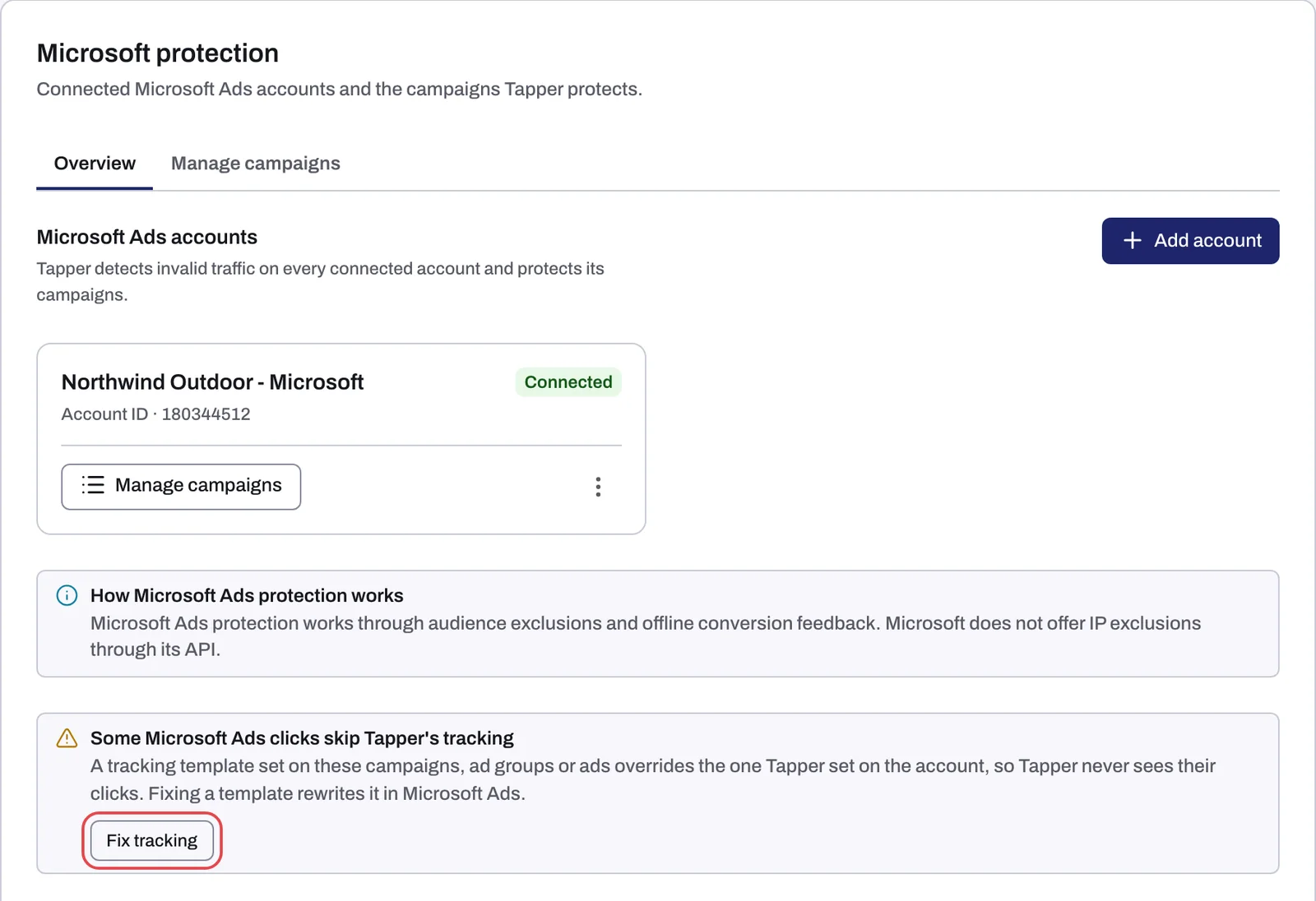
The entity's Microsoft protection tab has two sub-tabs, Overview and Manage campaigns. Each connected account appears under Microsoft Ads accounts with the chip Connected, its Account ID and a Manage campaigns button. Manage campaigns lists your campaigns with the Account and Campaign columns. With Block, it also has a Protection column: a switch on each Search, Shopping, Display and Performance Max campaign, and chips such as Custom tracking template on campaigns that carry their own template.
Some Microsoft Ads clicks skip Tapper's tracking
With Block, the tab can show a box titled Some Microsoft Ads clicks skip Tapper's tracking: "A tracking template set on these campaigns, ad groups or ads overrides the one Tapper set on the account, so Tapper never sees their clicks. Fixing a template rewrites it in Microsoft Ads."
- Click Fix tracking.
- The dialog Fix Microsoft Ads tracking templates lists the campaigns, ad groups and ads whose own template overrides Tapper's.
- Click Fix all to rewrite them all, or use Fix tracking template on a single row. Close leaves them as they are.
Fixing rewrites those templates in your Microsoft Ads account, so check with whoever owns them first if they serve another tool.
What happens next
- Campaigns are synced at connect and then every 6 hours.
- Microsoft needs about 3 hours before an hour's numbers are final, so the most recent hours on the dashboard can still change.
- For dashboard timings, see When your data shows up after connecting.
If something goes wrong
- "Microsoft Ads didn't return account ... Check the account is still open, then connect it again.": make sure the account is open in Microsoft Ads, then connect it again.
- "Microsoft Ads didn't return a customer for account ... Contact support.": write to support@tapper.ai with the account number.
- "Microsoft Ads signed Tapper out of this account. Reconnect Microsoft Ads to continue." while connecting, or later an account card showing Microsoft signed Tapper out of this account with "Reconnect Microsoft Ads to resume protection." and the chip Needs reconnect: click Reconnect and sign in again. See Reconnect an ad account that stopped working.
- "Microsoft Ads is not available yet.": write to support@tapper.ai.
- The popup ends with Connection failed, Sign-in cancelled or Connection status unknown: close it and try again from Tapper. See what each connection message means.
Related
Was this helpful?
Related articles
Still need help?
Chat with our team and mention this article.