

Disconnect an ad account
Disconnecting an ad account takes it off the entity: Tapper stops protecting its campaigns, or on a Lift-only workspace stops reading it. You do it from the account's card on the entity's platform tab.
Before you start
- You need to be a workspace Owner or Admin.
- Check the account's chip first. If it reads Needs reconnect, Not active or Needs attention, the account only needs fixing.
Steps
- Open Protected Entities in the sidebar and click the entity.
- Open the platform tab: Google protection, Meta protection, TikTok protection or Microsoft protection.
- On the account's card, open the ⋮ menu and click Disconnect.
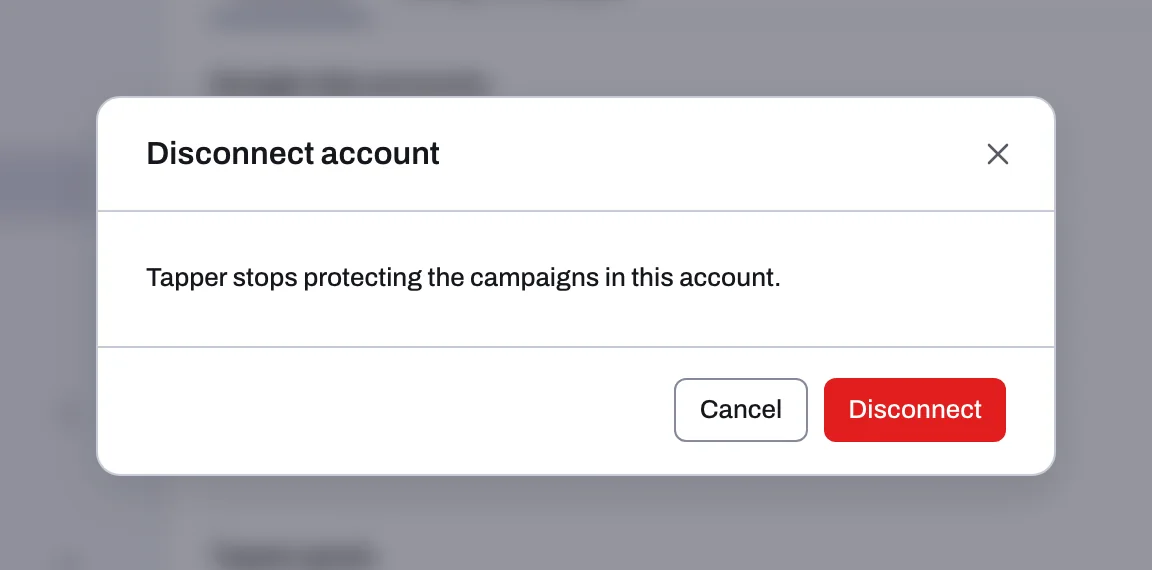
- In the Disconnect account dialog, click Disconnect to confirm.
What happens in your ad account
- Google Ads, Block + Lift workspace: Tapper removes its account-level tracking template and puts back the one you had before you connected, or leaves the field empty if you had none. It can only do this while it still has access: if the card shows Needs reconnect, Not active or Needs attention, Tapper's template stays until you reconnect first or change it in Google Ads yourself. Nothing else is removed: the conversion actions, lists and audiences whose names start with "Tapper - ", and the exclusions already on your campaigns, stay in the account. They are listed in What Tapper creates in your Google Ads account; remove them in Google Ads if you no longer want them, or write to support@tapper.ai for help.
- Meta and TikTok, Block + Lift workspace: Tapper stops protecting the account's ad sets or ad groups, but disconnecting does not take Tapper's audience exclusion off them. If you want it off, switch Protection off on Manage ad sets or Manage ad groups before you disconnect; switching it off removes the exclusion from each ad set or ad group.
- Microsoft Ads, Block + Lift workspace: disconnecting changes nothing in the Microsoft Ads account. Tapper's account-level tracking template, auto-tagging, conversion goals, UET tag and lists stay; change the template in Microsoft Ads if you no longer want it there.
- Lift-only workspace: Tapper set nothing up in the account when you connected, so there is nothing to put back, and changes from Lift fixes you applied stay as they are. Tapper stops reading the account.
What happens in Tapper
- The account's open Lift cards close, with none of their money counted as saved.
- To use the account again later, connect it again with Add account on the platform tab. See Add another ad account to an entity.
- On a Lift-only workspace, an ad account on any platform that is live in one workspace cannot be connected in another. Disconnecting it frees it for the other workspace.
- Your product choice (Lift only or Block + Lift) can be changed only while the workspace has no live ad account on any platform and no live mobile app integration. See Choose your products: Lift only or Block + Lift.
Related
Was this helpful?
Related articles
Still need help?
Chat with our team and mention this article.