

Connect a mobile app through your MMP
Tapper protects a mobile app through your mobile measurement partner (MMP): AppsFlyer, Adjust, Branch, Kochava or Singular. You create an MMP integration in Tapper, then point your MMP's postbacks at the webhook Tapper gives you. Once the integration exists, the entity's mobile app tabs and the Mobile dashboard tab open up.
Before you start
- Mobile apps are part of Block. On a Lift only workspace the Mobile app row is hidden and there are no mobile app tabs.
- Have two credentials from your MMP ready (see the table below).
- Once an MMP integration is live, the workspace's product choice can no longer be changed in the app.
Open the Create MMP integration dialog
- New workspace: on the wizard's Connect an ad account step, click Add mobile app on the Mobile app row.
- Existing entity: click Add another entity in the entity header and choose Add mobile app on the Mobile app row, or, on an entity that already has an integration, click Add integration on the Mobile app protection tab. On an entity with no MMP yet, each mobile app tab shows No mobile app connected with an Add mobile app button instead.
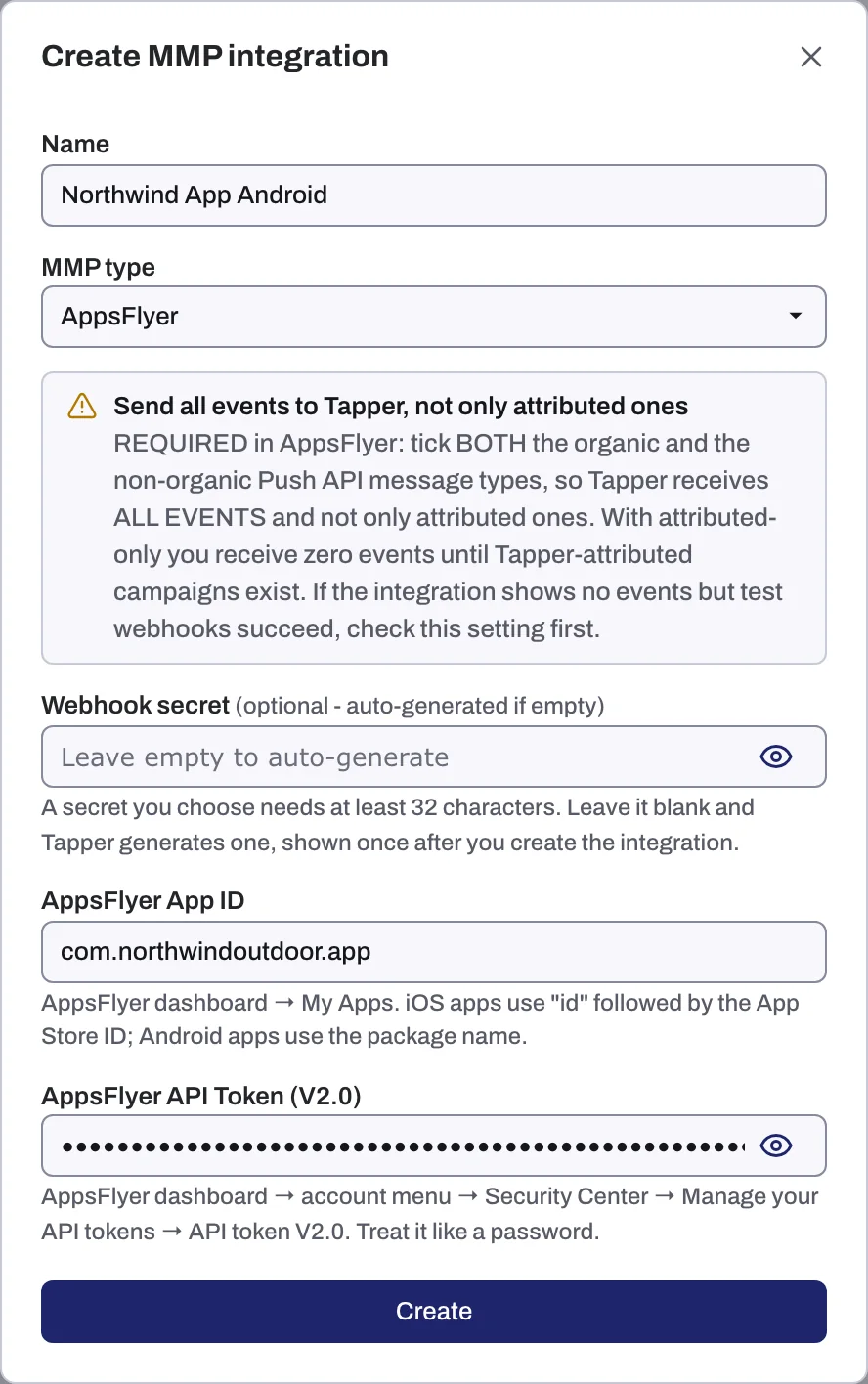
Fill in the dialog
- Name: a name you recognize, for example "AppsFlyer Production".
- MMP type: pick AppsFlyer, Adjust, Branch, Kochava or Singular.
- Read the callout that appears once you pick a type (see below) and change the setting in your MMP if needed.
- Webhook secret (optional - auto-generated if empty): leave it blank and Tapper generates one. If you choose your own, it needs at least 32 characters.
- Fill in the two credential fields for your MMP.
- Click Create.
| MMP | First field | Second field |
|---|---|---|
| AppsFlyer | AppsFlyer App ID | AppsFlyer API Token (V2.0) |
| Adjust | Adjust App Token | Adjust API Token |
| Branch | Branch Key | Branch Secret |
| Kochava | Kochava App GUID | Kochava API Key |
| Singular | Singular SDK Key | Singular Reporting API Key |
Copy the webhook details
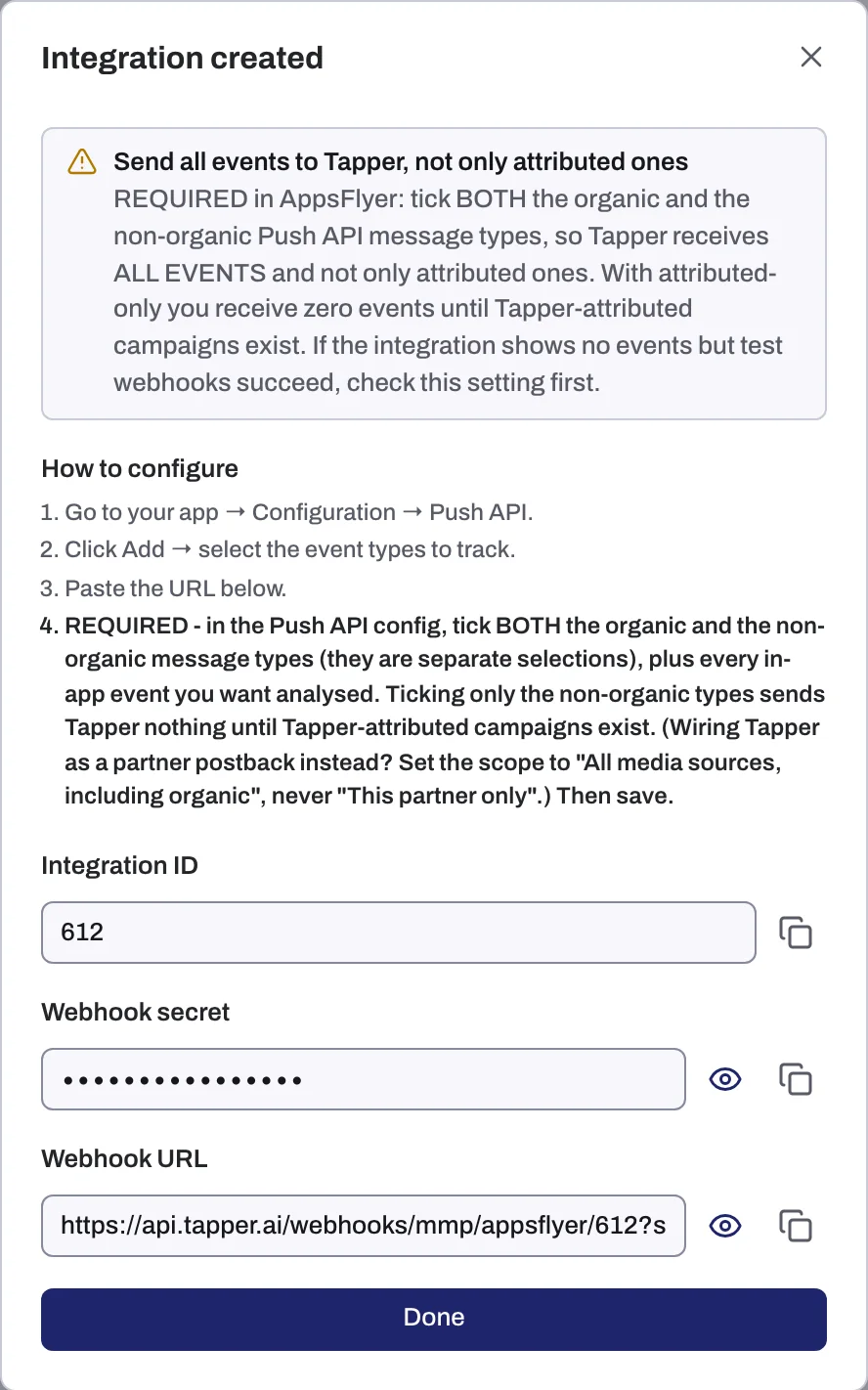
After Create you see the Integration created screen:
- Follow the How to configure steps for your MMP.
- Copy the Integration ID, the Webhook secret and the Webhook URL with their copy buttons, and paste them into your MMP where the steps say.
- Click Done only after you have copied all three. A secret that Tapper generated is shown only on this screen.
Tapper's public setup guides walk through the MMP side for Adjust and Branch. For AppsFlyer, Kochava and Singular, follow the How to configure steps on the screen.
What happens next
- In the wizard, the mobile path ends with Mobile app connected. Click Done.
- The Mobile app protection tab lists the integration under Mobile app integrations with its Name, MMP, Status (Active or Paused) and Added date. The row menu has Manage and Delete.
- The entity's other mobile app tabs open up: Mobile app detection rules for rule sets, click thresholds and detection features, and Mobile app click tracking for tracking links on networks that hand you a click URL.
- The Mobile tab on the dashboard shows installs, sessions and other MMP metrics. Some of its panels are marked as previews that are not connected to your data yet.
- During a free trial blocking is off: Tapper records invalid traffic but does not block it. See Monitoring-only mode: why nothing is blocked yet and what changes when blocking starts.
If something goes wrong
- No events, but test webhooks succeed: the most likely cause is that your MMP sends attributed events only. Change it to send all events, as the callout describes.
- Your own webhook secret is refused: it needs at least 32 characters. Make it longer, or leave the field blank so Tapper generates one.
Related
Was this helpful?
Related articles
Still need help?
Chat with our team and mention this article.