

Add another ad account to an entity
You can connect more ad accounts to an entity at any time: a second Google Ads account, or another platform such as Meta, TikTok, Microsoft Ads or a mobile app. The add flow has two steps and leaves the entity's detection rules and website monitoring exactly as they are.
Before you start
- You need to be a workspace Owner or Admin. See Only a workspace owner or admin can connect an account.
- Have a sign-in ready that can open the ad accounts you want to add on that platform.
Where to start
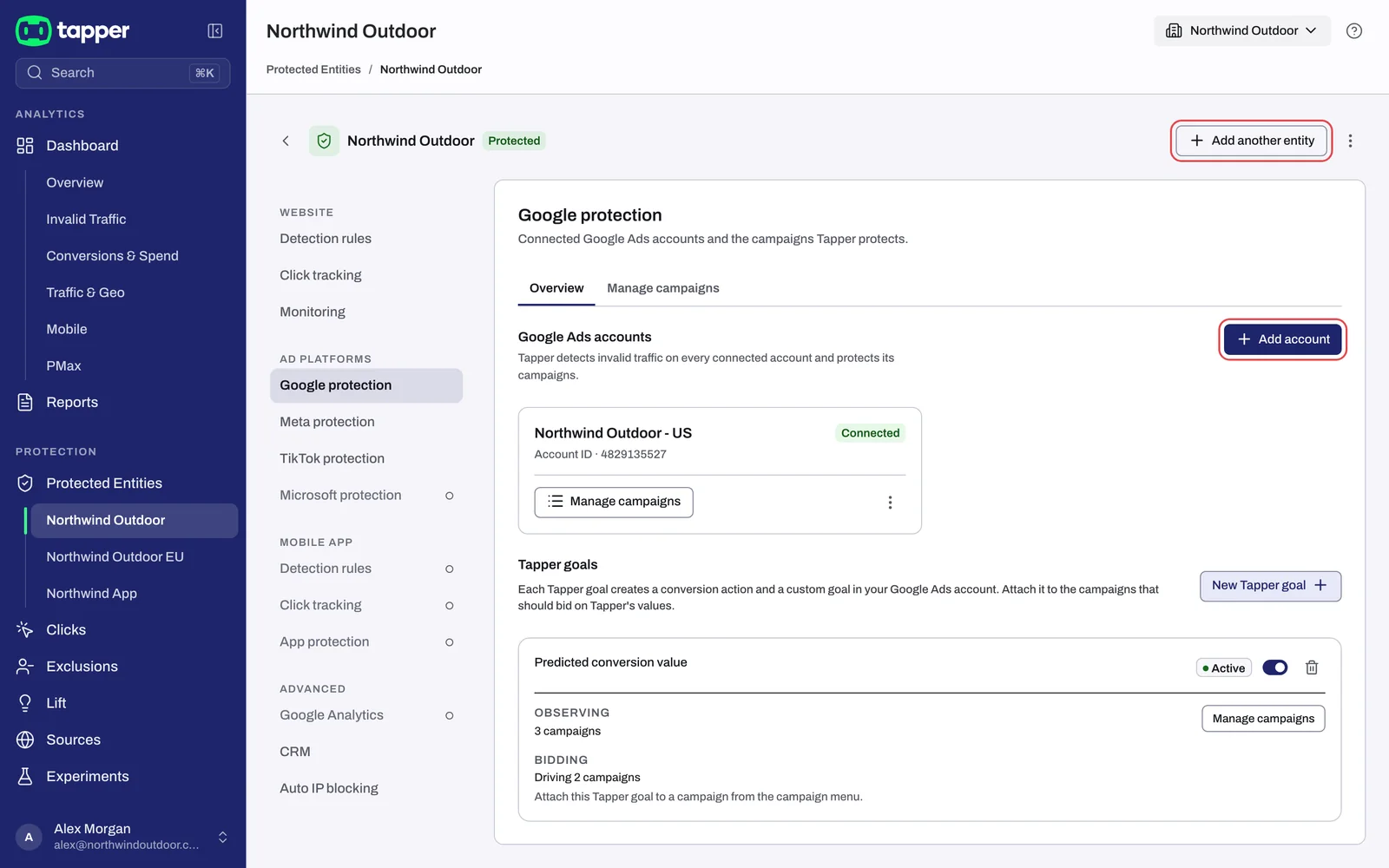
Open Protected Entities in the sidebar and click the entity. Any of these buttons opens the same add flow:
- Add another entity in the entity page header. Despite its name, this button adds an ad account to the entity you are on. It does not create a new entity; for that, use Protect new entity on the Protected Entities page (Add entity on a Lift-only workspace).
- Add account in the toolbar of a platform tab, for example Google protection.
- Connect Google Ads (or the name of another platform) on a platform tab that has no account yet, or on the dashboard banner shown for a platform with no connected account.
Steps
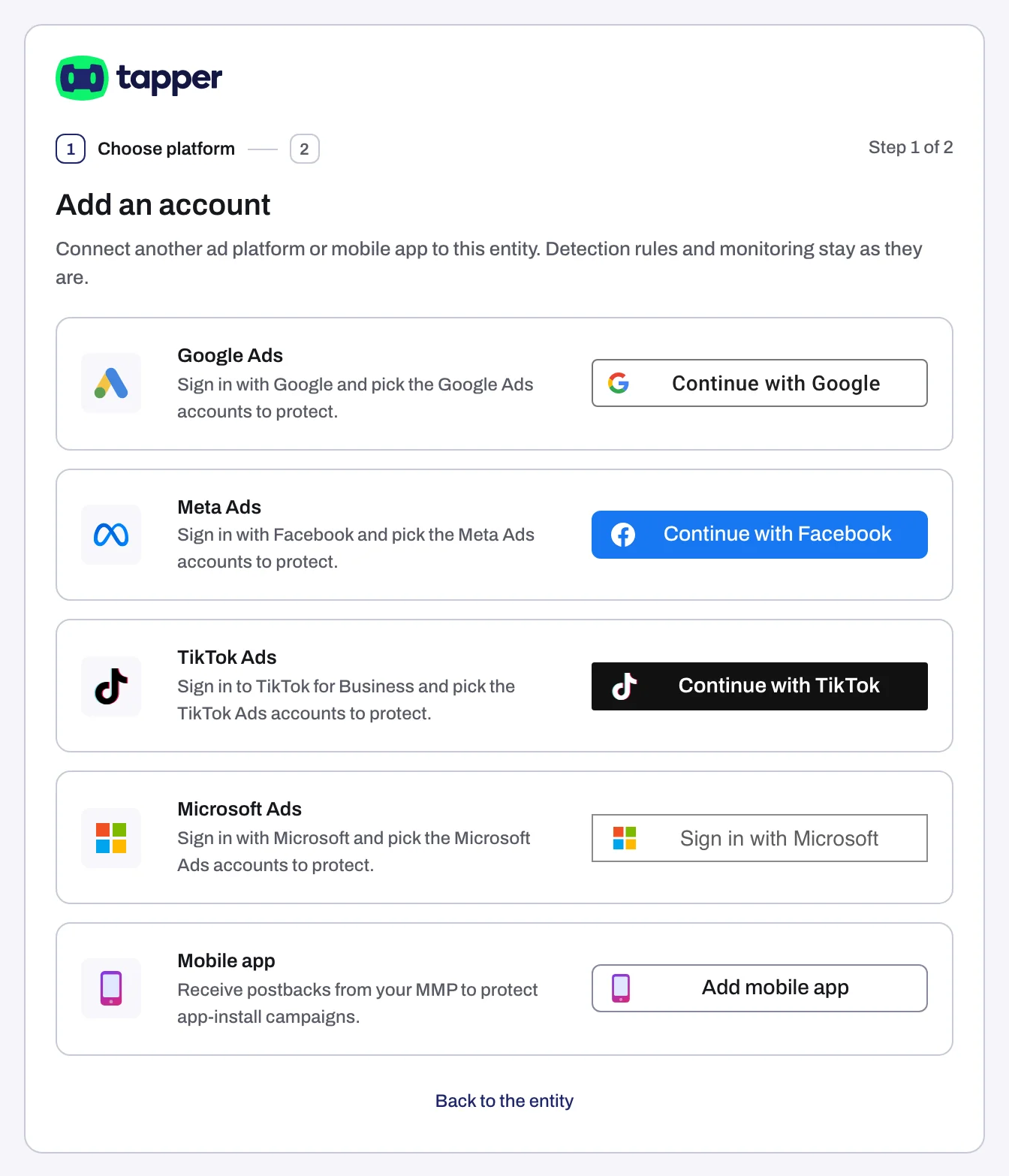
1. Choose platform
- On the platform's row, click its button: Continue with Google, Continue with Facebook, Continue with TikTok or Sign in with Microsoft. For an app, click Add mobile app (this row is not shown on Lift-only workspaces).
- Sign in to the platform in the popup that opens. If your browser blocks popups, the sign-in runs in the same tab.
To leave without adding anything, click Back to the entity.
2. Choose accounts
- On Choose the accounts to protect (Lift only: Choose the accounts to connect), tick each account to add. Tapper holds your sign-in for 30 minutes while you pick.
- Click Finish. Tapper links them in the background.
- When the result appears, click Done to go back to the entity.
For a mobile app the two steps are Choose platform and Finish: you set up the MMP integration instead of picking accounts. See Connect a mobile app through your MMP.
What happens next
- The new account appears on the entity's platform tab with the Connected chip. What each chip means is in Ad account status: Connected, Needs reconnect, Not active, Needs attention.
- Google Ads on a Block + Lift workspace: Tapper sets its tracking template and creates its lists and audiences in the account, and every eligible campaign starts with its Protection switch on. See What Tapper creates in your Google Ads account.
- Meta and TikTok on a Block + Lift workspace: protection is switched on per ad set or ad group, and connecting switches none on for you. Turn it on from Manage ad sets or Manage ad groups. See Protect Meta ad sets: Protect all or one at a time and Protect TikTok ad groups: Protect all or one at a time.
- Microsoft Ads: connecting syncs your campaigns and spend. See Connect Microsoft Ads.
If something goes wrong
- This Google Ads account is already connected: the account is on this entity already. Open its platform tab to find it.
- 1 account connected, 1 did not (with your own counts): each failed account is listed with its reason. Depending on why they failed, the page offers Retry the failed accounts (same sign-in) or Reconnect Google Ads (or the platform's name) to start over with a fresh sign-in. To keep only the accounts that worked, click Done with the connected accounts; you can retry the others from the entity page later.
- On a Lift-only workspace, an ad account on any platform that is live in another Tapper workspace is refused. Disconnect it in that workspace first.
- This is taking longer than usual: Tapper is still linking. Click Keep waiting, or carry on; the accounts appear on the entity when they are ready.
- The popup ends with Connection failed, Sign-in cancelled or Connection status unknown: see Connection failed, Sign-in cancelled or Connection status unknown.
Related
Was this helpful?
Related articles
Still need help?
Chat with our team and mention this article.