

Meta Ads account could not be connected
After you pick Meta ad accounts and click Continue or Finish, Tapper links them. If one fails, the page shows Couldn't connect this Meta Ads account (or a plural title for several) with a sentence for each account saying why. An account that was already connected can also run into trouble later: its card on the Meta protection tab then shows Needs reconnect or Needs attention.
On a Block + Lift workspace, Tapper creates its own audience in each Meta ad account, built from your Meta pixel. Several of the causes below come from that step. On a Lift-only workspace Tapper creates no audience, so no pixel is needed.
Why it happens and how to fix it
Meta's Custom Audience terms are not accepted
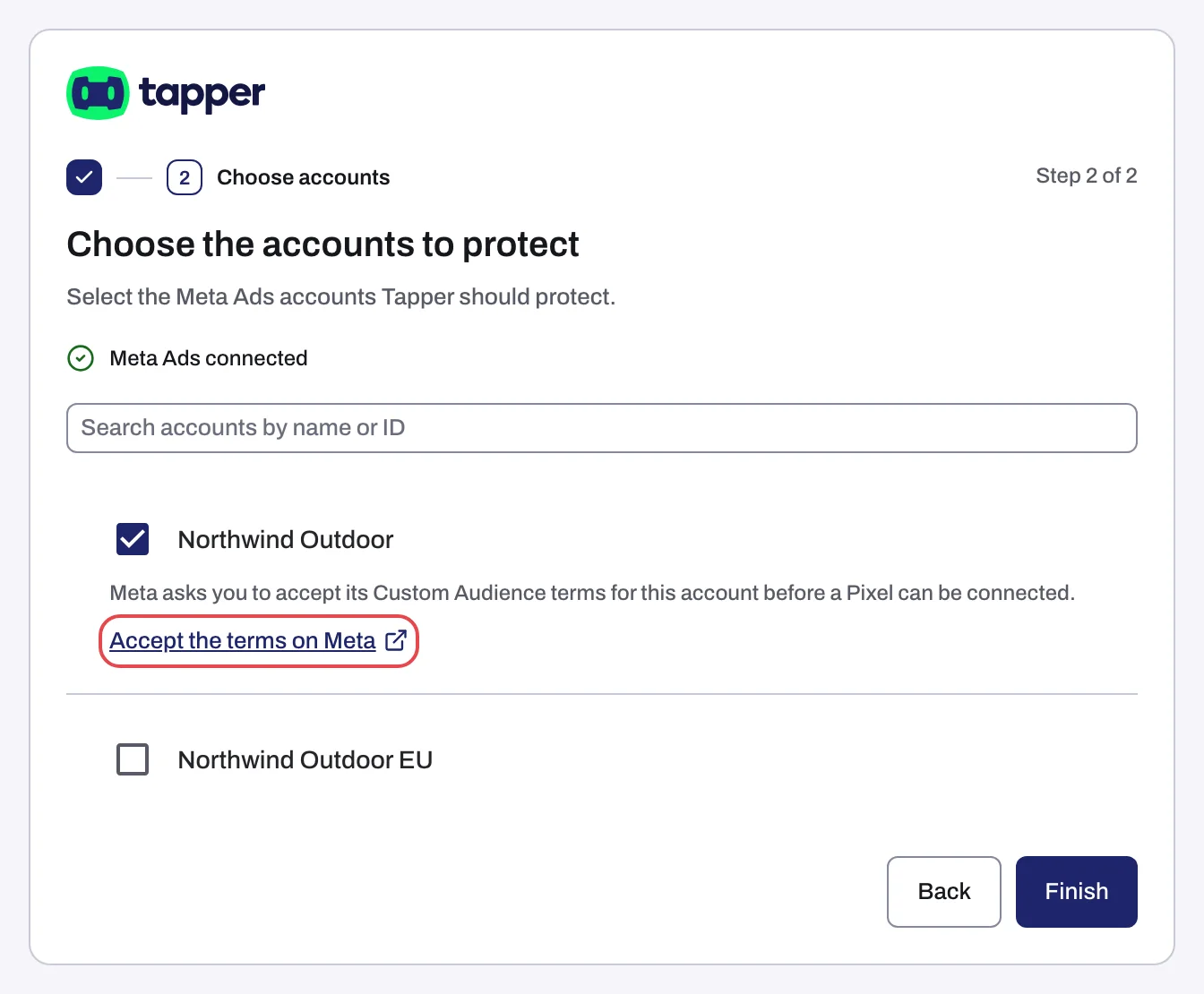
When you tick an account, Tapper shows the link Accept the terms on Meta, which opens Meta's terms page for that ad account. Accept them there before you click Continue or Finish.
If the terms were not accepted, the account fails with "Meta's terms for website Custom Audiences have not been accepted for ..., so Tapper cannot create its audience there." The rest of the message tells you how to accept them in Meta Ads Manager. This screen has no Accept the terms on Meta link, so follow those steps.
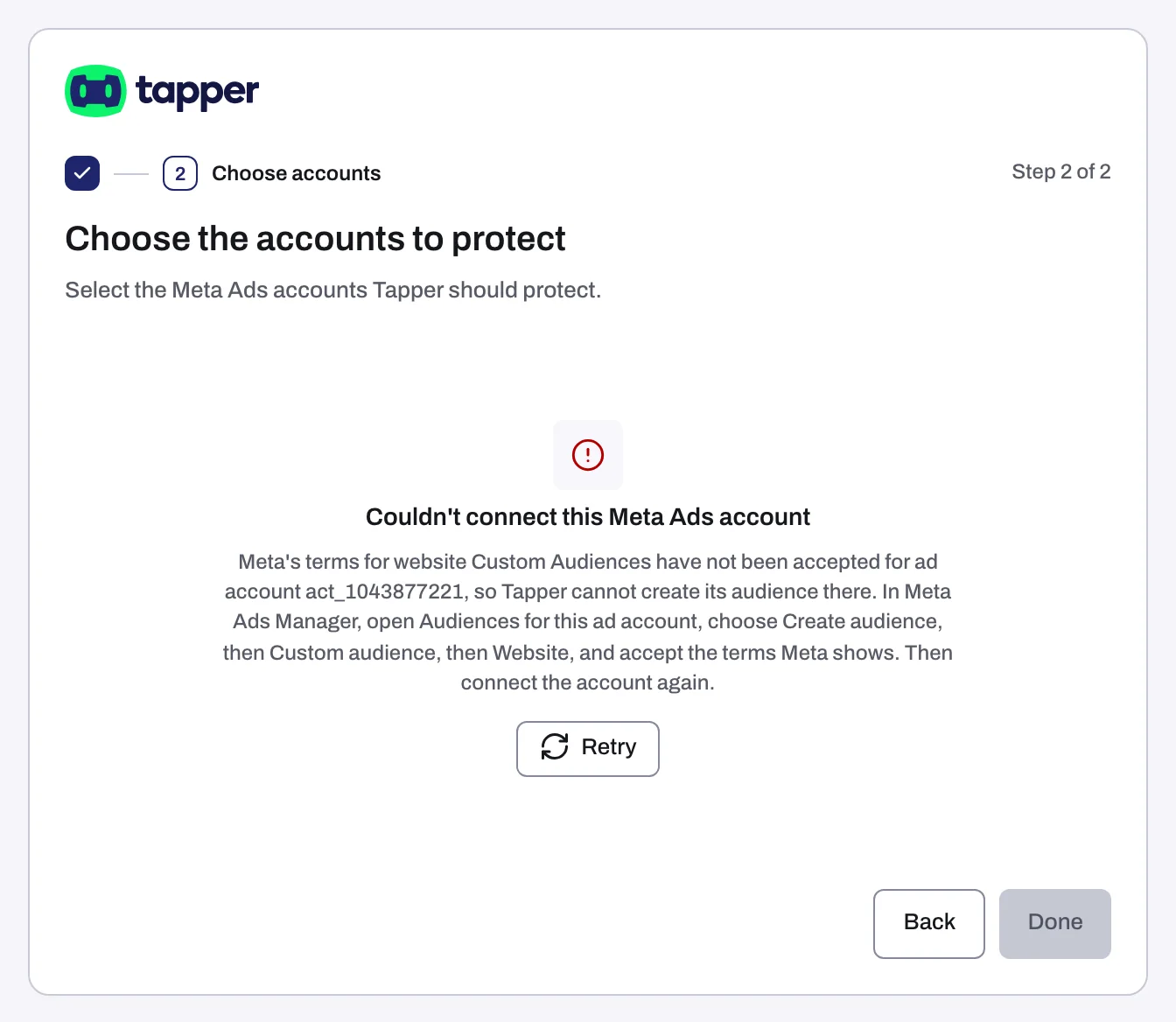
- In Meta Ads Manager, open Audiences for the ad account, choose Create audience, then Custom audience, then Website, and accept the terms Meta shows.
- Back in Tapper, click Retry (or Retry the failed accounts).
The terms are accepted per ad account, so repeat this for each account that fails.
The ad account has no Meta pixel
Tapper's audience needs a pixel on the ad account. Without one, the account most likely fails with the general message "Tapper couldn't finish connecting this account. Try again; if it fails twice, contact support."
- In Meta, make sure a pixel is set up and connected to this ad account.
- Back in Tapper, click Retry.
Ads management was not allowed
The account fails with a sentence that ends "Reconnect Meta and allow ads management when Meta asks. If Meta does not ask, first remove Tapper in your Facebook settings under Business integrations, then reconnect Meta."
- Click Reconnect Meta and sign in again.
- When Meta asks what Tapper may do, allow managing your ads.
- If Meta does not ask, open your Facebook settings, go to Business integrations, remove Tapper, then click Reconnect Meta again.
Your Facebook profile has only Analyst access
Tapper creates an audience in the ad account, and Meta allows that only to profiles with Advertiser or Admin access. A profile with Analyst access can see the account but the link fails with a sentence that starts "The Facebook profile you connected Tapper with can only view ... (Analyst access)." and goes on "Tapper creates an audience there, which needs Advertiser or Admin access."
- In Meta Business settings, open Accounts, then Ad accounts, pick the account and open People.
- Give your profile Manage campaigns (Advertiser) or Manage ad account (Admin) access, or ask someone who can.
- Back in Tapper, click Reconnect Meta. You can also sign in with another profile that already has that access.
The account is closed or disabled, or Meta can't reach it
A disabled or closed ad account cannot be connected: the link fails with "Meta reports ... is disabled or closed. Reactivate it in Meta Business settings, then connect it again." After connecting, the card shows the chip Needs attention with "Meta can't reach this ad account" and "It may be closed or your Facebook profile lost access; check it in Meta Business settings, then reconnect Meta."
- In Meta Business settings, check that the ad account is active and that your profile still has access to it.
- Fix it there. If the account failed while connecting, connect it again from the entity's Meta protection tab. If its card shows Needs attention, click Reconnect on the card.
Meta signed Tapper out, or your profile lost access
These show on the account card with the chip Needs reconnect:
- "Meta signed Tapper out of this account" and "Reconnect Meta to resume protection."
- "The connected Facebook profile lost access" and "Reconnect Meta with a profile that has Advertiser or Admin access to this account."
Click Reconnect on the card and sign in with a profile that has Advertiser or Admin access. See Reconnect an ad account that stopped working.
If it still happens
- The general message comes back twice and the ad account has a pixel: write to support@tapper.ai with the ad account ID and the exact message.
- An ad account is missing from the list: the Facebook profile you signed in with cannot see it. Get access in Meta Business settings, or sign in with another profile.
- The popup itself fails: see Connection failed, Sign-in cancelled or Connection status unknown.
- The account connected but nothing is protected: protection is switched on per ad set, and nothing does it for you. See Protect Meta ad sets: Protect all or one at a time.
Related
Was this helpful?
Related articles
Still need help?
Chat with our team and mention this article.