

Connect TikTok Ads
Connecting TikTok Ads to Tapper is a TikTok for Business sign-in followed by picking ad accounts from a list. With Block, Tapper creates an audience of invalid visitors in each ad account, and you then choose which ad groups exclude it. On a Lift-only workspace Tapper creates nothing in the accounts, and on either choice Lift checks them every day: see Connect TikTok Ads for Lift.
Before you start
- You need to be a workspace Owner or Admin.
- With Block, each TikTok ad account needs a TikTok Pixel installed on your website. On a Lift-only workspace no pixel is needed and no audience is created.
Where you start
- New workspace: the wizard's Connect an ad account step.
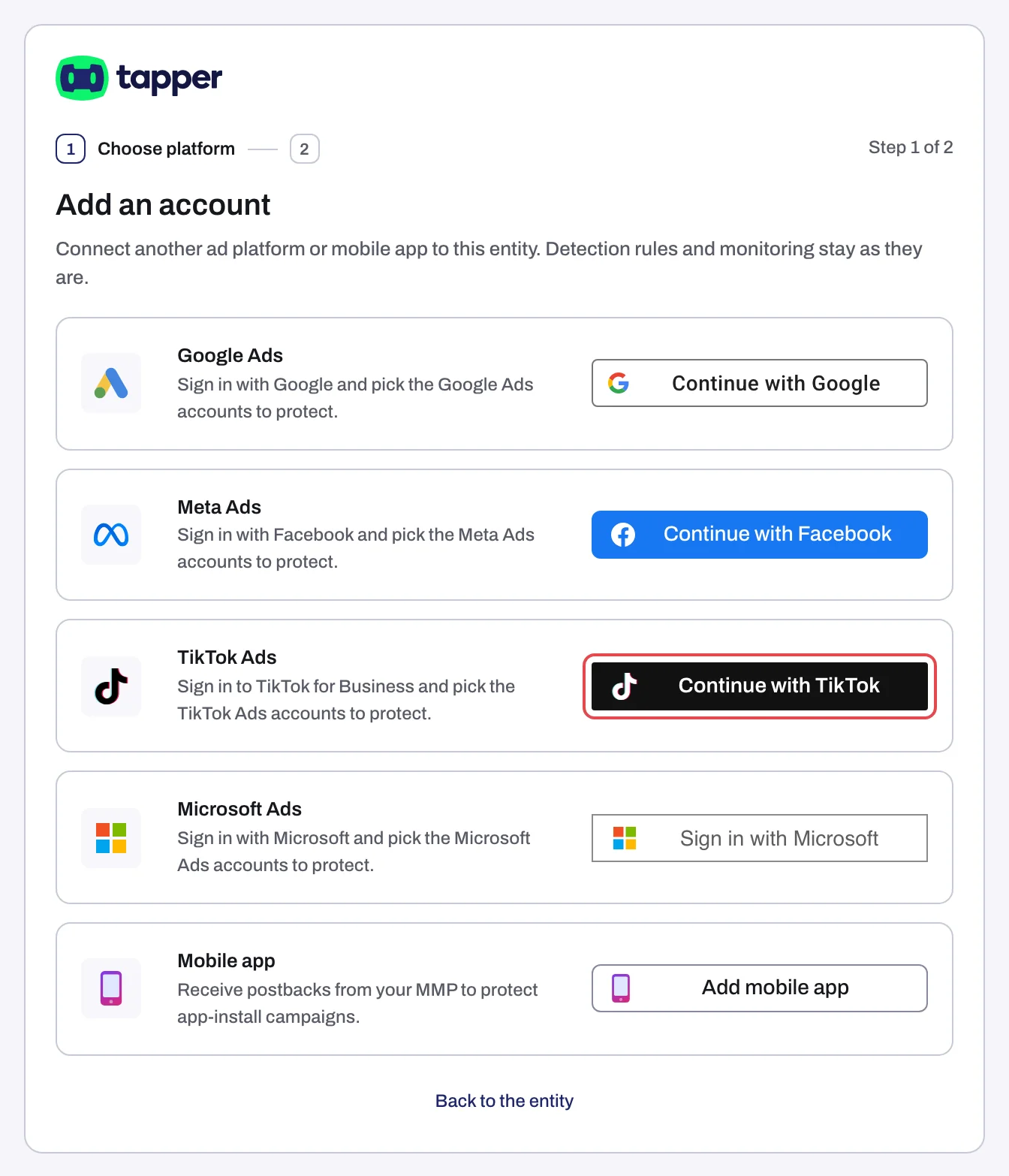
- Existing entity: on the entity page, click Add another entity in the header, or Add account on the TikTok protection tab. Both open Add an account (Choose platform, then Choose accounts). Add another entity adds an ad account to this entity; it does not create a new one. See Add another ad account to an entity.
Steps
1. Sign in to TikTok for Business
- On the TikTok Ads row, click Continue with TikTok.
- A popup opens on TikTok for Business. If your browser blocks popups, the sign-in runs in the same tab instead.
- Log in and authorize Tapper. Tapper uses this access to list your ad accounts, read their spend and, with Block, create its audience and attach it to the ad groups you protect.
- The popup closes itself and Tapper moves on to the account list. The sign-in is held for 30 minutes while you pick accounts.
2. Choose the ad accounts
- On Choose the accounts to protect (Lift only: Choose the accounts to connect), find your accounts. The list is one flat list; each row shows the account name, or Account followed by its ID. It does not refresh on its own: if an account is missing, go back and sign in again with a TikTok login that can reach it.
- Tick each account Tapper should work on.
- Click Continue (in the wizard of a Block + Lift workspace) or Finish (when adding to an entity, or in the wizard of a Lift-only workspace).
Linking then runs in the background for up to 90 seconds. The success, partial and This is taking longer than usual outcomes are the same on every platform; Connect Google Ads walks through each one.
3. Switch on protection for your ad groups
With Block, Tapper creates the custom audience Tapper - Invalid traffic in each connected ad account. Connecting does not protect any ad group by itself: protection on TikTok is switched on per ad group, and none is switched on for you.
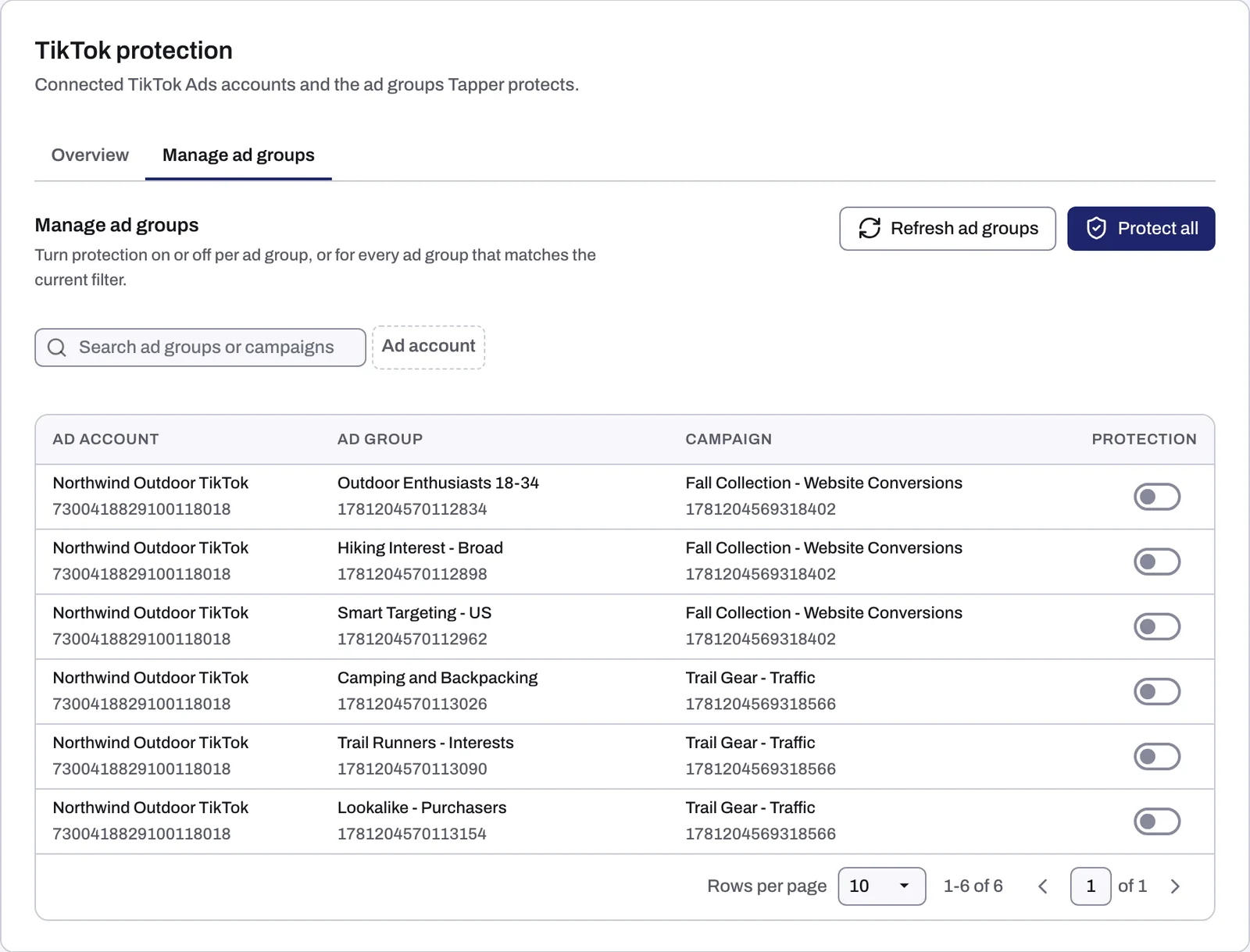
- On the entity, open the TikTok protection tab and click Manage ad groups.
- Switch Protection on for each ad group Tapper should protect, or click Protect all to switch on every ad group that matches the current filter.
Switching an ad group on adds Tapper's invalid traffic audience to it as an exclusion; a visitor stays in the audience for 90 days. Tapper does no IP blocking on TikTok. Details in Protect TikTok ad groups: Protect all or one at a time and How Block protects TikTok ads.
4. Add the ad_id parameter to your TikTok ads
TikTok does not put the ad's ID in your landing-page URL, and Tapper needs it to tie each click to the exact ad. In TikTok Ads Manager, edit each ad and add this to the end of its destination URL:
?ad_id=__CID__
If the URL already has parameters, add &ad_id=__CID__ instead. Type the macro exactly, with uppercase CID between double underscores; TikTok replaces it with the ad's ID. Do this for every ad, including ads you create later. Tapper's public guide has the details: URL Parameters for TikTok Ads. Lift-only workspaces can skip this step.
What happens next
- The TikTok protection tab lists each account under TikTok Ads accounts with the chip Connected, its Account ID and a Manage ad groups button.
- Ad groups are synced at connect and then every 6 hours. Refresh ad groups on Manage ad groups pulls them right away.
- Tapper refreshes the TikTok connection automatically every 12 hours, so you normally do not need to sign in again unless TikTok signs Tapper out (see below).
- During a free trial blocking is off: Tapper records invalid clicks but does not block them, and the workspace shows the Monitoring only notice. See Monitoring-only mode: why nothing is blocked yet and what changes when blocking starts.
For dashboard timings, see When your data shows up after connecting.
If something goes wrong
- The popup ends with Connection failed, Sign-in cancelled or Connection status unknown: close it and try again from Tapper. See what each connection message means.
- "Ad account ... has no TikTok Pixel.": install the TikTok Pixel on your website, then connect the account again.
- "TikTok signed Tapper out of ... Reconnect TikTok to continue." while connecting, or later an account card showing TikTok signed Tapper out of this account with "Reconnect TikTok to resume protection." and the chip Needs reconnect: click Reconnect on the card and sign in again. See Reconnect an ad account that stopped working.
- "Tapper couldn't finish connecting this account. Try again; if it fails twice, contact support.": retry once, then write to support@tapper.ai.
Related
Was this helpful?
Related articles
Still need help?
Chat with our team and mention this article.