

How to connect Meta (existing user registration flow)
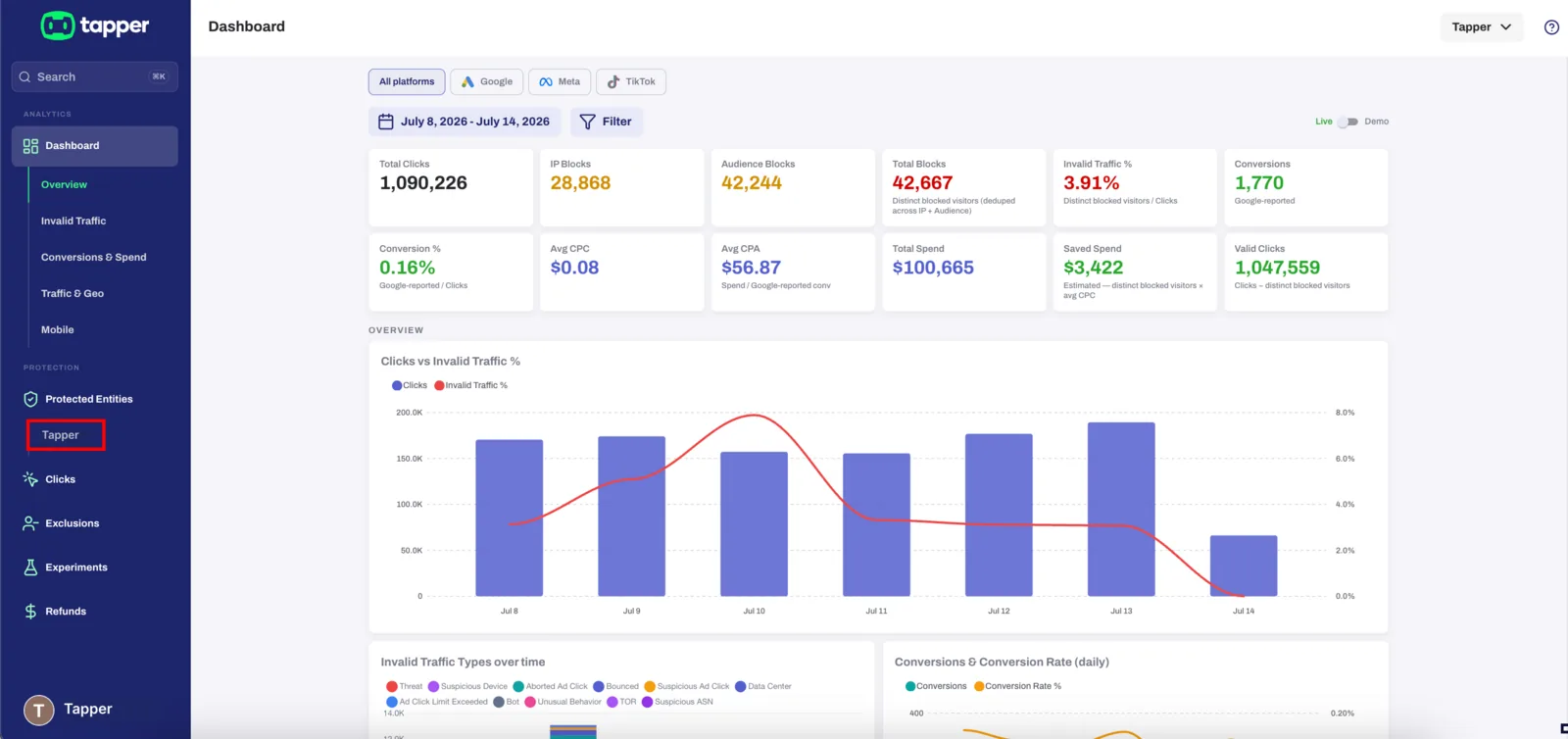
1. Go to your website
From the Tapper sidebar, click one the name of your website.
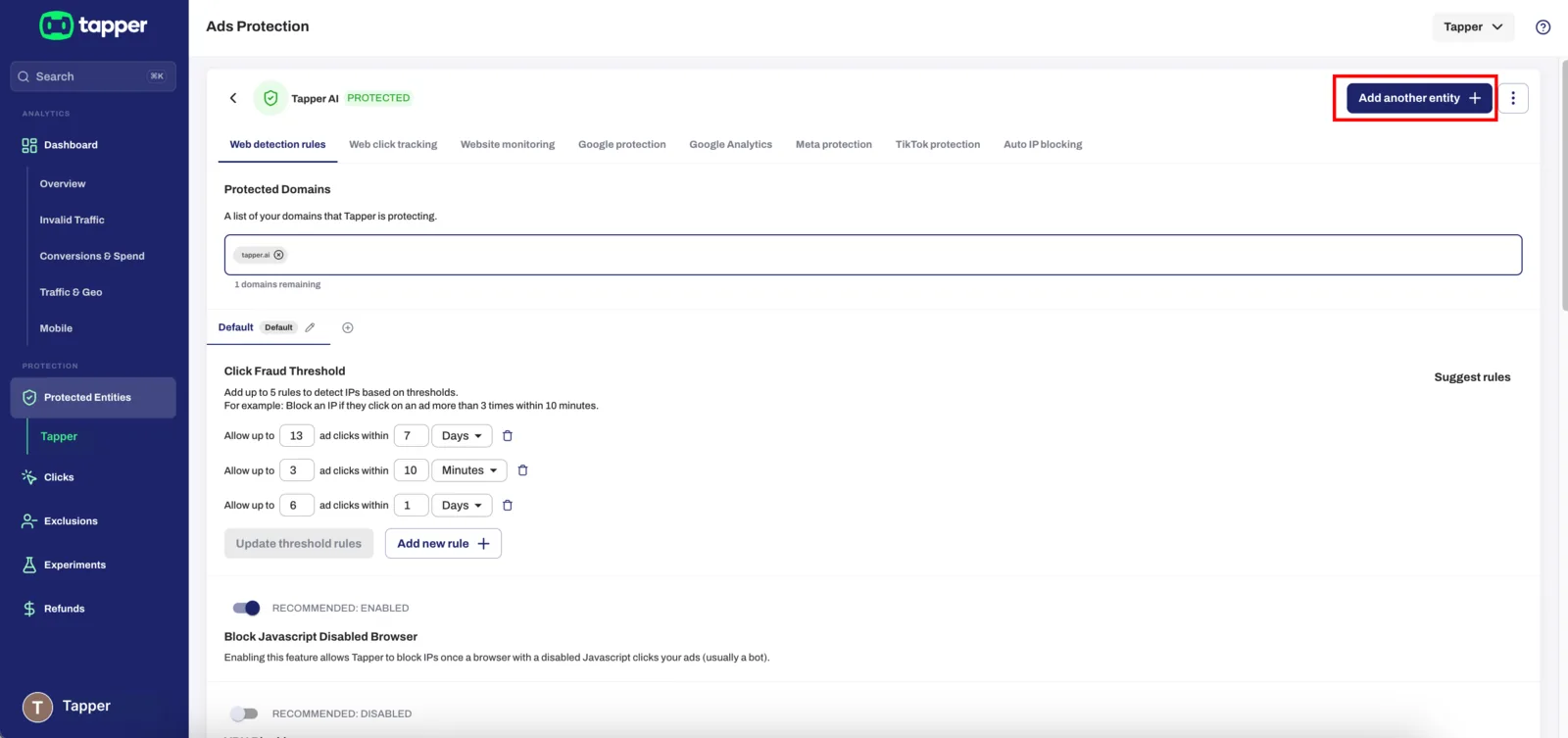
2. Add another entity
Click on 'Add another entity' button on the top right hand corner.
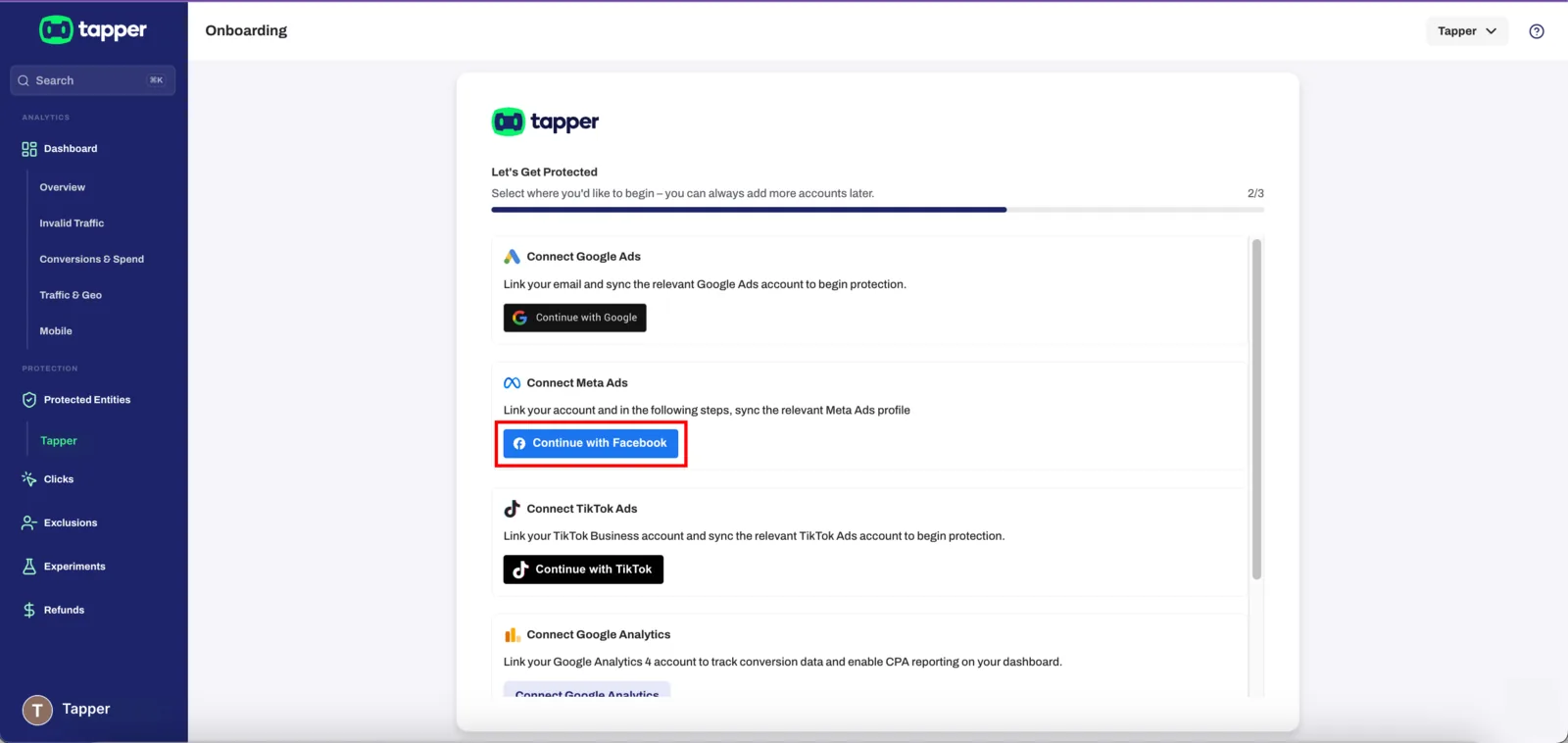
3. Connect your Meta Ads account
Under “Connect Meta Ads,” click Continue with Facebook.
Important: Meta Requires Page Ownership to Connect
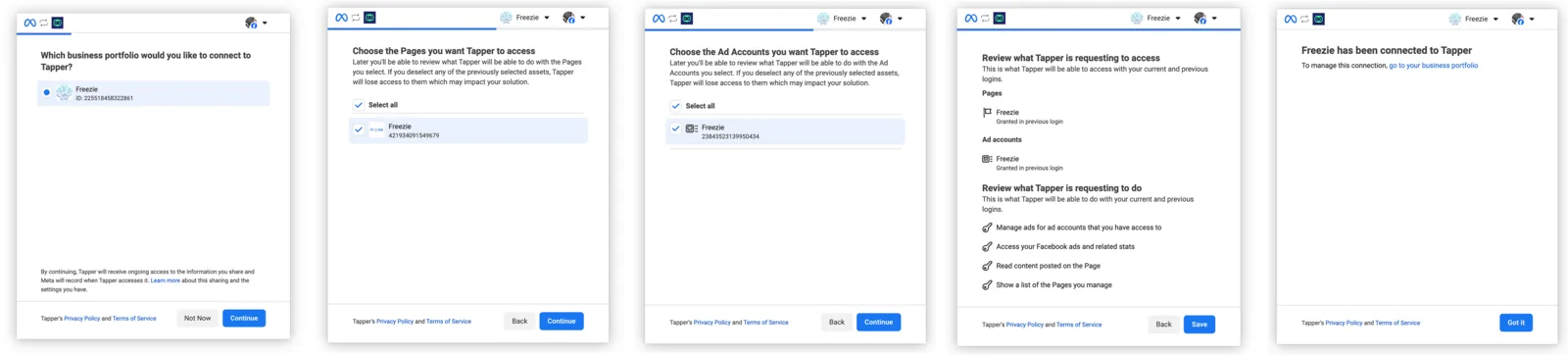
4. Authorise the connection (Facebook Flow)
Follow these steps in the popup window:
- Select your business portfolio
- Choose the Pages to give Tapper access
- Choose the Ad Accounts
- Review and accept the permissions
- Hit Save Once done, you’ll see: “[Your Business] has been connected to Tapper”
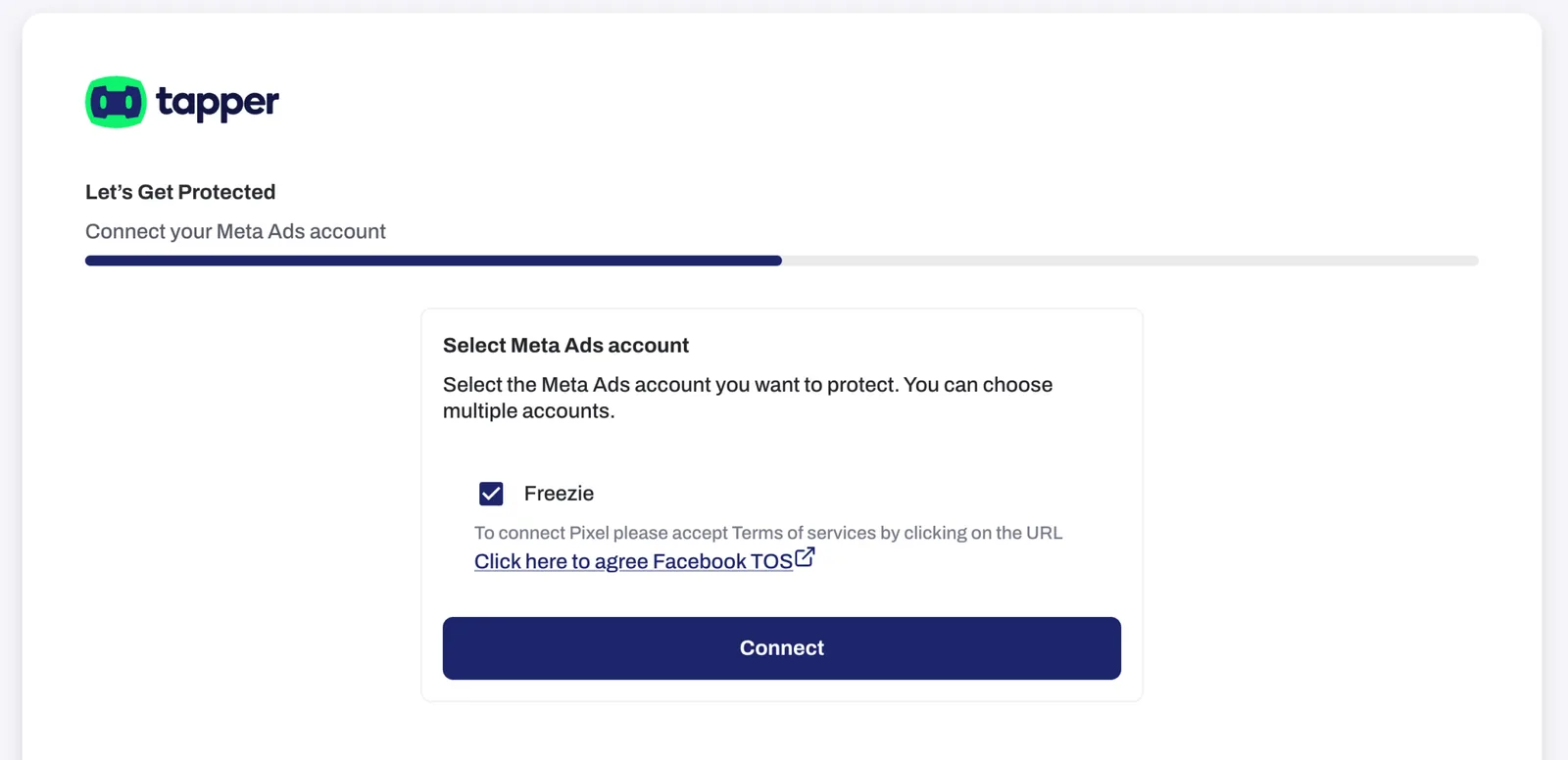
Final step: confirm connection & accept pixel terms
You'll land on the Tapper screen prompting you to:
- Select the Meta Ads account(s) you want Tapper to protect
- Agree to Facebook’s Terms of Service for Pixel use
- Then click Connect
| (This step is essential for Tapper to activate pixel-based detection and protection for your Meta Ads.)
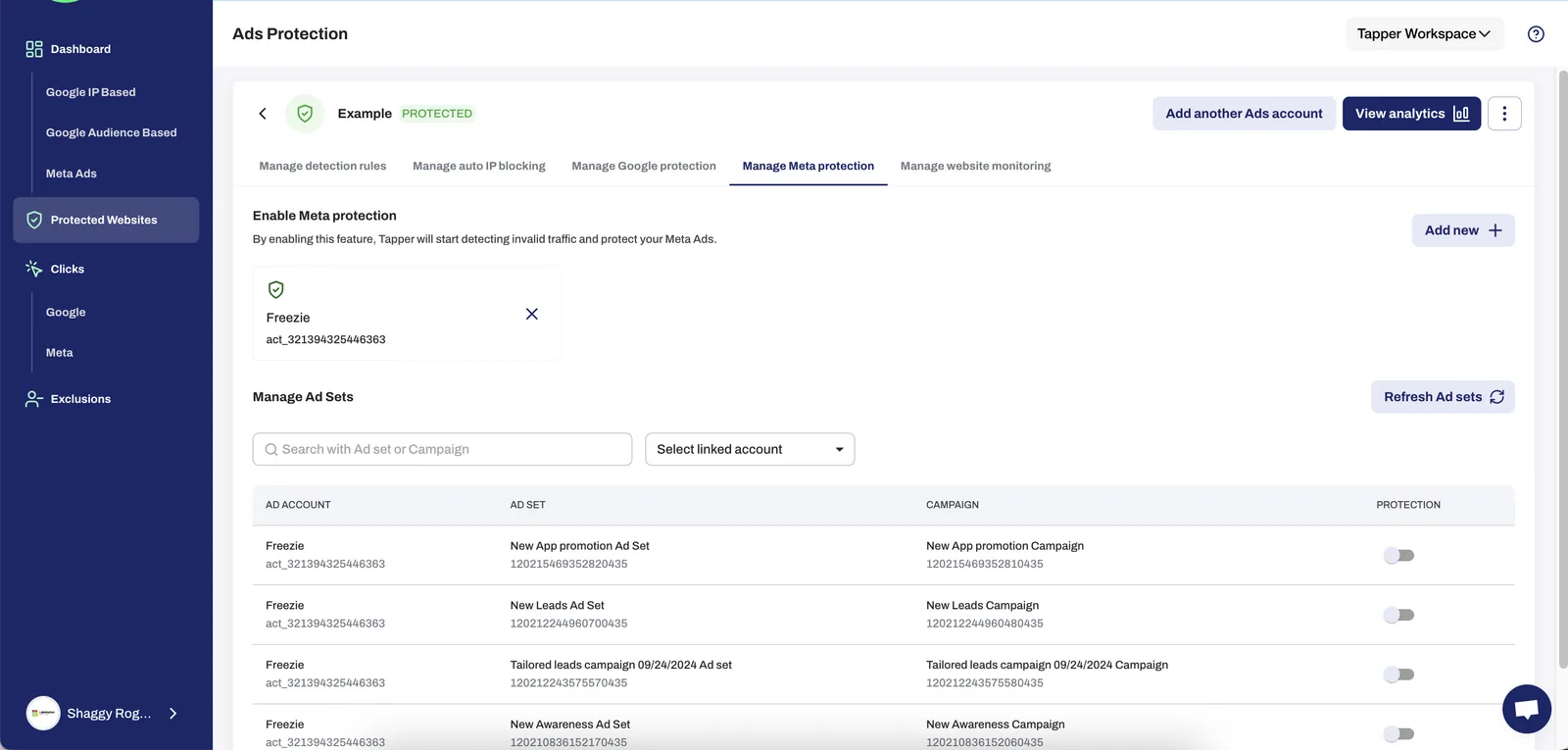
5. See your connected account in Tapper
You’ll now see your Meta Ad account listed inside Tapper.
- You can search and manage Ad Sets or campaigns
- Tapper begins detecting and filtering invalid traffic in real time
Was this helpful?
Related articles
Still need help?
Chat with our team and mention this article.