

Create your Tapper account
To create a Tapper account you need a name, an email address and a password, or your Google or company login. Sign-up creates your first workspace and starts a free trial with no credit card.
Before you start
- If a colleague invited you to their workspace, do not sign up here. Open the link in your invitation email instead: see Accept a workspace invitation.
- If you already have an account, see Sign in to Tapper: password, Google or SSO.
Steps
Sign up with an email address and password
- Open
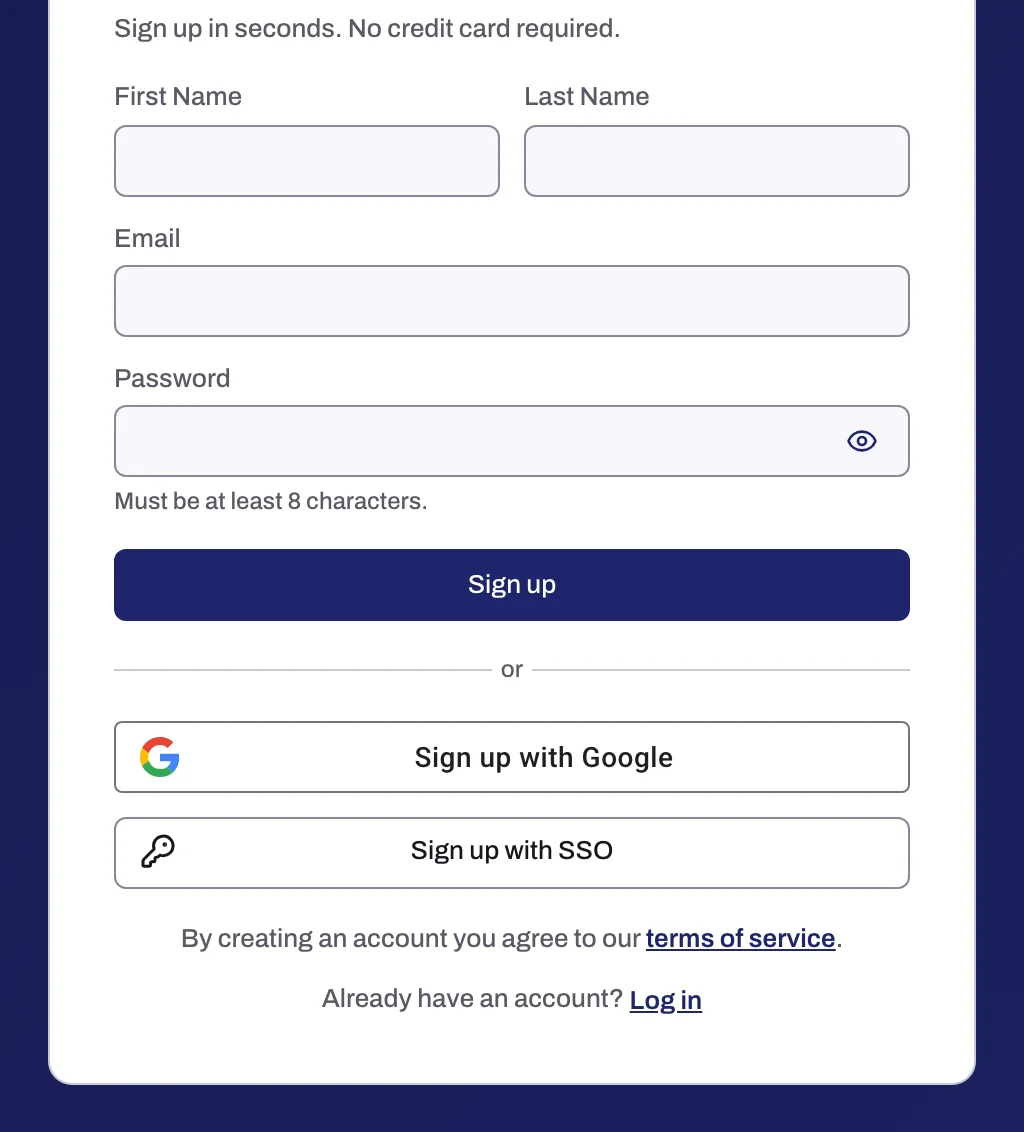
https://app.tapper.ai/register. - Fill in First Name, Last Name, Email and Password. Passwords must be 8 to 320 characters.
- Click Sign up. Under the buttons, the card reads By creating an account you agree to our terms of service.
Sign up with Google
- Click Sign up with Google and choose the Google account you want to use.
- Tapper creates your account from that Google identity. There is no password to set at sign-up.
Sign up with SSO
Use this when your company already signs in to Tapper through its identity provider.
- Click Sign up with SSO.
- Enter your Work email and click Continue. Tapper uses the domain to find your company's identity provider, where you sign in.
- To go back to the email form or to Google, click Sign up another way.
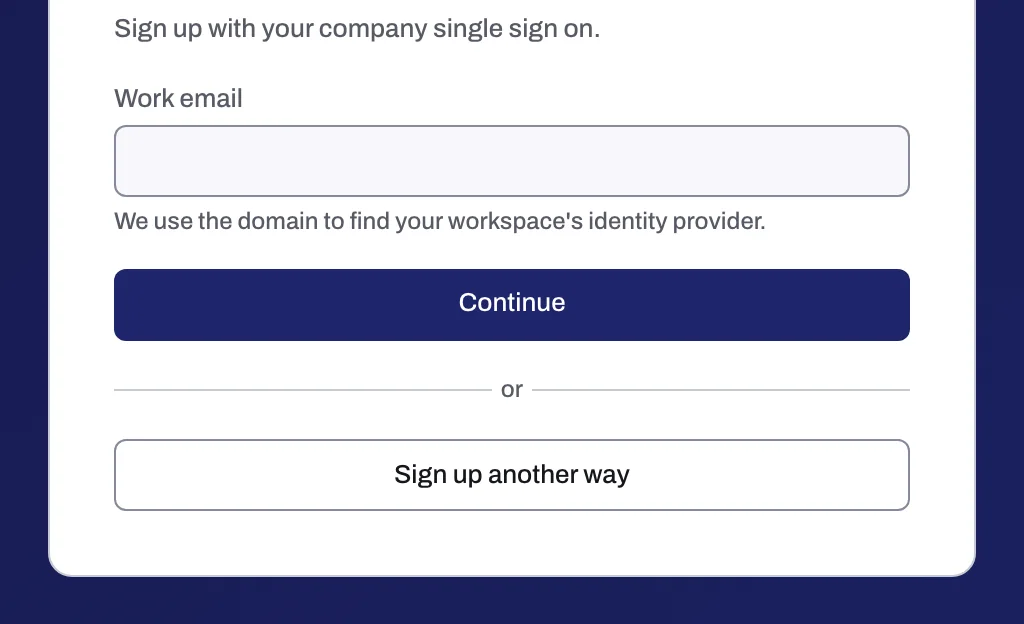
Single sign-on only works once a workspace owner or admin has set it up for your company's email domain: see Set up single sign-on (SSO) for your workspace.
What happens next
- Tapper creates a workspace named Default with you as its Owner. You give it a real name in the wizard's Name your workspace step: see Name your workspace, pick its time zone, industry and domains.
- Your free trial starts and nothing is charged. The Terms of Service at
https://tapper.ai/terms-of-serviceset the trial length. What the trial includes is in Your free trial: what it includes and what stays off. - The trial runs in monitoring-only mode. Tapper records invalid clicks and reports them, but Block does not block them yet. If you try to switch blocking on during the trial, the app answers Blocking is on paid plans. Upgrade to turn it on. See Monitoring-only mode: why nothing is blocked yet and what changes when blocking starts.
- The setup wizard follows. Its first step is Choose your products, where you pick Block + Lift or Lift only: see Choose your products: Lift only or Block + Lift. For the whole setup, see Start here: set up Block + Lift in five steps or, if you choose Lift only, Get started with Lift.
If something goes wrong
| Message | What to do |
|---|---|
| That does not look like an email address. | Check the address for a typo, for example a missing @ or a space. |
| Must be at least 8 characters. (under Password) | Choose a password of 8 to 320 characters. |
| An account with this email already exists. Log in instead | You already signed up with this address. Click the link to sign in, or use Reset a forgotten password if you do not remember the password. |
| No single sign-on is set up for this email domain. Sign up with your password, or ask your workspace owner. | Your company has no SSO connection in Tapper for that domain yet. Sign up with the form or Google, or ask whoever runs Tapper at your company. |
| Your account was not created. Try again. | Click Sign up once more. If it repeats, write to support@tapper.ai with the email address you used. |
Related
Was this helpful?
Related articles
Still need help?
Chat with our team and mention this article.